
Start your first conversation
The first time you sign in, Floatboat takes about a minute to get things ready for you, then helps with your first task.
The first time you sign in on this computer, Floatboat says hello and takes about a minute to get set up for you.
You can skip any step. If now isn't a good time, click Not now. When you're ready, click Start setup.
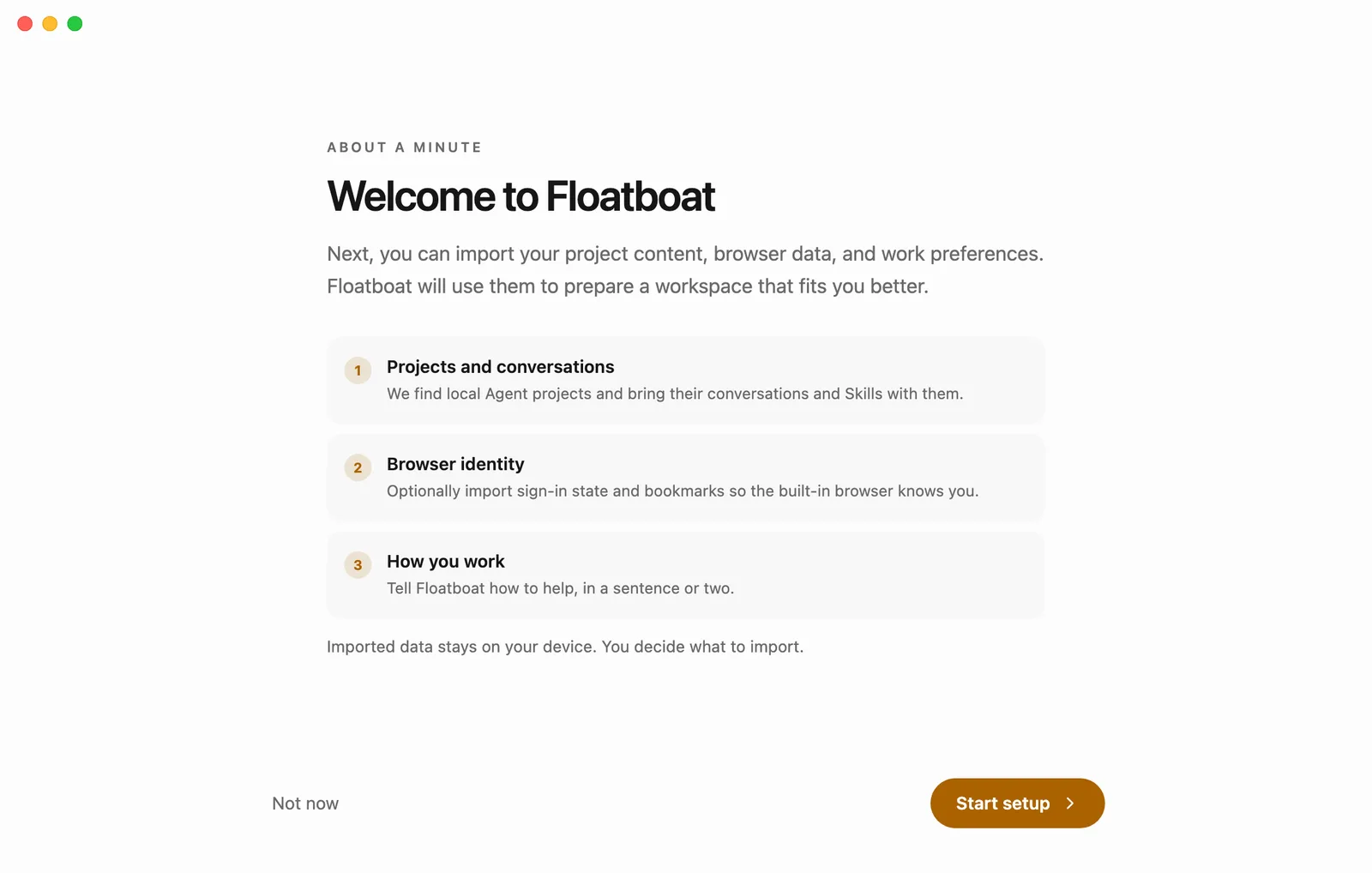
A one-minute setup
Bring along what you're working on
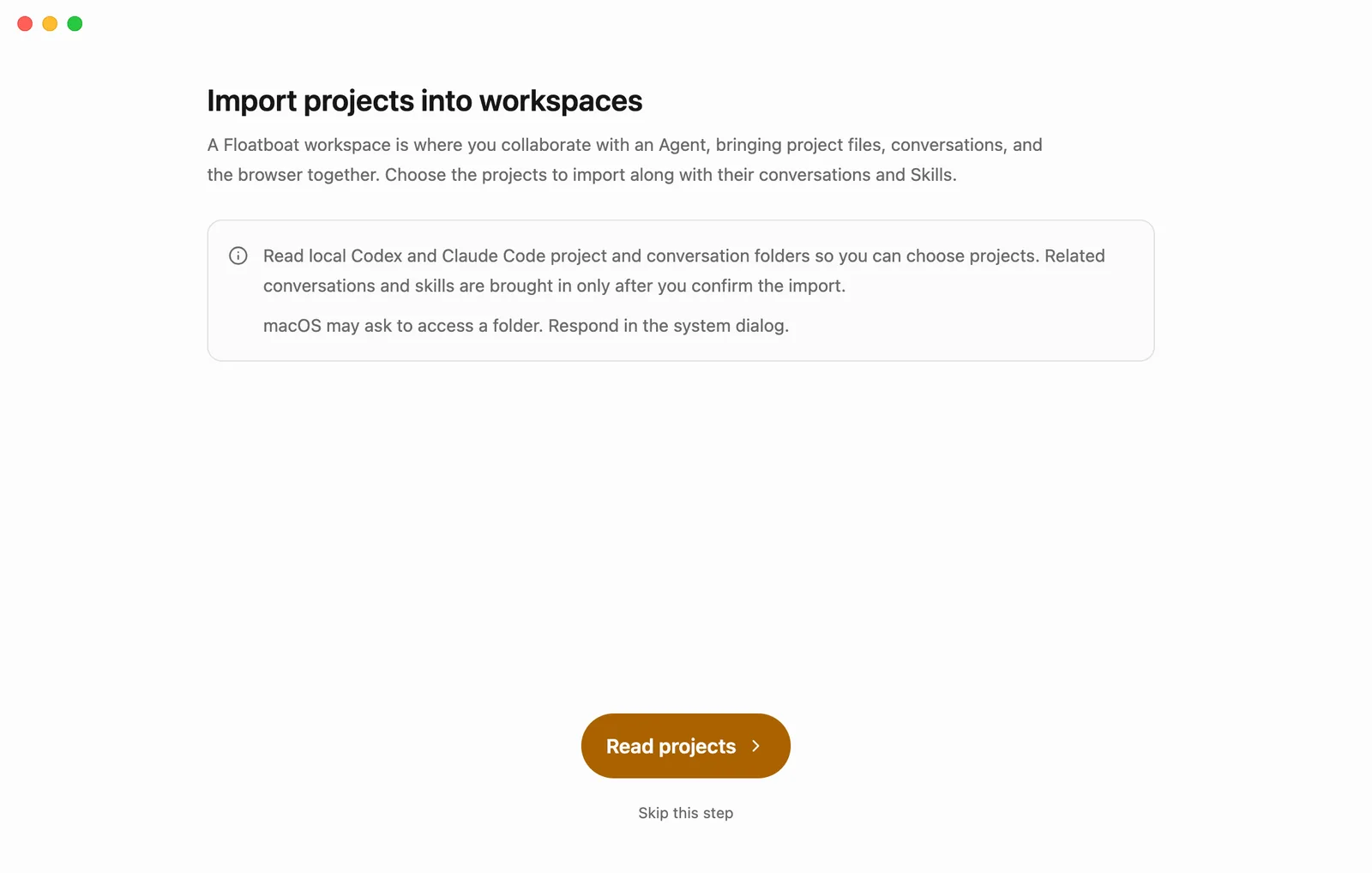
If you've used AI tools like Codex or Claude Code, click Read projects. Floatboat finds the projects you've been working on recently and brings them over along with your earlier conversations, so you can pick up where you left off. On a Mac, you may be asked whether Floatboat can access your folders. Allow it.
Never used them? That's completely fine. Click Skip this step.
Help the built-in browser recognize you (optional)
Floatboat has its own browser that it uses to look things up and get things done on websites. You can bring over sign-ins and bookmarks from the browser you normally use, so you don't have to sign in to everything again. Your history stays behind unless you choose to bring it.
Tell it a little about yourself
Write a few lines about what you do and how you like to work, then click Save and continue. For example: "I run an online store. Give me the bottom line first, then the details." The more specific you are, the better it can match how you work. You can skip this and add it later.
Start your first conversation
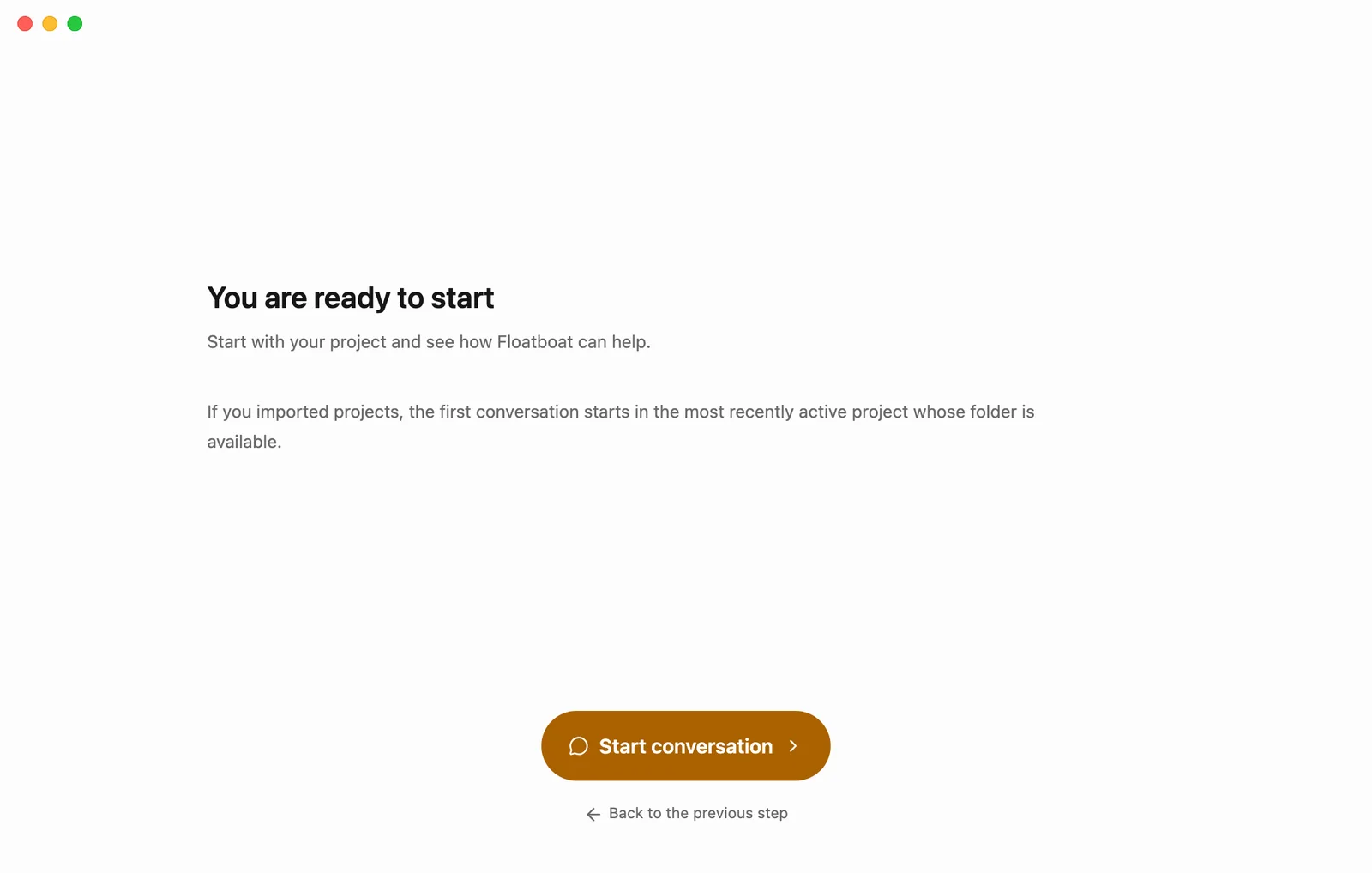
Finally, click Start conversation. You don't need to come up with an opening line. Floatboat looks through the projects you brought in, tells you what they're about, and suggests a few specific ways it can help. Pick one that sounds useful and keep the conversation going.
Your data stays on your computer
The projects, browser data, and introduction you bring in are stored only on your own computer. You decide what comes along and what doesn't.
Starting something new later
Whenever you want to start something new, click New Task at the top of the sidebar, write what you'd like done the way you'd say it out loud, and send it.
Getting better results
- Say what you want to end up with. "Turn this weekly report into five key points" gets you there faster than "take a look at this."
- Hand it the material. Drag a file into the chat box, or tell it where the file is.
- Keep the conversation going. If it's not quite right, say "shorter" or "make it more casual." It builds on what it just did instead of starting over.
It asks before it acts
Some tasks change things on your computer, like editing a file or running a program. Before a step like that, Floatboat usually stops, tells you what it plans to do, and waits for you to click Approve. While it's waiting, anything you send waits in line and won't get an answer until you decide. So if you're not sure what it means, click Deny first, then ask what it was trying to do. Once the answer makes sense, tell it to go ahead. Work on a task with Floatboat explains each button.