
Save what works as a Combo Skill
Add ready-made Combo Skills from the store, use them in any task, and save a task that went well as your own, so you don't have to explain the same job twice.
A Combo Skill is a saved way of doing a certain kind of job, so Floatboat can do it the same way every time. Instead of walking Floatboat through the same steps again, you pick the skill and only say what's different this time.
They pay off for jobs you do again and again in roughly the same way. For example:
- A student who turns each week's reading into the same comparison table, with citations.
- A teacher who plans every lesson with the same goals, activities, and short quiz.
- A salesperson who puts together a one-page brief before each client visit.
The pictures on this page follow Alex, who runs a small online store and writes a sales report every Monday.
Find Combo Skills in the store
Click Skills · Connectors in the sidebar. The Combo Skills Store opens.
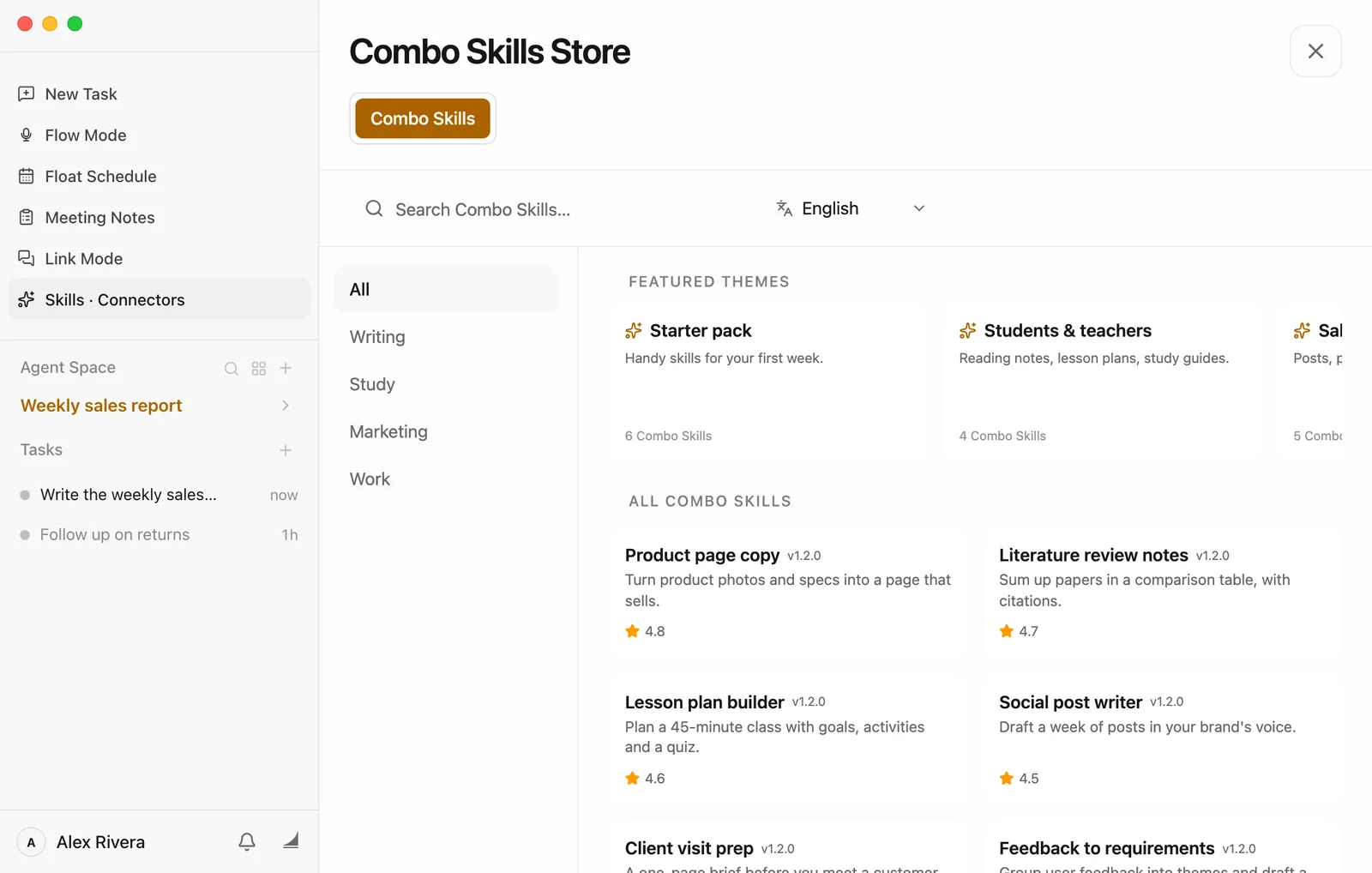
- Search with the box at the top, or pick a category on the left.
- Featured Themes are hand-picked sets, like skills for students and teachers. Click one to see what's in it.
- Click a card to open the skill's page. It tells you what the skill does, its rating, and when it was last updated.
Add a skill
Open the skill's page and click Install
The button is at the top right.
Click Install again to confirm
A small Install Combo Skill window asks you to make sure. Click Install.
Wait for it to download
The button changes to Downloading. This happens in the background, so you can go back to work. When it's done, the skill is ready in every one of your spaces.
Some skills need a few details from you before they can work, such as your shop name. See Fill in what a skill needs below.
Use a Combo Skill in a task
Click @ below the chat box
It's at the bottom left of the chat box. Hover over it and you'll see Add Combo Skills. Typing @ in the chat box does the same thing.
Pick a skill from the list
You'll see every skill you've installed or saved, each with a short description. A check mark means the task is already using it.
Say what's different this time, then send
The skill shows up as a small tag at the bottom of the chat box, and a line like Use [Weekly sales report Combo Skill] for task: appears in the chat box. Write the details after it and send.
For example, on Monday Alex adds "Oct 5–11, same format as last time." A student with a literature-notes skill might write "the three papers in the Week 6 folder." That's all Floatboat needs; the rest is in the skill.
Once you add a skill, the task keeps using it for follow-up messages too. To stop, click the × on its tag.
Suggestions while you type
In a task, Floatboat may suggest a few Combo Skills in a list under the chat box as you type. Click one to use it, or ignore the list and keep typing. To turn suggestions off, click your name at the bottom of the sidebar, choose Settings, go to Display, and switch off Show Combo Skill recommendations.
Or use the Combo Skills panel
Every space has a Combo Skills panel that lists all your skills. To open it, click the fourth icon at the top of the sidebar (Show Combo Skills). Click it again to close the panel.
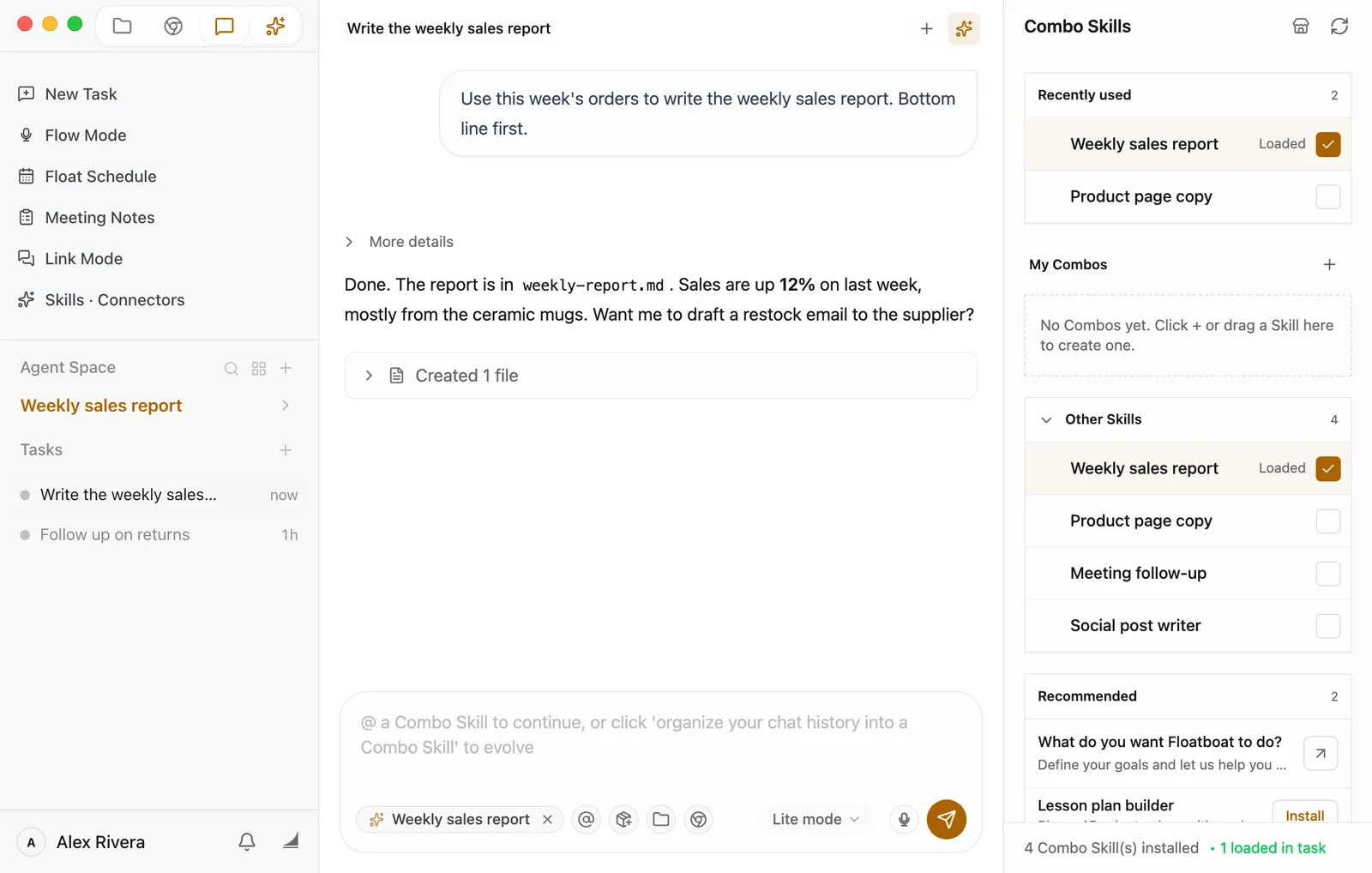
- Click a skill to add it to the task you have open. Its box gets a check and it says Loaded, and the same "Use […]" line appears in the chat box. Click it again to take it off.
- Other Skills lists everything you have. Recently used keeps the ones you reach for most near the top.
- My Combos lets you group skills you often use together. Click + next to it, or drag a skill onto it, and give the group a name.
- Recommended suggests a few skills from the store. Click Install to add one.
- Hover over a skill to see more buttons: the round i (View Details), and for skills you saved yourself, a pencil (Open editor panel).
Save a task that went well as your own Combo Skill
When a task turns out the way you wanted, save it as a Combo Skill so next time you don't have to explain it all again.
In that task, click Organize to Combo Skill
It's the small box with a plus sign below the chat box, right next to @.
Click Create
A window says Create an Owned Combo Skill from this task. "Owned" means it's yours, and you can edit it.
Find it in the Combo Skills panel
The new skill is named after the task. Here it's Write the weekly sales report, under Other Skills.
It starts as an empty outline
The new skill has the task's name, but the steps aren't written into it yet. Fill them in before you use it, as shown below.
Write the steps in, or change them later
Open the editing pane
In the Combo Skills panel, hover over your skill and click the pencil (Open editor panel). An editing pane opens on the left, over the Files panel.
Let Floatboat write the steps
This is the easiest way. In the same task, tell Floatboat something like "Write the steps we just followed into this Combo Skill." It goes back over the conversation and writes them in. If it asks whether to replace the earlier version, say yes.
Or write them yourself
In the editing pane, open combo.md in the runtime folder and describe the steps in plain words, the way you'd brief a coworker. To rename the skill or change its description, open manifest.json and edit Name and Description. Changes save on their own. Close the pane with the × at its top right.
Or ask in the chat
You can skip the button. In the task that went well, say "Save how we did this as a Combo Skill called Weekly sales report." Floatboat creates the skill and writes the steps in one go. If it doesn't show up in the Combo Skills panel right away, click the refresh button at the top of the panel.
Delete a Combo Skill
Right-click the skill in the Combo Skills panel and choose Uninstall. In the window that opens, click Uninstall again. The skill is removed from every task.
A skill from the store can also be removed with Uninstall on its store page, and you can install it again any time. A skill you saved yourself is gone for good once you uninstall it.
Fill in what a skill needs
Some Combo Skills need a few details from you before they can work, such as your shop name or a key for another service they connect to. These are called variables. You fill them in once and the skill reuses them every time. Secret values, like keys, are stored encrypted.
If something required is still empty when you add the skill to a task, a Configure window usually opens so you can fill it in right there. You can also do it ahead of time:
Open Combo Skill Variables in Settings
Click your name at the bottom of the sidebar and choose Settings. Then click Combo Skill Variables in the list on the left. It's near the bottom; typing "variables" in the search box above the list finds it faster.
Click the skill
Only skills that need variables are listed. One that's missing something says so in orange, for example 1 required variable(s) not configured.
Fill in the boxes and click Save
A red * means the box is required. The gray text under each name tells you what to enter.
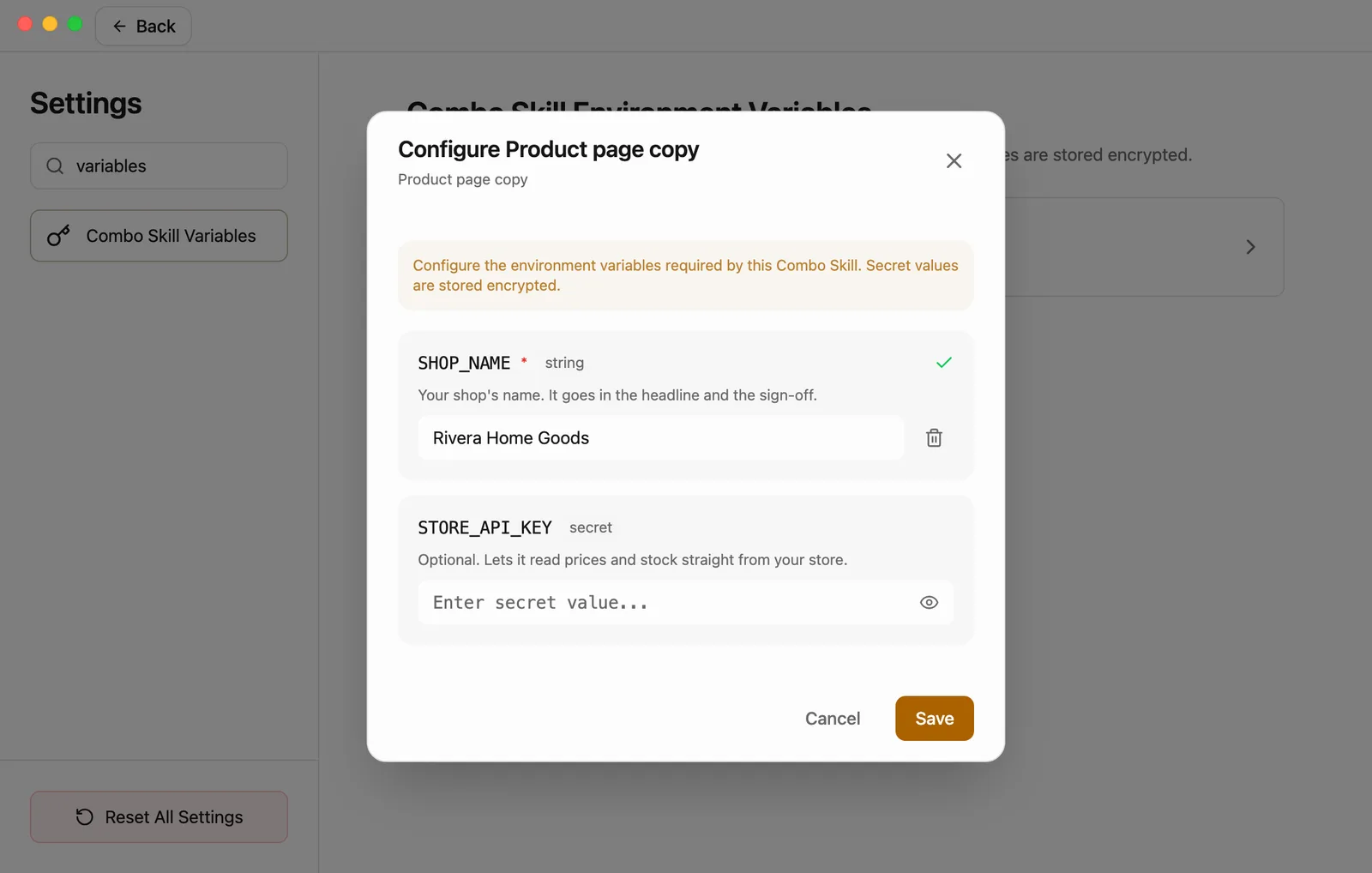
Secret values are hidden while you type; click the eye to check what you entered. The trash can clears a value. When you're done, click Back at the top left to leave Settings.
Having trouble?
- I installed a skill, but it's not in the @ list. It may still be downloading. Check its store page; if it says Downloading, give it a moment. If its row in the Combo Skills panel says Failed, hover over the row and click the retry button.
- I picked a skill and nothing happened. It probably needs a variable you haven't filled in. Go to Settings > Combo Skill Variables, look for the orange line, fill it in, and pick the skill again.
- My saved skill doesn't seem to do anything special. Skills saved with Organize to Combo Skill start empty. Write the steps in as shown in Write the steps in, or change them later.
- There's no pencil next to a skill. Only skills you saved yourself can be edited. Skills from the store can't be changed.
- The store won't load. It needs an internet connection and for you to be signed in. Check your connection and click Retry.
What's next
Work on a task with Floatboat
Start a task, follow along while Floatboat works, and step in when it asks.
Help Floatboat remember how you work
Tell Floatboat your preferences once, so every task starts from them.
Keep each project in its own Agent Space
Give each project its own space, so its files and tasks stay together.
Plan your days with Float Schedule
Keep your events in one calendar, get reminded before they start, bring in the calendars you already use, and have Floatboat get things ready ahead of time.
Give Floatboat tasks from your chat apps with Link Mode
Away from your computer? Send Floatboat on your computer a message from Slack, Lark, WeChat, and other chat apps, and get the results back in the same chat. Here's how to connect, how to use it, and how to control who can send it work.