
Plan your days with Float Schedule
Keep your events in one calendar, get reminded before they start, bring in the calendars you already use, and have Floatboat get things ready ahead of time.
Float Schedule is Floatboat's calendar. Put your events in it, and Floatboat can do more than remind you. Before a client visit it can pull your notes together. Before a parent-teacher meeting it can gather a student's grades. Before a thesis check-in it can turn your week's reading into a one-page update.
This page walks through the calendar, adding and changing events, getting Floatboat to prepare, reminders, and bringing in calendars you already use. The screenshots follow Alex, who runs a small online shop, through one week.
Open Float Schedule
Click Float Schedule in the sidebar. The page that opens is called Schedule & Automation.
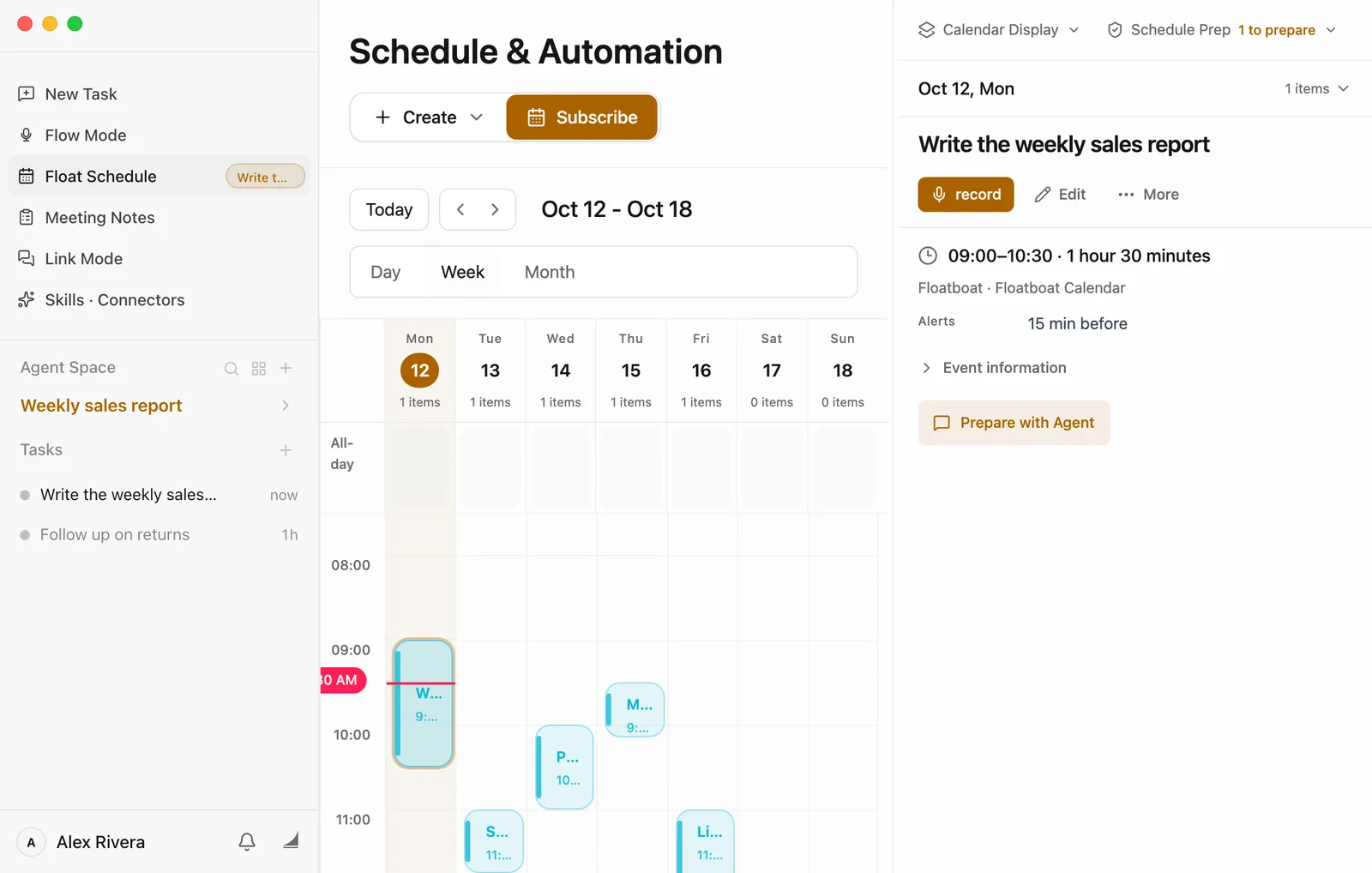
- Day, Week, and Month at the top switch how much you see at once. It opens in Month view. To change that, see Calendar settings below.
- Today jumps back to today. The arrows next to it go back and forward.
- Click the date range (like Oct 12 - Oct 18) to pick any date from a small calendar.
- Click an event to see its details on the right: time, place, alerts, and what you can do with it.
- In Week view, click a day's name at the top to pick that day. The line at the top of the right side then shows that day and how many events it has. Click the line to list them.
A window pops up the first time
The first time you open Float Schedule, Subscribe to Calendar may open by itself. It's for bringing in calendars you already use. Close it if you don't need it yet. You can always come back to it from the Subscribe button. There's more in Bring in calendars you already use.
Add an event
Pick the day
Click the day you want first. The new event starts on that day, so you'll have less to change. You can skip this and set the date in the next step.
Choose Create, then Set up manually
Create is at the top of the page. A New Schedule window opens.
Fill it in
- Title: click the big gray text at the top and type the name, like "Client visit at Northwind" or "Parent-teacher conference".
- Start Time and End Time: click the date or time to change it. Tick All-day for something that lasts the whole day.
- Repeat Rule: leave it at Does not repeat, or choose how often it comes back, like every week.
- Alert (Optional): when Floatboat should remind you. It starts at 30 min before. See Reminders below.
- Below those you can add a Group, a location, and notes. All of them are optional.
Click Create Schedule
The event shows up on the calendar. Floatboat then asks whether you'd like it to prepare for this event. Choose Enable automation to set that up now, or Cancel to keep it as a plain event. You can still set it up later.
Rather say it than fill it in? Choose Create › Create with Agent. Floatboat opens a new task in the space you're in, with a request to create an event already written in the chat box. Add what the event is and when, for example "Thursday 4 pm, parent-teacher conference, 45 minutes", and send it. Floatboat adds the event and asks whether you want it to prepare.
Change or delete an event
Click the event, then use the buttons above its details:
- Edit opens the same window you used to create it. Make your changes, then click Save Changes. Double-clicking the event does the same thing.
- More › Delete removes it. Floatboat asks first. Click Delete to confirm. If the event repeats, this removes every time it repeats.
Events you brought in from other calendars work a little differently. See What changes for events from other calendars.
Have Floatboat get ready before an event
Some events go better when you walk in prepared. Tell Floatboat what to get ready and when, and it does the work ahead of time, the same way it would in a task you gave it yourself.
There are two places to start:
- For a new event: click Prepare with Agent at the bottom left of the New Schedule window, as in the video above.
- For an event that's already on your calendar: click the event, then click Prepare with Agent in its details. Floatboat writes a first draft of the instructions for you, in a window called Start Agent Follow-Up. Read it and change anything you like.
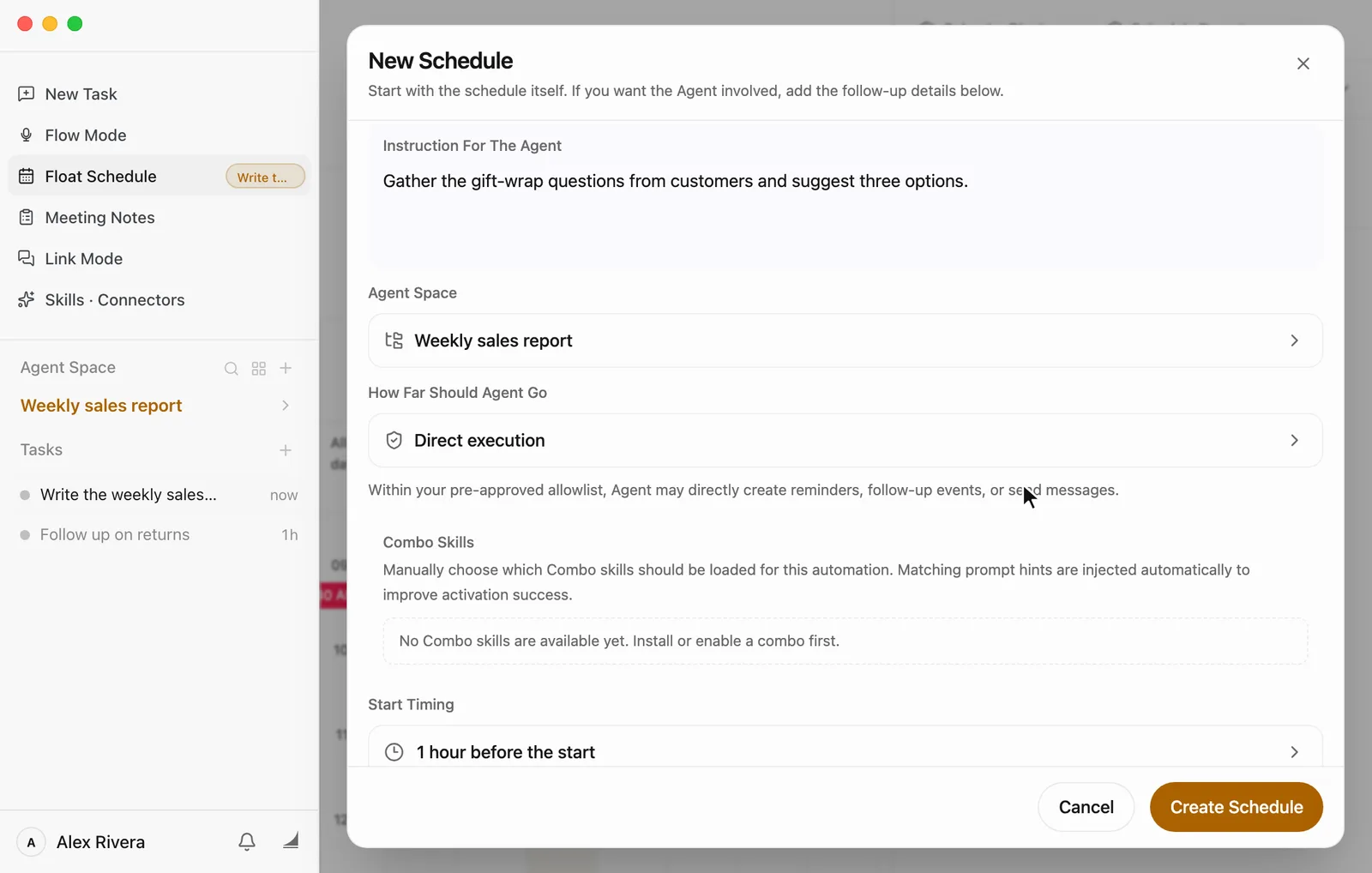
Here's what each part means:
-
Instruction For The Agent: what you want ready, written the way you'd ask a coworker. "Summarize my last three emails with Northwind and list the questions they still haven't answered." "Put together Maya's quiz scores from this term and two things to praise."
-
Agent Space: which of your spaces Floatboat works in. Its files are what Floatboat can use, and the result is saved there too. A space is where one area of your work lives, with its own files and tasks. See Keep each project in its own Agent Space.
-
How Far Should Agent Go:
- Materials only: Floatboat reads the files in this space and prepares new ones, and doesn't change anything else.
- Draft actions too: it also drafts reminders, messages, or follow-up events for you to check.
- Direct execution: within what you've already allowed, it can create reminders and follow-up events, send messages, and run commands on its own. New events start on this level, so if you're not sure, switch to Materials only.
None of the levels can go online, so put anything it needs into the space first. The first two can't run commands either, which means they can't read files like PDFs or Excel workbooks that need a command first. Word, CSV, or plain text works more reliably.
-
Combo Skills: optional. If you have a Combo Skill for this kind of job, pick it here. A Combo Skill is a saved way of doing a certain kind of job, so Floatboat can do it the same way every time. See Save what works as a Combo Skill.
-
Start Timing: when Floatboat starts working. It starts at 1 hour before the start. Click it to choose another time, like 1 day before, or 10 min after the event ends for a follow-up.
-
Current Status: Enabled means it will run. Choose Paused to hold off for now.
Click Create Schedule (or Save Agent Follow-Up) to save.
When the time comes, Floatboat starts working on its own. Three things to know:
- Floatboat needs to be open, but it can sit in the background. If it wasn't open at the start time, it runs the missed one as soon as you open it.
- It won't stop to wait for Approve. It stays within what How Far Should Agent Go allows.
- What it writes goes into the space's Auto Prep folder.
When it's done, you'll get a Task complete notification. Click it to open the task and see what Floatboat prepared. The reply says exactly where the files are. In the event's details you'll now find View Plan to see the setup, Edit Task to change it, and Run Now to have Floatboat start right away instead of waiting.
Let Schedule Prep look ahead for you
You don't have to set this up for every event yourself. Schedule Prep looks through the events coming up in the next few days. When one seems worth getting ready for, it reads the event, works out why it matters, and writes a short prep brief. It skips events you've already set up with Prepare with Agent.
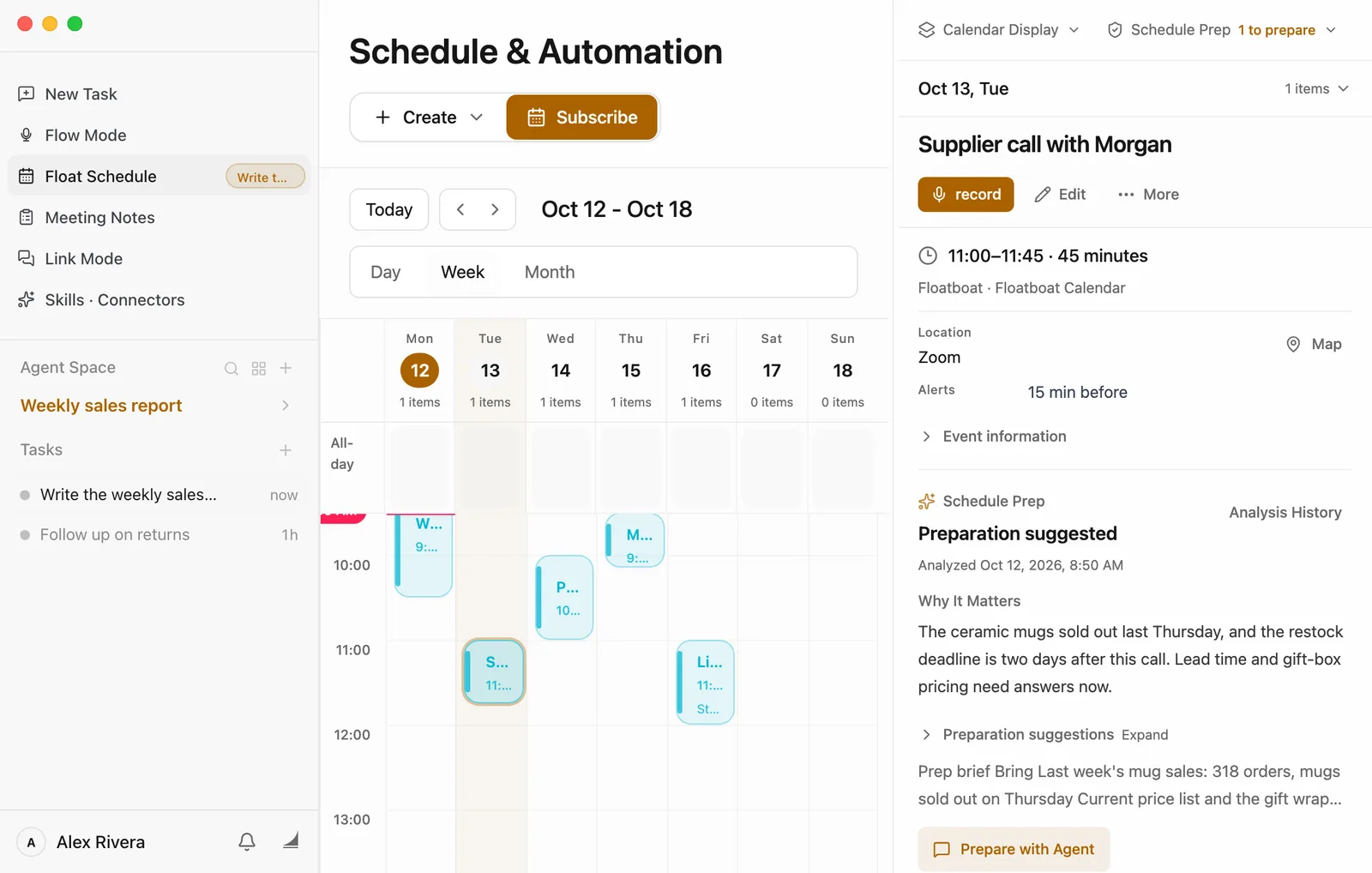
- Find its suggestions: the Schedule Prep button at the top right shows how many events it thinks you should prepare for, like 1 to prepare. Click it, then click an event's name to jump to it. In the event's details, Preparation suggestions opens the full brief. Floatboat may also send you a notification when it has something.
- Want Floatboat to do the preparing too? Click Prepare with Agent under the brief. Floatboat drafts the instructions for you, and the window shows what Schedule Prep found right next to them.
- Turn it on or off: click Schedule Prep. Next to Automatic Checks, click On or Paused to switch. It turns itself on the first time there are events on your calendar, unless you've turned it off before.
- Choose how far ahead and how often: open Check settings. Pick how far ahead it looks (Next 3 Days, This Week, or Next Week), how often it checks (every 10 min up to every 4 hours), and which space it works in. Auto Select lets Floatboat pick the space that fits each event best.
- Check right now: open Manual Check, choose a range like Today or This Week, then click Start Manual Check.
Each check uses AI, so it uses some credits. If you'd rather it used fewer, have it check less often, or set Automatic Checks to Paused.
Reminders
When you give an event an alert, Floatboat reminds you in two ways when the time comes:
- A notification from your computer, like "Event reminder: Write the weekly sales report starts in 15 minutes."
- A small tag next to Float Schedule in the sidebar, showing the event's name. It stays there until the event ends. Click it to open that day with the event selected. Right-click it and choose Hide this reminder to clear it.
To set or change an alert, edit the event and choose an option under Alert (Optional), from At event time to 2 days before, or Custom... to type any number of minutes. Choose None for no reminder.
Floatboat reminds you about events you created in Floatboat. Events from other calendars keep their reminders in the app they came from.
Bring in calendars you already use
If your events already live in another calendar, bring them in. They'll show up next to the ones you create in Floatboat, and Floatboat can prepare for them too.
Click Subscribe at the top of the page. In Subscribe to Calendar, give it a Name if you like, then choose where the events come from.
On a Mac, this brings in the events from the Calendar app on your computer. If you've added your Google, iCloud, or work account to the Calendar app, those events come along too.
- Choose Local calendar, then click Import Local Calendar.
- The first time, your Mac asks whether Floatboat can access your calendars. Allow it.
Floatboat keeps them in sync from then on, even after you restart it. Most changes you make to these events in Floatboat are saved back to the Calendar app.
TimeShop opens a page in your browser with ready-made calendars you can subscribe to.
What changes for events from other calendars
| Where the event came from | Can you change it in Floatboat? | Reminders from Floatboat |
|---|---|---|
| Created in Floatboat | Yes | Yes |
| The Mac Calendar app | Yes, and the change is saved back to the Calendar app | No, the Calendar app reminds you |
| Lark or Feishu, a link, or a file | No. Change it where it came from, and Floatboat picks it up | No, the original app reminds you |
Either way, you can click Prepare with Agent on any of them.
Show, hide, or remove a calendar
Click Calendar Display at the top right. Under Calendar Sources you'll see every calendar you've brought in.
- Untick a calendar to hide its events. Tick it again to bring them back.
- Each calendar's menu lets you change its color, refresh it now, turn it off for a while, or delete it.
- Refresh at the top checks all of them for changes right away.
Calendar settings
Click your name at the bottom of the sidebar, choose Settings, then Calendar.
- Default View: whether Float Schedule opens in Day, Week, or Month.
- Week Starts On: Monday or Sunday.
- Show Weekends: turn it off to see weekdays only.
- Show Run History: shows the times Floatboat worked on an event right on the calendar.
- Touchpad Gestures: when it's on, swipe left or right with two fingers to move back and forward, and pinch to switch between day, week, and month.
- Schedule Prep Default Agent Space: the space Schedule Prep works in when it can't tell which one an event belongs to.
- External Calendar Sync Interval: how often Floatboat checks calendar links and files for changes.
Having trouble?
- I didn't get a reminder. Check that the event has an alert and was created in Floatboat. Floatboat also needs to be open (it can be in the background). If the tag shows up in the sidebar but no notification appears, allow notifications for Floatboat in your computer's settings. On a Mac, that's System Settings › Notifications.
- My Mac calendar events don't show up. Floatboat may not have access. Open System Settings › Privacy & Security › Calendars, turn on Floatboat, and if there's an Options button, choose Full Access. Your Mac won't ask a second time, so this is the way to fix it. Then come back and import again.
- The subscription link didn't work. Make sure the whole link was copied and starts with
https://orwebcal://. Some links only work while you're signed in, and Floatboat can't open those. For Google Calendar, use the Secret address in iCal format, not the public address. - Lark or Feishu says permissions are still under review. New permissions can take a little while to take effect. Wait a bit, then click Authorize Current Account again.
- I can't edit an event. It came from a calendar Floatboat can only read. Change it in the original app, then click Refresh under Calendar Display.
- Schedule Prep sends more notifications than I'd like. Click Schedule Prep, open Check settings, and have it check less often, or set Automatic Checks to Paused.
What's next
Keep snippets at hand with Memo
Copy some text or grab a screenshot, click the Floatboat icon in your Mac's menu bar, and it's saved as a file you can hand straight to Floatboat.
Save what works as a Combo Skill
Add ready-made Combo Skills from the store, use them in any task, and save a task that went well as your own, so you don't have to explain the same job twice.