
Sign in
You sign in through your browser, and Floatboat takes you back as soon as you're done.
The first time you open Floatboat, you'll see the sign-in page.
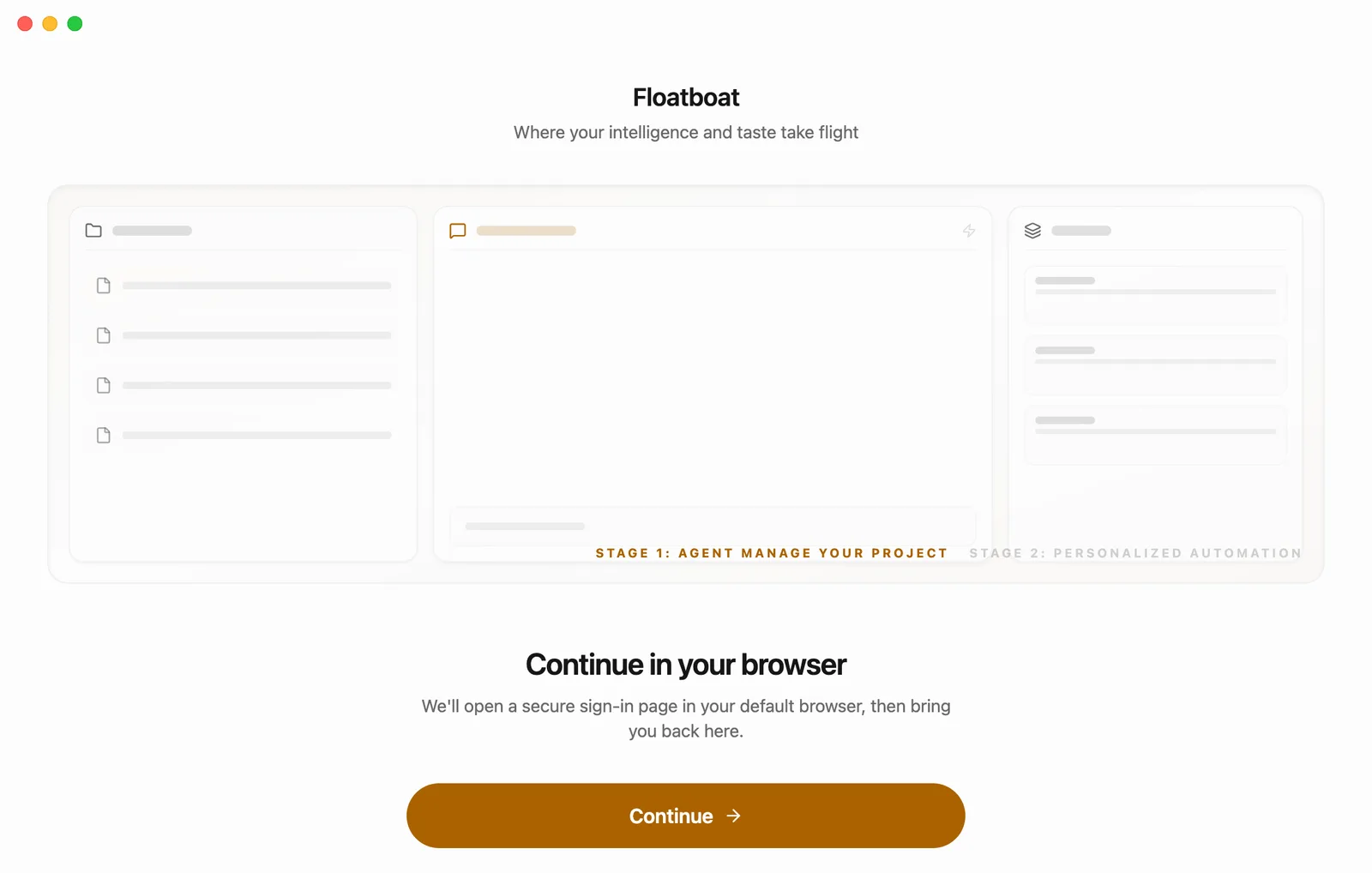
You don't sign in inside the Floatboat window. Floatboat hands sign-in off to the default browser on your computer instead. It's safer that way, and you can use an account you're already signed in to in that browser.
Click Continue
The sign-in page has a Continue button. Click it, and Floatboat opens a sign-in page in your default browser.
While the browser opens, the button reads Logging in... for a moment.
Sign in in your browser
Follow the steps on the page. If you don't have an account yet, you can create one right there.
Head back to Floatboat
Once you're signed in, your browser sends you back to Floatboat. If the browser asks whether to open Floatboat, allow it.
Having trouble?
Clicked Continue and nothing happened? It's usually one of these:
- The browser opened behind another window. Check your taskbar or Dock. The sign-in page may already be waiting in a new browser tab.
- You declined to open Floatboat earlier. If the browser asked whether to open Floatboat and you said no, go back to Floatboat, click Continue again, and allow it this time.
- The connection hiccupped. Wait a moment and try again.
One account for everything
The Floatboat desktop app and the floatboat.ai website share the same account, so you'll see the same account details on the website.