
Write by talking with Flow Mode
Say what's on your mind and watch it turn into a document as you talk. Then tidy it up, hand it to Floatboat, or send it on.
Some things are easier to say than to type: a quick email to a supplier, a plan you're still thinking through, an idea you don't want to lose. Flow Mode is for those moments. Click Start Recording, talk the way you'd talk to a colleague, and your words show up in a document as you go.
When you're done, the document is saved on your computer. You can fix it up yourself or ask Floatboat to polish it for you.
Flow Mode is for your own thinking out loud. If you want to record a meeting with other people, use Meeting Notes in the sidebar instead.
Let Floatboat use your microphone
The first time you record, your computer may ask about the microphone. It only takes a moment.
The first time you click Start Recording, macOS asks whether Floatboat can use your microphone. Allow it, and recording begins.
If you said no at some point, clicking Start Recording opens System Settings at the microphone page instead. Turn on the switch next to Floatboat, then quit Floatboat and open it again. macOS only applies the change after a restart.
You'll need to be online
Floatboat turns your speech into text over the internet, so keep your connection on while you record.
Start talking
Open Flow Mode
Click Flow Mode in the sidebar. Floatboat opens a fresh, blank document, with a small panel in its top-right corner that says Start Recording.
The very first time, a picture pops up showing what Flow Mode can do. Have a look, then click Don't show again.
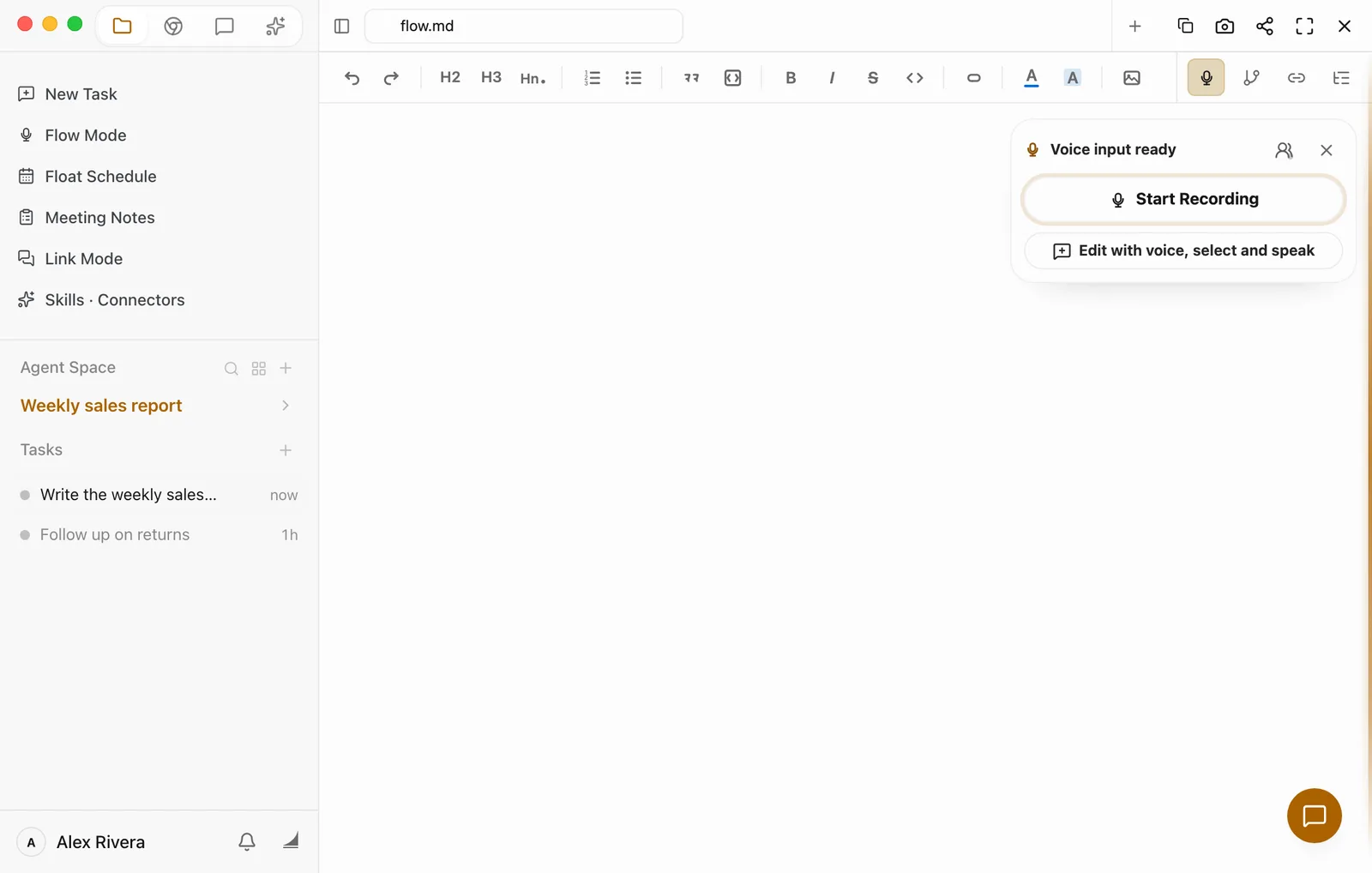
Click Start Recording and talk
Talk at your normal pace, and don't worry about saying the punctuation. The sentence you're in the middle of shows up right away and settles into place once you finish it.
Keep an eye on the recording
While you're recording, the panel shrinks to a round microphone button in the top-right corner. A small dot appears next to Flow Mode in the sidebar and in front of the document's name, so you can tell it's still listening.
You can switch to something else in the meantime. Clicking Flow Mode in the sidebar always takes you back to the document that's recording.
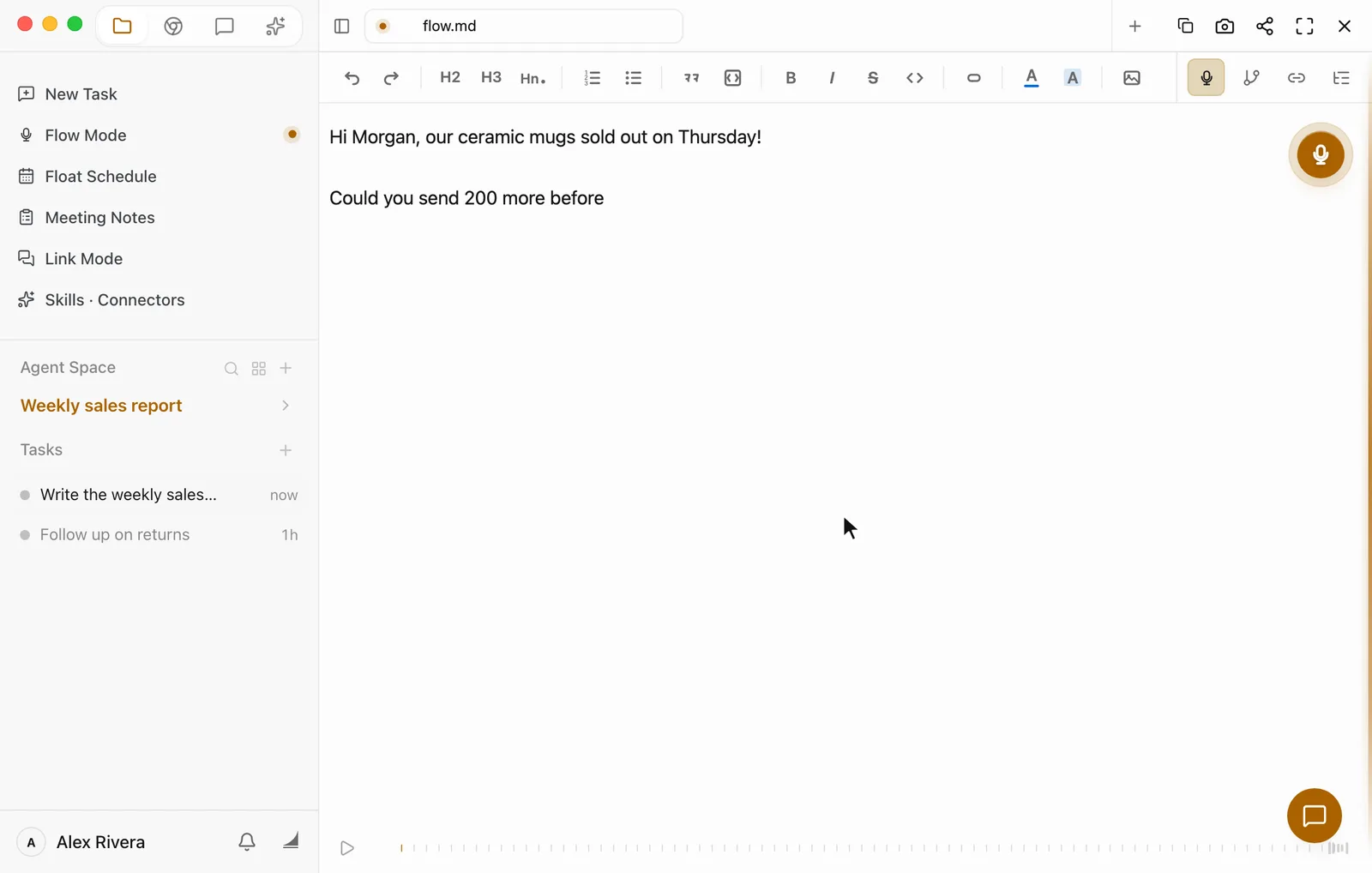
Stop when you're done
Click the round microphone button. Recording stops and the panel comes back with Start Recording.
Need a break? There's no separate pause button, and you don't need one. Stop, and when you're ready, click Start Recording again. Whatever you say next is added to the end of the same document.
Fix and polish what you said
What you get is an ordinary document. Click anywhere in it and type to fix a word, add a heading, or move things around.
- Typing while you're still recording? Floatboat won't write over you. New speech waits in a Voice buffer box in the panel. When you're ready, click Insert at end or Insert at cursor.
- Want Floatboat to do the editing? Click Edit with voice, select and speak. Select a sentence and say how you'd like it changed, for example "Make this a little more polite." Each thing you say becomes an annotation in the panel. If you don't select anything, the annotation applies to the whole document. Look them over (you can edit the text, or remove one with the trash icon), then click Send to Agent. The Chat panel opens on the right, and Floatboat makes the changes in your document.
- Changed your mind? Floatboat keeps every version. Click the Version history button in the editor's toolbar (the branch icon next to the microphone), pick an earlier version, and click Restore this version. Stop recording first; you can't restore while it's listening.
Find your documents later
The first time you stop recording, Floatboat reads what you said and gives the document a name, like "Restock email to supplier". Until then it's called "flow". Prefer another name? Hover over the name at the top of the document and click the pencil icon (Rename document), or double-click the name.
To get back to earlier documents, click Flow Mode in the sidebar, then click Expand navigation at the top-left of the document. The list on the left shows only your Flow Mode documents: Recent Files at the top, then everything else grouped by date. Want another blank document while one is open? Click the + in the top-right corner, to the left of Copy file. Hover over it and you'll see New document.
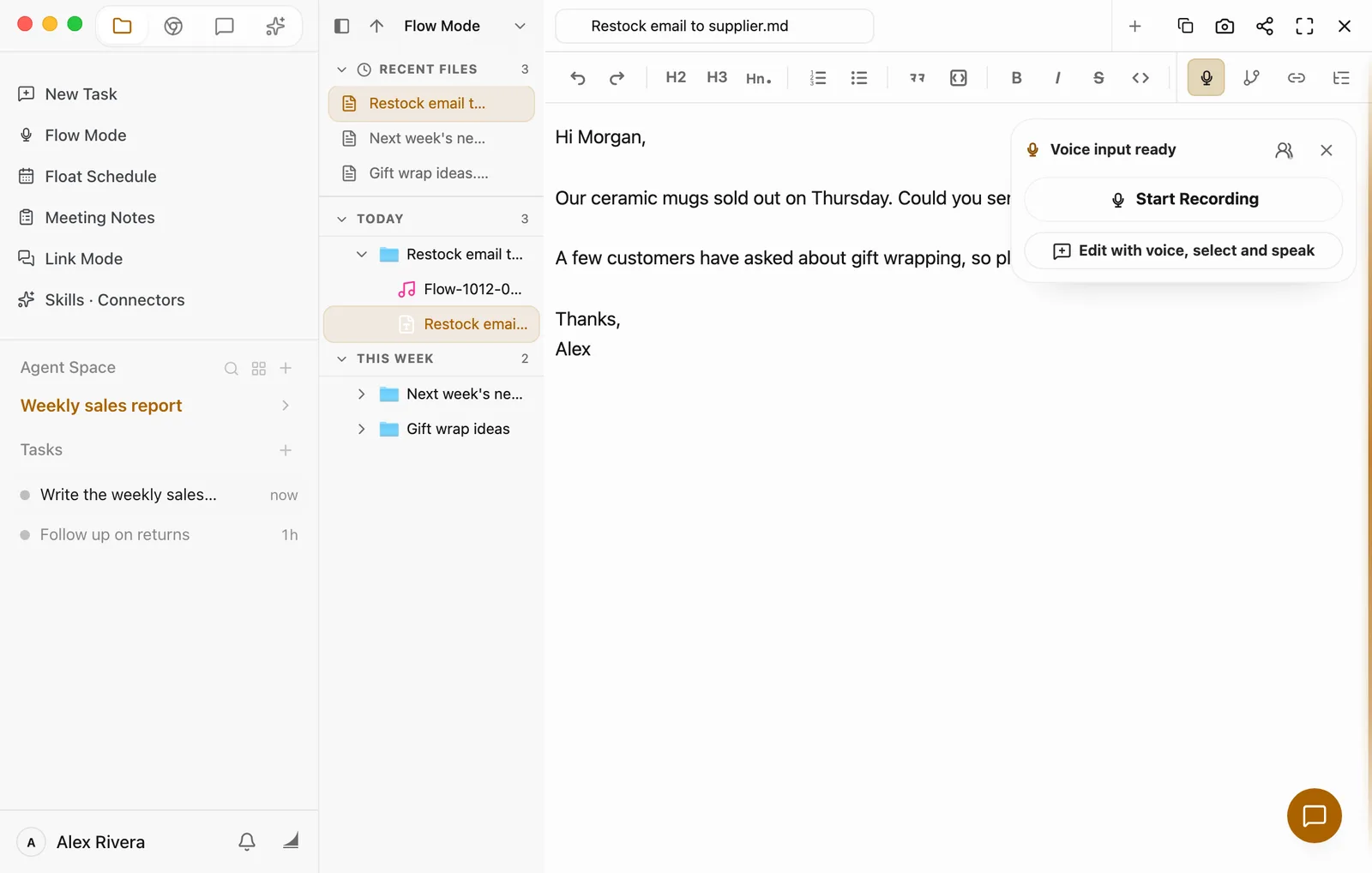
Every document gets its own folder on your computer, with the recording saved next to it as a .wav file, so you can listen back later:
- Mac:
floatboat/memo/Flow Modein your home folder - Windows:
C:\Users\<your user name>\floatboat\memo\Flow Mode
If you use Floatboat in Chinese, the folder is called 心流模式 instead.
Take it further
- Hand it to Floatboat. Select the part you want (or all of it). A small toolbar pops up. Click Chat, and the Chat panel opens on the right with that text attached. Then say what you'd like, such as "Turn this into a formal email."
- Copy it. Select the text and copy it as usual. To pass along the whole file, for example as an email attachment, click Copy file in the top-right corner of the document, then paste it wherever you need it.
- Use it in other apps. There's no separate export button, and you don't need one. Each document is a regular Markdown (
.md) file in the folder above, so you can open it or send it like any other file.
Flow Mode or the microphone in the chat box?
The chat box has its own microphone button. Use that when you'd rather say a request than type it: your words go into the chat box, and you send them as a message. Use Flow Mode when you're writing something longer: your words go into a document that's saved, and you can keep working on it. For more on the chat box, see Work on a task with Floatboat.
Having trouble?
- I clicked Start Recording, but Settings opened instead. Floatboat doesn't have microphone access yet. Turn it on as described in the microphone section near the top of this page. On a Mac, quit and reopen Floatboat afterwards.
- It says "Another document is recording." Only one document can record at a time. Click View recording document to go to it, or Stop and record here to save and stop that recording and start in this document.
- The Start Recording button is gone. If annotations are waiting in the edit panel, send them with Send to Agent or click Clear, and the button comes back. If you closed the panel, click the microphone button in the editor's toolbar to open it again.
- The recording stopped by itself. If your connection drops, Floatboat tries to reconnect on its own. If it can't, the panel tells you the recording was interrupted and shows Resume recording. Everything you've said so far stays in the document.
- A "Recording is still active" reminder popped up. You've been recording for an hour, so Floatboat checks that you meant to, and it asks again every half hour after that. Click Continue recording to carry on, or Stop voice input to stop.
What's next
Browse and get things done in the built-in browser
Floatboat has its own browser. Here's how to open it, sign in to websites, and have Floatboat look things up or fill things in on the web for you.
Take notes in every meeting
Click Start recording and Floatboat writes down what everyone says, one speaker at a time. Afterwards, put names to the speakers and have Floatboat pull out a summary and action items.