
Work on a task with Floatboat
Start a task, tell Floatboat what you need, follow along while it works, and step in when it asks for your OK.
Everything you ask Floatboat to do happens inside a task. A task keeps your request, each step Floatboat takes, and its replies in one place, so you can come back to it tomorrow and pick up where you left off.
This page walks through one task from start to finish. The example is a weekly sales report for an online store.
Start a new task
Click New Task at the top of the sidebar. A task called New Task appears in the Tasks list, and an empty chat box opens on the right.
Every task belongs to an Agent Space. Think of a space as the project the work is for: its files and all of its tasks live together. The new task goes into the space you're in right now, which is the one highlighted under Agent Space in the sidebar. To learn more, see Keep each project in its own Agent Space.
Not sure what to ask?
Below the chat box there's a What can you do for me? button. Click it, and Floatboat looks through the files in this space and suggests a few specific ways it can help.
Write your request and send it
Type what you need the way you'd say it to a coworker. For example: "Use this week's orders to write the weekly sales report. Bottom line first."
- Press Enter or click the paper-plane button to send.
- Press Shift + Enter to start a new line without sending.
- To hand it a file, drag the file into the chat box.
Say what you want to end up with, and name the files it should use. "Turn orders-this-week.csv into a one-page summary" works better than "take a look at this."
The buttons along the bottom of the chat box
From left to right:
- @: pick a Combo Skill. A Combo Skill is a saved way of doing a certain kind of job, so Floatboat can do it the same way every time. Typing @ in the chat box does the same thing. Hover over the button and you'll see Add Combo Skills.
- The small box with a plus sign (Organize to Combo Skill): when a task turns out well, click it, then Create. You get your own Combo Skill, named after the task. It starts out empty, so in the same task, ask Floatboat to write down how it was done. Save what works as a Combo Skill walks through it. After that, you can @ it next time.
- The folder: shows or hides the Files panel, where this space's files are. You can pick files there or drag them into the chat box.
- The round browser icon: shows or hides Floatboat's built-in browser.
- The model button on the right (it may say Lite mode): chooses which AI model Floatboat uses for this task. If you're not sure, leave it as it is.
- The microphone: talk instead of type. Click it, speak, then click again to stop. Your words show up in the chat box, so you can check them before sending. The first time, your computer may ask whether Floatboat can use the microphone. Allow it. On a Mac you can also hold down the right Command key while you talk and let go when you're done.
- The paper-plane button: sends, the same as pressing Enter. While Floatboat is working, it turns into a black square stop button.
Watch it work
As soon as you send, Floatboat gets going. You can see each step as it happens: what it plans to do, which files it reads, and what it's writing. A step with a spinning circle next to it is still in progress.
When it's finished, the steps fold up into More details so the answer is easy to read. Click More details whenever you want to see what it did.
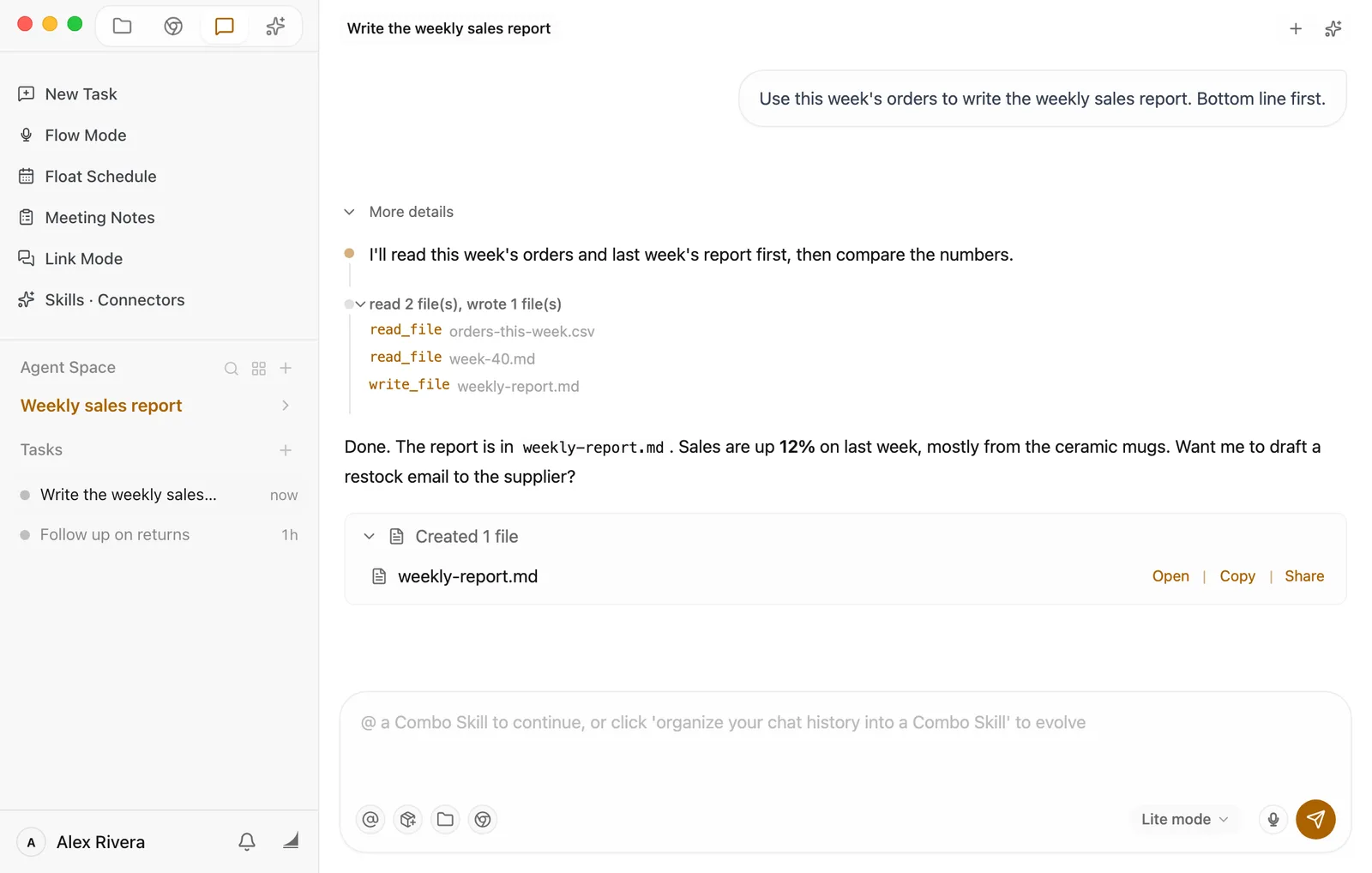
If it created or changed files, a card like Created 1 file appears under its reply. Click the card to see the files:
- Click a file name, or Open, to open it in Floatboat.
- Copy copies the file itself, so you can paste it into an email or a chat.
- Markdown and web page files also have Share, which turns the file into a link you can send to someone.
When it asks for your OK
Some steps change things on your computer, like writing a file or running a command. Before a step like that, Floatboat may stop and show a Permission Required panel. It waits for you, so there's no rush. If you're in another task, the dot next to this task in the sidebar turns yellow and blinks. (A pale-yellow dot that doesn't blink, or a green one, only means it's still working.)
The panel says what kind of step it is, such as File Write. Click Details and Command Preview to see exactly which file or command is involved. Then choose:
- Approve: go ahead with this step.
- Deny: don't do it. Floatboat stops this round. Tell it what you'd like instead and send again.
- Remember: check this before you click Approve, and Floatboat won't ask again before this kind of step (writing files, for example), in any task. If you're not sure, leave it unchecked.
- Auto-Approve All: from now on, Floatboat won't ask before any step, in any task. Only use this if you're comfortable with that.
Once you approve, Floatboat picks up right where it stopped.
Still not sure after reading the details? Click Deny, then ask it what it was trying to do and why. Once you're happy with the answer, tell it to go ahead.
Add something or stop it partway
You don't have to wait for it to finish before saying more.
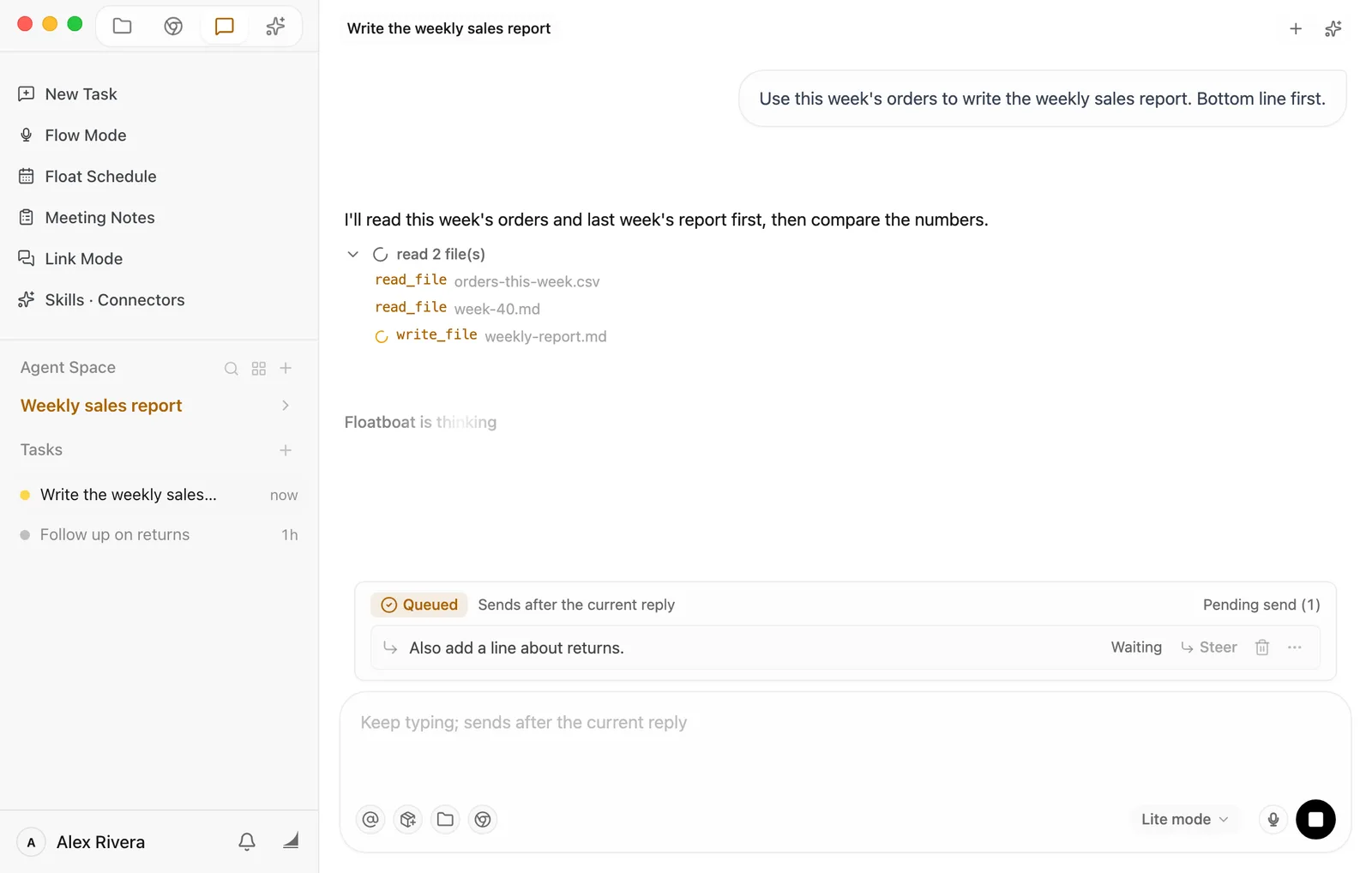
- To add something, type it in the chat box and press Enter. Your message waits above the chat box, marked Queued, and goes out as soon as the current reply is done. Want it to go out now instead? Click Steer next to it. The trash can takes it back out of the queue.
- To stop, click the black square at the right of the chat box (Stop generating). Floatboat stops this round, and anything you had queued goes back into the chat box so you can edit it. Then tell it what you want instead.
Come back to a task later
The Tasks list in the sidebar shows the tasks in the space you're in, most recent first. Click one to open it. Everything is still there, so you can carry on talking.
- Can't find it? It may be in another space. Click the Tasks heading to open Task Overview, which shows tasks from all of your spaces and lets you search them.
- To tidy up, right-click a task. You can Rename, Archive chat, Move to... another space, or Delete it. Archiving tucks the task away. You'll find it again in Task Overview under Archived. Deleting is permanent.
Having trouble?
- I pressed Enter and nothing was sent. If you're typing with an input method that suggests words, the first Enter picks the word. Press Enter again. If the chat box is empty, the paper-plane button looks faded and can't be clicked.
- It's been a while and nothing is happening. Scroll to the bottom of the task. It may be waiting for you in a Permission Required panel.
- I clicked Deny by mistake. No problem. Tell it "Go ahead and write the file" and send.
- I clicked Auto-Approve All and want it to ask again. Click your name at the bottom of the sidebar, choose Settings, go to Permissions, and pick Ask Every Time.
- An old task is gone from the list. Click the Tasks heading to open Task Overview. If you archived it, look under Archived.
What's next
Keep each project in its own Agent Space
Give each project its own space, so its files and tasks stay together.
View and edit your files
Find files in the Files panel, open them, and hand them to Floatboat.
Browse and get things done in the built-in browser
Open the built-in browser and let Floatboat look things up for you.
Start your first conversation
The first time you sign in, Floatboat takes about a minute to get things ready for you, then helps with your first task.
Keep each project in its own Agent Space
Give every project its own space, so its files, web pages, and tasks stay together. Here's how to create, switch, and tidy up spaces, and arrange the panels inside them.