
Keep snippets at hand with Memo
Copy some text or grab a screenshot, click the Floatboat icon in your Mac's menu bar, and it's saved as a file you can hand straight to Floatboat.
You're reading a web page or an email and spot something you'll need later. That's what Memo is for. Copy it, click the Floatboat icon in the menu bar at the top of your screen, and it's saved as a file on your computer. If you want something done with it right away, hand it to Floatboat from the same spot. You never have to switch back to the main Floatboat window.
A few ways people use it:
- A student copies the abstract of a journal article into their thesis folder, then asks Floatboat at the end of the week to turn everything they've collected into reading notes.
- A marketer grabs a screenshot of a competitor's ad and asks Floatboat for three ways to pitch the same idea on social media.
- A freelancer copies a client's brief out of an email and later has Floatboat draft a quote from it.
In the pictures on this page, Alex copies a supplier's price quote from their website, saves it with Memo, and hands it to Floatboat.
Mac only for now
Memo lives in the menu bar at the top of your Mac's screen. On Windows there's a Floatboat icon at the bottom right of the taskbar too, but clicking it only opens the main window, and right-clicking only offers Quit Floatboat. Memo's saving tools aren't there.
Turn Memo on or off
Memo is on by default. If you can see the Floatboat icon in the menu bar at the top right of your screen, with the word Floatboat next to it, it's working.
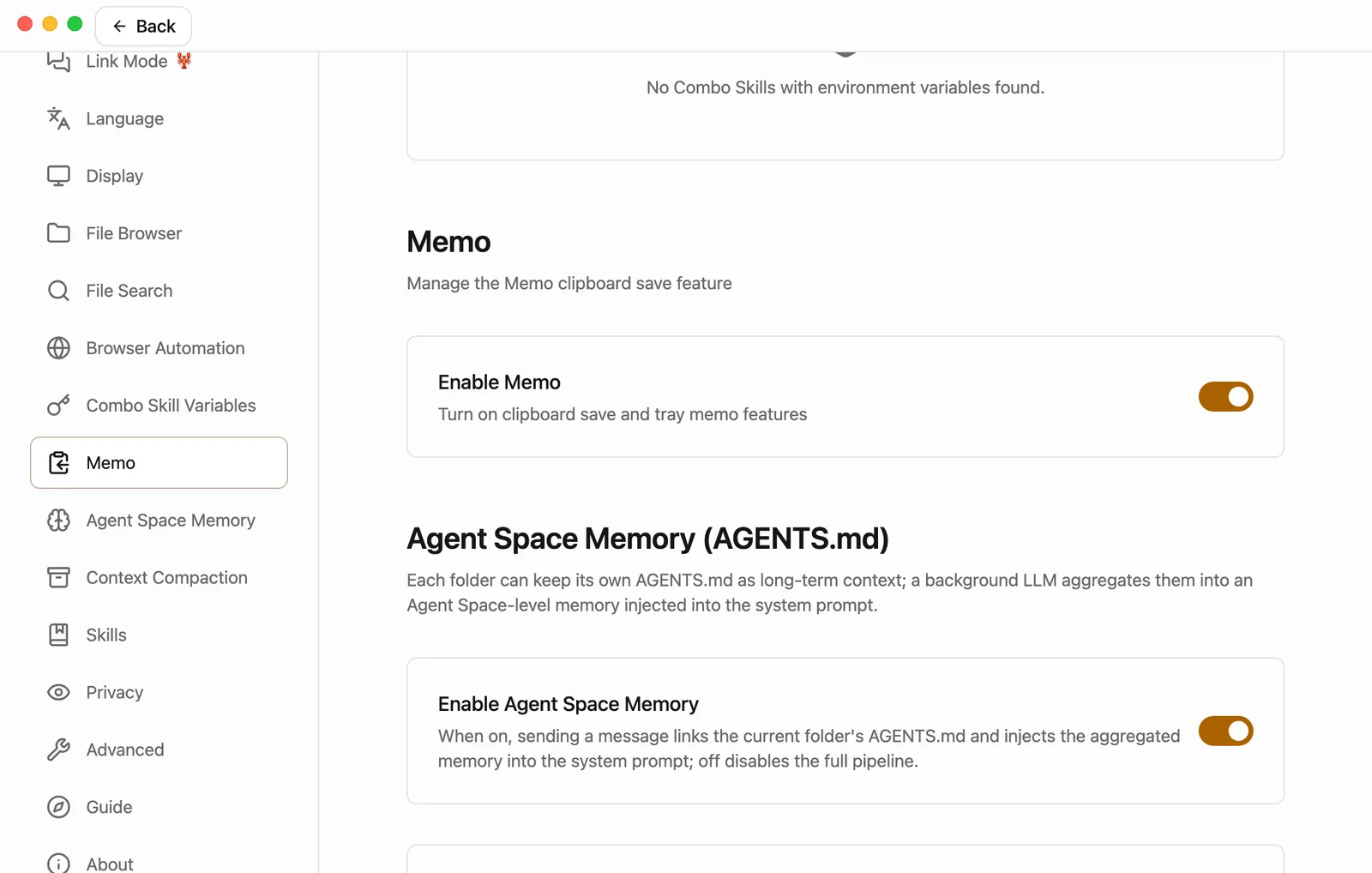
To turn it off or back on, click your name at the bottom left of the sidebar and choose Settings. Click Memo in the list on the left and flip the Enable Memo switch. It takes effect right away, no restart needed. When Memo is off, the Floatboat icon leaves the menu bar too.
Save something you've copied
Copy it the way you always do
Select text on a web page or in an email and press ⌘C, select a file in Finder and press ⌘C, or press ⌘⇧⌃4 to put a screenshot on the clipboard. A green dot starts blinking on the Floatboat icon in the menu bar. That means Memo noticed.
Click the Floatboat icon in the menu bar
While the dot is blinking, click the icon. A small window opens titled Save clipboard content and invoke Agent. Across the top is a row of folders. The first one, memo, is a folder Floatboat sets up for you. After it come folders you've saved to recently or just used in Finder, and last is Select Other.
The dot stops after about 30 seconds. If you click the icon after that, you'll see a short how-to instead of the folders. Copy the content again and you're back on track.
Click a folder
Whichever folder you click is where it's saved. The small window then changes to Text Saved (or Image Saved for a picture, File Saved for a file), with the new file's name and its folder on the first line.
To save somewhere else, click Select Other and pick a folder in the window that opens.
Here's how the saved files are named:
- Text is saved as
memo_date_time.txt. Formatted text copied from a web page (with headings, lists, tables, or links) is saved as a Markdown file,memo_date_time.md, so the formatting comes along. - Screenshots and pictures are saved as
image_date_time.png. - Files you copied are copied over as they are, with the same name. If a file with that name is already there,
_1,_2, and so on are added to the end.
Copying on its own doesn't save anything. Nothing is written until you click the icon and pick a folder.
Or drag it over
Drag selected text, a picture, or a file onto the Floatboat icon in the menu bar, and the same small window opens. Keep dragging onto one of the folders and let go to save it there. You can also let go right on the icon and then click a folder.
Hand it to Floatboat right away
The Text Saved window gives you three ways to keep going:
- Say what you want. Type your request in the Send task box and press Return. Floatboat opens its main window, starts a new task with the file you just saved, and gets going.
- Take a look first. Click the line with the file name. Floatboat opens its main window, starts a new task, selects the file in the Files panel, and puts it in the chat box. Add what you'd like done and send it. A Combo Skills panel also opens on the right in case you'd rather pick one.
- Use a Combo Skill. A Combo Skill is a saved way of doing a certain kind of job, so Floatboat can do it the same way every time. Combo Skills you've installed or saved are listed under Combo Skills at the bottom. Click one and Floatboat starts on the file the way that skill does it. Want to add a note? Point at the skill, click the pencil that appears (Add description), type it, and press Return. Market next to the list opens the Combo Skills store in your browser.
Here's what happens after you click the line with the file name:
Tasks you start from Memo all go into an Agent Space called Memo. An Agent Space is where Floatboat keeps one piece of work together, with its own files and tasks. Floatboat creates the Memo space the first time you hand something over from Memo, and you can find it by switching spaces in the sidebar. To learn how, see Keep each project in its own Agent Space.
You don't have to save first
If you've installed or saved any Combo Skills, the first small window lists them under the folders too. Click one and you're done. Copied text goes straight to Floatboat as the request. A screenshot is saved to the memo folder first and then handed over.
Get back to a task you sent
Click the menu bar icon when you haven't copied anything new, and the small window shows Recent Tasks at the bottom: the last few tasks you sent straight from Memo (by typing a request or clicking a Combo Skill), with how far along each one is. Click one to jump back to it. Open Main Window above it brings up the main Floatboat window.
Use it later
What Memo saves is an ordinary file in the folder you chose, so you can come back to it whenever you like.
If you saved it into a space's folder, go to that space and you'll see it in the Files panel. Right-click it and choose Add to Chat, or drag it into the chat box, then say what you need. Alex, for example, saved the quote into the Weekly sales report folder and asked Floatboat to work it into the report the next day:
For more ways to give Floatboat a file, see View and edit your files.
What else is in the memo folder
The default memo folder is floatboat/memo in your home folder. In Finder, choose Go › Home from the menu bar and you'll see the floatboat folder.
Flow Mode and meeting notes keep their documents here too:
- Documents you write with Flow Mode are in the
Flow Modefolder (心流模式if you use Floatboat in Chinese). - Meetings you record from Meeting Notes in the sidebar are in the
Meeting Notesfolder (会议纪要in Chinese).
Neither depends on the Memo switch. They keep working with Memo off, and on Windows too, where the folder is C:\Users\<your user name>\floatboat\memo.
Is what I copy kept private?
- While Memo is on, Floatboat glances at the clipboard twice a second, only to notice when you've copied something new. What it sees stays on your computer.
- It isn't saved as a file unless you click the icon and pick a folder. It isn't sent anywhere unless you hand it to Floatboat (send a task, click a Combo Skill, or put it in the chat box). Once you do, it's treated like anything you type in the chat box and goes to Floatboat's AI model to be worked on.
- If you copy a password or something similar, the dot still blinks. Leave it alone and it stops after 30 seconds. As long as you don't save it, it won't become a file or be sent anywhere.
- If you'd rather Floatboat didn't look at your clipboard at all, turn off Enable Memo in Settings.
Having trouble?
I can't find the Floatboat icon in the menu bar. First check that Enable Memo is on in Settings. If it is and you still can't see the icon, the menu bar may be too crowded to show it, which happens more on MacBooks with a notch. Quit a few menu bar apps you don't need and it should appear.
I clicked the icon and got a how-to instead of the folders. Floatboat didn't see anything newly copied, or more than 30 seconds have passed. Copy it again. If it's the same thing you copied a moment ago, copy something else first and then copy it again.
I copied a folder and nothing happened. Memo saves files, not folders. Open the folder, select the files inside, and copy those.
I can't find Memo on Windows. Memo is Mac only for now. On Windows, save what you need as a file in a space's folder, then hand it to Floatboat the ways described in View and edit your files.
What's next
View and edit your files
Find the files you saved in the Files panel, open them, tweak them, and hand them to Floatboat.
Save what works as a Combo Skill
Save a job you do often as a Combo Skill and use it from Memo with one click.
Write by talking with Flow Mode
Talk into the mic and Floatboat writes it up as a document in your memo folder.
Take notes in every meeting
Click Start recording and Floatboat writes down what everyone says, one speaker at a time. Afterwards, put names to the speakers and have Floatboat pull out a summary and action items.
Plan your days with Float Schedule
Keep your events in one calendar, get reminded before they start, bring in the calendars you already use, and have Floatboat get things ready ahead of time.