
Browse and get things done in the built-in browser
Floatboat has its own browser. Here's how to open it, sign in to websites, and have Floatboat look things up or fill things in on the web for you.
Floatboat has a browser of its own. It opens right next to the chat, inside the Agent Space you're working in. You can browse with it yourself, or ask Floatboat to open a website, check prices, or fill in a form for you.
If you sign in to a site in this browser, Floatboat can use it too. You never hand over your password. Floatboat sees the page the same way you do, already signed in.
Open the browser
Click the browser icon at the top of the sidebar
There's a row of four small icons at the very top of the sidebar. The second one from the left is the browser. Hover over it and you'll see Show Browser. Click it and the browser opens next to the chat. Click it again to put it away.
The row of small buttons under the chat box has the same browser icon, so use whichever is closer. You can also press ⌘⇧B on a Mac or Ctrl+Shift+B on Windows.
Go to a website
Click the address bar at the top of the browser, type an address, and press Enter. Don't know the address? Type what you're looking for, like "ceramic mugs wholesale," and it'll search for you.
It works like the browser you already use
- Back, forward, reload: the small buttons to the left of the address bar.
- More than one page: click + (New Web Tab) on the right of the tab bar. Click a tab to switch to it. To close one, hover over it and click the × that appears.
- Bookmarks: the bookmark icon to the right of the address bar.
- More options: the ⋮ button on the far right has History, Fullscreen, and Browser Settings.
- Done for now: click the button at the far right of the tab bar (Hide Browser). The browser tucks away, and your pages stay open.
Each space keeps its own set of tabs. Switch to another space and the browser switches with you. Come back, and the pages you had open are still there. For more on spaces, see Keep each project in its own Agent Space.
Let Floatboat use the browser for you
There's nothing to switch on first. Floatboat already knows how to use this browser. Tell it which site to visit and what you need, for example:
The report says the ceramic mugs sold out. Open the supplier's site and check the restock price for 100 mugs.
It opens the page in the browser, reads what's there, and comes back to the chat with the answer. It works even when the browser is hidden. If you'd like to watch, open the browser.
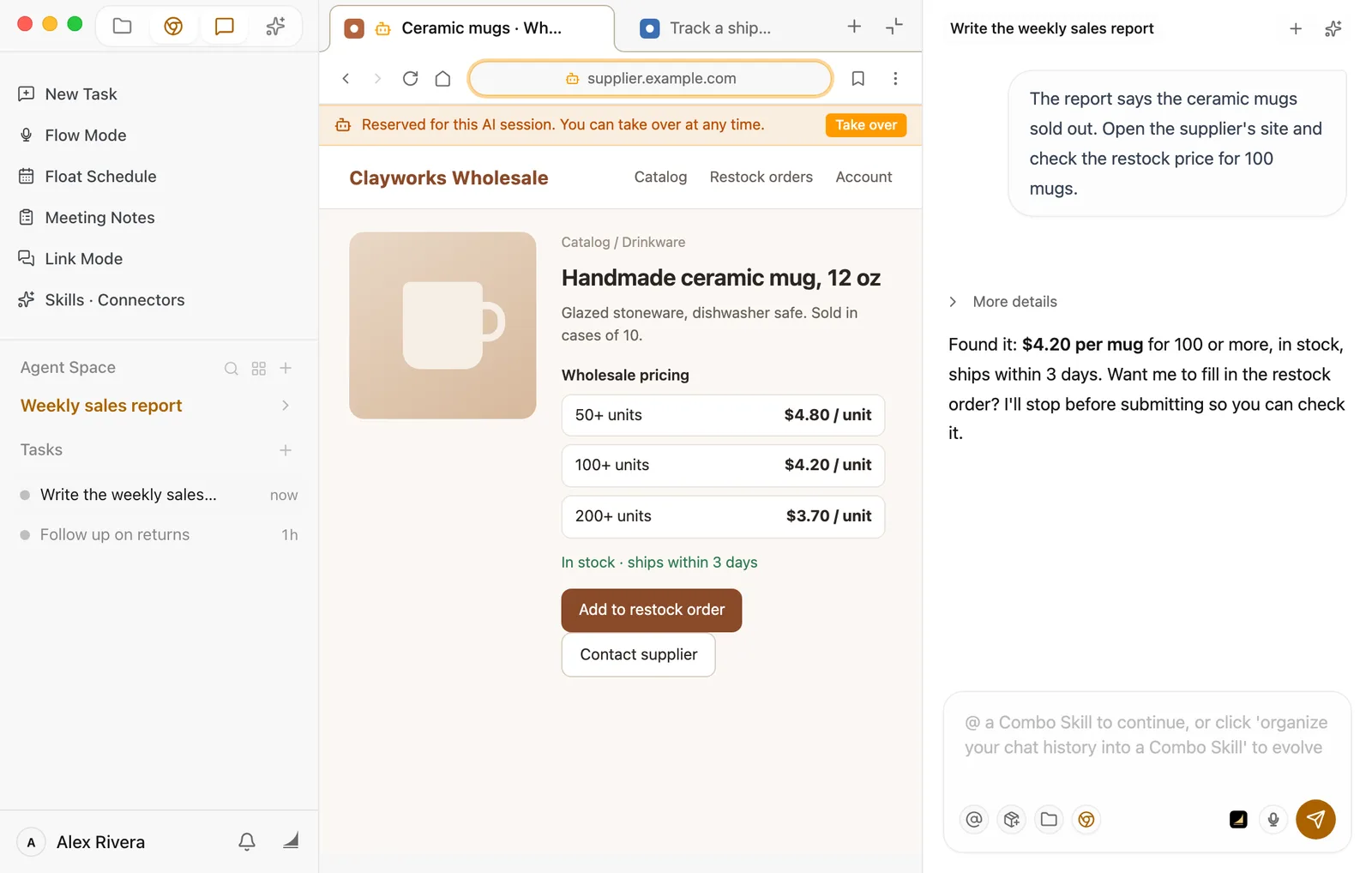
The page Floatboat is using is easy to spot. Its tab gets a small robot icon, the address bar gets an orange outline, and an orange bar appears above the page, such as AI is operating this page or Reserved for this AI session. You can take over at any time. You don't need to keep an eye on it. Wait for the reply in the chat.
What's the browser button under the chat box for?
It shows or hides the browser, the same as the icon at the top of the sidebar. It isn't a switch that lets Floatboat use the browser, and hiding the browser won't stop Floatboat from using it.
Ask about "this page"
While the browser is open, every message you send quietly tells Floatboat which page you're looking at (its title and address). So you can say "How is shipping calculated on this page?" without pasting the link. When the browser is hidden, that information isn't included.
Pick up from a page you opened
Sometimes it's easier to get somewhere yourself first, like signing in to your store dashboard or picking the right shop.
While a task is open in the chat, any page you open yourself shows a green bar at the top: Let AI continue from this page. When the page is where you want it, click Hand off to AI, and Floatboat picks it up in the current task. The bar turns orange, the same as on pages Floatboat opens itself. Then tell it in the chat what to do there.
The page goes to whichever task is open in the chat right now. If you don't see the green bar, no task is open yet. Start one first. Work on a task with Floatboat shows how.
Take over whenever you like
You can take back a page Floatboat is using at any time. Click Take over on the orange bar. You'll be asked to confirm, since this interrupts what Floatboat is doing. Click Take over again to go ahead. If you'd rather not be asked every time, check Don't remind me again. While that box is open, the web page behind it goes blank for a moment. That's normal, and the page comes back as soon as you choose.
Once you've taken over, the bar turns blue: You are controlling a page AI was using. When you're done, click Return to AI and Floatboat picks up again on that page.
If Floatboat is using a page and you type a new address or close that tab, you'll also be asked first, so you don't interrupt it by accident.
Sign in to websites
If you want Floatboat to work on a site that needs an account, like a supplier portal or your store dashboard, sign in once in the built-in browser.
Open the site and sign in as usual
Type the address, open the sign-in page, and enter your details. If there's a text message code, a QR code, or a picture puzzle, handle it right here yourself.
Go back to the chat and ask
Once you're signed in, ask Floatboat to work on that site. You stay signed in, even after you quit and reopen Floatboat, so you won't have to sign in every time.
Already signed in to lots of sites in your usual browser? You can bring those sign-ins along the first time you set up Floatboat. See Start your first conversation. Skipped that step? No problem. You can import them any time from Browser Data and Sign-In State, covered below.
Can other spaces use my accounts?
By default, yes. New spaces all start with the same Default browser configuration. If you sign in to a site in one space, it's already signed in when you open it in another, and Floatboat can use it there too. Most of the time that's what you want: sign in once and you're done.
If you'd like a space to use its own account, say two shops with separate logins, or a client's account you want to keep apart, give that space its own browser configuration.
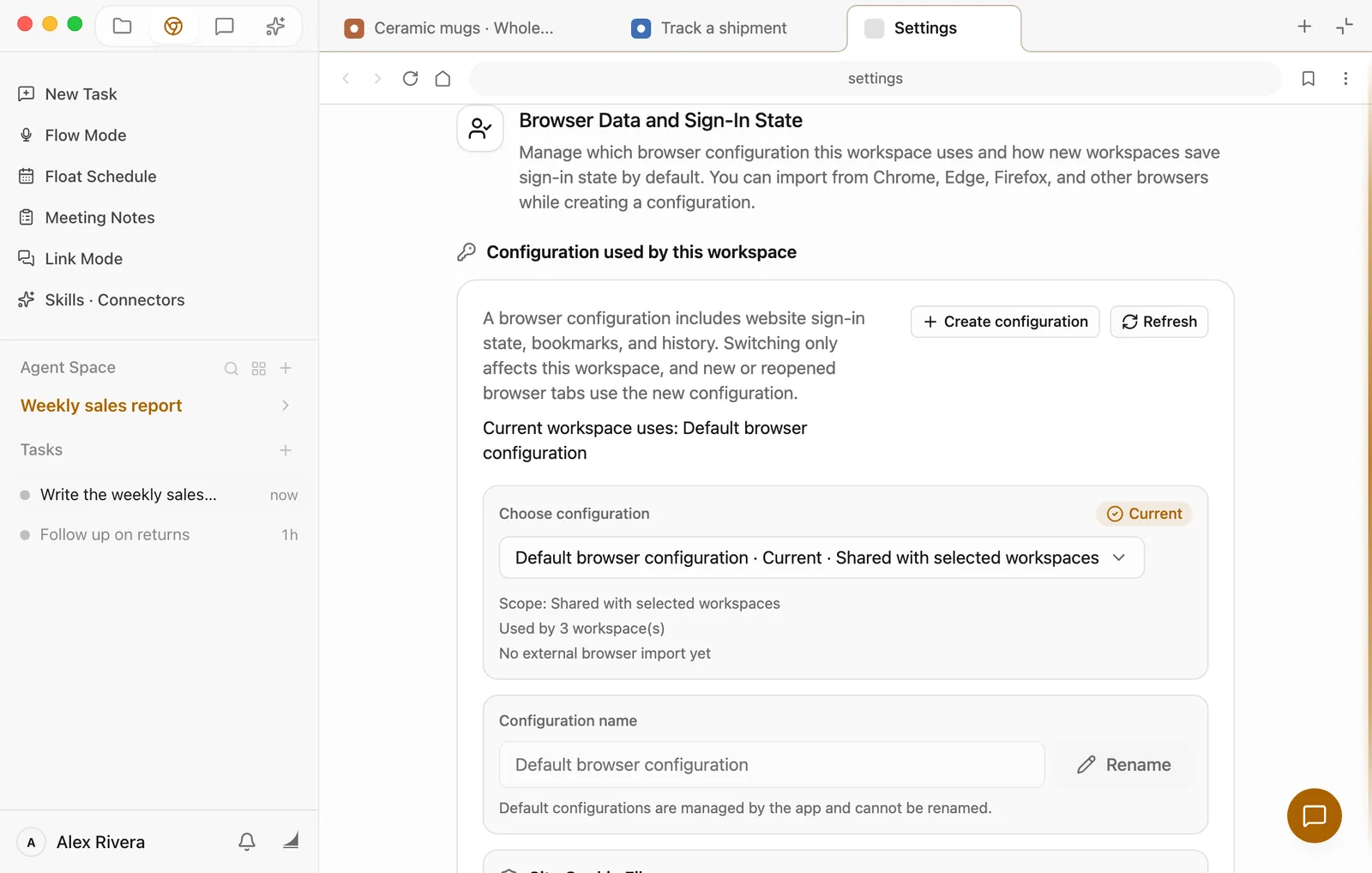
Open the browser settings
Open the browser in that space, click ⋮ at the far right of the address bar, and choose Browser Settings.
Find Browser Data and Sign-In State
Scroll down to Browser Data and Sign-In State. The settings call a space a "workspace." They mean the same thing. Configuration used by this workspace shows which configuration this space uses and how many spaces share it.
Create a new configuration
Click Create configuration and give it a name you'll recognize, like "Second shop." Choose Blank configuration, leave Use it for the current workspace after creating checked, and click Create configuration.
To bring sign-ins over from your usual browser instead, choose Import from a browser and follow the steps.
Sign in again
From now on, new pages you open in this space use the new configuration. Sign in to the account this space should use, and it stays separate from your other spaces.
Want every new space to keep its own sign-ins from now on? On the same page, under Default for new workspaces, choose Keep each workspace separate. This only affects spaces that open the browser for the first time later. Spaces that have already used the browser keep the sign-ins they have.
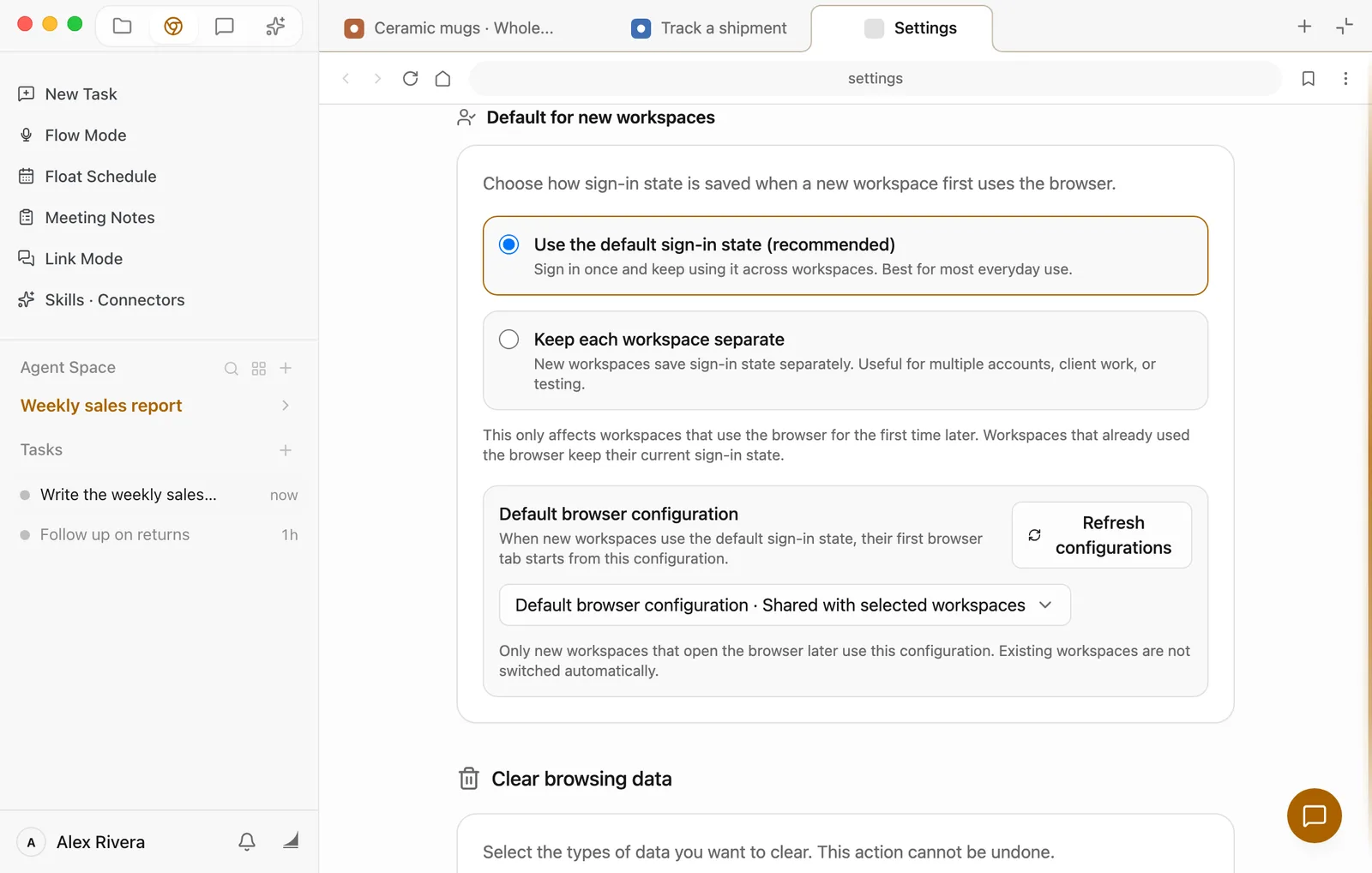
To sign out of everything, scroll to Clear browsing data in Browser Settings (right below Browser Data and Sign-In State), check Cookies, and click Clear data. Keep in mind this signs out every space that shares that configuration.
Having trouble?
The page won't open and says "Page failed to load." Check your internet connection, or see whether the site opens in your usual browser, then click Retry. The page also shows the address that failed, so you can check it for typos.
The site wants a verification code, or wants you to sign in again. It's quickest to do it yourself. If Floatboat is using the page, click Take over, enter the code or sign in, then click Return to AI so it can carry on. If Floatboat hasn't opened the page yet, open it and sign in yourself, then click Hand off to AI.
You'd like to open the page in your usual browser. There isn't a button that sends it there. Click the address bar to see the full address, copy it, and paste it into your usual browser. For a link on the page, right-click it and choose Copy Link Address.
The page looks like the phone version. When the browser is narrow, some sites switch to their mobile layout. Make the browser wider, or turn on Force Desktop Viewport under Display in Browser Settings, then reload the page.
You signed in in one space, but another space asks you to sign in again. The two spaces use different browser configurations. Check which one each space uses in Browser Data and Sign-In State, and switch with Use for this workspace if you need to.
What's next
Work on a task with Floatboat
Start a task, explain what you need, and watch Floatboat work through it.
Keep each project in its own Agent Space
Give each project its own space, so its files, web pages, and tasks stay together.
View and edit your files
Find files in the Files panel, open them, and hand them to Floatboat.