
Keep each project in its own Agent Space
Give every project its own space, so its files, web pages, and tasks stay together. Here's how to create, switch, and tidy up spaces, and arrange the panels inside them.
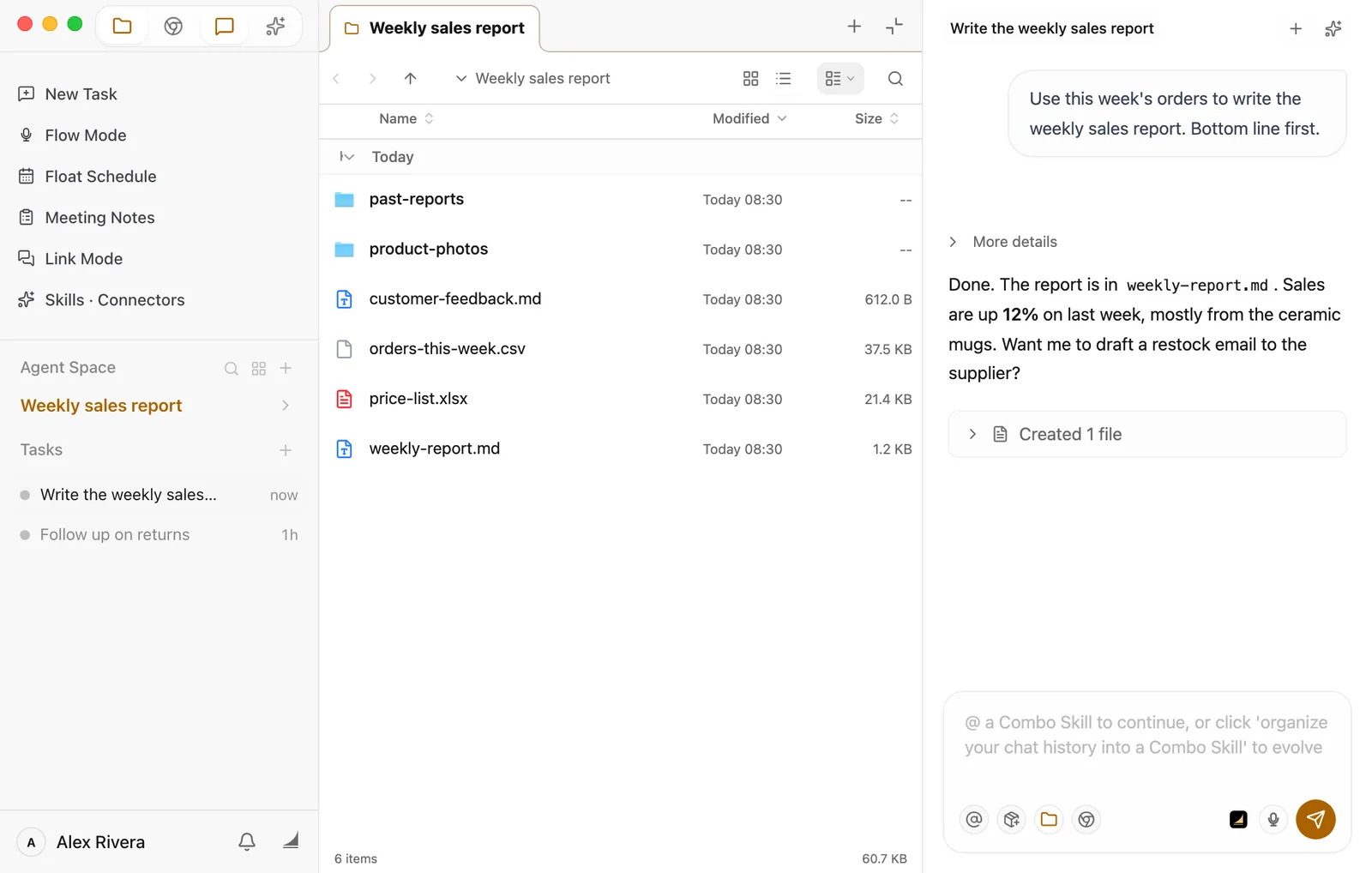
Writing the weekly report, adding new products, and answering customer emails are three different jobs. Floatboat lets you give each job its own Agent Space ("space" for short). A space holds everything for that job: the files you need, the pages you have open in the browser, and the tasks you've handed to Floatboat.
When you switch to another space, the tasks in the sidebar, the folder in the Files panel, and the open web pages all switch with you. Nothing gets mixed up, and when you come back a few days later, you can pick up right where you left off.
A space is more than a folder
Every space starts from a folder, and that's where the Files panel opens. But a space isn't limited to that folder. You can open other folders in the Files panel, or drag files from anywhere into the chat box. Renaming a space or setting it aside never touches the files on your computer.
Create a space
Here's the whole thing in about ten seconds: create a space, then give it a name.
Click the + next to Agent Space
Halfway down the sidebar there's a small heading, Agent Space, with three faint icons to its right. Hover over them to make them easier to see, then click the + on the far right.
Pick a layout
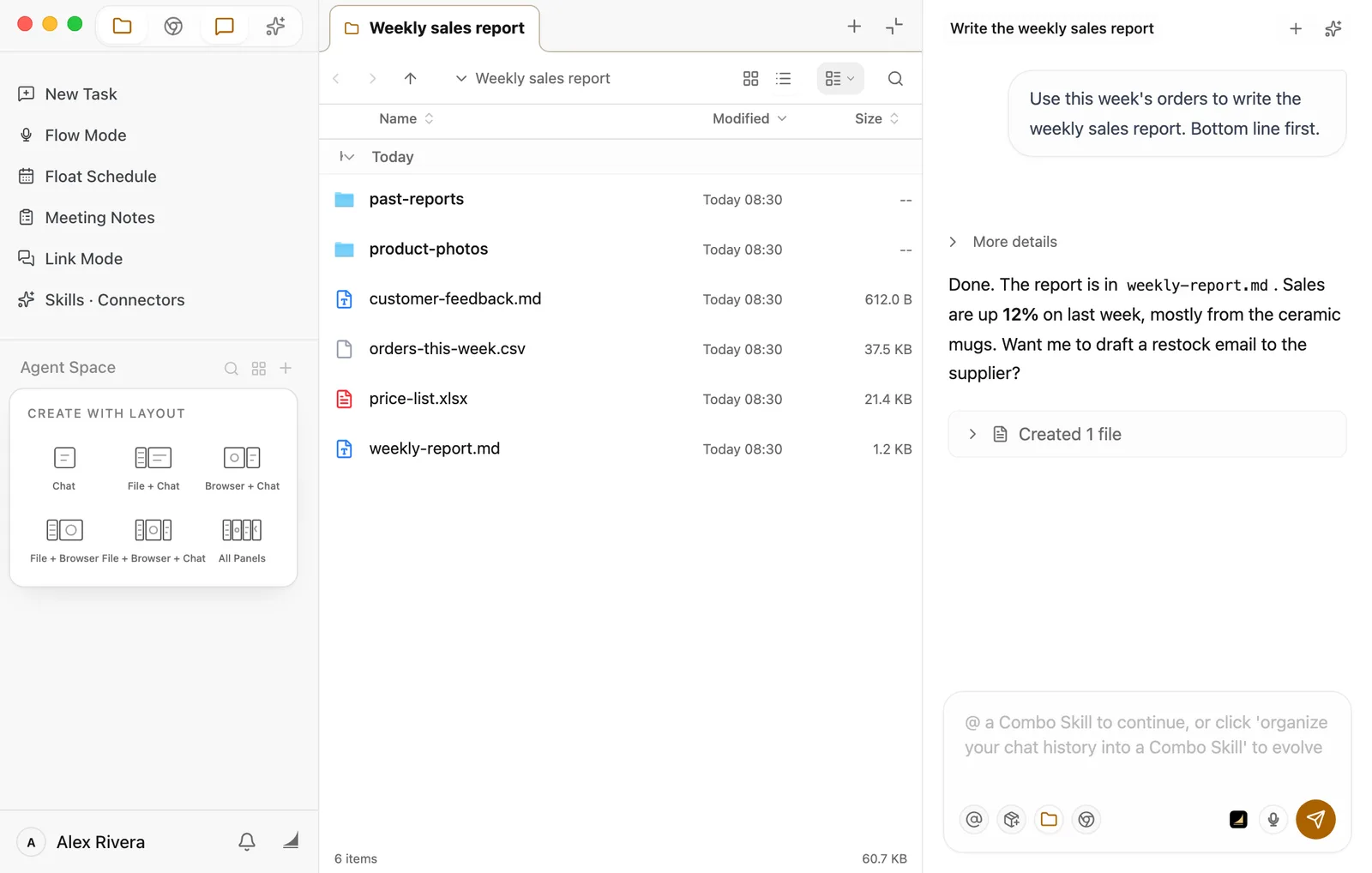
The menu is titled Create with Layout and offers six layouts. Each name tells you which panels the new space opens with. File + Chat gives you the Files and Chat panels, and All Panels opens everything.
Not sure? Pick File + Chat. You can change it any time, so there's no wrong choice here.
The new space opens right away, with a new task waiting in the Chat panel.
Give it a name
A new space is called New Agent Space. Rename it to something you'll recognize at a glance, like "Supplier quotes" in the video above. The steps are under "Rename a space" below.
Open the folder you'll work in
The Files panel in a new space starts in your Documents folder. Double-click your way into the folder this job needs, say, "Weekly sales report."
Floatboat can see which folder you have open in the Files panel and which files you've selected. So when you say "the orders in this folder" or "the files I picked," it knows exactly what you mean. There's more about the Files panel in View and edit your files.
Already have the folder? Start the space from it
If the folder is already on your computer, Quick Open gets you there faster:
- Click the magnifying glass next to Agent Space, or press ⌘K (Ctrl+K on Windows).
- Type the folder's name and use ↑ and ↓ to select it.
- Press Shift+Enter. The hint at the bottom of the search box reads ⇧↵ Open in New Workspace. (Here, "Workspace" means a space.)
Floatboat creates a space named after the folder, and the Files panel opens right inside it. The first time you search, Floatboat needs to index the files on your computer, which can take up to a minute.
If nothing matches what you typed, the search box offers Create Workspace “…” with your text in the quotes. Click it, and Floatboat makes a folder with that name in Documents and starts a space from it.
Used Codex or Claude Code?
Open the Agent Space Overview (see below) and click Import in the top-right corner. Floatboat brings over your projects from those tools and turns each one into a space. It's the same import you may have seen the first time you signed in. See Start your first conversation.
Switch between spaces
Right under the Agent Space heading you'll see the name of the space you're in, with a small arrow next to it. Click it to open the list of spaces you're using. Click one to switch. The Tasks list, the Files panel, and the Chat panel all change to that space's tasks, folder, and conversation.
The bottom of the list has the same layouts as the + menu, so you can create a space from here too.
Remember a space's name? Press ⌘K (Ctrl+K on Windows), type it, and press Enter to jump straight there.
See all your spaces
To see every space at once, click the grid icon next to Agent Space, or choose All Agent Spaces in the list. This opens the Agent Space Overview.
Each space gets a card. Click Enter on a card to open it. The buttons along the top filter the cards by In Use, Set Aside, or Pinned, and you can search by name or folder path.
Use a space a lot? Pin it. Hover over its card and click the pin in the bottom-right corner, and it moves to the front.
Arrange the panels in a space
A space has four panels: Files, Browser, Chat, and Combo Skills. The row of four icons at the very top of the sidebar turns them on and off. From left to right:
| Icon | Panel | What it's for |
|---|---|---|
| Folder | Files | Browse and open the files for this job |
| Round browser icon | Browser | Floatboat's built-in browser. See Browse and get things done in the built-in browser |
| Speech bubble | Chat | Talk to Floatboat and work through a task together. See Work on a task with Floatboat |
| Sparkles | Combo Skills | Your Combo Skills. A Combo Skill is a saved way of doing a certain kind of job, so Floatboat can do it the same way every time |
Click an icon to show its panel, and click again to hide it. Icons with a highlighted background are the panels you're seeing now. If you forget which is which, hover over an icon and you'll see a hint like Show File Browser or Hide Chat.
Say you want to focus on the conversation. Click the folder icon to hide the Files panel, and the Chat panel fills the whole right side. Need to check something online? Click the browser icon, and the Browser opens next to the chat. You can keep several panels open side by side.
To change how wide a panel is, hover over the divider between two panels, then drag it left or right. Floatboat keeps the width you set.
Each space remembers which panels it has open. Leave only the Chat panel open in "Weekly sales report," and "Product listings" still looks the way you left it.
Prefer the keyboard?
On a Mac, ⌘⇧E shows or hides the Files panel, ⌘⇧B the Browser, ⌘⇧C the Chat panel, and ⌘⇧K Combo Skills. On Windows, use Ctrl instead of ⌘.
Rename a space
- Click the current space's name to open the list of spaces.
- Hover over the space you want to rename and click the pencil icon on the right.
- Type the new name and press Enter. Changed your mind halfway? Press Esc.
You can also rename a space in the Agent Space Overview. Hover over its card and click the pencil next to the name.
Renaming only changes what the space is called in Floatboat. The folder on your computer keeps its name.
Set aside spaces you're done with
When a job wraps up, like a "Summer sale" that's over, you can set its space aside to keep your list short. Setting a space aside doesn't delete anything. Its tasks and files stay put, and you can bring it back whenever you like.
- Click the current space's name to open the list of spaces.
- Hover over the space and click the box icon on the far right. Its hint reads Set Aside Agent Space.
If a task is still running in that space, Floatboat checks with you first, because setting the space aside will stop that task. If you're not sure, click Cancel and come back once the task is done.
You can also do this from the overview: right-click a card and choose Set Aside Agent Space.
Bring a space back
- Open the Agent Space Overview by clicking the grid icon next to Agent Space.
- Click Set Aside at the top. Every space you've set aside is listed here.
- Click Enter on the one you want. It opens again and goes back into your list of spaces.
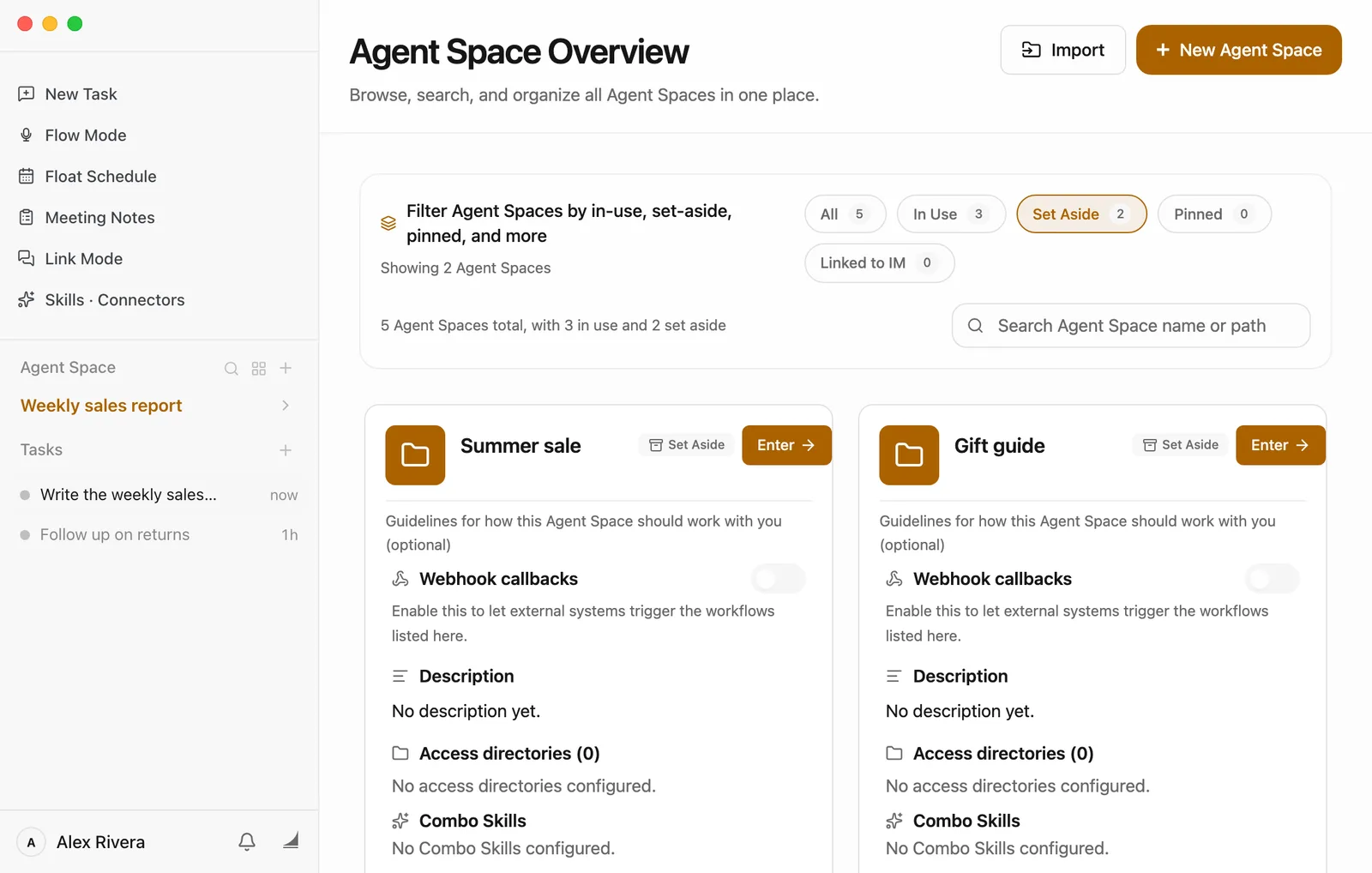
Right-clicking a card and choosing Restore Agent Space does the same thing.
Having trouble?
- Can't find a space in the list? You may have set it aside. Open the overview and click Set Aside.
- The Chat panel disappeared? Click the speech bubble at the top of the sidebar, or the chat button in the bottom-right corner of the window.
- All four panels are closed and the middle is empty? You'll see a card that says Open a panel from here. Click Files, Chat, or another button on it to bring a panel back.
- The row of panel icons is missing from the top of the sidebar? Those icons only show up inside a space. If you're on the overview, Float Schedule, or a similar page, switch back to a space first.
- A new space opened the wrong folder? New spaces start in Documents. Click into the folder you want in the Files panel, or use Quick Open to start a space from that folder.
- Want to remove a space for good? Right-click its card in the overview and choose Delete. All the tasks in that space are deleted with it and can't be recovered, so if you don't need it for now, setting it aside is enough. Files on your computer are never deleted.
What's next
Work on a task with Floatboat
Start a task in a space and watch Floatboat work through it step by step.
View and edit your files
Find and open files in the Files panel, and hand them to Floatboat.
Browse and get things done in the built-in browser
Open the built-in browser, sign in to websites, and let Floatboat look things up for you.