
Take notes in every meeting
Click Start recording and Floatboat writes down what everyone says, one speaker at a time. Afterwards, put names to the speakers and have Floatboat pull out a summary and action items.
It's hard to listen and take notes at the same time, and the one thing you miss is usually the one that matters. Meeting Notes takes the notes for you. Click Start recording, and what people say goes into a document paragraph by paragraph, with a label showing who said it.
Use it for a weekly team check-in, a call with a client, a department meeting at school, a study group session, or an interview. When the meeting ends, the notes are already saved on your computer, and you can ask Floatboat to write a summary, list the action items, or draft a follow-up email.
Just you, thinking out loud? Flow Mode in the sidebar is a better fit. See Write by talking with Flow Mode.
Before the meeting
Open Meeting Notes
Click Meeting Notes in the sidebar. Floatboat creates a new notes document and opens it in your current space: the document is on the left, with the recording panel in its top-right corner saying Meeting recording ready. The Chat panel opens on the right with a new task that reads Agent can assist you in real time. If a question comes up during the meeting, you can ask Floatboat there.
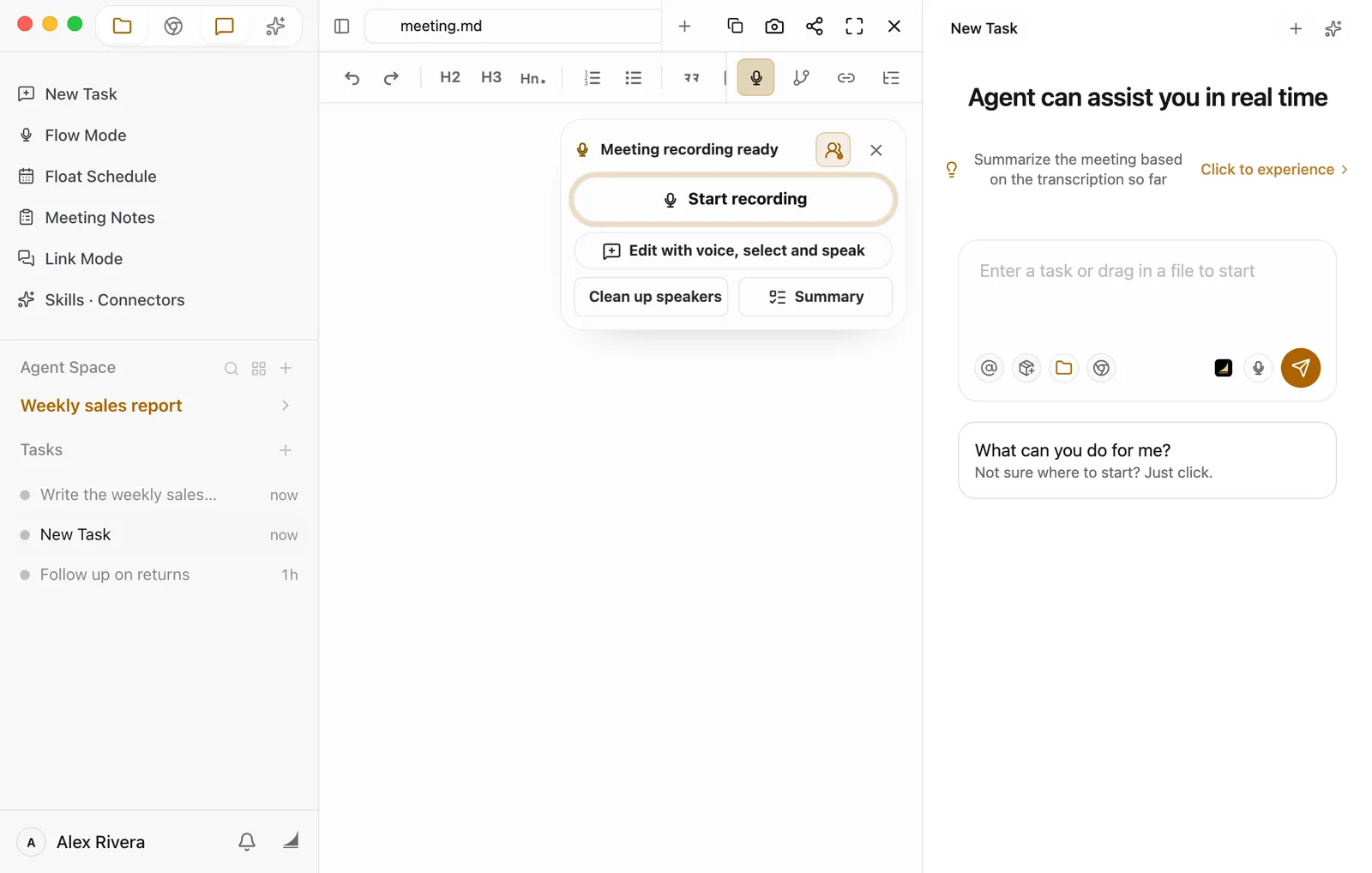
Before you start, you can type a few lines into the document, like the topic, who's attending, and the agenda. The recording is added after whatever you write.
Check that speaker detection is on
The recording panel has a person button in its top-right corner. Hover over it and the tooltip ends in Speaker detection on or Speaker detection off. When it's on, Floatboat tells voices apart: each time someone new speaks, it starts a new paragraph and labels it with a speaker number.
It's on by default. If you'll be the only one talking, click it to turn it off. You can't switch it once recording has started.
Floatboat only hears your microphone
Meeting Notes records what your computer's microphone picks up. It doesn't record sound playing on your computer. It works best when everyone is in the same room. If you're on a video call with headphones on, the other people's voices never reach the microphone, so only your side ends up in the notes.
Record the meeting
Click Start recording. The first time you record, your computer asks about the microphone. Turn it on as described in the microphone section of Write by talking with Flow Mode. Stay online while you record, because Floatboat turns speech into text over the internet.
Once recording starts, the button changes to Recording meeting, with a moving sound wave next to it. What people say is added to the end of the document one paragraph at a time. The sentence someone is in the middle of shows up right away and settles into place once they finish it.
For now, the speaker labels are written in Chinese even when Floatboat is set to English: 说话人 1 means "Speaker 1", 说话人 2 means "Speaker 2", and so on. You'll swap them for real names after the meeting.
You can switch to something else while it records, and the recording keeps going. To tell whether it's still recording:
- A dot shows next to Meeting Notes in the sidebar. Hover over it to see Meeting recording in progress. Clicking Meeting Notes takes you back to the notes that are recording.
- A dot also shows in front of the document's name.
- If Memo is on, the Floatboat icon in your Mac's menu bar blinks. On Windows, the icon at the bottom right of the taskbar blinks.
Want help in the middle of the meeting, like "Summarize the meeting based on the transcription so far"? Ask in the chat on the right. A few suggestions like that take turns under the heading. Click Click to experience to put one in the chat box.
When the meeting's over, click Recording meeting to stop. The panel goes back to Meeting recording ready. The first time you stop, Floatboat reads the notes and names them, for example "Mug restock call with Morgan". Until then they're called "meeting". To keep going, click Start recording again, and the new part is added to the end.
Put names to the speakers
Numbered speakers are hard to follow. Swap in real names after the meeting:
Click Clean up speakers in the recording panel. A Speaker replacement box lists every speaker number in the document (shown here as 发言人 1, 发言人 2), with the number of paragraphs each person spoke next to it.
Type a name in the box under each number.
Click Replace all. Every speaker label in the document changes to the name you typed. Nothing else in the notes changes.
Now and then, speaker detection mixes two people up or splits one person into two numbers. When that happens, fix the name on that paragraph directly. The notes are an ordinary document, so you can click in and edit anything.
Get a summary and action items
A word-for-word record is good for looking things up later, but what you usually need are the decisions and the to-dos. Click Summary in the recording panel:
- The panel shows a set of instructions, with a template list above it. The default template, Summary and action items, asks for up to 5 key points, then the action items with an owner and a due date for each (anything unclear is marked TBD), plus important decisions, risks, and next steps. The other one, General structured meeting record, suits longer, more formal meetings. It also ends with a table of names and numbers it wasn't sure about, for you to check.
- You can edit the instructions directly, for example by adding "Group the action items by owner."
- Click Send to Agent. The request goes to the chat on the right with your notes attached. Floatboat reads the notes and writes the summary, saving it as a new document by default. Your original notes stay as they are.
Using the same instructions every time? Choose New template in the list, give it a name, edit the instructions, and click Save as template. Next time it's waiting under My templates. To get rid of a template you saved, select it and click the trash icon next to it (Delete template).
Keep going after the meeting
While the notes are open, Floatboat knows which document you're looking at, so you can ask for what you need in the chat on the right. For example:
- "Write Morgan a follow-up email confirming the quantity and the ship date"
- "Turn the action items into a table grouped by owner"
- After a study group: "List who's taking which part of the project so I can post it in our group chat"
- After a sales call: "Pull out the three concerns the client raised and draft our answer to each one"
Only need one part? Select that text. A small toolbar pops up. Click Chat, and the selected text goes into the chat.
Find your notes later
To get back to earlier notes, click Meeting Notes in the sidebar, then click Expand navigation at the top-left of the document. The list on the left shows only your meeting notes: Recent Files at the top, then everything else grouped by date. Want fresh notes for the next meeting while one is open? Click the + in the top-right corner, to the left of Copy file (New document).
Each set of notes gets its own folder on your computer, with the recording saved next to it as a .wav file, such as Meeting-1012-0931.wav:
- Mac:
floatboat/memo/Meeting Notesin your home folder - Windows:
C:\Users\<your user name>\floatboat\memo\Meeting Notes
If you use Floatboat in Chinese, the folder is called 会议纪要 instead.
Want to hear exactly what someone said? There's a recording track along the bottom of the document. Click the play button on its left to listen from the start. Hover over the track to see the time and what was being said at that moment, and click to jump to that spot in the notes.
Start from an event in your schedule
Already have the meeting in Float Schedule? You can start right from the event:
- Click Float Schedule in the sidebar and open the meeting's event.
- Click the record button under the event's title.
Floatboat creates notes named after the event and starts recording right away, so click it when the meeting begins. The notes go in the Meeting Recordings folder of your current space, or of the space the event is linked to, if it has one. A task named after the meeting also opens in the chat on the right. Click record on the same meeting again later, and you're back in the same notes, picking up where you left off.
To learn how to add events and set reminders, see Plan your days with Float Schedule.
Having trouble?
- I clicked Start recording, but Settings opened instead. Floatboat doesn't have microphone access yet. Turn it on as described in the microphone section of Write by talking with Flow Mode. On a Mac, quit and reopen Floatboat afterwards.
- The notes only have what I said. You may be on a video call with headphones on. Floatboat records the microphone, not sound playing on your computer. Use your speakers instead, or meet in the same room, so the other voices get picked up.
- Everyone ended up as the same speaker. Check whether the person button in the top-right of the recording panel was turned off. It has to be on before you start recording and can't be changed partway through. For what's already recorded, use Clean up speakers or edit the names in the document.
- A small warning triangle appeared on the record button. Your connection dropped. Hover over it to see "Network unavailable. Audio is saved locally and will be transcribed after recovery." The audio is kept on your computer, and once you're back online Floatboat fills in the text for that part. You don't need to stop or record again.
- It says "Another document is recording." Only one document can record at a time. Click View recording document to go to it, or Stop and record here to save and stop that recording and start in this document.
- A "Recording is still active" reminder popped up. You've been recording for an hour, and it asks again every half hour after that, in case you forgot to stop. Click Continue recording to carry on, or Stop voice input to stop.
What's next
Plan your days with Float Schedule
Put meetings on your calendar, then click record on the event when it starts.
Write by talking with Flow Mode
Thinking out loud on your own? Floatboat turns what you say into a document.
Work on a task with Floatboat
Ask for what you need in the chat box, follow along while Floatboat works, and step in when it asks for your OK.
Write by talking with Flow Mode
Say what's on your mind and watch it turn into a document as you talk. Then tidy it up, hand it to Floatboat, or send it on.
Keep snippets at hand with Memo
Copy some text or grab a screenshot, click the Floatboat icon in your Mac's menu bar, and it's saved as a file you can hand straight to Floatboat.