
Give Floatboat tasks from your chat apps with Link Mode
Away from your computer? Send Floatboat on your computer a message from Slack, Lark, WeChat, and other chat apps, and get the results back in the same chat. Here's how to connect, how to use it, and how to control who can send it work.
Out and about when you remember something your computer needs to do? With Link Mode, you can send Floatboat a message from the chat app you already use. Floatboat on your computer picks it up, gets to work, and sends the result back to that chat.
For example:
- A teacher on the bus sends: "Turn the notes in Lesson plans into a worksheet for Thursday's class."
- A freelance designer between meetings sends: "Use last month's notes in Riverside Bakery to draft a quote, and send me the total."
- Alex, who runs an online shop, is out for the weekend and messages from Lark: "Sum up this week's orders and send me the bottom line." The screenshots and videos below follow this example.
WeChat takes a few minutes to connect. Slack, Lark, and the others need you to set up a bot in their own admin pages first, so give yourself about half an hour the first time. After that, it's a matter of sending a message.
Your computer needs to be on
The work happens on your own computer. It needs to be on, online, and awake, with Floatboat open and signed in. If the lid is closed and the computer is asleep, or Floatboat is closed, it can't pick up your messages.
Floatboat opens by itself when you sign in to your computer. If you turned that off, check Launch at Login under Advanced in Settings again.
Which chat apps work
The Link Mode setup page on the Floatboat website can connect Feishu / Lark, WeChat, WeCom, Slack, Discord, and Telegram.
Some are easier than others. WeChat only needs a QR scan on your phone. The rest need a bot (sometimes called an app) created in that chat app's developer console, and then a few details copied back into Floatboat. If your company manages Slack, Lark, or WeCom, you may need an admin to approve it.
Step 1: Turn on Link Mode on your computer
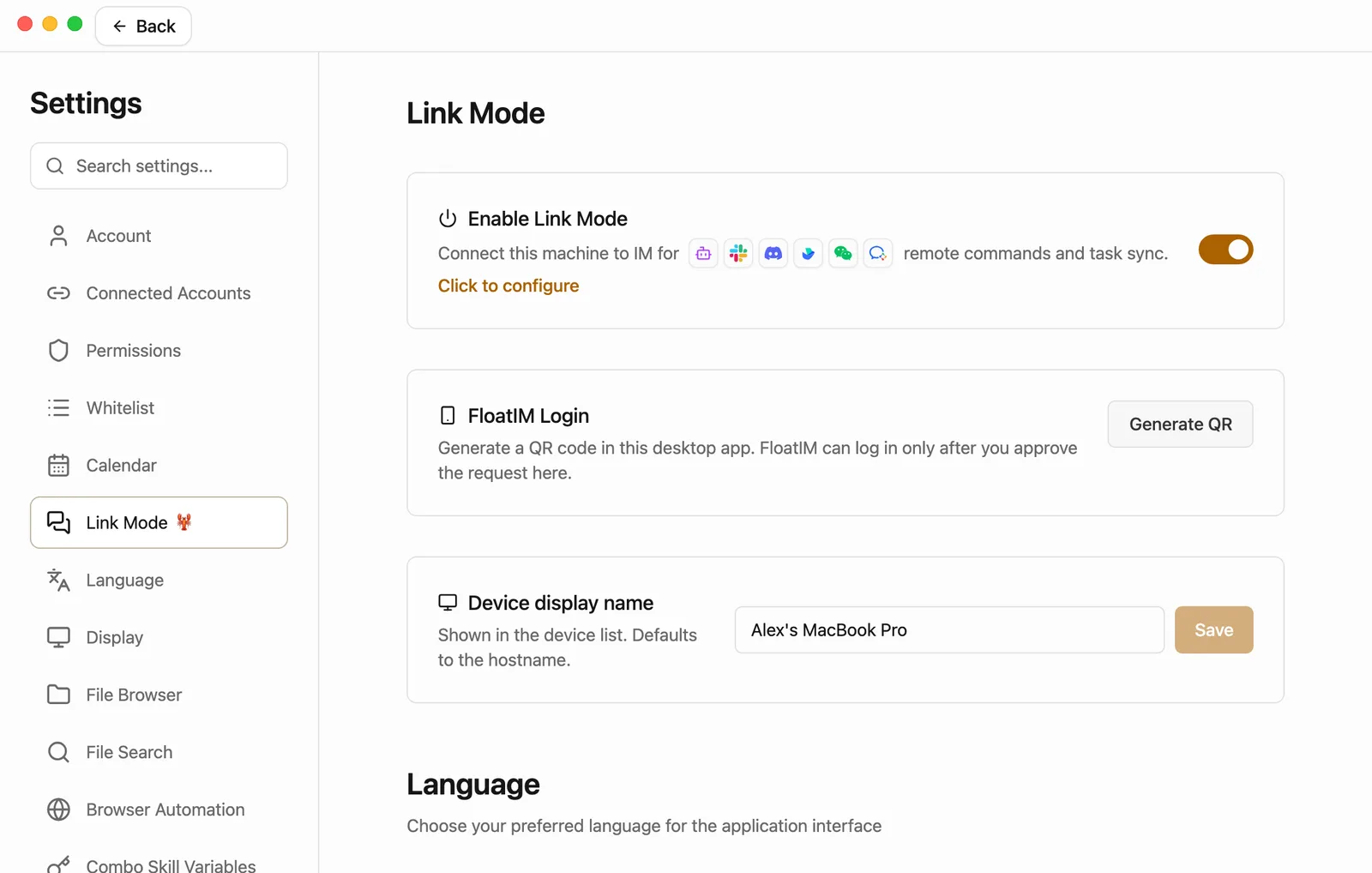
Click Link Mode in the sidebar
It's in the group at the top of the sidebar, under Meeting Notes. Click it, and Floatboat opens Settings right at the Link Mode section.
Make sure Enable Link Mode is on
It's on by default, so you can leave it. While it's on, this computer accepts messages from your chat apps. Turn it off, and it stops listening for now.
Name this computer (optional)
Type a name you'll recognize into Device display name, like "Alex's MacBook Pro," and click Save.
That's the name you'll pick on the website in a moment. You can skip it, and the computer's own name is used instead. If you have a computer at home and one at work, a clear name saves you from picking the wrong one.
Step 2: Connect a chat app on the Floatboat website
You connect chat apps on the Floatboat website. Click Click to configure at the end of the Enable Link Mode row, and the Link Mode setup page opens in your usual browser. If it asks you to sign in, use the same account you use in Floatboat.
Check that your computer is under My Devices
The setup page has a My Devices list showing the computers where you're signed in to Floatboat. Find the one you just named. It should say Online.
Not there? Wait a moment and click Refresh devices. A few spots on the website call Link Mode "Lobster Mode." It's the same thing.
Pick a chat app and click its +
Each chat app has its own card. Click the + (Add Bot) in the card's top-right corner to open its setup form.
Set up the bot and copy its details back
Most chat apps come with setup steps right on the form, plus a button that opens their developer console. Here's roughly what the common ones involve:
- Click Get QR Code.
- Scan it with WeChat on your phone and confirm there.
- Once the scan goes through, the Bot Token fills in by itself.
You can connect one WeChat account. After that, message it from the WeChat account you scanned with. Follow WeChat's prompts after the scan to find where to chat with it.
Choose where messages go
Under Routing Target, pick two things:
- Device: the computer you named earlier.
- Agent Space: which space should handle these messages, like Weekly sales report. A space is where Floatboat keeps everything for one project. See Keep each project in its own Agent Space.
You can leave the space empty. Messages then go to a default space called Remo, which Floatboat creates on your computer for you.
Click Save binding
When you see Configuration saved, you're connected.
Lark needs one more thing. The success page shows a Feishu event subscription URL. Copy it with the button next to it, and paste it as the request URL on your app's Event Subscriptions page in Lark.
Step 3 (optional): Let Floatboat read your files
For work that comes in from a chat app, Floatboat can only see the images and files you send in the chat. It can't see the folders on your computer, not even the space's own folder.
If you want it to use files on your computer, like Alex wanting this week's orders from the Weekly sales report folder, add that folder to the space's Access directories:
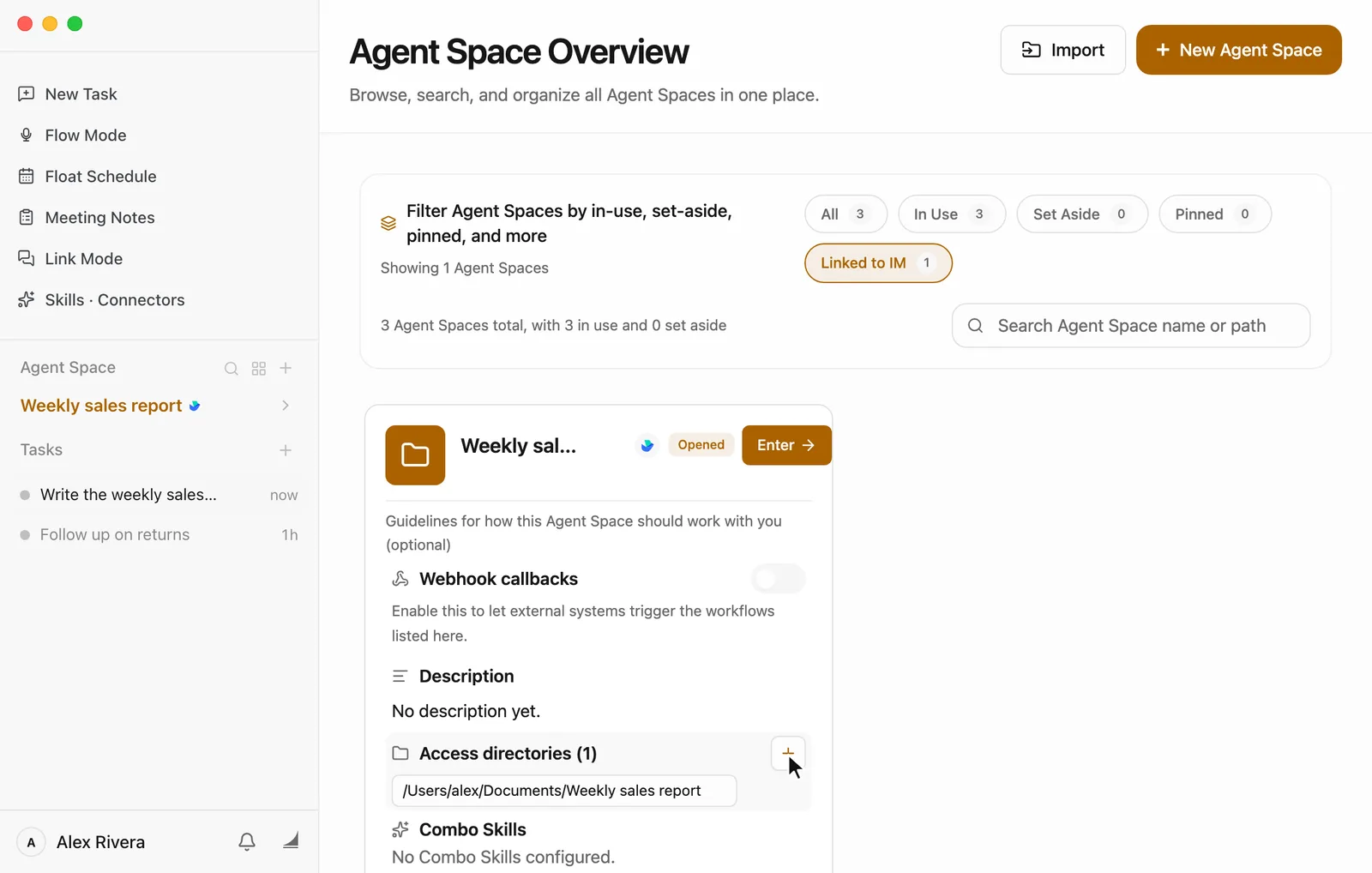
- Click the grid icon to the right of Agent Space in the sidebar to open Agent Space Overview.
- Find the space you picked on the website. After the first message comes in, its card shows the chat app's icon, and Linked to IM at the top shows only those spaces.
- Hover over the Access directories row on the card, and a + (Add directory) appears on the right. Click it and choose the folder.
Any new files it writes go into a folder Floatboat sets aside for that chat.
Send Floatboat work from your chat app
Once you're connected, write to it like you'd message a coworker. Say what you need.
- Send the bot a message. In a group, you may need to @mention it first, depending on the group setting (see "Control who can send it work" below).
- It usually replies right away with "Message received, processing…"
- When it's done, the result comes back in the same chat.
Floatboat on your computer is working through it too. Open the space you picked, and you'll see a new task with the chat app's icon in the task list, its message tagged IM. Click it to see which files it read and how it got its answer.
A few handy messages:
- Keep going: keep writing in the same chat, and it usually carries on with the same task.
- Start something new: send "/new" and it starts a fresh task.
- Stop: send "/stop" and it stops what it's doing.
- Switch models: send "model" followed by a name from the model menu. If the name doesn't match, it replies with the models you can choose from. This also changes Floatboat's default model on your computer, so new tasks you start there will use it too. For help choosing, see Choose a model.
Two things work differently from tasks you start on your computer:
- It doesn't read About Me or space memory. To have it follow your rules on the road, spell them out in your message, or write them in the Description on this space's card in Agent Space Overview. Work from a chat app reads that first. To learn what About Me and space memory are, see Help Floatboat remember how you work.
- If the job came from a direct message, your replies at your computer go back to that chat too. Jobs from a group chat don't do this.
Control who can send it work
Only bots you've connected on the Floatboat website can reach your computer, and only the computer and space you picked.
The flip side: anyone who can message that bot can put your computer to work. And Floatboat won't stop to wait for someone to click Approve on work that comes from a chat app, since you're probably not at your computer. So decide who can reach the bot on the chat app's side:
- Keep it to yourself. For example, limit a Lark custom app's availability to just you, and only install Slack or Discord bots in your own workspace or server.
- Think twice about big groups. If it does need to be in a group, set that bot's Group receive mode to @ on the website, so only messages that @mention it reach Floatboat. The default, All, hands it every message in the group.
- Only add the folders you need to Access directories. They decide where Floatboat looks for files on this kind of work, so fewer is safer. They aren't a lock, though. The real gate is who can message the bot.
If you're ever unsure, turn off Enable Link Mode on your computer. It stops taking messages from chat apps right away.
Pause, disconnect, or switch chat apps
- Pause for a while: turn off Enable Link Mode on your computer. Turn it back on to pick up again. Everything on the website stays connected.
- Send messages to a different space: on the website, click the bot's row to open its form, choose a different Agent Space under Routing Target, and click Save binding.
- Switch to another chat app: click the + on the new app's card and connect it. You can use several at once, each sending to the space you chose for it.
- Disconnect for good: on the website, click the bot's row, then Unbind, then Confirm unbind. You can also delete the bot from the chat app's developer console.
Having trouble?
Your computer isn't under My Devices, or it shows Offline. Check that Enable Link Mode is on, that Floatboat is open and signed in to the same account, and that you're online. Then click Refresh devices on the website.
The space you want isn't in the Agent Space list. New spaces take a little while to show up on the website. Give it a moment, then click Refresh devices again.
You sent a message and nothing came back. Check the computer first: is it asleep, and is Floatboat open? Then check the group setting. If it's set to @, you need to @mention the bot. On Lark, make sure the Feishu event subscription URL is in your app's event settings and the app has been published. If your computer is back and there's still no reply, send the message again.
It says it can't find a file. Add the folder with that file to the space's Access directories, or send the file to it in the chat.
What's next
Save what works as a Combo Skill
Add ready-made Combo Skills from the store, use them in any task, and save a task that went well as your own, so you don't have to explain the same job twice.
Turn this week's orders into a sales report
Hand Floatboat the orders you exported from your store and get a sales report with the bottom line first and last week's numbers alongside. Then save the steps as a Combo Skill, so next week it takes one sentence, or none at all.