
View and edit your files
Find the files you need in the Files panel, open them to read or edit, and hand them straight to Floatboat.
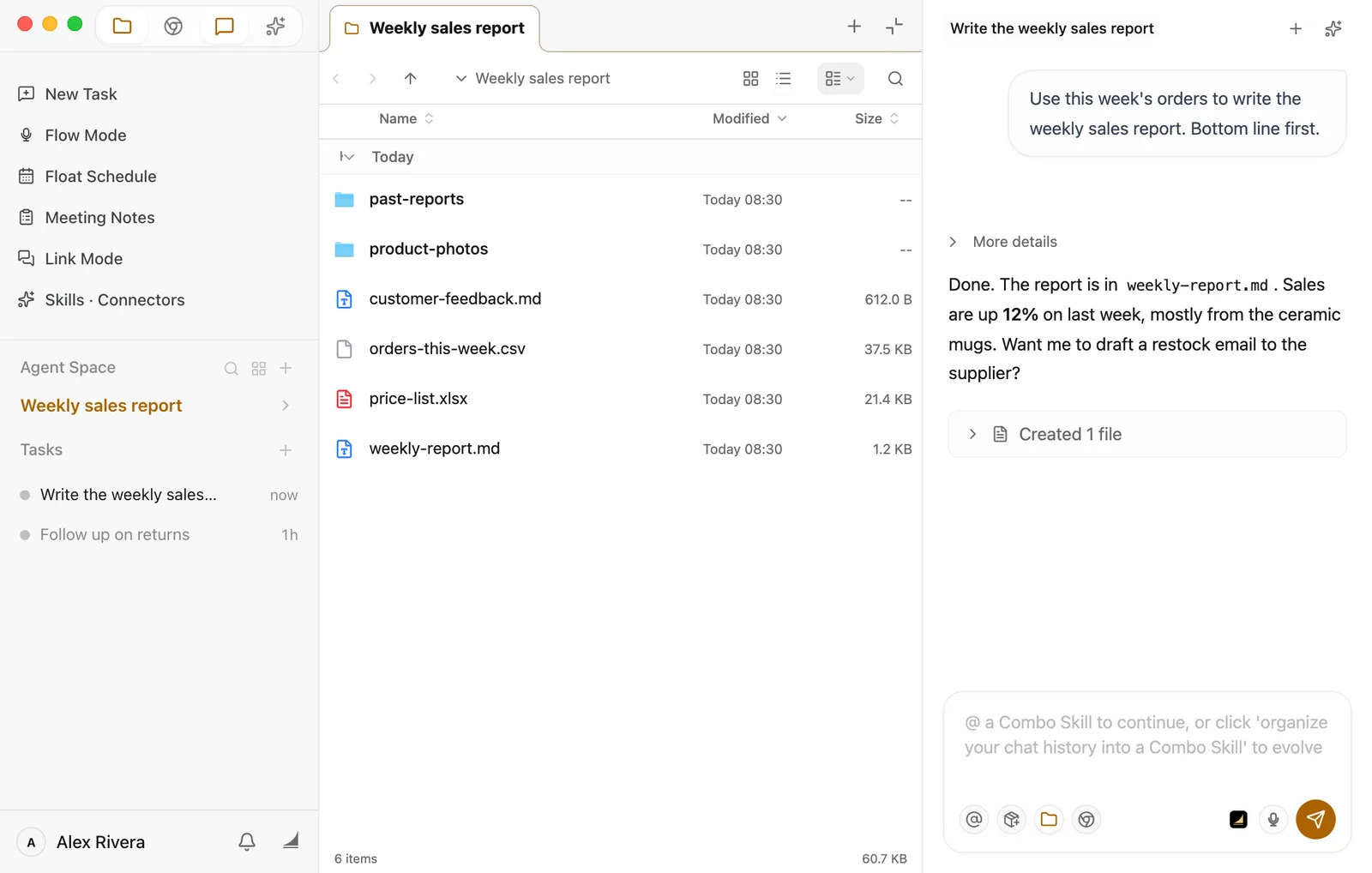
Every Agent Space has a Files panel, and it opens on that space's folder. For the weekly report, that's where this week's orders, past reports, and customer feedback live. You can browse, open a file to read it, fix a few words, and then hand it to Floatboat, all without switching over to Finder or File Explorer.
To learn how spaces and folders fit together, see Keep each project in its own Agent Space.
Find your way around the Files panel
The Files panel sits to the right of the sidebar. Don't see it? Click the folder icon in the row of icons at the top left of the sidebar (Show File Browser). Click it again to hide the panel.
- Open a folder: Double-click it. To go back up a level, click the Go Up arrow in the toolbar. Go Back takes you to wherever you were before.
- Change the view: Use Grid View and List View on the right of the toolbar. Grid view is handy when you're flipping through product photos.
- Sort: Click Name, Modified, or Size at the top of the list to sort by that column. Click again to reverse the order.
- Group: By default, files are grouped by when they were last changed, under headings like Today and Yesterday. The button with the little arrow, to the right of the view buttons, lets you group by Name or Kind instead, or pick None to turn grouping off.
- Search: In a busy folder, click the magnifying glass and type part of a file name. Only the matching files stay in the list.
Open a file to preview it
Double-click a file and it opens in the preview. The preview takes over the space where the Files panel was, and the Chat panel stays put on the right, so you can read and talk to Floatboat at the same time.
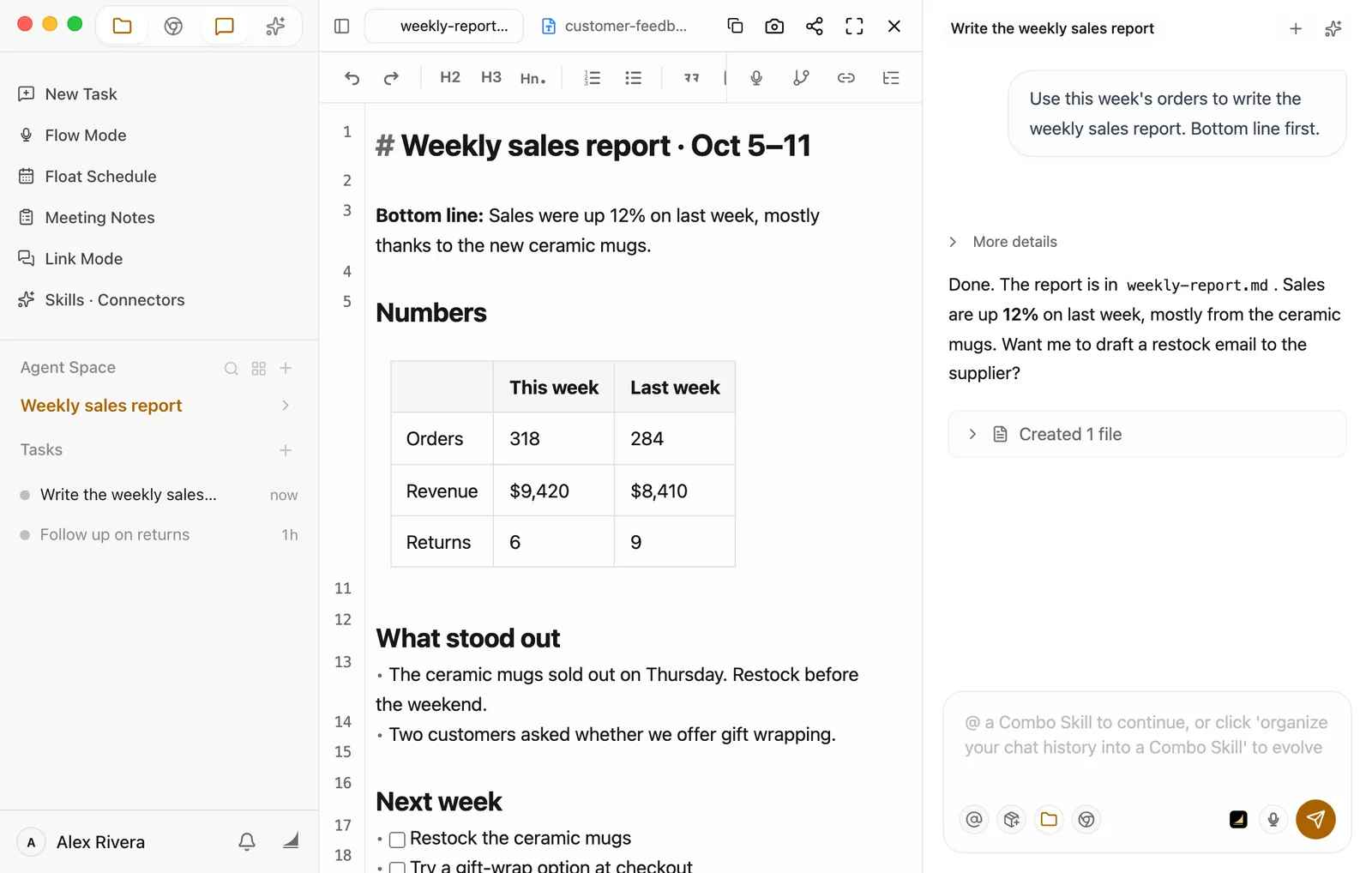
- Switch between files: Each file you open gets its own tab across the top of the preview. Click a tab to switch to it.
- Close one file: Hover over its tab and click the × that appears. You can also press ⌘W (Ctrl+W on Windows) to close the current one. Right-click a tab for Close Others, Close to the Right, and Close All.
- Go back to the Files panel: Click the × at the top right of the preview (Close preview). This closes all the preview tabs and brings the Files panel back with the file you were reading already selected.
If the preview can't open a file you double-click, Floatboat opens it in your computer's default app instead.
Keep the file list next to what you're reading
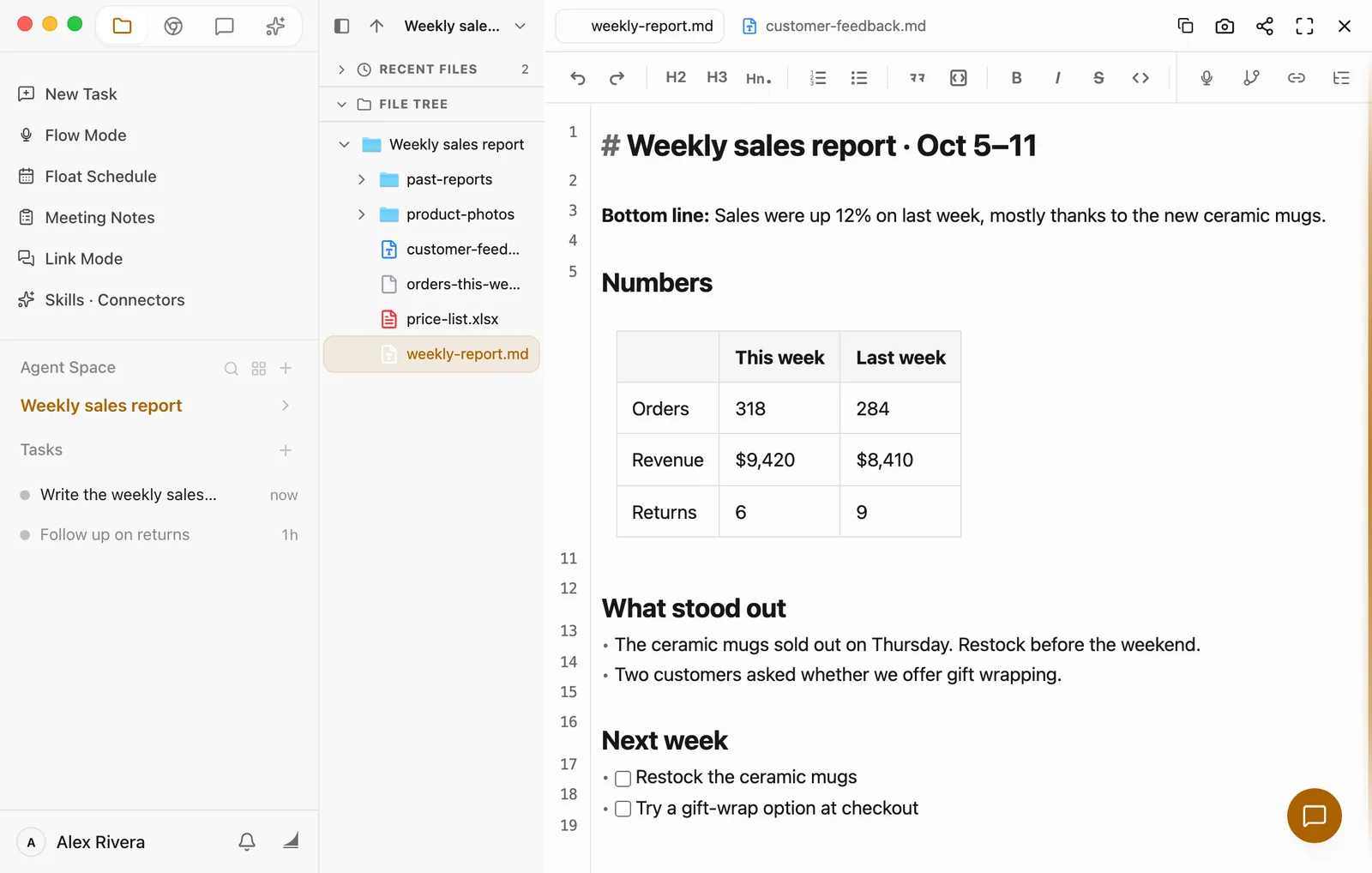
While the preview is open, it covers the Files panel. To jump to a different file without closing the preview, click Expand navigation at its top left. A column appears on the left: Recent Files lists what you've looked at recently, and File Tree shows the current folder. Click the small arrow next to a folder to open it in place, and click any file to switch to it. When you're done, click Collapse navigation at the top of that column.
Edit right in the preview
Markdown (.md), plain text (.txt), and code files are ready to edit as soon as they open. Click into the text and type, the same way you would in any notes app.
There's no need to save. Shortly after you stop typing (about half a second by default), Floatboat saves the file for you. Until it has, a * appears briefly after the file name on the tab.
Markdown files get a row of editing buttons along the top: undo, redo, headings, lists, quotes, bold, and the rest of the usual set. Outline, at the far right of that row, lists every heading in the document so you can jump straight to one.
Spreadsheets (Excel and CSV) work a little differently. Double-click a cell, type the new value, and press Return (Enter on Windows). Spreadsheets don't save on their own. Press ⌘S (Ctrl+S on Windows), or point at the tabs at the top of the preview and click Save on the right of the bar that appears. Until you save, that bar shows an orange Unsaved. To throw your changes away instead, click Discard next to Save, then confirm when asked Discard all unsaved changes?
Word, PDF, and image files are read-only in the preview. If you need one changed, ask Floatboat. You can ask for spreadsheet changes the same way. For example: "Raise every price in the price list by 5%."
The buttons along the top of the preview
From left to right, the buttons next to the tabs are:
| Button | What it does |
|---|---|
| Copy file | Copies the file itself. Paste into another folder or a chat window and you get the actual file. |
| Screenshot | Captures what you can see in the preview (Visible area screenshot), or only a box you drag out (Region screenshot). Afterward you can copy the image or save it next to the file. |
| Publish Markdown page or Publish HTML page | Only shows up on Markdown and web page (HTML) files, and its name matches the kind of file. Publishes the file as a web page and gives you a link to share. You can make it a Public Access page or add Password Protected access. |
| Full screen | Fills your whole screen with the preview. Press Esc to exit. |
| Close preview | Closes all the preview tabs and takes you back to the Files panel. |
Hand a file to Floatboat
There are a few ways to give Floatboat a file to work on. Use whichever feels natural.
Select it and ask
While the Files panel is open, Floatboat knows which folder you're in, which files you've selected, and which file is open in the preview. So you can select customer-feedback.md and say, "Sum up the feedback I selected in three points." It'll know exactly which file you mean.
Right-click and choose Add to Chat
Right-click a file and choose Add to Chat. The file shows up as a small tag in the chat box. Keep typing after it to say what you want, for example, "Add a short 'What customers said' section to the report using this feedback," and send.
Click the × on the tag to remove it. Click the tag itself to open the file in the preview and double-check you picked the right one.
Drag it into the chat box
Dragging a file into the chat box on the right works the same as Add to Chat. You can drag from the Files panel, from a tab at the top of the preview, or from Finder or File Explorer. Several files at once is fine too.
Mark up one spot in the preview
Only need one part of a file changed? Click Screenshot at the top of the preview, choose Commentary, and drag a box over that part. In the little window that pops up, click Comment, describe what you'd like Floatboat to do, and click Add. The comment is placed in the Chat panel on the right and goes to Floatboat along with your next message.
Typing @ picks a Combo Skill, not a file
When you type @ in the chat box, the list that pops up is Combo Skills, not files. A Combo Skill is a saved way of doing a certain kind of job, so Floatboat can do it the same way every time. To give Floatboat a file, use one of the ways above.
Create, rename, and delete files
Right-click in the Files panel and the everyday file actions are right there in the menu.
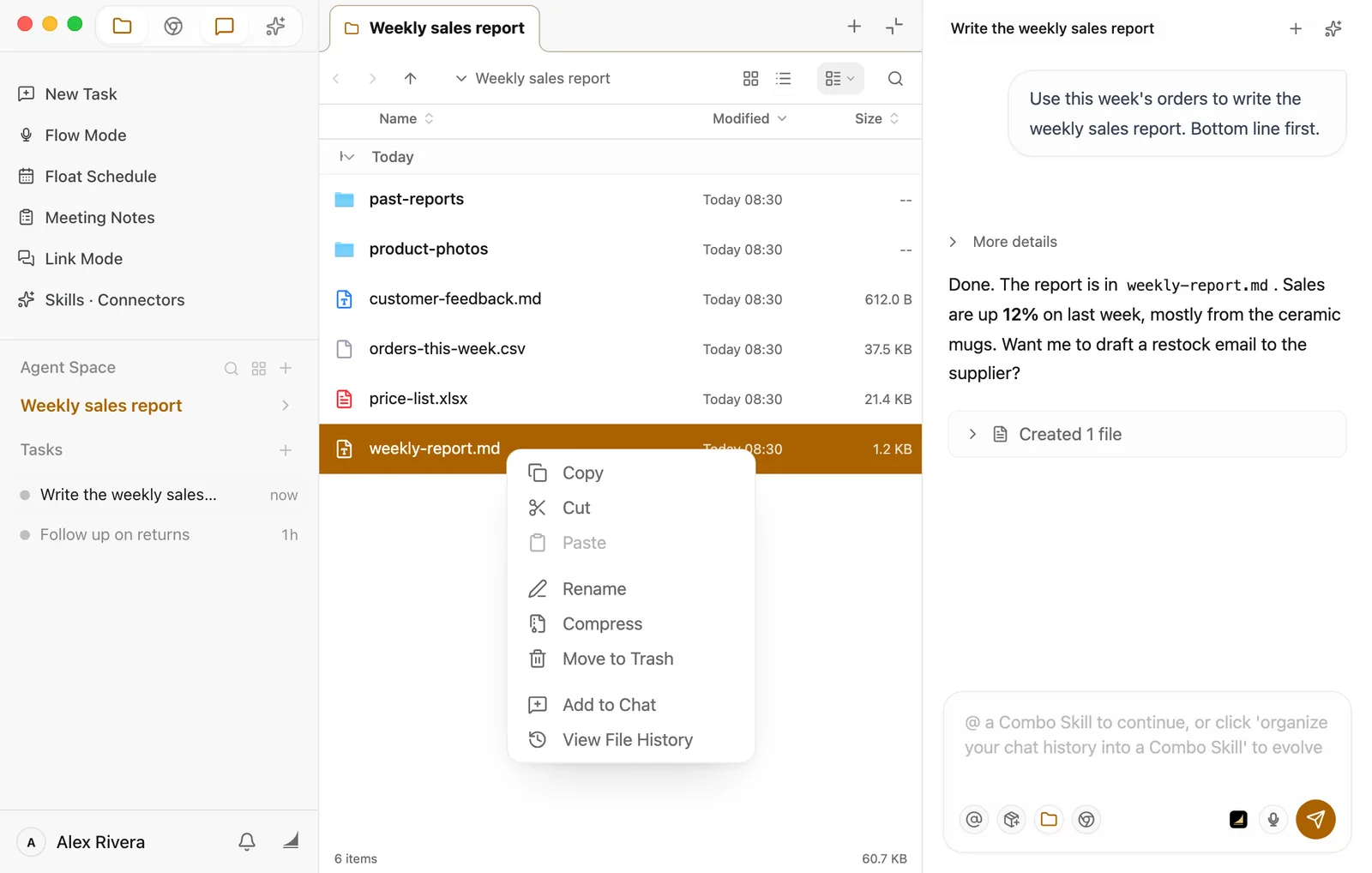
- Create: Right-click an empty spot in the list and choose New File or New Folder. A new file starts out as an empty Markdown file called "New File." Type the name you want and press Return (Enter on Windows).
- Rename: Right-click the file, choose Rename, type the new name, and press Return. If the file is open in the preview, you can also hover over its tab and click the pencil button (Rename file).
- Delete: Right-click the file, choose Move to Trash, and confirm. The file goes to your computer's Trash (the Recycle Bin on Windows), so if you change your mind, you can get it back from there.
- Copy and move: Copy, Cut, and Paste in the right-click menu work the same way they do in Finder or File Explorer. If the file is open in the preview, you can also use Move file on its tab to put it in a different folder.
What the preview can open
| Kind | Common formats | Can you edit it in the preview? |
|---|---|---|
| Documents | Markdown (.md), plain text (.txt), Word (.docx), PDF, e-books (.epub) | Markdown and plain text, yes. The rest are read-only |
| Spreadsheets | Excel (.xlsx), CSV | Yes. Double-click a cell, then click Save |
| Presentations | PowerPoint (.pptx) | Read-only |
| Images | JPG, PNG, GIF, WebP, SVG, and more | Read-only |
| Audio and video | MP3, WAV, M4A, MP4, MOV, and more | They play right in the preview |
| Web pages and code | HTML, plus code files like JSON and Python | Web pages are read-only. Code, yes |
Having trouble?
The Files panel disappeared. Click the folder icon at the top left of the sidebar (Show File Browser), or the folder icon in the row of small buttons at the bottom of the chat box.
I double-clicked a file and it opened in a different app. The preview doesn't support that format yet, so Floatboat handed it to your computer's default app. The same thing happens with very large files.
A Markdown file opens, but I can't edit it. Markdown files over 5 MB open read-only, with a note across the top. Click Adjust threshold in that note to raise the limit, or ask Floatboat to split the file into smaller ones.
Floatboat changed one of my files, and I want to see what it did or undo it. Right-click the file and choose View File History. You'll see when it was changed and in which task. Click View Content to compare before and after, and Restore Before Version to roll the change back.
I made a mess of a Markdown file myself. Click Version history near the right end of the editing buttons, find an earlier version, and click Restore this version next to it.
What's next
Work on a task with Floatboat
Start a task, explain what you need, and watch Floatboat work through it.
Keep each project in its own Agent Space
Give each project its own space so files, web pages, and tasks stay together.
Browse and get things done in the built-in browser
Let Floatboat look things up and get things done with its built-in browser.
Keep each project in its own Agent Space
Give every project its own space, so its files, web pages, and tasks stay together. Here's how to create, switch, and tidy up spaces, and arrange the panels inside them.
Browse and get things done in the built-in browser
Floatboat has its own browser. Here's how to open it, sign in to websites, and have Floatboat look things up or fill things in on the web for you.