
Help Floatboat remember how you work
Use About Me to tell Floatboat who you are and how you like answers, and use space memory (AGENTS.md) to save how a particular job is done, so you don't have to repeat yourself.
Every new task starts fresh. If you've only mentioned a habit or a house rule once in a chat, Floatboat won't know it in the next task.
There are two places where it sticks:
- About Me is about you: what you do, which language you use, and what kind of answers you like. New tasks in every space read it.
- Space memory is about one job: how that work gets done. It's a file called AGENTS.md that lives in the job's folder, and it applies to new tasks in that Agent Space (a space, for short).
| About Me | Space memory (AGENTS.md) | |
|---|---|---|
| What goes in it | Who you are and how you like answers | How this job gets done |
| Which tasks use it | New tasks in every space | New tasks in this space |
| How to write it | Click Edit About Me in Settings | Tell Floatboat "Remember…", or open AGENTS.md and edit it |
One exception: tasks sent from a chat app through Link Mode don't read About Me or space memory. To learn more about Link Mode, see Give Floatboat tasks from your chat apps with Link Mode.
Open Agent Space Memory in Settings
Click your name in the bottom-left corner of the sidebar and choose Settings. Settings fills the whole window. In the list on the left, click Agent Space Memory.
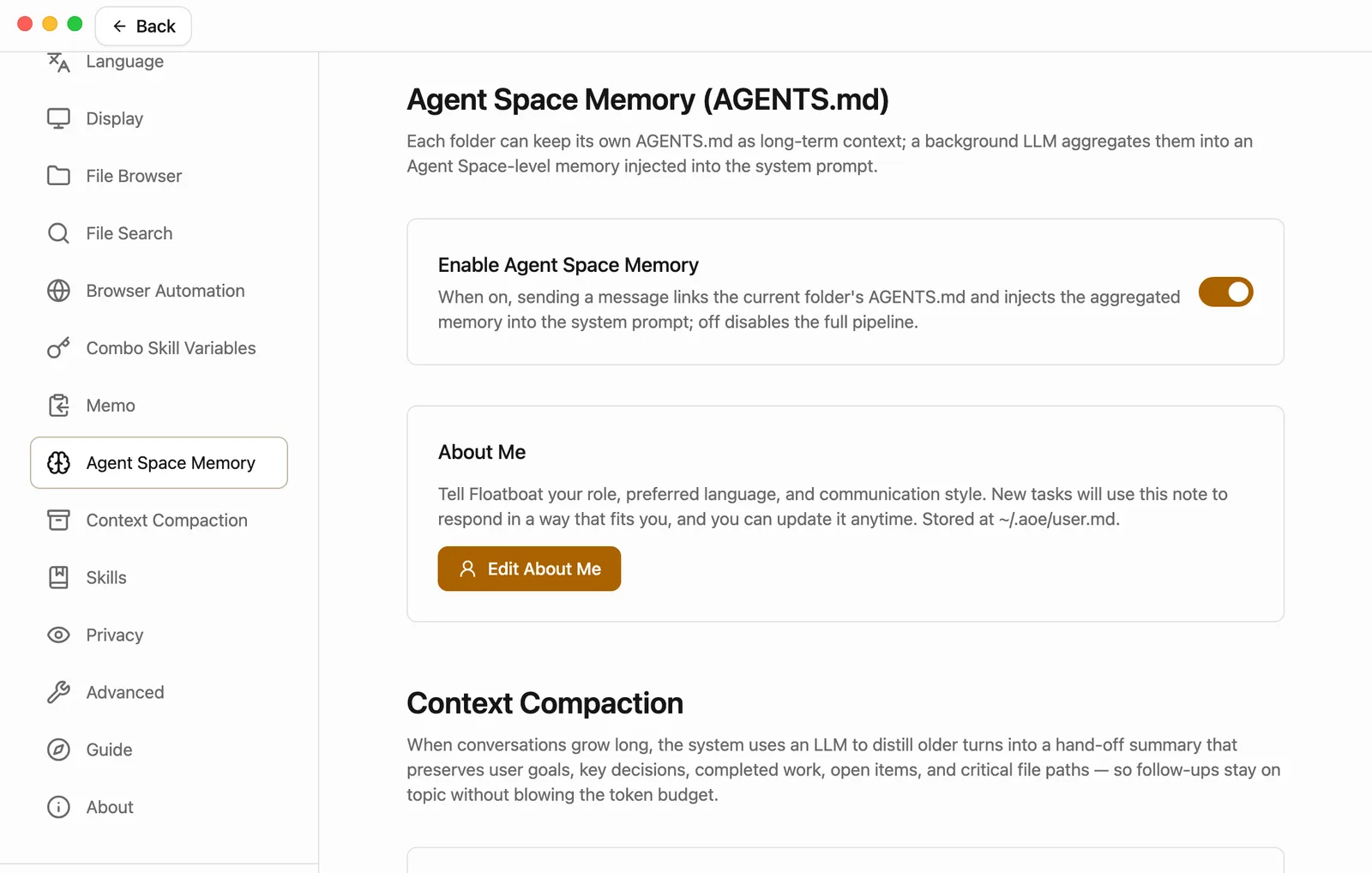
The descriptions on this page are fairly technical. Don't worry if they don't make sense. In short: any folder can have its own AGENTS.md, and Floatboat pulls them together into a memory for the space that new tasks read.
Introduce yourself with About Me
If you wrote a few lines under About you the first time you signed in, that's already here. It's the same note. If you skipped it, you can add it now.
Click Edit About Me
Floatboat goes back to the space you're in and opens the note in the file preview. The file is called user.md.
Write or change a few lines. There's no need to save
Type right in the note. Floatboat saves it shortly after you stop typing (about half a second by default).
What's most useful to include:
- What you do. "I teach 10th-grade history." "I'm a freelance designer."
- The language you want. "Reply in English, but keep product names in their original language."
- How you like answers. "Bottom line first, then the reasons." "Use an example when you explain something new." "Keep it short."
A few sentences is plenty. The more specific you are, the better Floatboat can match how you work. Your changes apply from the next new task.
Have Floatboat remember how a job is done
Some rules belong to one job only. A sales report opens with the bottom line. A thesis uses one citation style. A quote always mentions the deposit. These belong in the memory of that job's space.
The easiest way is to tell Floatboat in a task. Alex runs an online store and has a Weekly sales report space. After Floatboat finishes a report, Alex says:
Remember for weekly reports: bottom line first, amounts in US dollars, returns in their own section.
Floatboat writes those rules into AGENTS.md in the folder, and the file shows up in the Files panel.
A few things to know:
- Make it clear you mean from now on. Say "remember" or "from now on" and it saves the rule. A one-off request, like "skip returns this time," gets done but not saved. If it can't tell whether you mean once or always, it may ask.
- It may ask for your OK first. Writing AGENTS.md is writing a file. Unless you've told it to approve file edits on its own, a Permission Required panel appears. Click Approve. To learn more about the panel, see Work on a task with Floatboat.
- Which folder it goes in. AGENTS.md usually goes in the folder you have open in the Files panel. Open the job's folder there first, then say "remember."
The same works for anyone:
- A grad student, in a thesis space: "Remember: citations in APA 7th edition, and start every paper summary with one sentence on its main finding."
- A teacher, in a lesson-planning space: "Remember: lessons are 45 minutes and end with a 5-minute exit ticket."
- A salesperson, in a client space: "Remember: when I prep for a client visit, list their recent news first, then three talking points."
See and edit what it saved
Click AGENTS.md in the Files panel to open it in the preview.
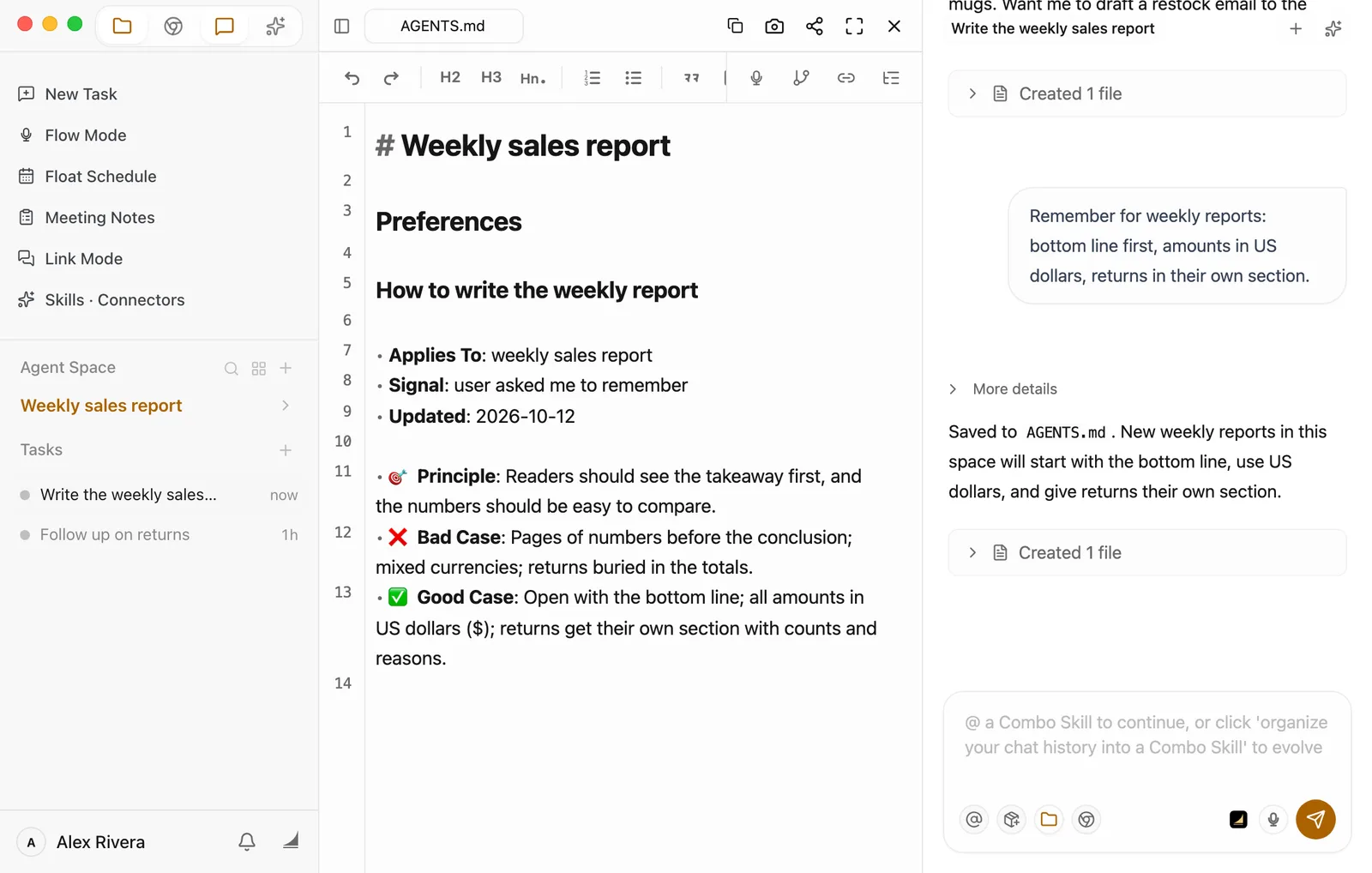
Floatboat lays the file out its own way: what the rule applies to (Applies To), why it matters (Principle), what to avoid (Bad Case), and what to do instead (Good Case). You only need to get the gist. There's no format to learn.
- To change a rule, edit the text. Like any Markdown file, it saves itself shortly after you stop typing.
- To drop a rule, delete those lines.
- To add your own, one line per rule is enough, such as "Weekly report: end each section with a one-line takeaway." Say what kind of work it's for, so Floatboat can tell when it applies. If the folder doesn't have an AGENTS.md yet, ask Floatboat: "Create an AGENTS.md in this folder that says…"
A space can use more than one folder, and each one can have its own AGENTS.md. Floatboat combines the AGENTS.md files from the folders you've used in the space, and new tasks in that space read the result.
What changes once it remembers
Alex used to repeat "bottom line first, US dollars, returns on their own" every single week. Now Alex starts a new task in the Weekly sales report space and says only "Write this week's sales report from the orders." The report opens with the bottom line, every amount is in dollars, and returns have their own section.
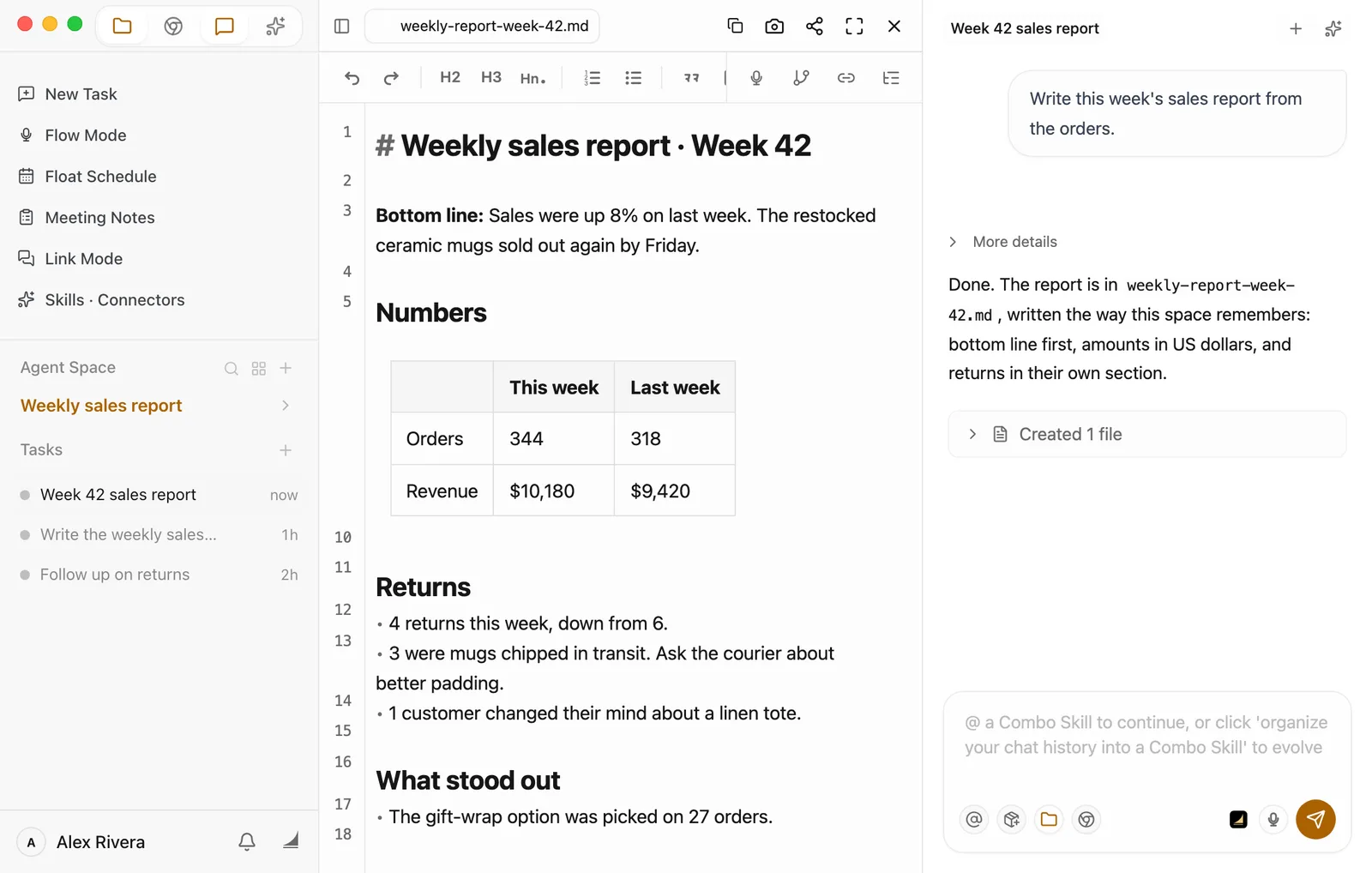
For each task, Floatboat picks out the rules that relate to the job at hand. Short, specific rules are the ones it uses most reliably.
When changes take effect
- From the next new task. When a task starts, Floatboat reads About Me and the space memory, and it keeps using that copy for the whole task. After you change something, start a new task to pick it up.
- In the task where you said "remember," it already knows. No need to wait.
- Rules in other folders reach the space memory once Floatboat has combined them in the background, which usually takes a moment. The AGENTS.md in the folder that's open in the Files panel when a new task starts is read right away.
Should I turn off Enable Agent Space Memory?
It's on by default, and you can usually leave it alone.
When it's off, Floatboat stops combining the AGENTS.md files from your folders into a memory for the whole space, and new tasks don't read that combined memory. About Me isn't affected and keeps working.
If there's just one rule you don't want, you don't need the switch. Open AGENTS.md and delete that rule.
What about Skills and Browser Automation in Settings?
Most people never need to touch these two.
- Skills: the page is titled Skill Library. If you also use AI coding tools like Claude Code, Codex, or Cursor, the skills you've installed in them show up here, and Floatboat can use them too. Under Agents, each tool has a switch. Turn one off, and Floatboat stops using that tool's skills. If you don't use those tools, you can ignore this page. To save your own way of doing a job, use a Combo Skill instead. A Combo Skill is a saved way of doing a certain kind of job, so Floatboat can do it the same way every time. See Save what works as a Combo Skill.
- Browser Automation: there's nothing to set up. Floatboat uses its own built-in browser, so you don't need to install a browser extension.
Having trouble?
- I said "remember," but it didn't write AGENTS.md. Be more explicit: "Save these rules to AGENTS.md in this folder and use them from now on." Also scroll to the bottom of the task. It may be waiting for your OK in a Permission Required panel.
- I changed About Me or AGENTS.md, but it doesn't seem to follow it. A task that's already going keeps using what it read when it started. Start a new task and try again.
- I can't find AGENTS.md in the Files panel. It's in the folder that was open when you said "remember." Go back to the job's folder in the Files panel.
- It saved something wrong, or something I don't want. Open AGENTS.md and fix or delete those lines.
What's next
Save what works as a Combo Skill
Save a way of working as a Combo Skill, then @ it to do the job the same way next time.
Keep each project in its own Agent Space
Give each project its own space, so its memory, files, and tasks stay together.
View and edit your files
Find AGENTS.md in the Files panel, open it, edit it, and see its history.
Decide what Floatboat can do on its own
Choose how often Floatboat checks with you, take back a "Remember" choice, decide whether to share usage data, and handle your computer's own permission prompts.
Language, appearance, and preferences
Switch Floatboat's language, go light or dark, tune Quick Open and the Files panel, and keep Floatboat up to date.