
Choose a model
Switch the AI model a task uses right from the chat box, and learn to read the menu. Plus what context compaction does on long tasks, and what happens when a model is briefly unavailable.
When Floatboat works on something for you, an AI model does the thinking behind the scenes. Models are a bit like different helpers. Some are quick and easy on your credits. Others are better at hard problems and can take in more at once, but they use more credits.
Most of the time you don't need to think about it. The default, Lite mode, handles everyday work well. When a job is big or tricky, switch to a stronger model.
Switch the model for a task
Click the model button in the chat box
It's in the lower right of the chat box and shows the model you're using now, such as Lite mode. Click it to open the model menu.
Rest the pointer on a model to read about it
A short note pops up. Full name is the model's complete name. Good for tells you what it's suited to, like complex reasoning, long context, or multimodal input.
Click to choose it
The menu closes and the button shows the new model's name. Floatboat uses it starting with the next message you send.
A few things worth knowing:
- You can switch in the middle of a task. The round that's already running finishes on the old model. The new one takes over from your next message.
- Each task remembers its own model. Go back to an older task and the button still shows the model you picked there.
- New tasks start with the model you picked most recently. If you switched to a pricier model for one big job, switch back to Lite mode for everyday work. It saves a good number of credits.
How to pick a model
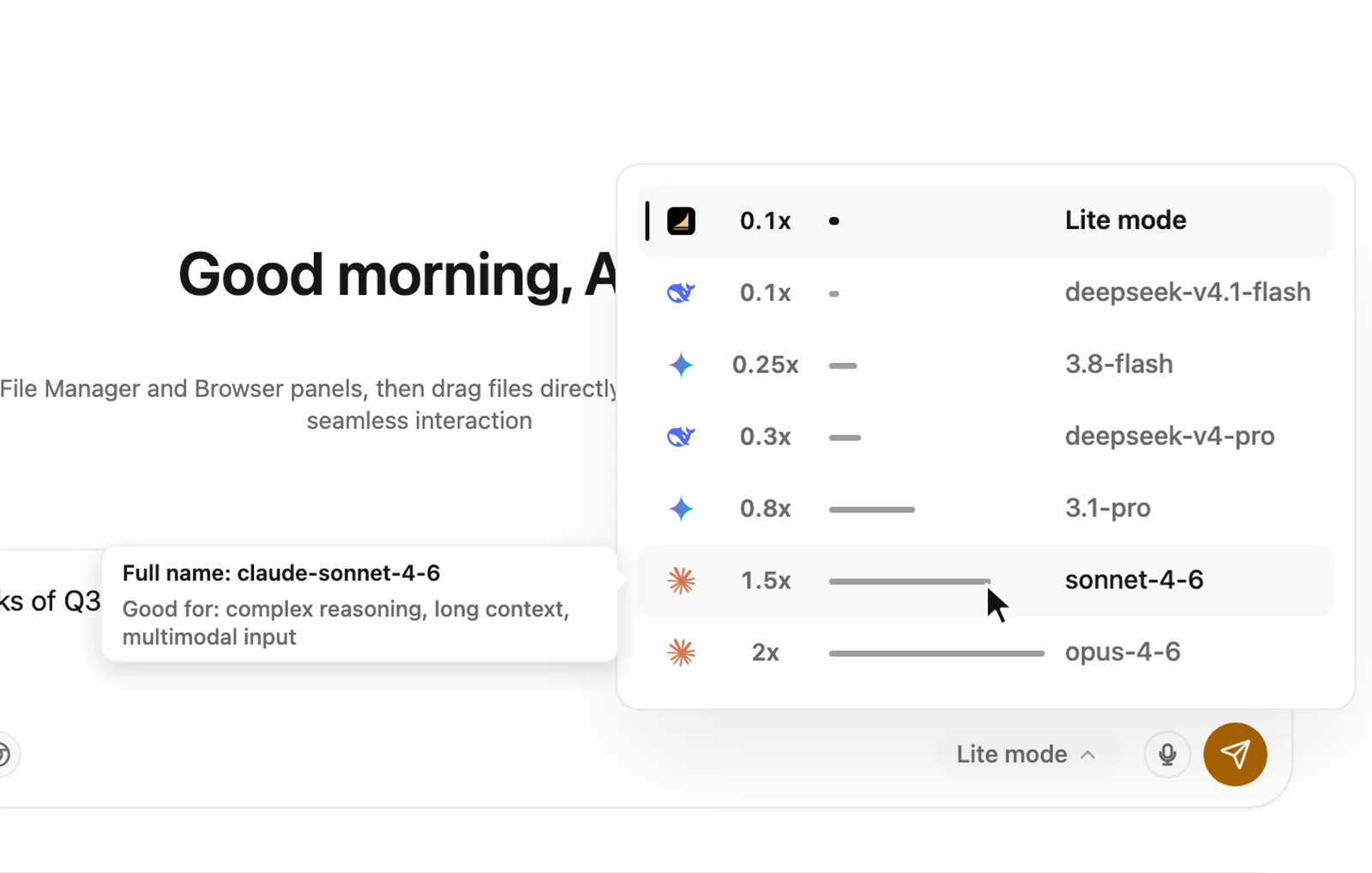
Each row shows, from left to right: the model's icon, its rate (like 0.1x or 1.5x), a bar, and the model's name.
- The rate roughly shows how fast a model uses credits. The bigger the number, the more credits the same job usually takes. The bar shows the same thing at a glance: the longer it is, the more it costs. The menu is sorted by rate, cheapest at the top.
- Lite mode always sits at the top. It isn't tied to one model. Floatboat picks a suitable one for you, which is why its note says smart routing and low-cost quick responses. For most everyday work, it's all you need.
- Good for appears when you rest the pointer on a model. Complex reasoning suits work that takes several steps of thinking or careful comparison. Long context suits reading a lot of long material in one go. Multimodal input means it can look at images directly.
Here's an easy rule: start with the default, and move up only if the result isn't good enough.
Lite mode is usually plenty for:
- Alex writing the weekly sales report from this week's orders.
- A student turning a research paper into five key points.
- A marketer drafting three social posts for a product launch.
A stronger model is worth it for:
- Alex going through all 13 weeks of Q3 orders to find what customers reorder most. That's the example in the video above.
- A teacher planning a full semester of lessons from the 12 units of a textbook.
- A product manager turning 30 customer interview notes into a feature list.
Not sure? Try the cheaper option first. If you're not happy with the result, switch to a stronger model and ask it to do the job again. There's no need to start with the most expensive one.
The list of models changes
Floatboat updates the models in this menu online, adding and adjusting them over time, so this page doesn't list them. Go by the rate and Good for when you choose.
Long tasks: context compaction
At every step, Floatboat looks back over everything said and read earlier in the task, so it knows what to do next. That's called the context. The longer the task, the more there is to look over. Replies get slower, they use more credits, and past a point the model can't hold it all.
So when a task gets long enough, Floatboat compacts the context on its own. It condenses the earlier part into a summary that keeps your goals, the key decisions, what's done, what's still open, and where the important files are. Then it carries on.
In the chat you'll see a line with Auto-compacting conversation context in the middle. When it's done, it changes to Conversation context auto-compacted. There's nothing you need to do. Floatboat keeps working.
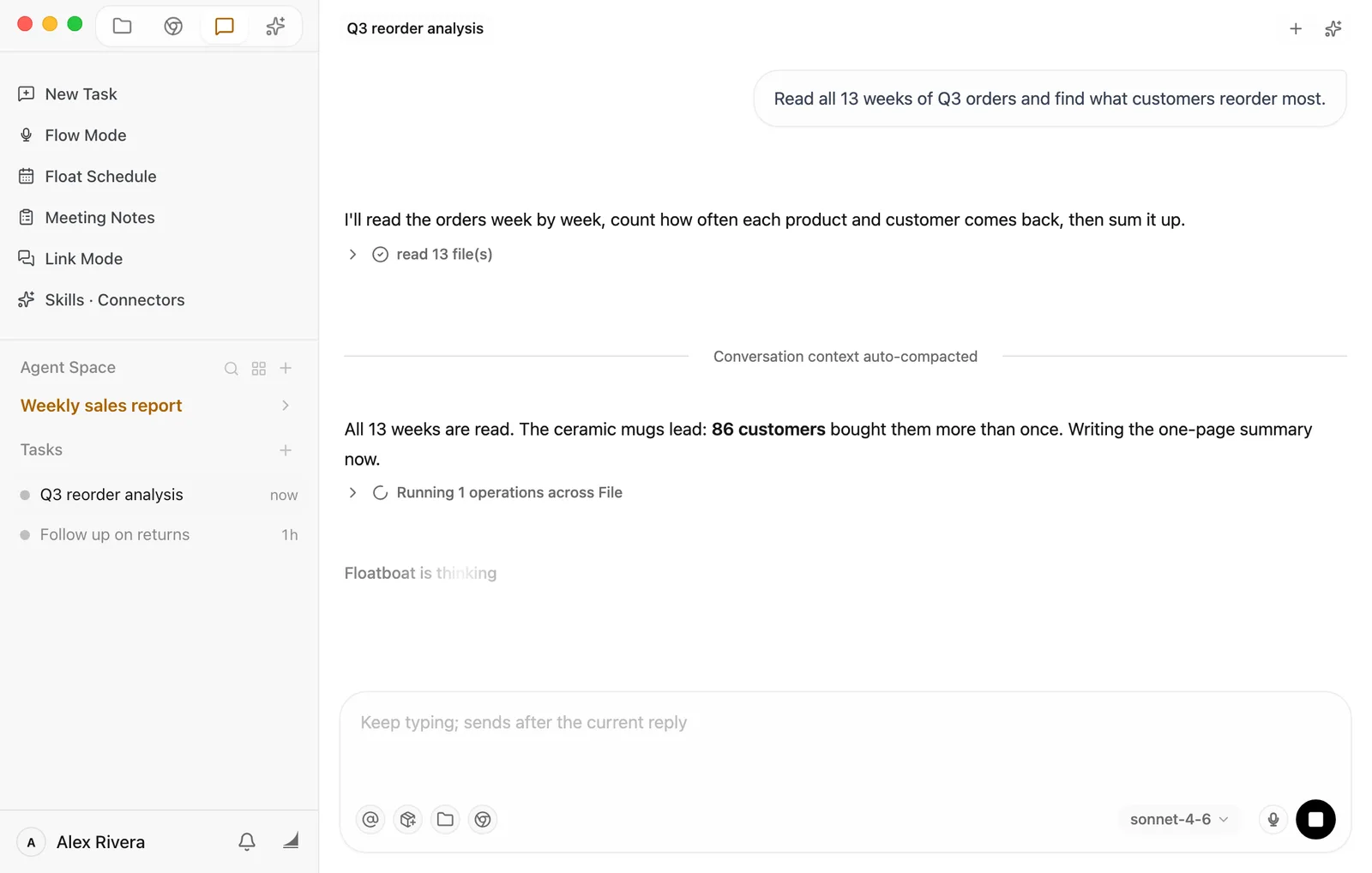
Compaction doesn't delete your chat. Scroll up and every earlier message is still there. Only the material Floatboat carries forward to keep working gets condensed.
On a very long task, though, a small detail can get lost in the summary. If Floatboat seems to have forgotten something you asked for earlier, mention it again in your next message.
Can I change it?
You can change when compaction starts. You can't turn it off.
Open Settings
Click your name at the bottom left of the sidebar and choose Settings. Settings fills the whole window.
Find Context Compaction
Click Context Compaction in the list on the left of Settings. You can also type "compaction" into Search settings... at the top.
Pick a trigger threshold
Under Trigger threshold (tokens), click a number. It takes effect right away. There's no save button.
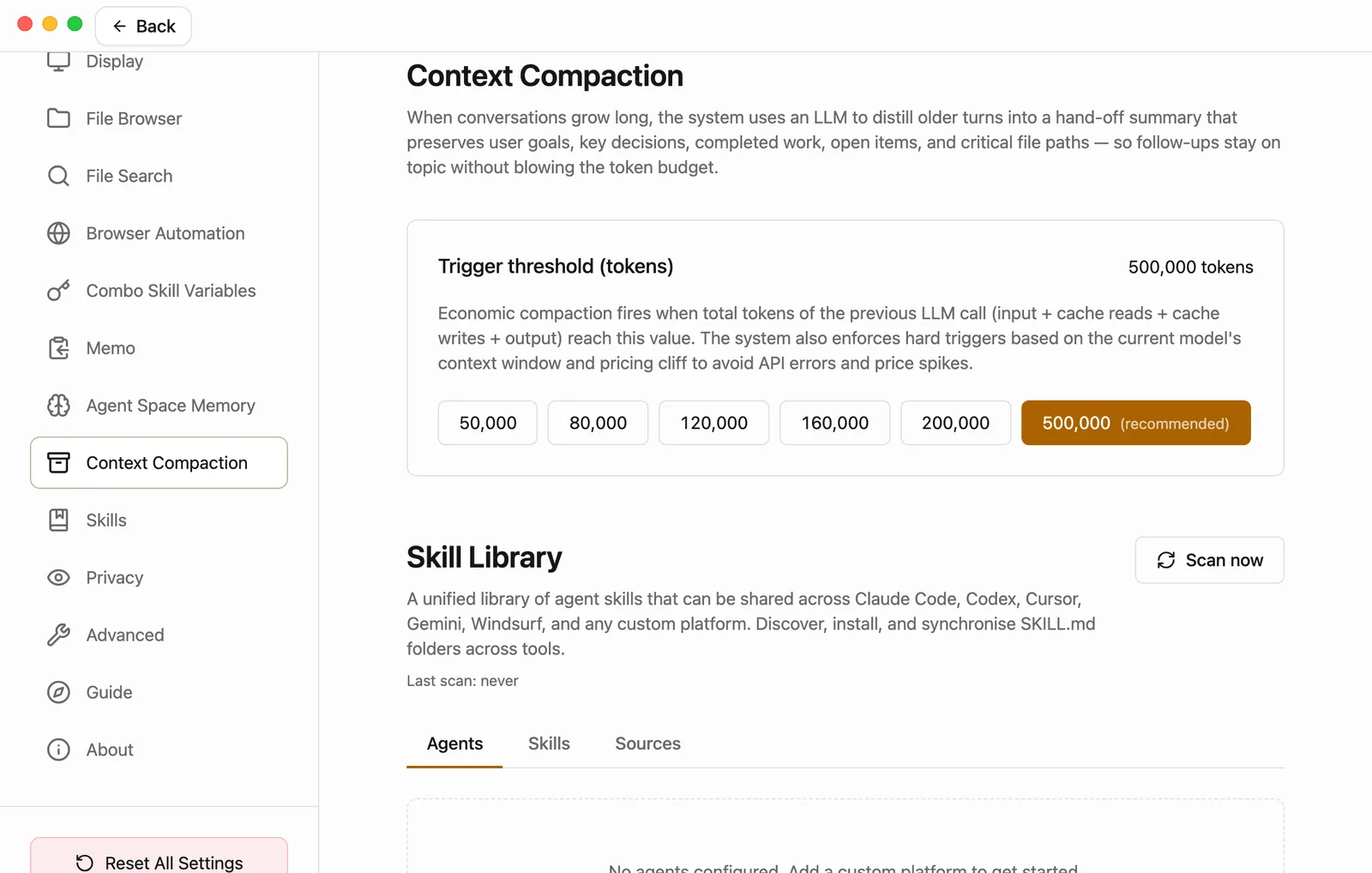
A token is how AI measures the length of text. The longer the conversation and the more files it reads, the more tokens there are. The number you pick is how many tokens the context can reach before compaction starts.
- 500,000 (recommended) is the default and the largest option. Compaction comes as late as possible, so long tasks get interrupted the least and earlier details stay intact the longest.
- A smaller number means compaction comes sooner. Each later step has less to read, so it's usually faster and uses fewer credits. The trade-off is that earlier details get condensed sooner.
- Whatever you choose, Floatboat also compacts early when a conversation is about to outgrow what the current model can handle, or when going longer would bump it into a higher price per token.
If you're not sure, keep the recommended setting.
When a model is briefly unavailable
Now and then, the model you picked can't be reached for a while. Instead of leaving your task stuck, Floatboat finishes that round with another model.
Afterward, move the pointer over the reply. In the row of small buttons that appears under it, there's an extra icon: an exclamation mark in a circle. Point at it to see which model actually did the work this time.
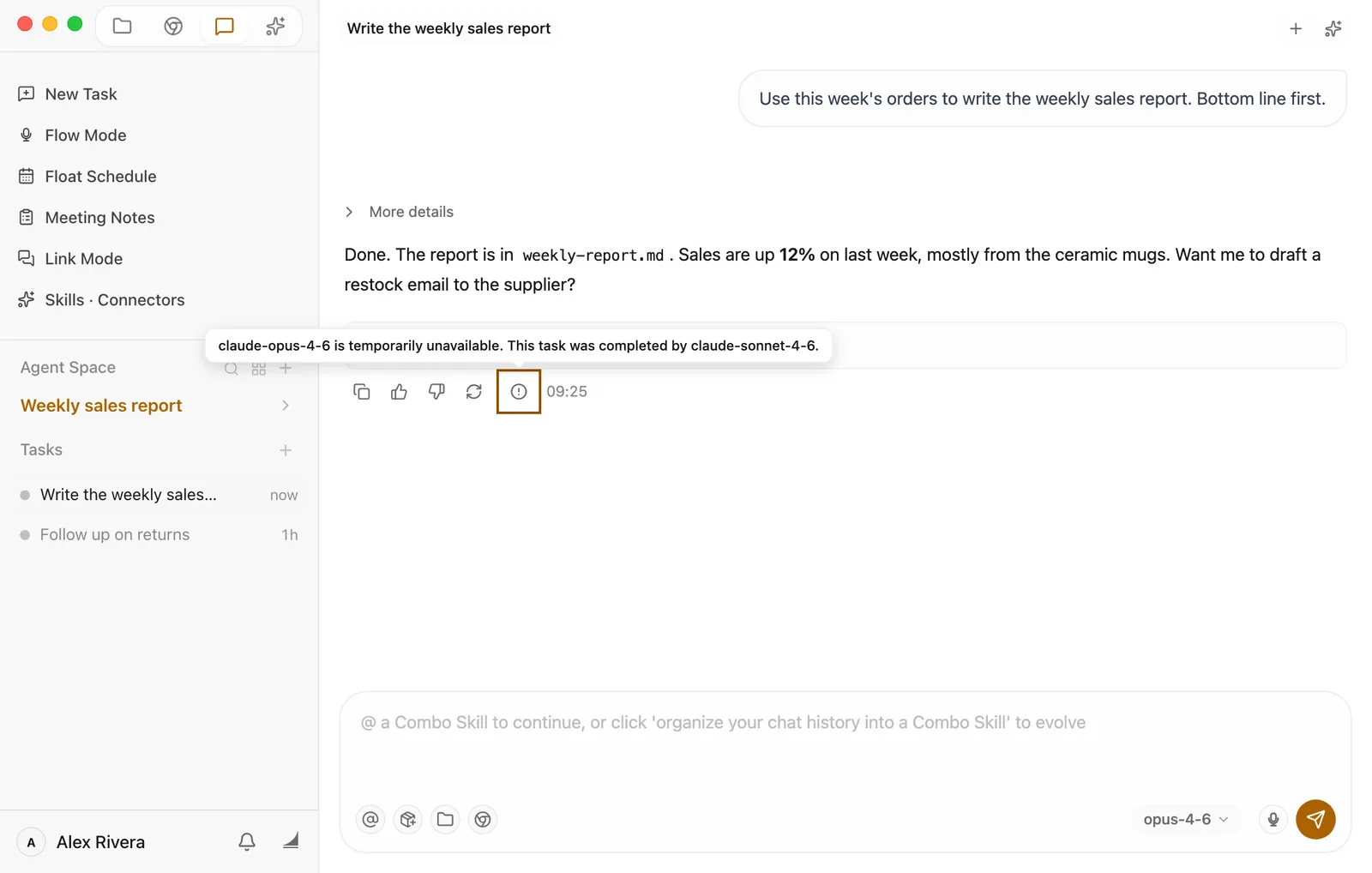
Your choice doesn't change. The button in the chat box still shows your model, and your next message goes to it first. If you think this round's result could be better, wait a little, then click Regenerate under the reply to have it done again.
Having trouble?
Some models in the menu have a lock. Those need a paid plan. Rest the pointer on one and you'll see Upgrade to a paid plan to use this model. Clicking it opens the plans page in your browser. The Unlock more models card in the menu goes to the same place. For credits and plans, see Your account and credits.
A model you used before is gone. The list is updated online, and models can be retired or renamed. Pick one with a similar rate and Good for.
You switched models, but nothing seems different. The round that's already running stays on the old model. The new one starts with your next message.
Your credits are going faster than you expected. Check the model button in the chat box. You may still have a high-rate model selected, and new tasks use the model you picked last. Switch back to Lite mode for everyday work.
You see "Conversation context auto-compaction took too long, so this request was stopped." That round stopped, but your task and chat are still there. Send your last message again.
You see "Conversation context auto-compaction was interrupted." The compaction didn't finish. Maybe you clicked stop, or something went wrong along the way. Keep going by sending your next message. Floatboat will compact again when it needs to.
What's next
Your account and credits
See how many credits you have left and how to top up when they run out.
Work on a task with Floatboat
Start a task, explain what you need, and watch Floatboat work through it.
Help Floatboat remember how you work
Tell Floatboat your habits and preferences so every task can use them.
Your account and credits
Check which account you're signed in with and how many credits you have left, redeem a gift card, get more credits when you run out, and sign out or switch accounts.
Decide what Floatboat can do on its own
Choose how often Floatboat checks with you, take back a "Remember" choice, decide whether to share usage data, and handle your computer's own permission prompts.