
Turn this week's orders into a sales report
Hand Floatboat the orders you exported from your store and get a sales report with the bottom line first and last week's numbers alongside. Then save the steps as a Combo Skill, so next week it takes one sentence, or none at all.
Alex runs a small online store that sells mugs, totes, and candles. Every Monday morning, Alex turns last week's orders into a sales report: how much sold, how that compares with the week before, and what needs restocking. Working through the spreadsheet line by line and then writing it up used to take the whole morning.
This page walks through the whole job: hand the orders to Floatboat, get a report with the bottom line first, add what only you know, and save the steps for next time. The first run takes about fifteen minutes, mostly reading and tweaking. After that it's a few minutes a week, and Floatboat can even have the report ready before you sit down on Monday.
Before you start
- This week's orders. Most store dashboards can export orders as a spreadsheet. Choose CSV (a plain spreadsheet file that Excel and Numbers both open) and set the dates to last Monday through Sunday. If your dashboard only gives you an Excel file, that works too, with one extra step. See Having trouble? below.
- Last week's report (optional). If you have one, Floatboat follows its format and compares the numbers. If not, that's fine. Tell it which numbers you want.
- A space for the report. An Agent Space (a space, for short) is where Floatboat keeps one piece of work together, with its files and tasks. This page uses a space called Weekly sales report, with earlier reports in its past-reports folder. To make one, see Keep each project in its own Agent Space.
Step by step
Put this week's orders in the space
Save the exported file in the Weekly sales report space's folder as orders-this-week.csv. You can also drag the file from Finder or File Explorer into Floatboat's Files panel, and Floatboat copies it into the folder.
If you save it under the same name every week, replacing last week's copy, you won't have to change a word of the request below.
Start a task and say what you need
Click New Task at the top of the sidebar and type what you need in the chat box. For example:
Write the weekly sales report from orders-this-week.csv and compare it with week-40.md. Bottom line first. Save it as weekly-report.md.
A request that covers three things gets you a report closer to what you had in mind:
- Which files to use: the orders, plus last week's report to compare against.
- What it should look like: bottom line first, or "only the three key numbers," or "returns in their own section."
- Where to save it: a file name makes it easy to find later.
Approve when it's ready to write the file
With the default Ask Every Time setting, Floatboat stops before writing a file and shows a Permission Required panel. Check the file name in the step above it (weekly-report.md here), then click Approve, and it finishes the report. For what each button on the panel does, see Work on a task with Floatboat.
When it's done, the reply opens with the bottom line, and a Created 1 file card sits underneath.
Open the report and add what only you know
Click Created 1 file, then click weekly-report.md or Open next to it, and the report opens in the preview. Double-clicking the file in the Files panel works too.
Check the money and the counts yourself
Floatboat works out the numbers from your orders file, and it can get them wrong. It might miss some orders, or count canceled ones as sales. Before you share the report, check at least the revenue and the order count against your store dashboard.
Once the numbers check out, add what Floatboat can't know. It can count, but the reasons are yours. Say returns fell from 9 to 6 because you switched to thicker boxes: add a line under "What stood out." Click into the text to edit. It saves itself about half a second after you stop typing.
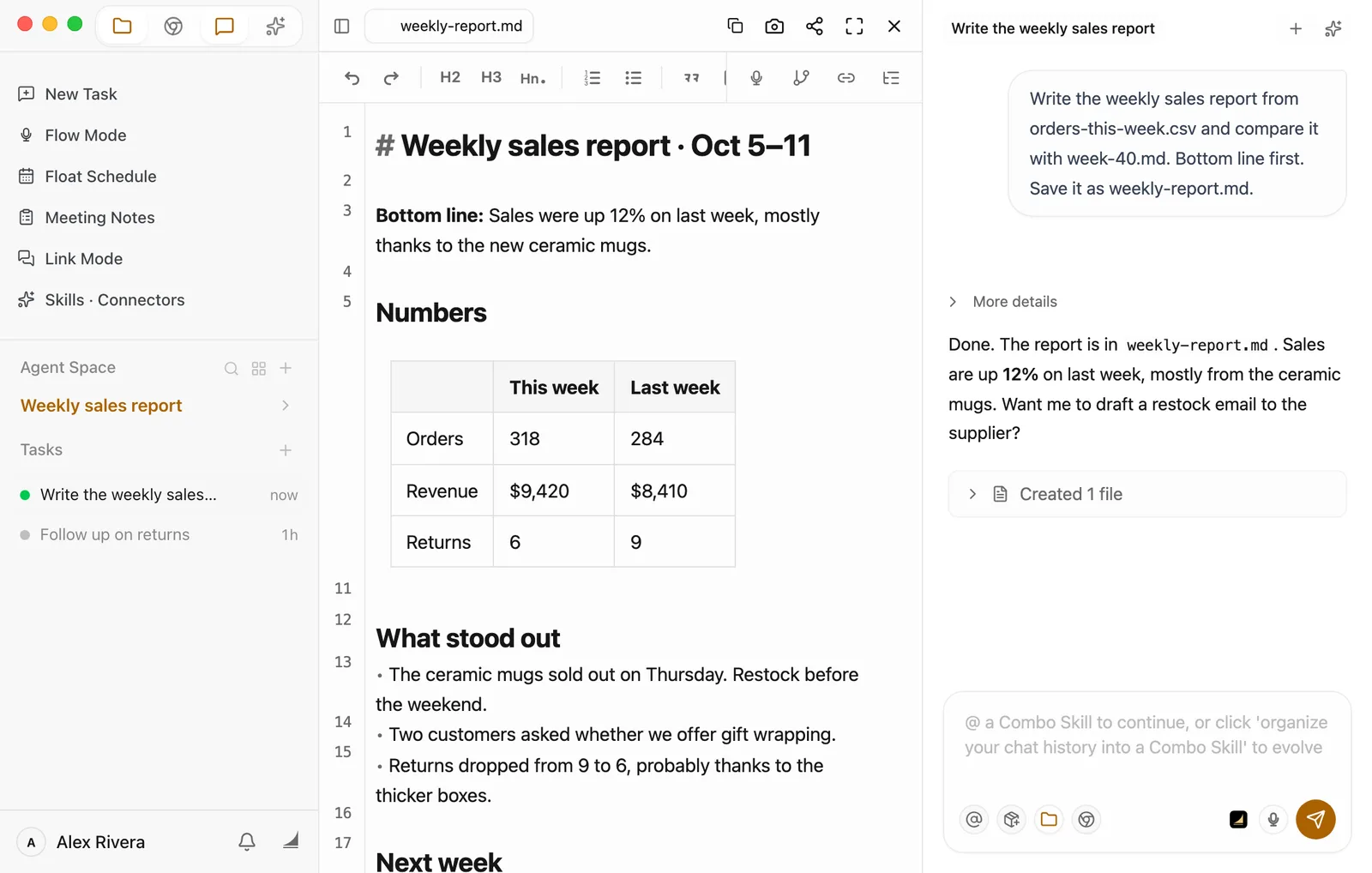
For bigger changes, like a different structure or an extra section, ask in the same task. There's more on editing in the preview in View and edit your files.
Save the steps as a Combo Skill
Once the report reads the way you want, save how it was done so next week you don't have to explain it again. A Combo Skill is a saved way of doing a certain kind of job, so Floatboat can do it the same way every time. In the same task, tell Floatboat:
Save how we did this as a Combo Skill called Weekly sales report. Before each new report, move the last weekly-report.md into past-reports and rename it by week, like week-41.md.
Floatboat creates the skill and writes the steps into it: which files to read, how to compare, bottom line first. The second sentence is your own house rule. With it, a new report never overwrites the last one.
If Floatboat asks for your OK before it writes, click Approve. To check that the skill is there, click the fourth icon at the top of the sidebar (Show Combo Skills) and look for Weekly sales report. If it doesn't show up right away, click the refresh button at the top of the panel.
You can also use Organize to Combo Skill below the chat box. That skill is named after the task and starts out empty, though, so you'd still need to say "Write the steps we just followed into this Combo Skill." See Save what works as a Combo Skill.
Make it yours
This works for anything where, every so often, a spreadsheet needs to become a one-page summary. Three things change: the file you hand over, the earlier summary to compare with, and what you want to read first.
- A support lead's weekly ticket report: swap the orders for the ticket export from your help desk. Ask: "Compare with last week. Lead with the most common issue, then list the average reply time and the number of bad ratings."
- A personal trainer's weekly attendance: swap the orders for your clients' check-in records. Ask: "List how many times each client came in this week, flag anyone who hasn't come in two weeks, and compare with last week." Schedule it for Sunday evening.
- A vacation-rental host's monthly summary: swap the orders for the bookings export from your booking site. Ask: "Total the nights booked and the income for each room, work out the occupancy rate, and save it as october-occupancy.md." When you schedule it later, set Repeat Rule to a day each month.
Save time next time
Next Monday: pick the skill and say one sentence
Save the new export as orders-this-week.csv, replacing last week's. Start a new task, click @ at the bottom left of the chat box, and choose Weekly sales report. The chat box now reads "Use [Weekly sales report Combo Skill] for task:". Add one sentence after it and send:
Use the new orders-this-week.csv. Same format as last time.
Everything else is in the skill: which files to read, how to compare, bottom line first, and your rule about moving the last report into past-reports. Open the result as usual and add whatever only you know this week.
Let Float Schedule have it ready on Monday morning
To go one step further, have Floatboat write the report every Monday before you start work. You set this up once.
Add an event that repeats every week
Click Float Schedule in the sidebar, then Create › Set up manually. Title it "Write the weekly sales report" and set the time to when you usually look at the report on Monday. Click the button next to Repeat Rule (it says Does not repeat) and choose Weekly on Mon.
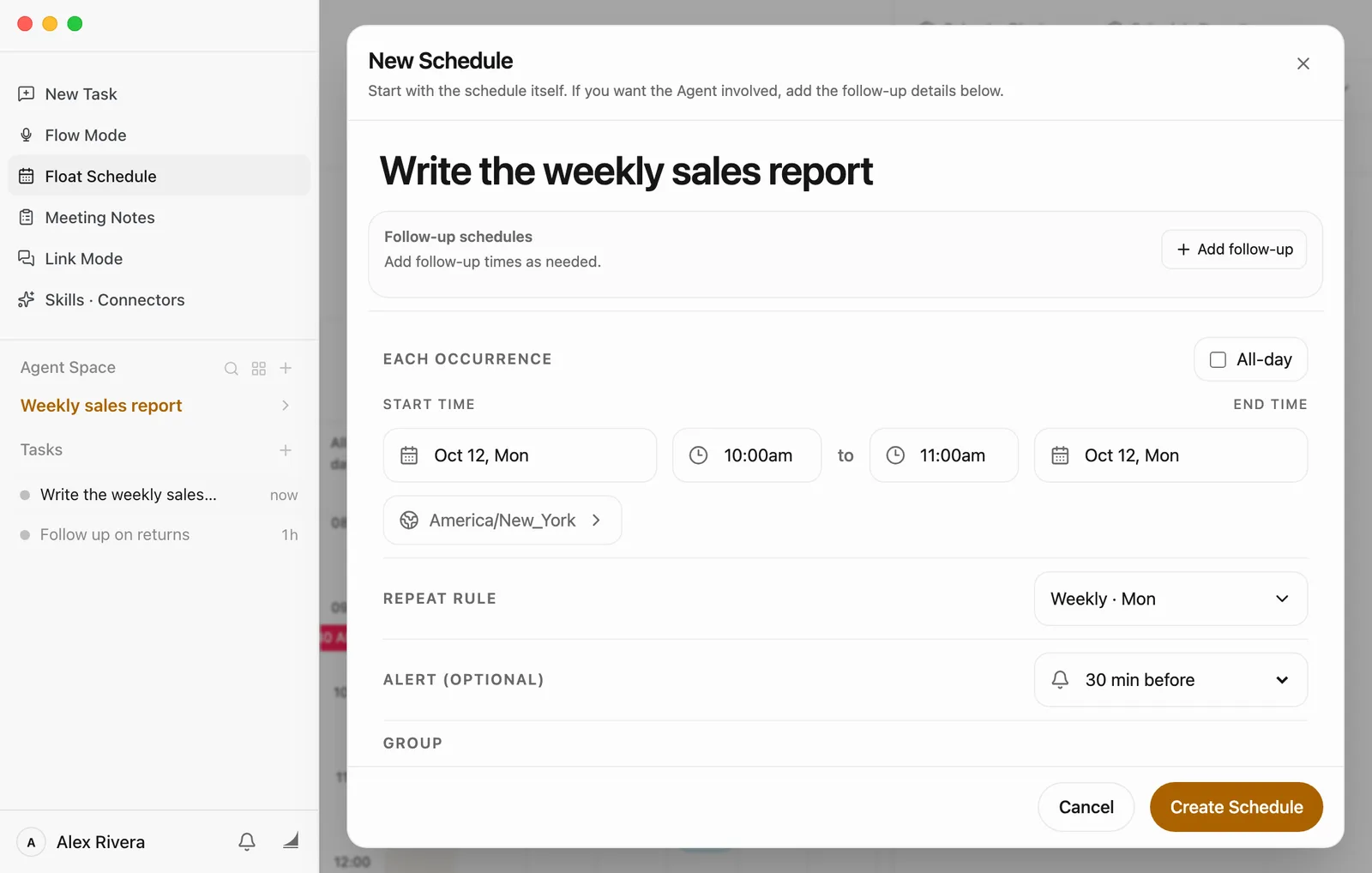
Click Prepare with Agent and say what to do
Click Prepare with Agent at the bottom left of the window, and write this in Instruction For The Agent:
Write this week's sales report from the new orders-this-week.csv. Same format as last time.
Then:
- Set Agent Space to Weekly sales report.
- Set How Far Should Agent Go to Materials only. Writing the report only takes reading and writing files.
- Under Combo Skills, click Weekly sales report. It lights up, and the section shows 1 selected.
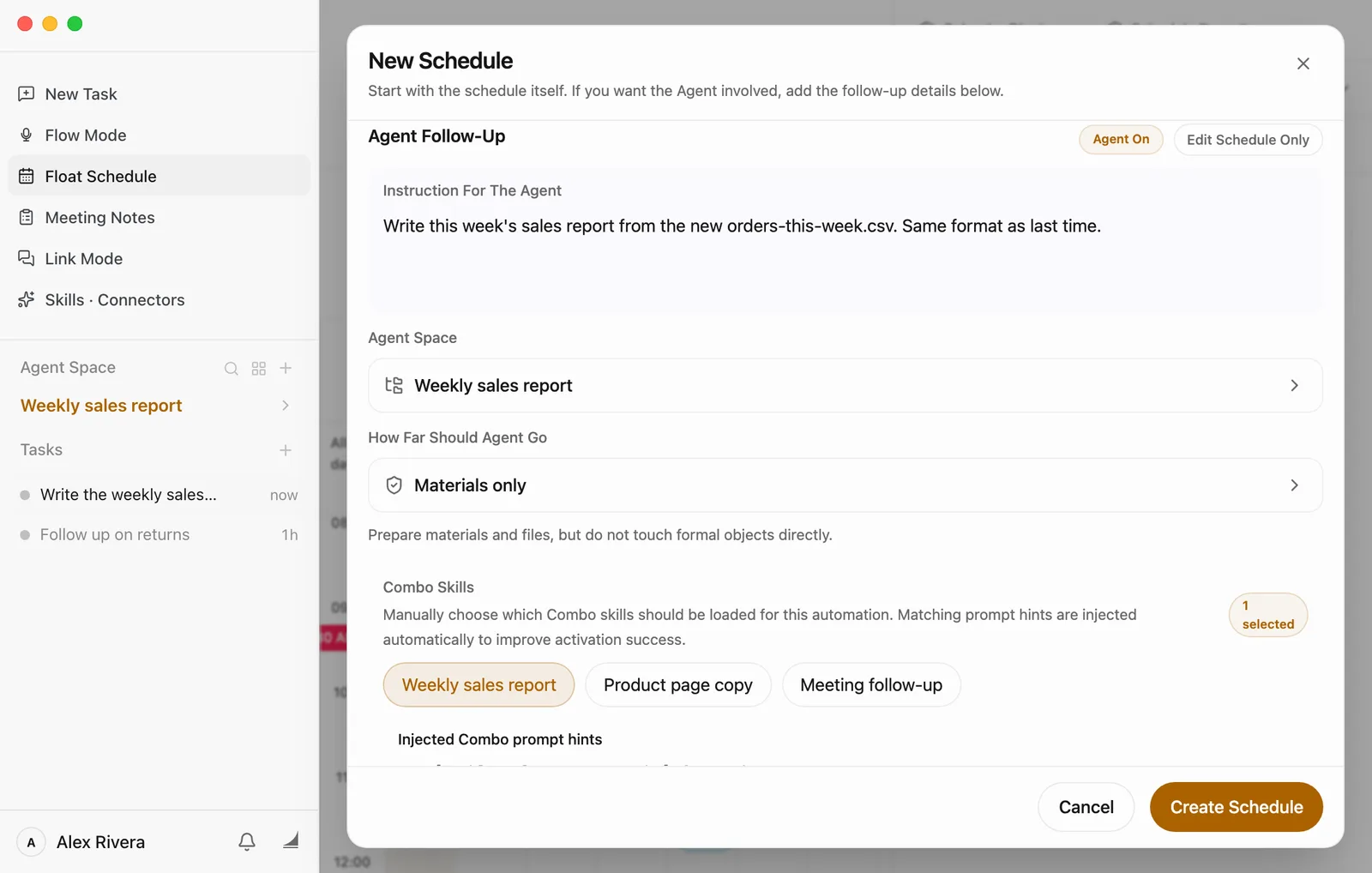
Keep the start time and click Create Schedule
Start Timing starts at 1 hour before the start. Leave it, and click Create Schedule. For what the other options mean, see Plan your days with Float Schedule.
From then on, every Monday at the start time, Floatboat gets to work on its own. When it's done, you'll get a Task complete notification. Click it to see the report. Put the orders in place before the start time, for example by exporting them on Sunday evening and saving them as orders-this-week.csv. Three more things to know (there's more in Plan your days with Float Schedule):
- Floatboat needs to be open (the background is fine). If it wasn't open at the start time, it runs the missed one as soon as you open it.
- It won't stop to wait for Approve. It stays within what How Far Should Agent Go allows. That's why Materials only is the setting to choose here.
- What it writes goes into the space's Auto Prep folder. The reply in the task the Task complete notification opens says exactly where.
A report written on schedule stays in Auto Prep. Once you've read it, move it into past-reports yourself. The skill's rule about moving the last report applies to the reports you ask for in a task.
Write your house rules into the space's memory
Some rules apply to more than the report, like keeping all amounts in US dollars or leaving canceled orders out of sales. Say "Remember: ..." in a task in this space, and Floatboat adds it to the space's memory. New tasks in this space then follow it, even when you don't pick the skill. See Help Floatboat remember how you work.
Having trouble?
- The file I dragged in has "copy" in its name. If orders-this-week.csv is already in the folder, dragging a new one into the Files panel doesn't replace it. It's saved as orders-this-week copy.csv instead. Delete last week's file or move it into past-reports, then rename the new one to orders-this-week.csv. Right-click a file to find Rename and Move to Trash.
- My store dashboard only gives me an Excel file. Floatboat reads Word (.docx), Markdown, plain text, and CSV files directly. A PDF or Excel (.xlsx) file isn't plain text, so it runs a short command to pull the text out (or to build a new .xlsx). Unless you've chosen Auto-approve All, a Permission Required panel shows that command first. To skip the extra step, save a CSV copy. When Float Schedule writes the report for you, Materials only doesn't allow commands, so Floatboat can't read the Excel file at all. Use CSV there.
- The numbers don't match my store dashboard. First check the date range you exported. If the file includes canceled or refunded orders, tell Floatboat how to count them, for example "Leave canceled orders out of sales and run the numbers again." To have it count that way every time, ask it to remember the rule, as in "Write your house rules into the space's memory" above.
- No Task complete notification on Monday morning. If Floatboat wasn't open at the start time, it runs the missed one as soon as you open it. To run it right away, click the Write the weekly sales report event in Float Schedule, then Run Now in its details. Also check that the orders were in place before the start time.
- I can't find the report it wrote on schedule. Open the Auto Prep folder in the Files panel. The report is in a folder inside it. The quicker way is to click the Task complete notification and read the location in the reply.
What's next
Save what works as a Combo Skill
Edit or delete the skills you've saved, and add ready-made ones from the store.
Plan your days with Float Schedule
Have Floatboat get things ready before an event, and bring in the calendars you already use.
Work on a task with Floatboat
Send a request, follow along while Floatboat works, and step in when it asks.
Give Floatboat tasks from your chat apps with Link Mode
Away from your computer? Send Floatboat on your computer a message from Slack, Lark, WeChat, and other chat apps, and get the results back in the same chat. Here's how to connect, how to use it, and how to control who can send it work.
From meeting to follow-up in one go
Let Floatboat capture what everyone says in a meeting, then have it write the summary and action items, draft the follow-up email, build the action-item sheet, and put the next meeting on your calendar.