
Keyboard shortcuts
The eight shortcuts worth learning first, every shortcut in Floatboat for Mac and Windows, and how to change the Quick Open shortcut.
You can do everything in Floatboat with the mouse. Shortcuts are for the things you do over and over, so your hands can stay on the keyboard. You don't need to learn them all. Pick up two or three that fit how you work, and come back here when you want more.
A few examples. A student working through a pile of papers can press ⌘K from any app, type "literature review," and open the file straight away. A marketer drafting this week's posts can press ⌘⇧E to tuck the Files panel away and give the chat more room. A salesperson getting ready for a client visit can hold the right ⌘ key and say, "Pull together what we discussed with Brightline last month."
Start with these eight
| Mac | Windows | What it does |
|---|---|---|
| Return / ⇧Return | Enter / Shift+Enter | In the chat box: send / start a new line |
| ⌘T | Ctrl+T | Start a new task (while you're in the Chat panel) |
| ⌘⇧E, ⌘⇧B, ⌘⇧C, ⌘⇧K | Ctrl+Shift+E, B, C, K | Show or hide the Files panel, the browser, the Chat panel, and the Combo Skills panel |
| ⌘K | Ctrl+K | Open Quick Open to find a space, task, file, or app. Works even when Floatboat isn't the app in front |
| Hold the right ⌘ | (Mac only) | Talk instead of typing. Let go when you're done |
| ⌘⇧T | Ctrl+Shift+T | Reopen the task, browser tab, or folder tab you just closed |
| Esc | Esc | Close the menu or pop-up that's open |
| ⌥⌘Space | Win+E | Bring the Floatboat window to the front from any app |
Here are three of them in action. The small label at the bottom left shows which keys are being pressed.
The same keys can do different things
Some shortcuts depend on where you clicked last. ⌘T starts a new task when you're in the Chat panel, opens a new folder tab in the Files panel, and opens a new tab in the browser. ⌘W and ⌘F work the same way. If a shortcut does something you didn't expect, click the area you meant and press it again.
How to read the keys
- On a Mac: ⌘ is Command, ⇧ is Shift, ⌥ is Option, and ⌃ is Control. On Windows, the keys are written out: Ctrl, Shift, Alt.
- Many Mac laptops don't have Page Up and Page Down keys. Hold fn and press ↑ or ↓ instead.
- On most Mac keyboards, the top row controls brightness and volume. To use one as F2 and so on, hold fn while you press it.
The tables below have a Mac tab and a Windows tab. Pick one, and the rest of the page switches with it.
Anywhere on your computer
These two work even when you're in another app.
| Shortcut | What it does |
|---|---|
| ⌘K | Open or close Quick Open. You can change this shortcut (see below) |
| ⌥⌘Space | Bring the Floatboat window to the front. If your Mac already uses this combination for something else, Floatboat uses ⌘⇧Space instead |
In Quick Open
Quick Open is a search box that finds your spaces, tasks, open tabs, meeting notes, schedule, files, and apps. It's the same search as the magnifying glass next to Agent Space in the sidebar.
| Shortcut | What it does |
|---|---|
| ↑ / ↓ | Move through the results |
| Return | Open the selected result |
| ⇧Return | Open the selected file or folder in a new space. The hint at the bottom reads ⇧↵ Open in New Workspace when this is available |
| ⌘C | Copy the selected file or folder, so you can paste it somewhere else |
| Esc | Close Quick Open |
To show only one kind of result, click a group name along the top, such as Workspace or Meeting Notes. The hint at the bottom also mentions Ctrl+← →, but on a Mac those keys usually switch desktops, so clicking is more reliable.
Anywhere in Floatboat
| Shortcut | What it does |
|---|---|
| ⌘, | Open Settings |
| Esc | Close the menu or pop-up that's open |
| Page Up / Page Down | Scroll the area you're in up or down by about a screen |
Panels in a space
These work anywhere inside an Agent Space (a space is where one project's files, web pages, and tasks live). They don't work on other pages, like Settings or Float Schedule.
| Shortcut | What it does |
|---|---|
| ⌘⇧E | Show or hide the Files panel |
| ⌘⇧B | Show or hide the built-in browser |
| ⌘⇧C | Show or hide the Chat panel. One exception: if you're in the Files panel with files selected, it copies their paths instead |
| ⌘⇧K | Show or hide the Combo Skills panel. A Combo Skill is a saved way of doing a certain kind of job, so Floatboat can do it the same way every time |
| ⌘⇧T | Reopen what you closed most recently: a task, a browser tab, or a folder tab. This works until you quit Floatboat |
Chat panel and chat box
Click anywhere in the Chat panel first.
| Shortcut | What it does |
|---|---|
| Return | Send your message |
| ⇧Return | Start a new line without sending |
| @ | Open the list of Combo Skills. Use ↑ / ↓ to move, Return to pick one, and Esc to close the list |
| Hold the right ⌘ | Talk instead of typing. Keep holding until recording starts, say what you need, then let go. Your words appear in the chat box so you can check them before sending. Works whenever the Chat panel is open |
| ⌘T | Start a new task |
| ⌘W | Archive the current task, the same as right-clicking it and choosing Archive chat. If Floatboat is still working on it, it stops. ⌘⇧T brings it back |
| ⌘⇧[ / ⌘⇧] | Switch to the previous / next task you've opened in this space |
| ⌃Page Up / ⌃Page Down | Same as ⌘⇧[ / ⌘⇧] |
| ⌘Y | Open Task Overview, where you can find tasks from all your spaces |
A couple of things worth knowing:
- If you type with an input method (for Chinese or Japanese, for example), the first Return or Enter confirms the characters you're picking. It doesn't send. Press it again to send.
- There's no shortcut to stop Floatboat while it's working. Click the square stop button at the bottom right of the chat box.
Files panel
Click in the list of files first.
| Shortcut | What it does |
|---|---|
| ↑ / ↓ | Move up and down the list. In grid view, ← / → move sideways |
| Return | Open the selected file or folder |
| Space | Take a quick look at the selected file, the same as Quick Look in Finder |
| ⌘A | Select everything in the folder |
| Esc | Clear the selection |
| F2 | Rename the selected file |
| Delete (⌫) | Move the selected files to the Trash right away, without asking first. You can get them back from the Trash |
| ⌘C / ⌘X / ⌘V | Copy, cut, and paste files. Files you copy here can also be pasted into Finder |
| ⌘⇧C | Copy the full path of the selected files |
| ⌥← / ⌥→ | Go back / forward |
| ⌥↑ | Go up to the folder that contains this one |
| ⌘F | Search this folder by file name |
| ⌘L | Type a folder's location to jump straight to it |
| ⌘T | Open a new folder tab (the tabs across the top of the Files panel) |
| ⌘W | Close the current folder tab, when there's more than one |
| ⌃Page Up / ⌃Page Down | Switch to the previous / next folder tab |
Preview
These work right after you open a file, or after you click in the preview.
| Shortcut | What it does |
|---|---|
| ⌘S | Save. Spreadsheets need this. Markdown, text, and code files save on their own |
| ⌘W | Close the file you're looking at |
| ⌘P | Print the Markdown file you're looking at |
| Esc | Close the preview and go back to the Files panel. If the preview is full screen, Esc leaves full screen first. If your cursor is in the text of a file, click a tab at the top first |
| ← / → | Previous / next picture in the same folder (when you're looking at a picture) |
For audio and video, click the player first. Then these keys work the same on Mac and Windows:
| Key | What it does |
|---|---|
| Space or K | Play / pause |
| ← or J / → or L | Jump back / forward a few seconds |
| ↑ / ↓ | Volume up / down |
| M | Mute |
| F | Full screen (video only) |
Built-in browser
Click in the browser first: the web page, a tab, or the address bar.
| Shortcut | What it does |
|---|---|
| ⌘T | Open a new tab |
| ⌘W | Close the current tab |
| ⌃Page Up / ⌃Page Down | Switch to the previous / next tab |
| ⌘L | Jump to the address bar |
| ⌘F | Find a word on the page |
| ⌘R | Reload the page |
| ⌘[ / ⌘] | Go back / forward |
| ⌘Y | Show or hide your browsing history |
| Esc | Leave full screen |
To make the browser full screen on a Mac, click ⋮ at the right end of the address bar and choose Fullscreen.
Change the Quick Open shortcut
Because ⌘K (Ctrl+K on Windows) opens Quick Open from any app, other apps no longer get it. Lots of apps use ⌘K for their own things, like adding a link or jumping to a conversation. If you rely on one of those, give Quick Open a different combination.
Open Settings › File Search
Click your name at the bottom left of the sidebar and choose Settings, or press ⌘, (Ctrl+, on Windows). In the list on the left, click File Search. Search Shortcut is the first item.
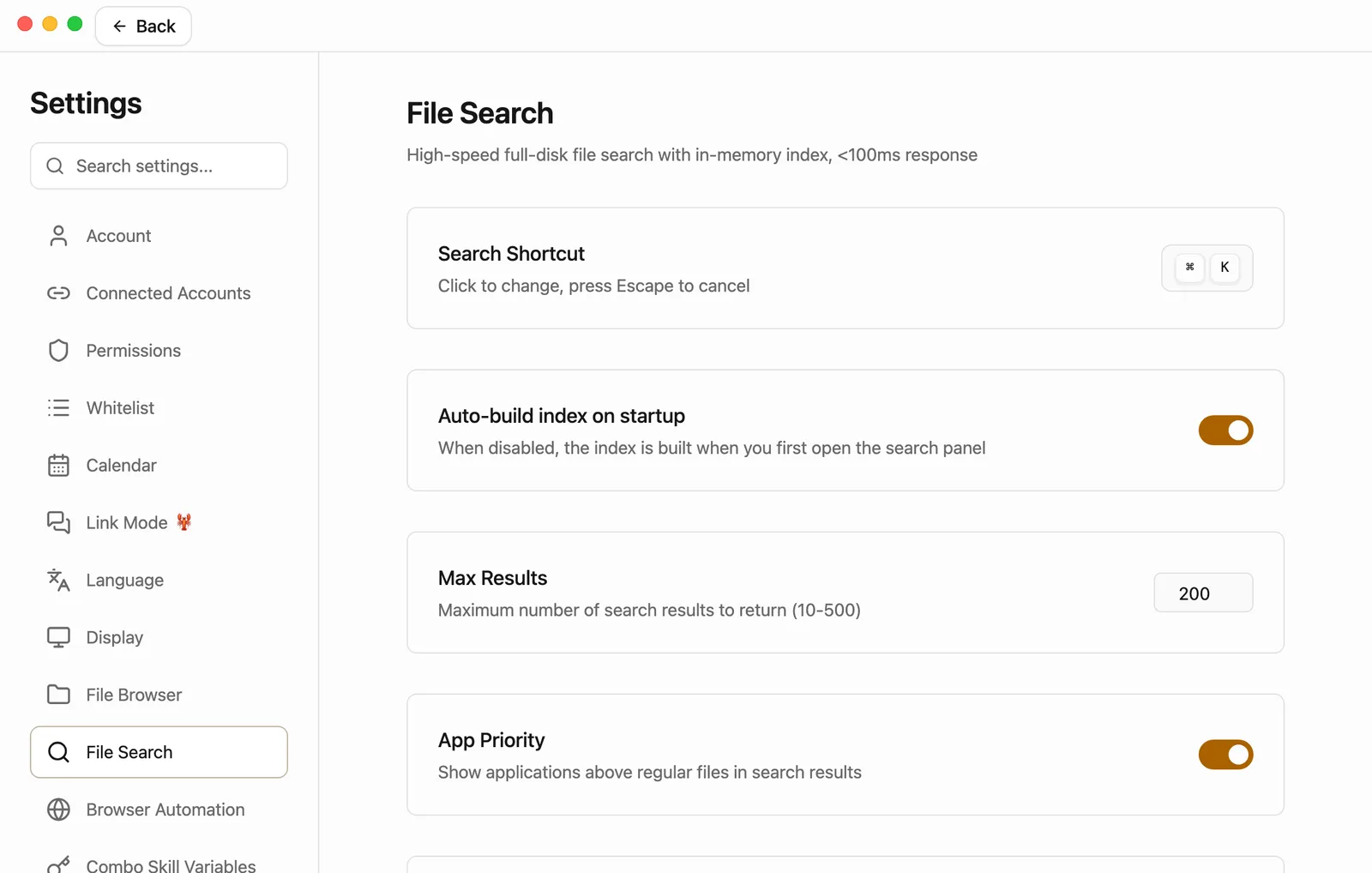
Click the keys and press a new combination
Click the box with ⌘ K in it. It changes to Press a shortcut.... Now press the combination you want, for example ⌘⇧J (Ctrl+Shift+J on Windows). It shows up in the box right away. There's no save button.
Changed your mind before pressing anything? Press Esc.
Go back to ⌘K any time
A round arrow appears next to your new combination. Click it (Reset to default) and the shortcut goes back to ⌘K.
A few tips for choosing a combination:
- Include ⌘ (Ctrl on Windows) and a letter, like ⌘⇧J. A combination without ⌘ or Ctrl, such as Shift plus a letter, would get caught in every app while you type.
- Floatboat doesn't warn you if another app already uses the combination. If nothing happens when you press it, pick a different one.
- Inside Floatboat, ⌘K still opens Quick Open after you change it.
Apart from ⌘K and ⌥⌘Space (Ctrl+K and Win+E on Windows), the other shortcuts on this page only work while Floatboat is the app in front, so they don't get in the way of other apps.
Having trouble?
⌘K doesn't work in another app anymore. Quick Open uses ⌘K (Ctrl+K on Windows) across your whole computer. Give it a different combination in Settings › File Search › Search Shortcut, as shown above.
A shortcut does nothing, or does something else. Click the area you meant first (the chat, the file list, the preview, or the browser) and try again. The panel shortcuts only work inside a space, so they won't do anything on Settings or Float Schedule.
⌘⇧C copied a file path instead of hiding the chat. That happens when you're in the Files panel with files selected. Press Esc to clear the selection, or click in the Chat panel, then press it again.
A task disappeared after I pressed ⌘W. ⌘W archives the current task. Press ⌘⇧T (Ctrl+Shift+T on Windows) to bring it back, or click the Tasks heading in the sidebar to open Task Overview and look under Archived.
I pressed Delete and a file vanished. In the Files panel, Delete moves the selected files straight to the Trash (the Recycle Bin on Windows) without asking. Open the Trash to get them back.
Holding the right ⌘ key doesn't start recording. Make sure it's the ⌘ key on the right side of the space bar, and keep holding it for a moment. The Chat panel needs to be open. The first time, your Mac asks whether Floatboat can use the microphone. Allow it.
⌥⌘Space doesn't bring Floatboat to the front. Your Mac may already use that combination. Try ⌘⇧Space instead (Ctrl+Shift+Space on Windows).
What's next
Work on a task with Floatboat
Start a task, explain what you need, and follow along while Floatboat works.
Keep each project in its own Agent Space
Give each project its own space, and arrange the panels the way you like.
View and edit your files
Find files in the Files panel, open them in the preview, and hand them to Floatboat.