
Decide what Floatboat can do on its own
Choose how often Floatboat checks with you, take back a "Remember" choice, decide whether to share usage data, and handle your computer's own permission prompts.
Floatboat does real work on your computer. It reads your files, writes new ones, and sometimes runs commands. You decide how much of that it can do without stopping to check with you first.
When a task needs your OK, Floatboat shows a Permission Required panel right in the task. That panel is covered in Work on a task with Floatboat. This page is about the settings behind it: where to change how often Floatboat asks, where your Remember choices end up, and what you can control about your data.
To open Settings, click your name at the bottom left of the sidebar and choose Settings. Settings fills the whole window, with a list of sections on the left.
Choose how often Floatboat checks with you
Open Permissions
In Settings, click Permissions in the list on the left. Under Permission Mode there are three options.
Pick a mode
Click the one you want. The highlighted option is the one in use, and it applies to all of your tasks. There's no save button.
Here's what each one means and who it suits:
- Ask Every Time is marked recommended. It's the most careful of the three: before a step that changes things on your computer, like writing a file or running a command, Floatboat may stop and wait for you. Reading files usually goes ahead. Good when you're just getting started, or when the files can't afford a mistake, like a teacher's exam papers or a quote that's about to go to a client.
- Auto-approve Edits lets Floatboat write and change files without asking. It still asks before running commands. Good once you're comfortable with how it handles your documents. Say a student lets it turn 40 reading notes into one summary table, or a marketer has it rewrite ten drafts of a social post.
- Auto-approve All has a red CAUTION tag. Floatboat no longer checks with you before anything. Only use it in a folder that holds nothing you'd mind losing, and look over the results afterward.
Alex, who runs a small online shop, started with Ask Every Time and checked each step while Floatboat wrote the weekly sales report. After a few weeks of reports coming out right, Alex switched to Auto-approve Edits. Now the report gets written without a click on Approve every time.
Once you've picked something other than the default, a Reset to default link appears at the top right of the section. Click it to go back. A new Floatboat is usually set to Ask Every Time, but whichever option is highlighted in your Settings is the one in effect.
The button in the panel changes this setting too
Clicking Auto-Approve All in a task's Permission Required panel switches this setting to Auto-approve All, for every task. To have Floatboat ask again, come back here and pick Ask Every Time.
See and take back "Remember" choices
When Floatboat asks for your OK, you can check Remember before clicking Approve. Floatboat then saves a rule: this kind of step, like writing a file, goes ahead without asking, in every task. All of these rules live in Settings under Whitelist, so that's where you go to take one back.
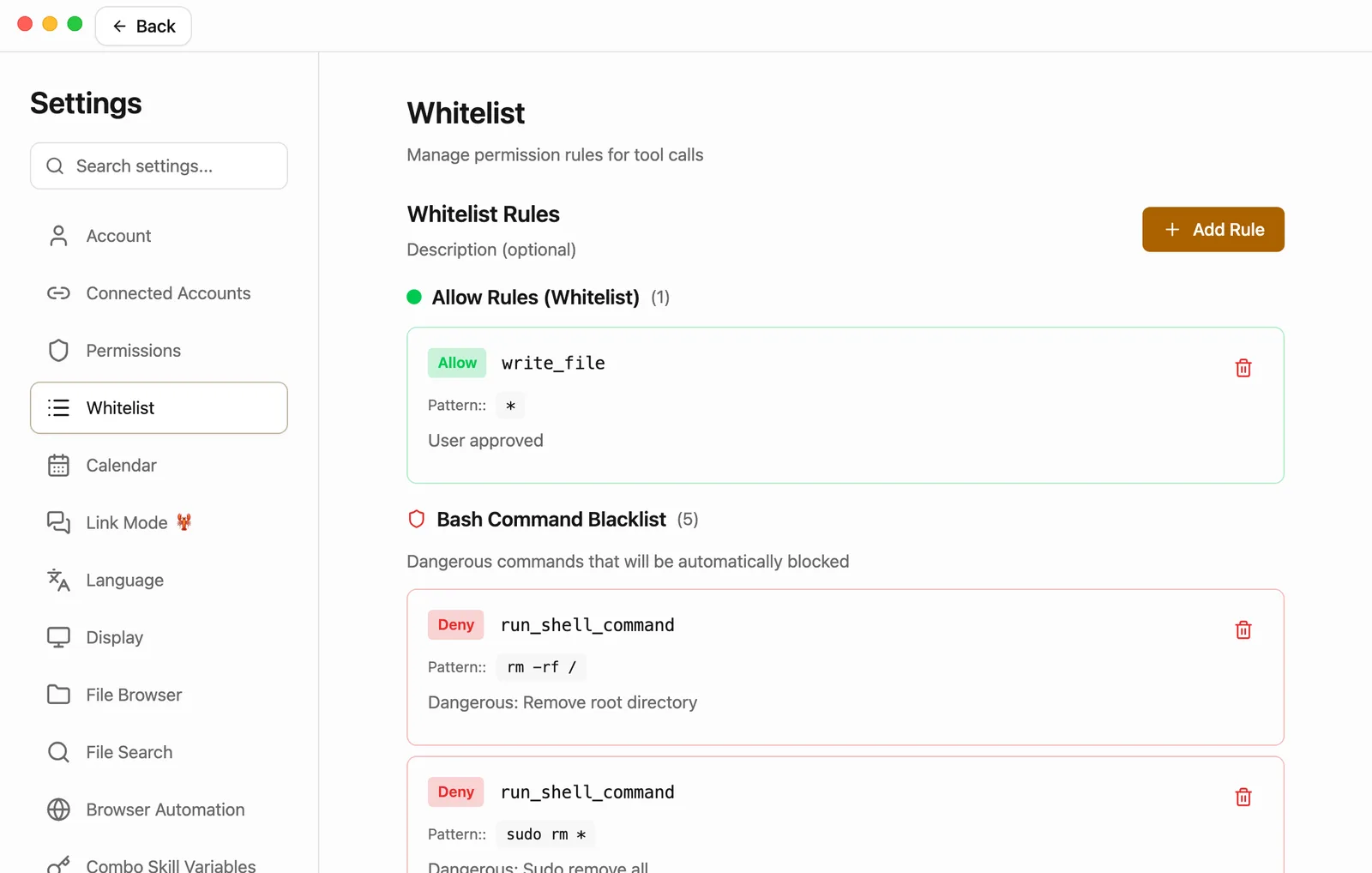
Each rule under Allow Rules (Whitelist) reads like this:
- The name says what kind of step it covers.
write_fileis writing files,edit_fileis changing files,read_fileis reading files, and a name withcommandin it means running commands. - Pattern shows
*, which means every step of that kind counts, whichever file or command it is. - User approved means you saved it with Remember.
To take one back:
Click the trash can
Click the red trash can on the right of the rule. Floatboat asks: Are you sure you want to delete this rule?
Click Confirm
The rule disappears. The next time Floatboat wants to take that kind of step, it asks you again.
Rules can't be edited. If you change your mind later, check Remember again the next time Floatboat asks.
There's also an Add Rule button for adding a rule by hand. It's meant for people who know exactly which kind of step they want to let through. For most people, Remember does the same job with less fuss.
Below your own rules is Bash Command Blacklist. Floatboat puts these few rules there to deal with dangerous commands, like ones that wipe or format a disk. You don't need to touch them.
Choose whether to share usage data
In Settings, click Privacy in the list on the left.
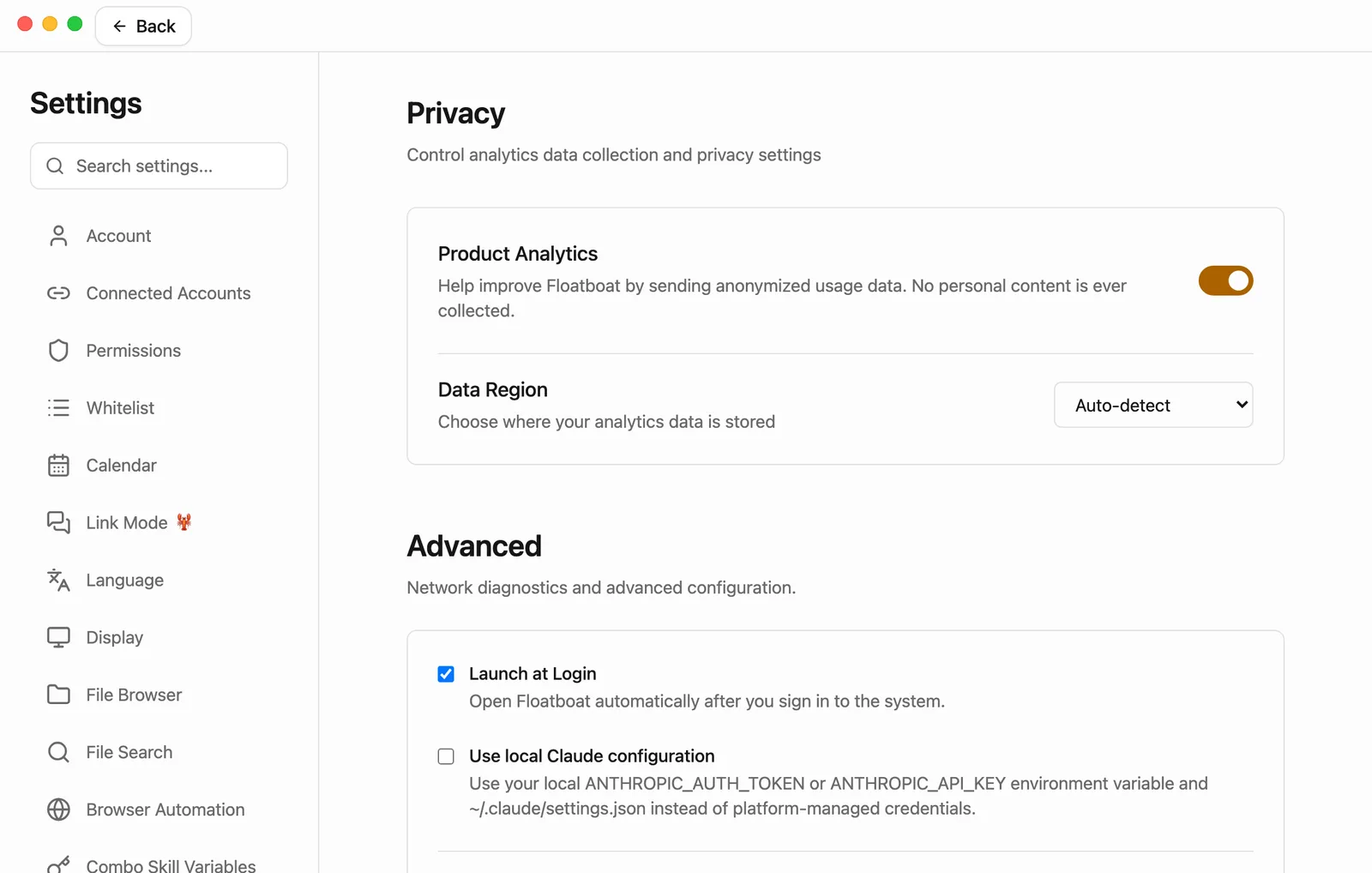
- Product Analytics sends usage data, such as which features get used, to help improve Floatboat. The data is anonymized, and no personal content is collected. It's on by default. Click the switch to turn it off.
- Data Region is where that data is stored. Leave it on Auto-detect.
Turn it off again after restarting
Right now, turning off Product Analytics only lasts until you quit Floatboat. When you open Floatboat again, it's back on. If you'd rather not share usage data, switch it off again each time.
When your computer asks for permission
Some features need your computer's permission as well as Floatboat's settings. The first time you use one, your computer asks once. Allow it, and Floatboat can go on.
- Microphone: macOS asks the first time you talk to Floatboat, for example in Flow Mode or with the microphone in the chat box. Write by talking with Flow Mode walks through it, including what to do if you said no.
- Calendar: macOS asks the first time you import the calendar on your Mac into Float Schedule. See Plan your days with Float Schedule.
- Documents, Desktop, and Downloads: macOS asks the first time Floatboat opens files in one of these folders. Click Allow.
If you clicked Don't Allow for a folder, the Files panel shows Cannot access this folder. To fix it:
Open the setting
Click Open Settings in the Files panel. System Settings opens at Files and Folders.
Turn the folder on
Find Floatboat in the list and turn on the switch for that folder.
Go back to Floatboat
Click Authorized, Refresh in the Files panel. The folder's files show up.
Having trouble?
- The three modes are grayed out, with a lock and "Controlled by server". This setting is managed by Floatboat for now, so you can't change it yourself.
- I switched back to Ask Every Time, but one task still doesn't ask. That's probably the task where you clicked Auto-Approve All. Start a new task, or quit Floatboat and open it again.
- I checked Remember by mistake. Go to Whitelist and delete that rule, as shown above.
- I can't find a setting. Type a word like "whitelist" into the search box at the top of the Settings list.
- The Files panel says Cannot access this folder. Your Mac is blocking Floatboat from that folder. Follow the steps under When your computer asks for permission.
What's next
Work on a task with Floatboat
See the Permission Required panel in action, and what Approve, Deny, and Remember do.
Write by talking with Flow Mode
Let Floatboat use your microphone and turn what you say into a document.
Language, appearance, and preferences
Change Floatboat's language, look, and other everyday settings.
Choose a model
Switch the AI model a task uses right from the chat box, and learn to read the menu. Plus what context compaction does on long tasks, and what happens when a model is briefly unavailable.
Help Floatboat remember how you work
Use About Me to tell Floatboat who you are and how you like answers, and use space memory (AGENTS.md) to save how a particular job is done, so you don't have to repeat yourself.