
Your account and credits
Check which account you're signed in with and how many credits you have left, redeem a gift card, get more credits when you run out, and sign out or switch accounts.
Your account is the one you signed in to Floatboat with. Credits are what Floatboat uses up when it does work for you with AI. This page shows where to check both, what happens when your credits run low, and how to sign out or switch accounts.
Open the account menu
Your name is at the bottom left of the sidebar. Click it to open the account menu.
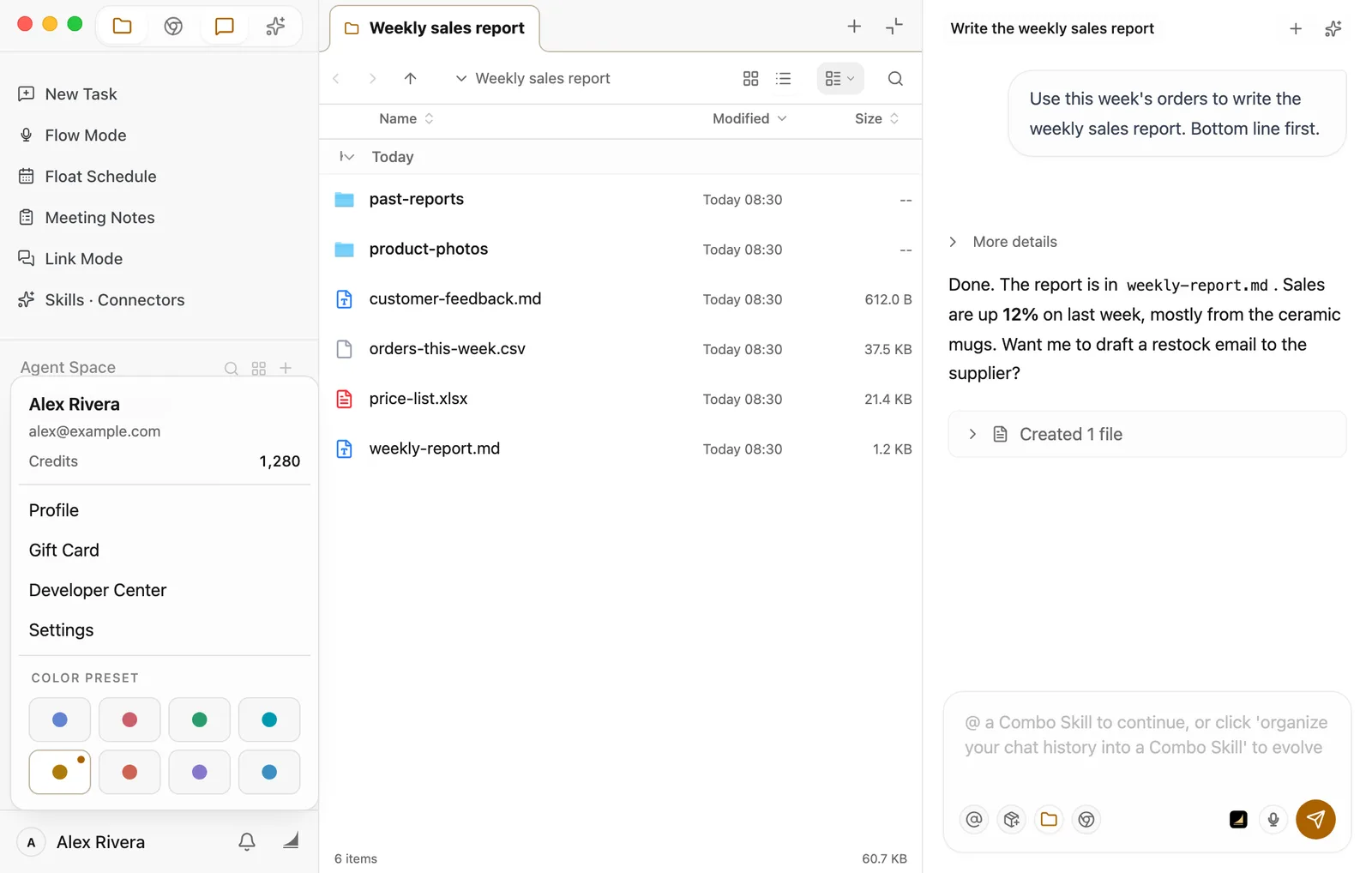
From top to bottom:
- Your name and email: the account you're signed in with.
- Credits: how many credits you have left. It checks again every time you open the menu.
- Profile: your account page on the floatboat.ai website.
- Gift Card: where you redeem a gift card. There's more on that below.
- Developer Center: developer pages on the website. If you're not building things on top of Floatboat, you can ignore it.
- Settings: opens Floatboat's settings.
- Color Preset: the colored dots at the bottom change Floatboat's accent color. There's more in Language, appearance, and preferences.
Profile, Gift Card, and Developer Center don't open your usual browser. They open in Floatboat's built-in browser, next to the space you're working in, using the same account.
What credits are
Every time Floatboat uses AI to work on something for you, it uses some credits. That's true whether you're a student pulling notes together from a stack of papers, a teacher planning next week's lessons, or a freelancer putting together a quote.
- Bigger jobs use more. Reading a whole research paper and writing up notes takes more than polishing a single tweet.
- Different models use credits at different rates. If you're curious, see Choose a model.
- The number in the account menu is what you have left right now.
The app only shows your balance. Your plan and billing details are in your account settings on the floatboat.ai website. Profile takes you there.
Free credits for new accounts
If you've just signed up, you may get some free credits. When they arrive, a card pops up at the bottom of the sidebar telling you how many. Sometimes there's a second batch you have to claim yourself. That card has a button to claim them. The offer only lasts a limited time, so claim them when you see the card.
How many credits you get, and when, depends on the offer running at the time. Go by what the card says.
Closed the card too soon? Click the bell next to your name (Notifications). The message is there too, and while the claim window is still open you can bring the card back from it.
When you run out of credits
If your credits run out partway through a task, Floatboat pauses it and shows Not enough credits, task paused. Nothing is lost. The task's progress is saved.
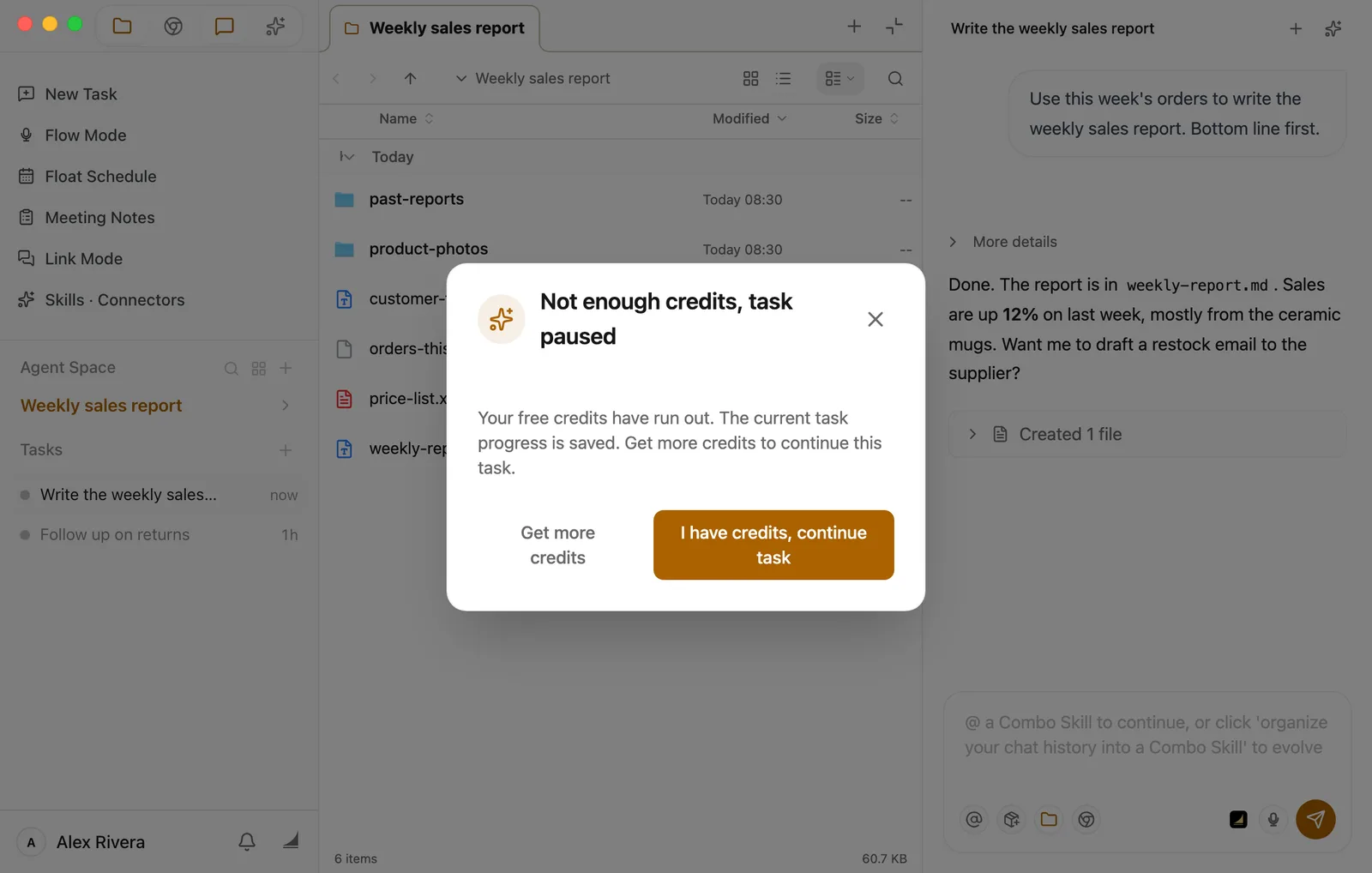
- Get more credits opens the floatboat.ai pricing page in your default browser. That's where you buy credits or upgrade.
- I have credits, continue task: once you've topped up, come back and click this. Floatboat checks your balance again and carries on from where it stopped.
- Need a minute? Click the × in the corner. Floatboat asks Close for now? Click Close for now and you can keep using the rest of Floatboat. The task stays paused. Right above the chat box you'll see Paused · Not enough credits and a Continue task button for when you're ready.
You don't have to wait until you run out. To buy credits or upgrade anytime, open floatboat.ai/pricing in your browser. Prices and plans change from time to time, so this page doesn't list them. Check the pricing page for what's on offer today.
Redeem a gift card
Got a gift card from a friend or from your company? Redeem it on the website. Floatboat takes you there.
Open the gift card page
Click your name at the bottom left of the sidebar, then choose Gift Card. The built-in browser opens next to your space, showing the gift card page from floatboat.ai.
Enter your code
Type or paste the code from your gift card and follow the steps on the page.
Check your balance
If the card added credits, open the account menu again and you'll see the new number next to Credits.
What's in Settings › Account
Click your name at the bottom left of the sidebar and choose Settings. Settings fills the whole window, and Account is the first item on the left.
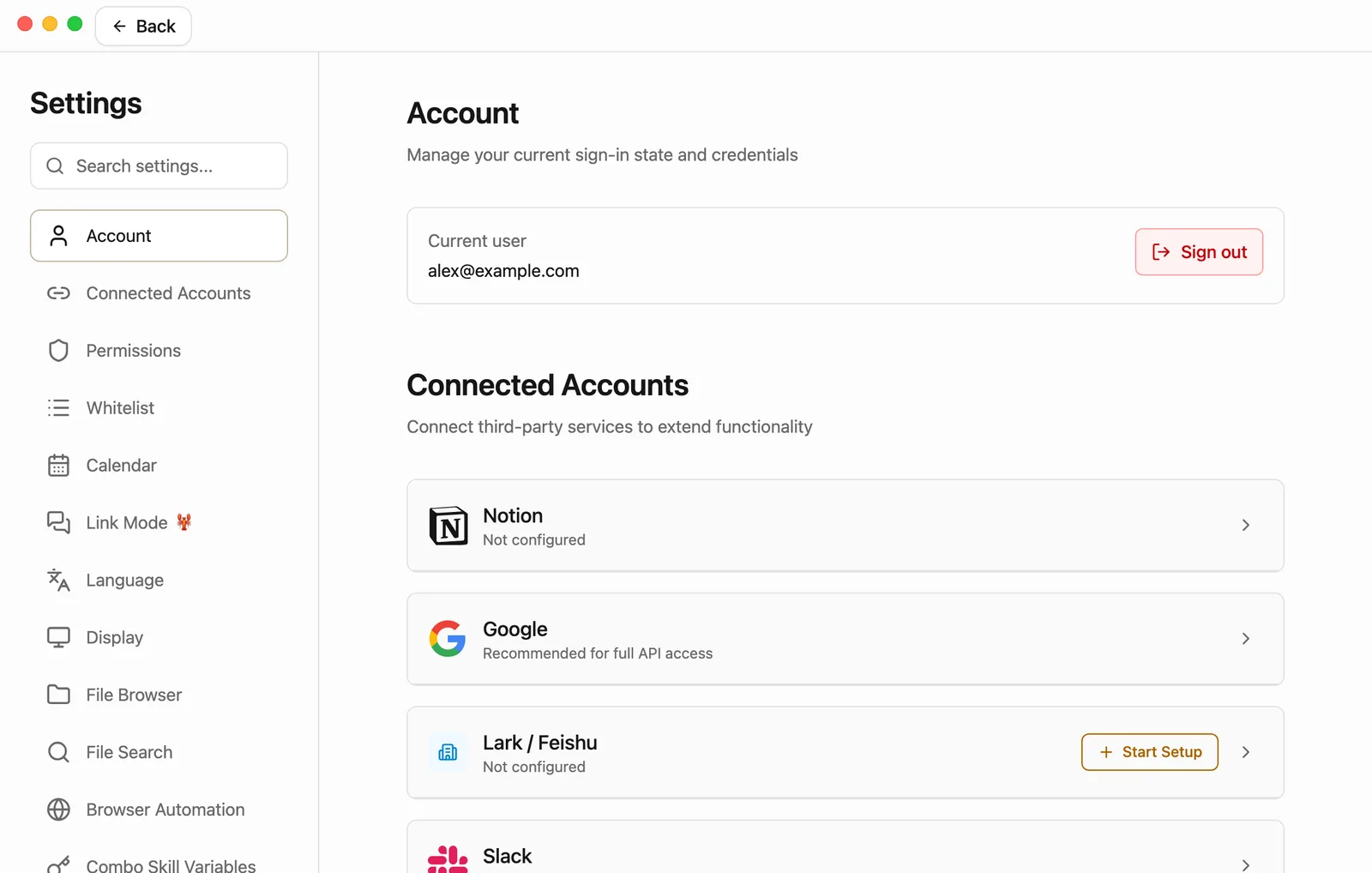
It shows the email you're signed in with (Current user) and a Sign out button. When you're done, click Back at the top left to return to where you were.
Sign out or switch accounts
You might sign out because you share a computer, or because you want to use a different account, say a work account for client prep and a personal one for your own projects.
Go to Settings › Account
Click your name at the bottom left of the sidebar, then Settings. Account is at the top.
Click Sign out
Floatboat asks whether you're sure. Click Sign out again to confirm, or Cancel if you changed your mind.
Sign back in when you need to
You'll see Signed out, and Floatboat goes back to the sign-in page. To use a different account, click Continue and sign in with that account in your browser. The steps are the same as in Sign in.
Your spaces and files stay on this computer
Signing out doesn't delete anything. Your spaces, tasks, and files stay on this computer, and they're all there when you sign back in. They aren't tied to one account, though. If someone else signs in on this computer with their own account, they'll see the same spaces and tasks. Keep that in mind on a shared computer.
Credits go with your account, not the computer. Sign in on another computer and your balance comes with you. Your spaces and files stay on the computer where you made them.
Having trouble?
- Credits says "Unavailable". Floatboat couldn't reach the server to check your balance. It doesn't mean you have zero. Check your internet connection, then close the menu and open it again in a little while.
- I bought credits but the task is still paused. Credits can take a moment to show up. Wait a bit, then click I have credits, continue task (or Continue task above the chat box) again. If the dialog comes back, your balance hasn't caught up yet.
- The gift card page asks me to sign in. Sign in with the same account you use in Floatboat, so the gift card goes to the right place.
- I signed out, but signing in took me straight back to my old account. Your browser still remembers it. Sign out of floatboat.ai in your browser first, then click Continue on the Floatboat sign-in page again.
- I can't find my plan or when it renews. The app doesn't show those. Click Profile in the account menu and look in your account settings on the website.
What's next
Hand off work when you're away from your desk
Before you leave, connect your computer to a chat app like Slack. On the road, send a message from your phone, and Floatboat looks through the files on your computer and sends the answer back to the chat. Back at your desk, keep going in the same task.
Choose a model
Switch the AI model a task uses right from the chat box, and learn to read the menu. Plus what context compaction does on long tasks, and what happens when a model is briefly unavailable.