
Language, appearance, and preferences
Switch Floatboat's language, go light or dark, tune Quick Open and the Files panel, and keep Floatboat up to date.
Floatboat works fine the way it comes, but a few settings can make it feel more like yours. Maybe you're a student who reads papers late at night and wants a darker screen. Maybe you teach, project your screen in class, and need everything crisp and easy to read. Or maybe you work with clients abroad and would rather see every menu in English. This page shows where those settings live.
Every change takes effect the moment you make it. There's no Save button to look for.
Open Settings
There are two ways in:
- Click your name at the bottom-left of the sidebar, then choose Settings.
- Press ⌘, (Ctrl+, on Windows).
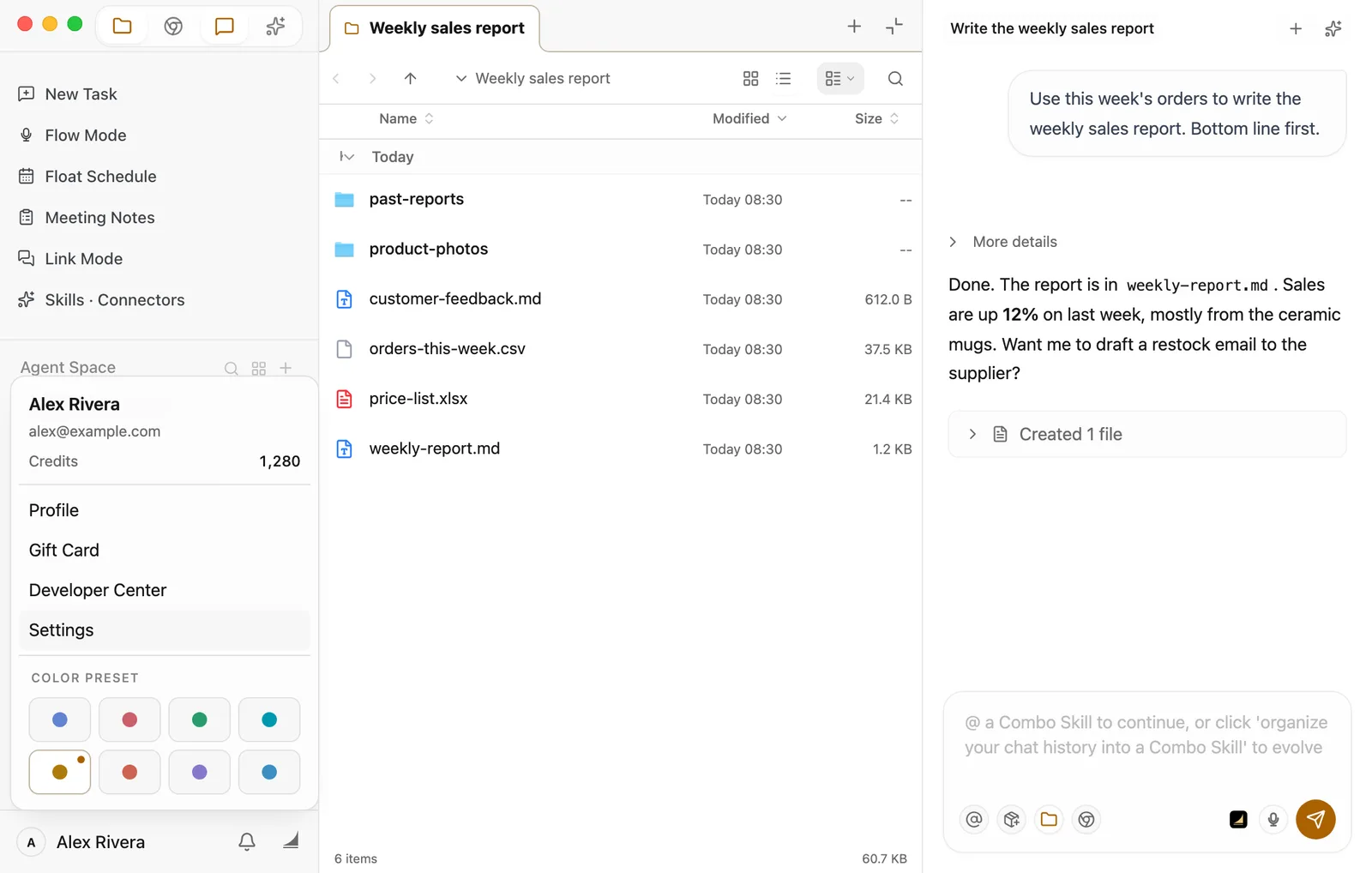
Settings fills the whole window. The list on the left shows every section, and the right side is one long page with all the settings on it. Click a section on the left to jump straight to it, or scroll.
Not sure where something is? Type a word into Search settings... at the top of the list on the left, such as "theme", "language", or "update". Only the sections that match stay on screen.
When you're done, click Back at the top left to go back to what you were doing.
Change the interface language
Floatboat comes in English and Simplified Chinese. At first it follows your computer: if your computer is set to Chinese, you'll see 简体中文. Otherwise, you'll see English.
To pick one yourself:
Go to Language
Open Settings and click Language in the list on the left.
Choose from the list
Under Interface Language, open the list and choose English (English) or 简体中文 (Simplified Chinese).
The whole app switches right away. You don't need to restart. Your conversations and files stay exactly as they are; only the buttons, menus, and messages change.
Once you've picked a language yourself, Floatboat sticks with it, even if you change your computer's language later. As the note under the list says, a few technical terms and error messages may still show up in English.
Go light or dark, and pick an accent color
Open Settings and click Display. At the top, under Theme, you have three choices:
- Light: a light background all the time.
- Dark: a dark background all the time. Easier on the eyes if you often work late.
- System: this is where Floatboat starts. It matches your computer, so if your computer switches to dark mode in the evening, Floatboat does too.
If you share your screen on a classroom projector or in a meeting room, Light is usually the easiest for everyone to read.
Below that, Color Preset changes the accent color of buttons, highlights, and selected items. There are nine presets, from Indigo to Sky Blue. Floatboat starts with Amber. For something of your own, click Custom and drag the Hue and Saturation sliders until the Preview looks right.
A quicker way to change color
Click your name at the bottom-left of the sidebar. At the bottom of the menu, Color Preset has a row of colored dots. Click one and the color changes right there, without opening Settings.
Make Quick Open work the way you like
Press ⌘K (Ctrl+K on Windows) and a search box pops up in the middle of your screen. It works even when Floatboat is in the background, so you don't need to switch to it first. Type a few letters and it finds your spaces, open tabs, meeting notes, events in your schedule, and past tasks, along with files, folders, and apps on your computer.
Say you're heading out to meet a client and need last month's quote. Press ⌘K, type "quote", and open it. Or, if you're a student, type part of a paper's file name instead of digging through folders. Use ↑ and ↓ to pick a result and press Return (Enter on Windows) to open it. The labels across the top, from All to File System, narrow the results to one kind. Press Esc to close the box. To start a new space right from a folder, see Keep each project in its own Agent Space.
To change how it works, open Settings and click File Search.
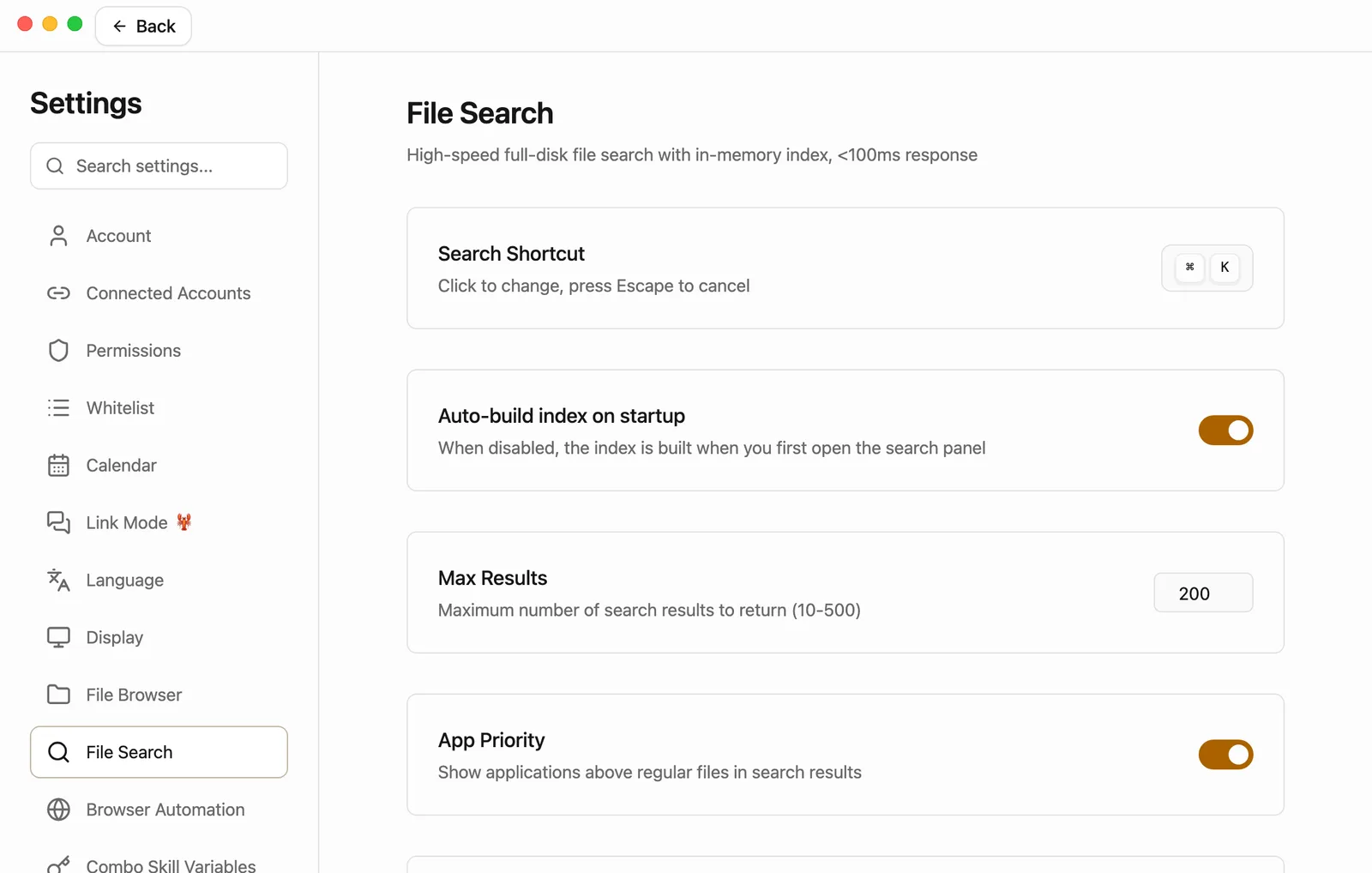
- Search Shortcut: Click the keys on the right, then press the combination you'd like to use instead. It needs ⌘, Ctrl, Option, or Shift plus a key. Press Esc to cancel. After you change it, a small round arrow appears next to it. Click it to go back to ⌘K.
- Auto-build index on startup: For search to be instant, Floatboat keeps a list of the files on your computer and builds it when it starts. Leave this on. If you turn it off, the list gets built the first time you search instead, and that first search can take up to a minute.
- Max Results: The most results the box shows at once, anywhere from 10 to 500. It starts at 200.
- App Priority: When this is on, apps appear above ordinary files, which helps if you also use the box to open apps.
- Exclude Directories: Folders with these names are skipped, one name per line. A few folders that rarely hold your own files, such as system and cache folders, are listed here from the start. After you change the list, click Clear Cache & Rebuild under Index Status so the change takes effect.
- Index Status: Shows whether the list is Ready, how long it took to build, and how many files and folders it covers.
On Windows
At the top of File Search, Windows computers also have a Fast File Index card. Click Enable fast index, read the short explanation, then click Continue to Windows authorization, and Windows asks you to approve it. It makes the first build faster and spots new or renamed files sooner. If you'd rather not, click Not now. Ordinary search keeps working.
Set up the Files panel and the preview
A few settings change how files open and save. You'll find more about these panels in View and edit your files.
- Default compression format (in File Browser): When you right-click a file and choose Compress, this is the kind of archive you get. ZIP (.zip) opens on almost any computer, so it's a safe choice if you're sending files to someone else.
- Markdown Auto-save Delay (in Display, under Editor Settings): How long Floatboat waits after you stop typing before it saves. It starts at half a second. If you'd like fewer saves while you're mid-sentence, pick 1s (Slow) or 2s (Very Slow).
- Content Width (in Display, under Markdown Editor): Wide lets text fill the preview. Readable line length keeps lines shorter, which is more comfortable for long documents. Markdown Editor starts folded up, so click its name to see these options.
- Large file edit threshold (also under Markdown Editor): Markdown files bigger than this open read-only, so the editor stays quick.
- Recent Files Limit (in Display, under Preview Panel Settings): How many files appear under Recent Files when you expand the preview's navigation.
See the welcome setup again
Skipped the welcome setup the first time, or started using Codex or Claude Code since then? You can go through it again. Open Settings, click Guide, and click Replay onboarding. It's the same one-minute setup described in Start your first conversation, and you can still skip any step. Replaying it doesn't make it appear on its own again later.
Check your version and get updates
Open Settings and click About. It's at the very bottom of the list on the left, so you may need to scroll that list down. The number next to the Floatboat name is your version.
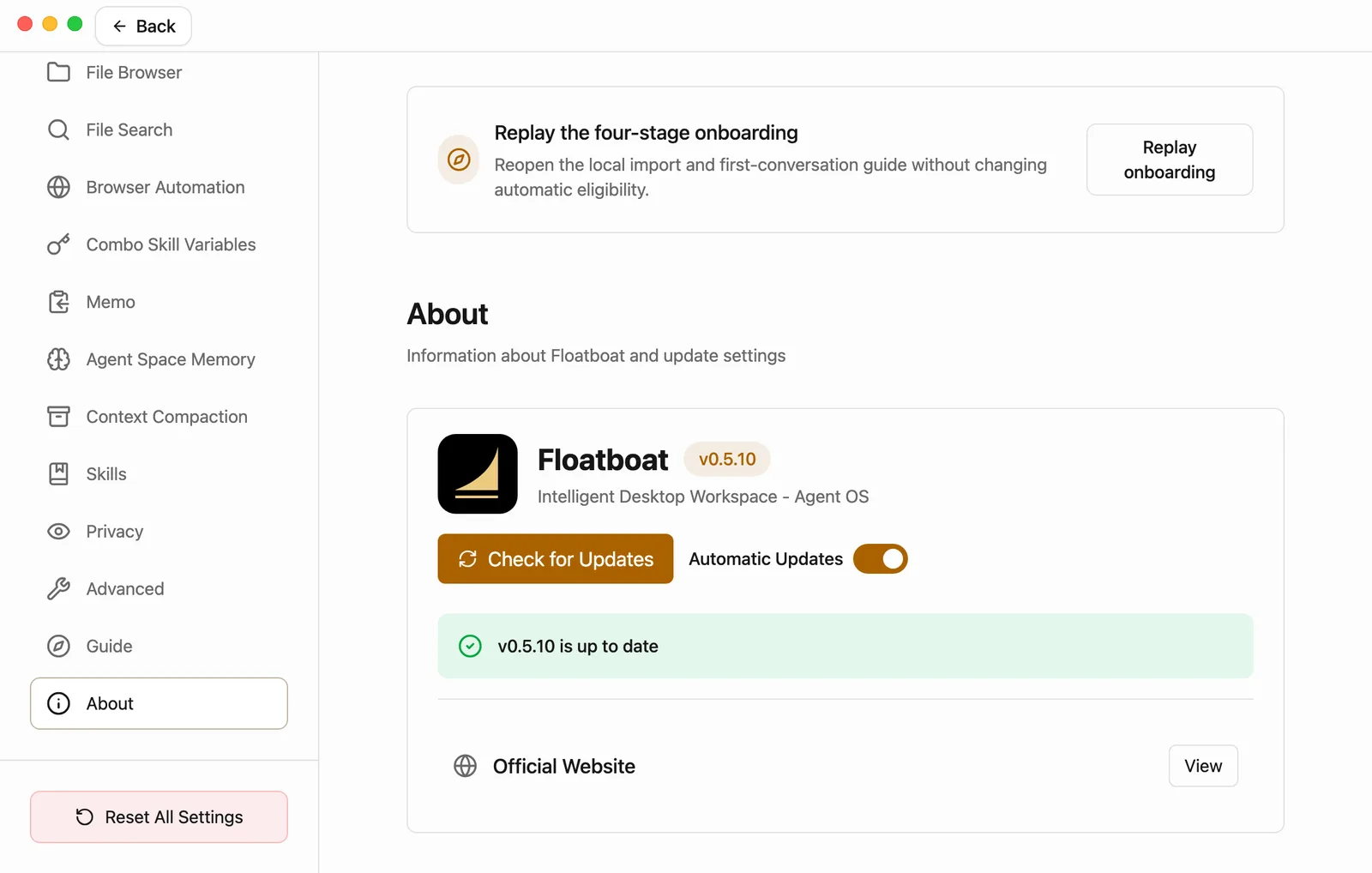
Automatic Updates is on from the start. Floatboat checks for new versions on its own and downloads them in the background. When one is ready, a green bar with an Update Now button appears at the bottom-left of the window. Click it, and Floatboat restarts with the new version. In the middle of something? Click the × on the bar. It comes back the next time Floatboat checks.
To check right now, click Check for Updates:
- If you see v… is up to date, you already have the latest version.
- If you see New version available, Floatboat starts downloading it and shows the progress. If there's an Update Now button next to it, click it to start the download.
- When it says Update ready, click Restart Now to finish.
Once in a while, a version may be too old to keep using. If so, a Please update to the latest version window appears and can't be skipped. Wait for the download to finish, then click Restart to update now.
If you installed Floatboat from the UOS app store, updates come through the store, and you won't see these buttons.
Choose whether Floatboat opens when you sign in
Floatboat opens on its own when you sign in to your computer, so it's ready when you are. If you'd rather open it yourself, open Settings, click Advanced, and uncheck Launch at Login.
Having trouble?
I searched Settings for "dark mode" and got "No matching settings found." Search looks for section names and a few keywords. Try "theme" or "appearance", or click Display in the list on the left.
⌘K stopped working in another app. While Floatboat is running, it uses ⌘K (Ctrl+K on Windows) everywhere to open Quick Open. If another app you rely on uses the same keys, go to File Search, click the keys next to Search Shortcut, and press a combination you don't use anywhere else, such as ⌘⇧J (Ctrl+Shift+J on Windows). There's a short clip of the whole thing in Keyboard shortcuts.
Quick Open can't find a file I just made. Floatboat updates its file list in the background, so a brand-new file can take a moment to show up. While it's catching up, the search box says Updating file index.... If the file still doesn't appear, check that it isn't inside a folder listed under Exclude Directories, then click Clear Cache & Rebuild.
One space still looks the old way after I changed the theme. Each space remembers its own theme and color. Switch to that space and change them again, either in Settings or with Color Preset in the menu under your name.
The update check failed. The About card shows Update check failed and the reason. It's usually the network. Check your connection and click Retry.
I'd like to undo everything I've changed. At the bottom of the list on the left in Settings, click Reset All Settings, then Yes, Reset. Every setting goes back to how it was when you installed Floatboat, and the language goes back to following your computer. This can't be undone, but your spaces, tasks, and files aren't affected.
What's next
Help Floatboat remember how you work
Use About Me to tell Floatboat who you are and how you like answers, and use space memory (AGENTS.md) to save how a particular job is done, so you don't have to repeat yourself.
Keyboard shortcuts
The eight shortcuts worth learning first, every shortcut in Floatboat for Mac and Windows, and how to change the Quick Open shortcut.