
Hand off work when you're away from your desk
Before you leave, connect your computer to a chat app like Slack. On the road, send a message from your phone, and Floatboat looks through the files on your computer and sends the answer back to the chat. Back at your desk, keep going in the same task.
Mei is a consultant who spends most weeks at client sites. The workshop notes, rollout plans, and proposals for each client live on the computer in Mei's home office, which doesn't help when a client asks a question over lunch.
This page walks through handing that kind of question to Floatboat: connect a chat app on your computer before you leave, send a message from your phone while you're out, and get the answer back in the same chat a few minutes later. Back at your desk, you can pick up in the same task. Connecting Slack takes about half an hour the first time. After that, it's just sending a message.
Before you start
- A computer that stays on while you're away, with Floatboat installed and signed in. A desktop at home or at the office works best.
- A chat app on your phone. This example uses Slack. Lark, WeCom, Discord, Telegram, and WeChat work too.
- Your files in one folder, with a space made from it, like Northwind. An Agent Space (a space, for short) is where Floatboat keeps one piece of work together, with its files and tasks. If you don't have one yet, see Keep each project in its own Agent Space.
Step by step
Before you go: keep your computer awake
The work happens on your own computer. It needs to be on, online, and awake, with Floatboat open and signed in. If the computer falls asleep or Floatboat is closed, nobody picks up your message.
Turn off automatic sleep in your system settings. The exact wording differs a little between versions, so look for something close:
- Laptop: open System Settings › Battery › Options… and turn on Prevent automatic sleeping on power adapter when the display is off.
- Desktop (iMac, Mac mini, and so on): open System Settings › Energy and turn on Prevent automatic sleeping when the display is off.
- Keep a laptop plugged in with the lid open. Closing the lid puts it to sleep.
What if your computer installs an update and restarts while you're out? In Floatboat, go to Settings › Advanced and check Launch at Login. Floatboat opens again by itself after a restart.
Connect Slack and send messages to your space
Click Link Mode in the sidebar and make sure Enable Link Mode is on. It's on by default. Click Click to configure at the end of that row, and the Link Mode setup page on the Floatboat website opens in your browser:
- Click the + on the Slack card and set up the bot. The form walks you through it: create an app in Slack, copy a few details back, and install it in your workspace.
- Under Routing Target, pick this computer as the Device and Northwind as the Agent Space.
- Click Save binding. When you see Configuration saved, you're connected.
For step-by-step help with Slack and the other chat apps, see Give Floatboat tasks from your chat apps with Link Mode.
Keep it to yourself
Floatboat won't stop and wait for you to click Approve on work that comes from a chat app, since you're probably not at your computer. The flip side: anyone who can message that bot can put your computer to work.
So make sure you're the only one who can message it. Install the bot only in your own Slack workspace, and keep it out of big channels. If it does need to be in a channel, set that bot's Group receive mode to @ on the website, so only messages that @mention it reach Floatboat. For how, see "Control who can send it work" in Give Floatboat tasks from your chat apps with Link Mode.
Add the folder to Access directories
For work that comes in from a chat app, Floatboat can only see the images and files you send in the chat. It can't see the folders on your computer, not even the space's own folder. To have it read the workshop notes and the rollout plan, add the Northwind folder:
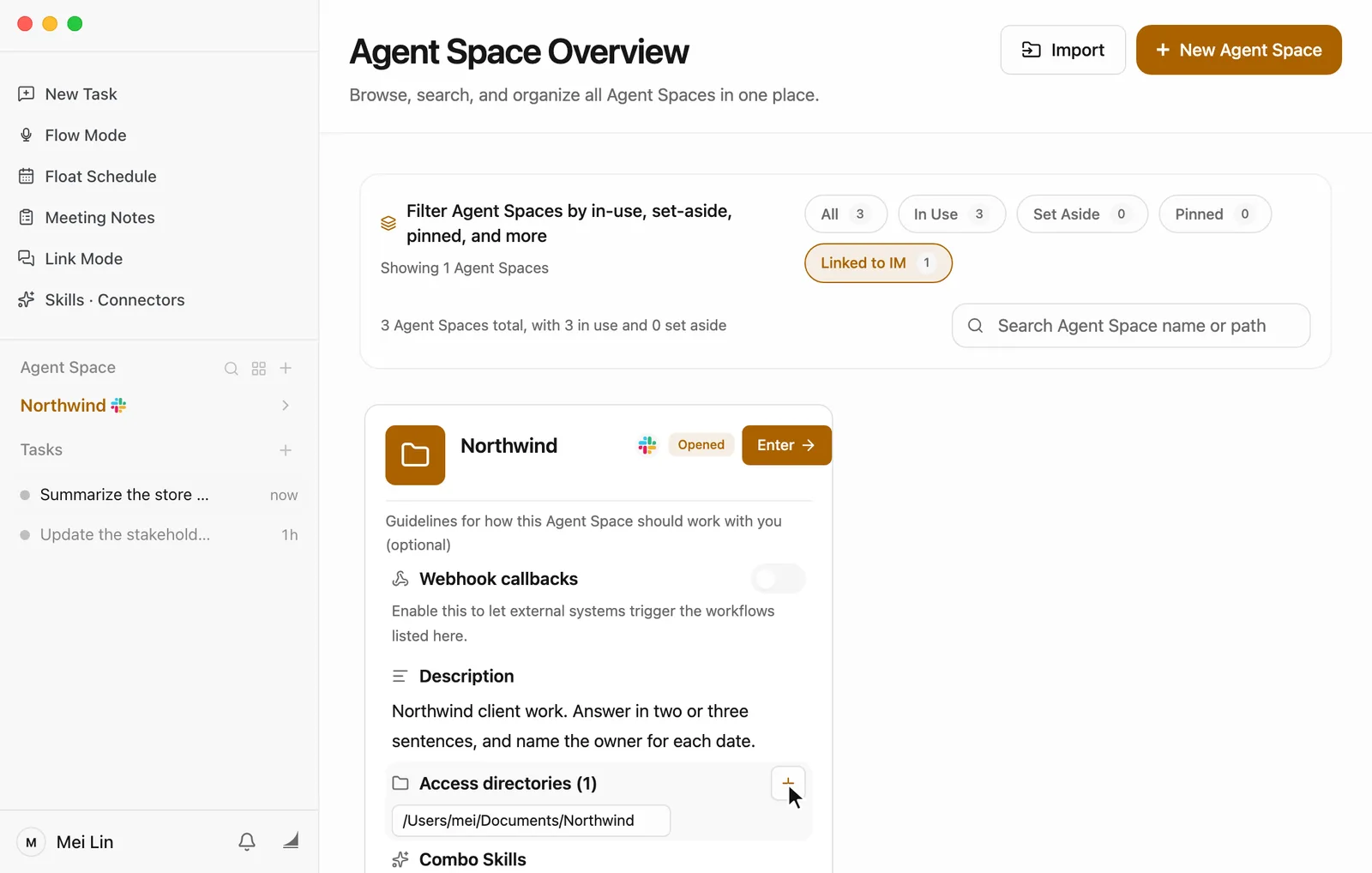
- Click the grid icon to the right of Agent Space in the sidebar to open Agent Space Overview.
- Find the Northwind card. Spaces that have heard from a chat app show its icon next to the name, and Linked to IM at the top shows only those.
- Hover over the Access directories row on the card, and a + (Add directory) appears on the right. Click it and choose the Northwind folder.
Only add the folders you need. Fewer is safer.
Send a test message before you leave
While you're still at your desk, message the bot from Slack on your phone: "Hi, are you there?" It usually replies right away with "Message received, processing…" and then answers. On your computer, a new task with a Slack icon shows up in the Northwind space's task list.
If you see all that, you're set. If nothing comes back, check "Having trouble?" below and sort it out before you go.
On the road, send it the job
When a client asks something only your files can answer, message the bot the way you'd message a coworker:
What did we agree on rollout dates in the June workshop? Send me the dates.
Say which file to look in and what you want back, so it doesn't have to guess. Keep it to one job per message. The reply stays short and easy to read on your phone.
To make it stop, send "/stop".
Floatboat does the work on your computer
You're out, but Floatboat on your computer gets on with it: it reads the workshop notes and the rollout plan, writes the answer, and sends it back to Slack.
The same answer lands in Slack on your phone. On your computer, the task keeps a record of which files Floatboat read and how it got there, so you can check it later.
Back at your desk, keep going
When you're back, click the task with the Slack icon in the sidebar task list. Everything from the road is there. Carry on in the chat box:
Put every date from the June workshop in a table, with who owns each one.
You can see what it reads and writes, step by step, as usual. One thing to watch: when you keep going in the same task, it may still go ahead without asking, the way it does for chat app work, and write files or run commands on its own. So keep an eye on each step. To have it follow the permission setting you chose in Settings, click New Task and ask again there. For how to choose that setting, see Decide what Floatboat can do on its own.
Want an email to the client next? Ask for it right here. Floatboat only writes the draft. It doesn't send or post anything for you. Read it over, then send it yourself.
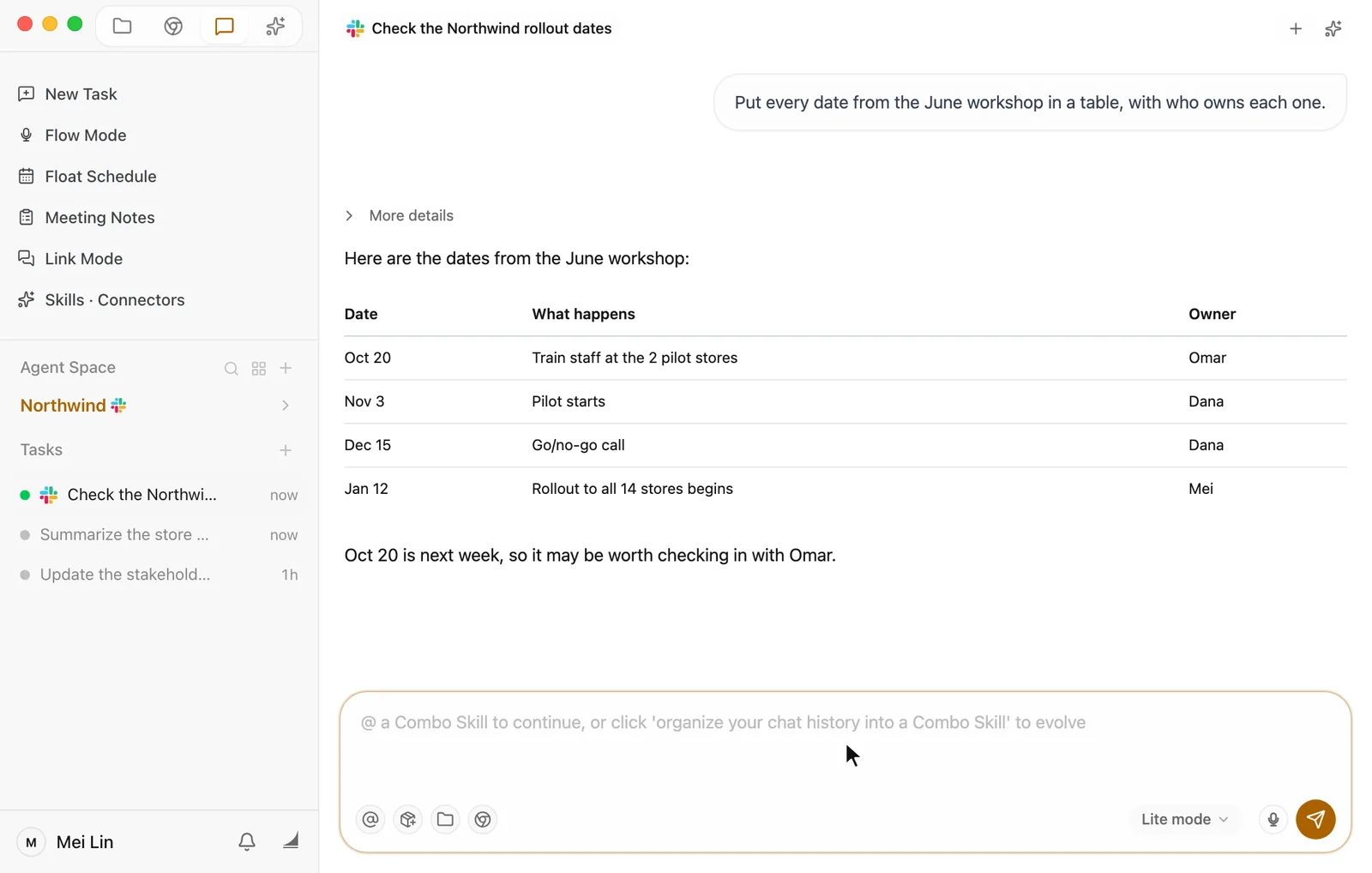
If the job came from a direct message with the bot, Floatboat's replies here at your computer are also sent back to that chat, so you'll have them on your phone too. Jobs that came from a channel don't do this.
Make it yours
The same setup works for your own work. Change three things: the space you pick under Routing Target on the website, the folder you add to Access directories, and the file names and answer you ask for in your message.
- A site manager on a job site: "Sum up this week's site logs in the Riverside build folder in three lines." Pick the Riverside build space, and add that folder to Access directories.
- An accountant at a conference: "Total the expense reports in October expenses by department and send me the totals."
- A real estate agent between showings: "From listings.csv, find the three-bedroom homes under $450,000 and send me the addresses and prices."
Save time next time
-
Write your standing rules in the space's Description. In Agent Space Overview, hover over the Description row on the card, click the pencil on the right, write how work in this space should be done, and click Save. Work from a chat app reads this first. The one in the screenshot above reads: "Northwind client work. Answer in two or three sentences, and name the owner for each date."
Work from a chat app doesn't read About Me or space memory (AGENTS.md), so rules you want followed on the road belong in the Description. To learn what those two are, see Help Floatboat remember how you work.
-
Finish one job before the next. Keep writing in the same chat, and it carries on with the same task. For something unrelated, send "/new" first to start a fresh task, so the earlier conversation doesn't steer it.
-
Add folders before the trip. Put every folder you might need in Access directories before you leave, so you don't get stuck on "can't find the file" from the road.
Having trouble?
You sent a message and nothing came back. Most likely the computer fell asleep or Floatboat isn't open. After an update restarts your computer, Floatboat won't reopen unless Launch at Login is checked. Once you can get to the computer, check the sleep settings and Launch at Login from the first step. For other causes, see "Having trouble?" in Give Floatboat tasks from your chat apps with Link Mode.
It says it can't find a file, or the answer sounds like a guess. Check that the folder is in the space's Access directories. Naming the exact file in your message helps too. In a hurry? Send the file to it in the chat.
It can't get anything out of a PDF or Excel file. Floatboat reads Word (.docx), Markdown, plain text, and CSV files directly. A PDF or Excel (.xlsx) file isn't plain text, so it runs a short command to pull the text out (or to build a new .xlsx). A scanned PDF may not come through at all. To skip the extra step, save a .docx or CSV copy, or paste the text into a .md file.
Back at your desk, you can't find the task. It's in the space you picked on the website, with the chat app's icon in front of it. Still can't see it? Click Tasks in the sidebar to open Task Overview and search.
You're worried someone else is sending it work. Turn off Enable Link Mode on your computer, and it stops taking messages from chat apps right away. Then follow the advice in step two about who can message the bot.
What's next
Give Floatboat tasks from your chat apps with Link Mode
How to connect each chat app, handy messages, and how to control who can send it work.
Keep each project in its own Agent Space
Give each project a space, so work from your chat apps lands in the right place.
Work on a task with Floatboat
Back at your computer, carry on with the task in the Chat panel.
Turn a voice ramble into a finished post
Talk through your idea out loud, then hand the transcript and the notes you saved with Memo to Floatboat. It shapes them into a post with a title and sections that still sounds like you.
Your account and credits
Check which account you're signed in with and how many credits you have left, redeem a gift card, get more credits when you run out, and sign out or switch accounts.