
From meeting to follow-up in one go
Let Floatboat capture what everyone says in a meeting, then have it write the summary and action items, draft the follow-up email, build the action-item sheet, and put the next meeting on your calendar.
Sam is a product manager who runs a spec review every Monday morning. After each one, writing up the notes, drafting the follow-up email, and copying action items into a spreadsheet used to eat most of an hour. And someone's promise always slipped through the cracks.
This page follows Sam through one meeting. Floatboat records it while you talk. About ten minutes after everyone leaves, you have a meeting summary, a follow-up email draft for the attendees, an action-item spreadsheet, and the next meeting on your calendar.
Before you start
- Pick the space for this work. An Agent Space (a space, for short) is where Floatboat keeps one piece of work together, with its files and tasks. The task for this meeting is created in the space you're in, like an Order export space. If that space already has the spec and past notes, Floatboat can use them when it writes the follow-up. No dedicated space? That's fine too. To learn more, see Keep each project in its own Agent Space.
- Make sure your computer's microphone works. The first time you record, your computer asks whether Floatboat can use the microphone. Allow it.
Tell people before you record
Before you start, let everyone know the meeting will be recorded and turned into text. If anyone objects, don't record. You can hand Floatboat your own notes after the meeting instead.
Step by step
Before the meeting: open Meeting Notes and jot down the agenda
In the sidebar, click the space for this work under Agent Space, then click Meeting Notes near the top. A new notes document opens on the left, and a new task opens on the right. Everything you do after the meeting happens in that task.
While people are still joining, you can type the meeting name, who's there, and the agenda into the document. For example:
Order export review
With: Sam, Marcus (backend), Nina (design)
Agenda: export scope, QA date, designs
This part is optional. It helps Floatboat understand what the meeting is about.
During the meeting: click Start recording
The panel above your notes says Meeting recording ready. Click Start recording below it. What people say is written into the document line by line, right after your agenda. When someone new starts talking, a new paragraph starts with a numbered speaker label (for now the labels are in Chinese, like 说话人 1).
You don't need to watch the screen while you talk. When the meeting ends, click Recording meeting to stop. Floatboat then names the notes based on what was said, like "Order export review."
After the meeting: put names on the speakers
Click Clean up speakers on the panel. It lists every speaker number in the document, each with a box next to it. Replace the number in each box with the person's name (说话人 1 / 发言人 1 is you, and so on), then click Replace all. The numbers in your notes turn into names, so the action items end up with the right owners.
You can skip this. Floatboat will mark any owner it isn't sure about as TBD. For the details, see Take notes in every meeting.
Ask Floatboat for the summary and action items
Click Summary on the panel. A ready-made set of instructions opens below it, with the Summary and action items template picked in the drop-down above. You can use it as is. To add something, like "Give every action item a due date," type it into the box.
Click Send to Agent. Your notes and the instructions go to the task on the right together. Floatboat reads the notes, saves the summary and action items as a new document, and lists the key points and every action item in its reply.
Keep going: the email, the sheet, and the next meeting
Stay in the same task and ask for everything you need in one message:
Draft a follow-up email to Marcus and Nina from this summary, and put the action items in a spreadsheet. Add Thursday's 3 PM check-in to my calendar with a 15-minute reminder.
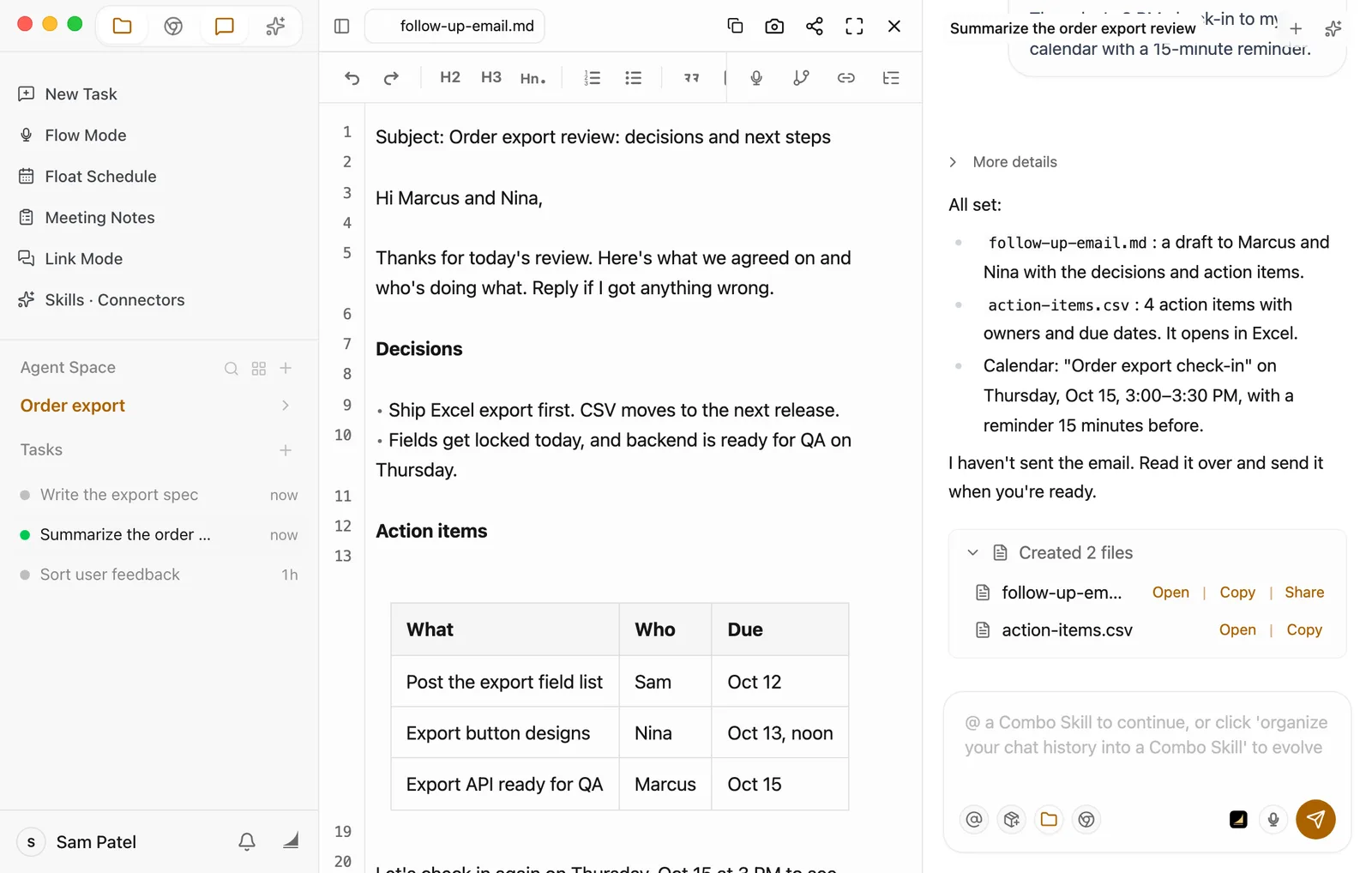
Floatboat reads the summary again, writes the email draft and the spreadsheet, then puts Thursday's meeting into Float Schedule. When it's done, a Created 2 files card appears under its reply.
With the default Ask Every Time setting, Floatboat stops before writing a file and shows a Permission Required panel (the video skips this step). Check the file name in the step above it, then click Approve. To learn why it asks and what else you can choose, see Work on a task with Floatboat.
Read it over and send it yourself
Click the Created 2 files card, then click follow-up-email.md. It opens on the left. Click into it to change anything. It saves on its own when you stop typing.
Before you send it
Floatboat only writes the draft. It doesn't send or post anything for you. Read it over, then send it yourself. The transcript can mishear things, so double-check the owners and due dates.
To send it, copy the text into your email. action-items.csv opens in Excel or Numbers, or you can attach it to the email.
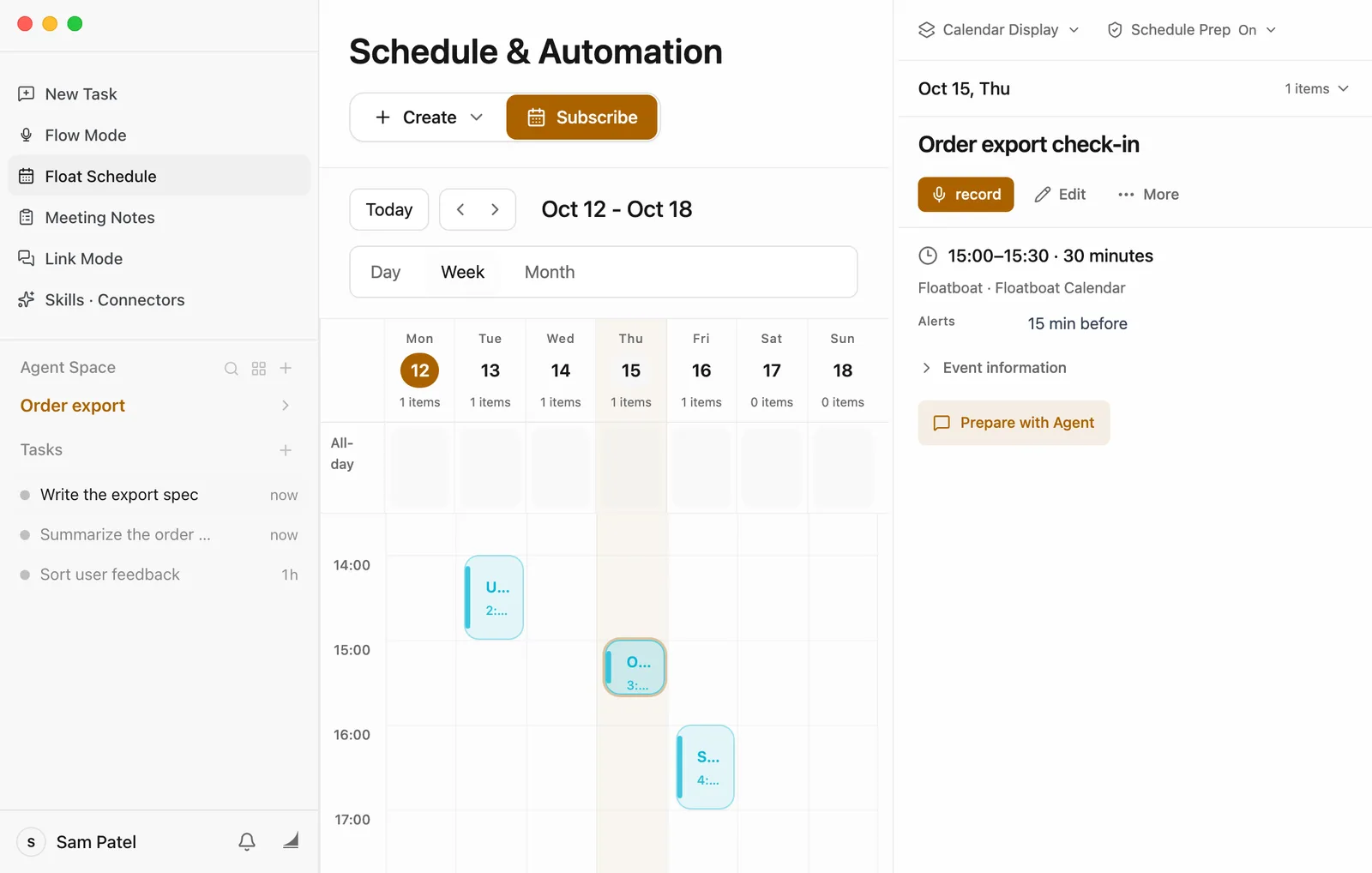
Last, click Float Schedule in the sidebar and check that the next meeting is there. Click the event, and its time and reminder show up on the right.
Make it yours
The same steps work for other kinds of meetings. You'll mostly change three things: the agenda you type in beforehand, who the follow-up goes to, and what you want the spreadsheet to look like.
- Property managers after a residents' meeting: Write down the issues you plan to answer. Ask for "a notice to residents about the fixes we agreed on," and make the sheet a fix list with what, who, and when.
- Interior designers walking a homeowner through a plan on site: Send the follow-up to the homeowner and ask Floatboat to "sum up the changes, the budget difference, and the new timeline in one confirmation message." Put the next site visit on the calendar. Material and brand names are easy to mishear, so try the General structured meeting record template under Summary. It lists anything it isn't sure about so you can check.
- Club leaders after an event planning meeting: Ask for "a message to post in the group chat," make the sheet a job list with task, owner, and due date, and put the rehearsal on the calendar.
Save time next time
- Save your instructions as a template. In the drop-down under Summary, choose New template and give it a name, like "Review follow-up." Change the instructions to what you want every time. For example, add "Then draft a follow-up email to the attendees and put the action items in a spreadsheet with task, owner, due date, and status." Click Save as template. Next time, pick it under My templates, click Send to Agent once, and the summary, email, and sheet all come back together.
- Start recording right from the calendar. The next meeting is already in Float Schedule. When it's time, click it and then click record. Floatboat creates notes named after the meeting and starts recording right away. Remember to let people know first. To have Floatboat review the action items before the meeting starts, click Prepare with Agent on the event. Set How Far Should Agent Go to Materials only. It then works on its own at the start time, so three things are good to know (see Plan your days with Float Schedule):
- Floatboat needs to be open (the background is fine). If it wasn't open at the start time, it runs the missed one as soon as you open it.
- It won't stop to wait for Approve. It stays within what How Far Should Agent Go allows.
- What it writes goes into the space's Auto Prep folder. The reply in the task the Task complete notification opens says exactly where.
- Save the whole follow-up as a Combo Skill. A Combo Skill is a saved way of doing a certain kind of job, so Floatboat can do it the same way every time. The easiest way is to say in this task, "Save how we did this as a Combo Skill called Meeting follow-up." Floatboat creates the skill and writes the steps in one go. You can also click Organize to Combo Skill below the chat box, then Create. A skill made that way starts out empty, so in the same task, say "Write the steps we just followed into this Combo Skill." After your next meeting, @ it in the task. See Save what works as a Combo Skill.
Having trouble?
- On a video call, the transcript only has what I said. Floatboat records what your computer's microphone hears. If you're wearing headphones, other people's voices never reach the microphone. It works best when everyone is in the same room, with your computer in the middle of the table.
- Names or product terms came out wrong. Fix them right in the notes, then click Summary again. Or switch to the General structured meeting record template. It fixes obvious mishearings from context and lists anything it isn't sure about in a table for you to confirm.
- Some owners or dates say TBD. Nobody settled them in the meeting, so Floatboat doesn't guess. Tell it in the task, like "I own CSV export, next release," and ask it to update the spreadsheet.
- I can't find the next meeting on the calendar. Float Schedule may be showing a different week. Click Today to come back to this week. Still missing? Ask in the task, "Did Thursday's meeting make it onto my calendar?" and let Floatboat check.
What's next
Turn this week's orders into a sales report
Hand Floatboat the orders you exported from your store and get a sales report with the bottom line first and last week's numbers alongside. Then save the steps as a Combo Skill, so next week it takes one sentence, or none at all.
Get ready for tomorrow's client meeting
Have Floatboat read the client's latest news, your notes from the last visit, and the quote, then write a one-page meeting outline with the questions you're likely to get. Before you head out in the morning, it can go over the outline with you once more.