
Get ready for tomorrow's client meeting
Have Floatboat read the client's latest news, your notes from the last visit, and the quote, then write a one-page meeting outline with the questions you're likely to get. Before you head out in the morning, it can go over the outline with you once more.
Daniel is an account manager at a packaging supplier. Tomorrow at 10 AM, Daniel is meeting the head of purchasing at Brightwell Foods, a long-time client. What came up last time, which version of the quote went out, what the company has been up to lately: it's all in different places.
This page walks through that evening. You'll check the client's news in the built-in browser, ask Floatboat to turn it and your notes into a one-page outline with likely questions and answers, and have it go over the outline again before you leave in the morning, listing what to ask first. Plan on about twenty minutes, most of it spent reading and tweaking the outline yourself.
Before you start
- Your notes on this client: the notes from your last visit and the quote you sent, in one folder on your computer, such as "Brightwell Foods." Text files like Word and Markdown are easiest. An Excel quote works too. It takes one extra step, covered in step 3.
- The client's website: a news or press page is best.
- Tomorrow's meeting in Float Schedule: you'll need it for the last step. If it isn't there yet, that's fine. You can add it then.
Step by step
Give this client a space
An Agent Space (a space, for short) is where Floatboat keeps one piece of work together, with its files and tasks. Give each client you visit regularly a space of their own, and it'll be ready for the next visit too.
If your notes are already in a folder, start the space from that folder. See "Already have the folder? Start the space from it" in Keep each project in its own Agent Space.
Open the client's news page in the built-in browser
Click the second icon from the left in the row at the very top of the sidebar (Show Browser). The browser opens next to the chat. Type the client's news page into the address bar, for example brightwellfoods.example.com/news, and press Enter.
Take a quick look yourself. This client's page has two stories worth bringing up: a new bakery plant in Columbus opens in November, and they've made a pledge to use greener packaging.
Does the site need you to sign in? Sign in once in this browser, and Floatboat can use it too. See Browse and get things done in the built-in browser.
Ask Floatboat for a meeting outline
Leave the browser open. In the chat box on the right, type what you need and press Enter:
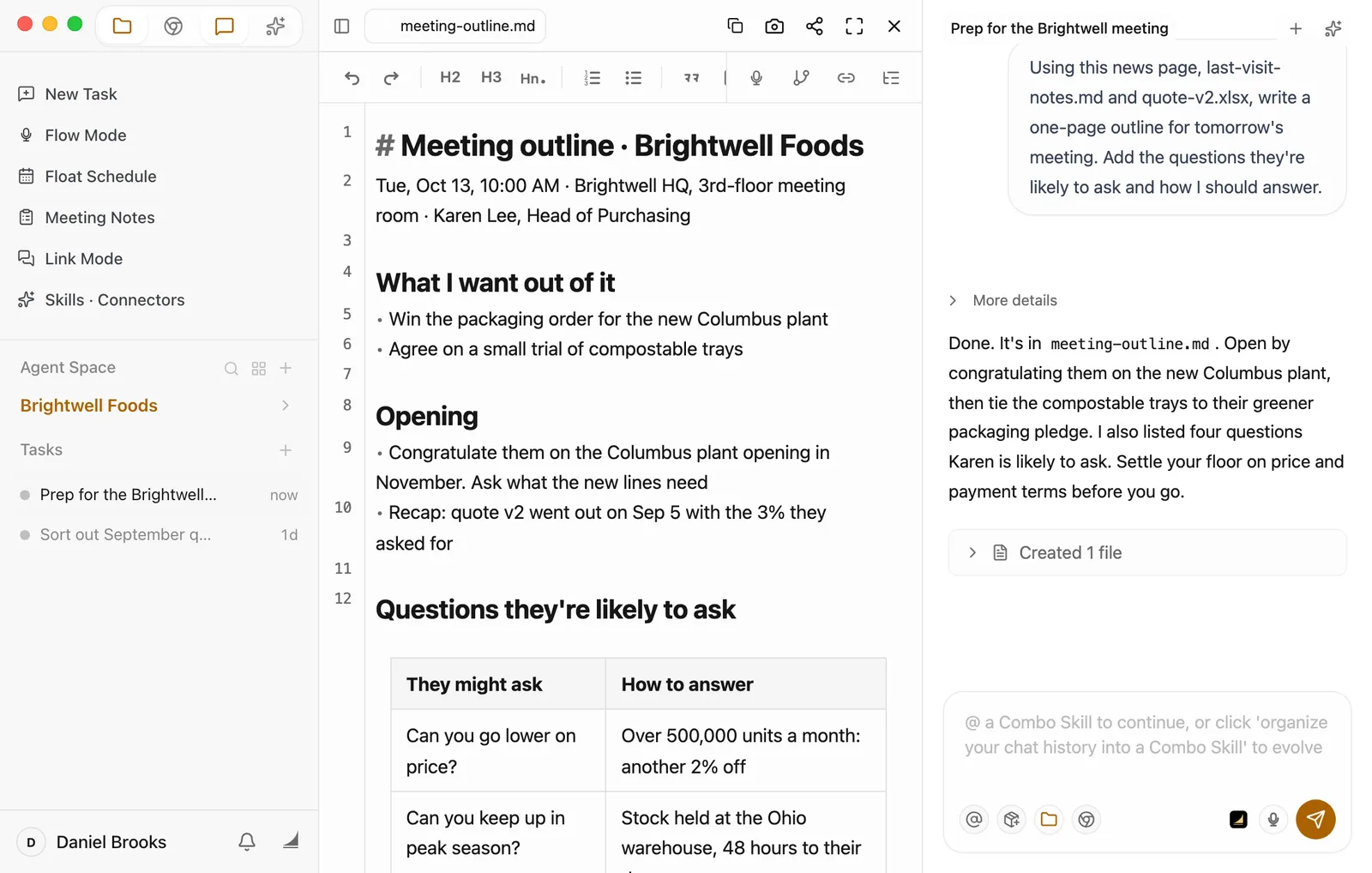
Using this news page, last-visit-notes.md and quote-v2.xlsx, write a one-page outline for tomorrow's meeting. Add the questions they're likely to ask and how I should answer.
While the browser is open, every message you send tells Floatboat which page you're looking at, so "this news page" is enough. Use the file names exactly as they appear in your folder. Floatboat looks for them in this space's folder.
Floatboat says what it plans to do, then reads the news page. While it's using the page, the bar above it turns orange. Next it reads your notes. The quote is an Excel file, which isn't plain text, so Floatboat first runs a short command to pull out what's in it. Then it writes meeting-outline.md and replies with the highlights. A Created 1 file card appears under the reply.
With the default Ask Every Time setting, Floatboat stops before writing a file and shows a Permission Required panel. Check the file name in the step above it, then click Approve. The command that reads the quote shows a panel first too, so you can see what it's about to run. The video skips both. To learn more about the panel, see Work on a task with Floatboat.
Read the outline and make it yours
Click Created 1 file, then Open. The outline opens in the preview, with the chat still on the right.
Check prices and lead times yourself
Before you take the outline to the meeting, check every price, discount, and lead time against the quote. Floatboat can misread a number in a spreadsheet, or present a term that isn't in the quote as if it were settled.
To change things, use whichever is easier:
-
Small fixes, do them yourself: click into the text and type. It saves itself about half a second after you stop.
-
Bigger changes, ask Floatboat: keep going in the same task, for example:
Make the payment terms answer firmer: 90 days won't work, 60 days at most.
Add two questions about the compostable trays. They might ask about shelf life and minimum order size.
Want a coworker to take a look? Share on the card turns the outline into a link you can send. For more on the preview, see View and edit your files.
Have Floatboat go over it again before you leave
Details fade overnight. Have Floatboat reread the outline and your notes from last time before the meeting, and put the things to ask first into a short note.
-
Click Float Schedule in the sidebar, switch to Week, and click tomorrow's Brightwell Foods visit.
-
In the details on the right, click Prepare with Agent. Floatboat drafts instructions for you in a Start Agent Follow-Up window.
-
Add the thing you care about most to the end of Instruction For The Agent, for example:
Finish with the three questions I should ask first, in a short note.
-
Look over the rest: Agent Space should be this client's space. For How Far Should Agent Go, Materials only is all this needs. Start Timing starts at 1 hour before the start, which is 9 AM tomorrow.
-
Click Save Agent Follow-Up.
Getting ready ahead of time works a little differently from a task you hand Floatboat yourself:
- Floatboat needs to be open (the background is fine). If it wasn't open at the start time, it runs the missed one as soon as you open it.
- It won't stop to wait for Approve. It stays within what How Far Should Agent Go allows.
- What it writes goes into the space's Auto Prep folder. The reply in the task the Task complete notification opens says exactly where.
See Plan your days with Float Schedule.
It doesn't go online when it prepares ahead
When it prepares ahead of time, Floatboat only reads files already in the space. It doesn't open web pages, and with Materials only it doesn't run commands either, so it can't read PDF or Excel files. That's why the instructions point it at text files like meeting-outline.md and last-visit-notes.md. To see whether the client posted anything new, check their news page yourself in the built-in browser before you leave. If you want Floatboat to take it into account, paste the story into a .md file in the space.
Meeting not on your calendar yet? In Float Schedule, choose Create › Set up manually to add it, or bring in the calendar you already use. Both are also covered in Plan your days with Float Schedule.
Make it yours
The same steps work for other "I'm meeting someone tomorrow" jobs. Swap a few things:
- Journalist interviewing a founder: put the founder's past interviews and your story pitch in the space, and open the company's website in the browser. Ask for "a 40-minute interview outline that starts easy, with follow-up questions marked."
- Investment analyst meeting a startup: put the business plan they sent (as a Word file) and your notes from the last call in the space, and open their product page. Ask for "the five questions I need answered this time, most important first."
- Buyer negotiating with a supplier: put the last contract and statement in the space and open the supplier's news or capacity page. Ask for "three terms I can push for this time, and how they're likely to respond."
There are three things to change: the files in the space, the page open in the browser, and what you ask Floatboat to write.
Save time next time
- Save it as a Combo Skill. A Combo Skill is a saved way of doing a certain kind of job, so Floatboat can do it the same way every time. If this went well, say in the same task "Save how we did this as a Combo Skill called Client visit prep." Floatboat creates the skill and writes the steps into it. You can also click Organize to Combo Skill under the chat box, then Create. A skill made that way starts out empty, so follow up in the same task with "Write the steps we just followed into this Combo Skill." Before your next visit, type @ in the chat box, pick it, and add the client's name and the date. You can also search the Combo Skills Store for "client visit" to see if there's a ready-made one. See Save what works as a Combo Skill.
- Let Schedule Prep look ahead for you. If your visits are in Float Schedule, Schedule Prep looks over the next few days and writes a short prep brief for any visit worth getting ready for. See Plan your days with Float Schedule.
- Have Floatboat remember how you like it. In a task in this space, say "Remember: keep meeting outlines to one page, put likely questions in a table, and never write my price floor into the file." Floatboat saves this to AGENTS.md in the folder, and new tasks in this space follow it. To use it for every client, use the Combo Skill above. See Help Floatboat remember how you work.
Having trouble?
- It didn't mention the news on the page. The browser needs to be open, on that page, when you send. When the browser is hidden, Floatboat doesn't know which page you're looking at. You can also put the web address right in your request.
- The client's site needs a sign-in or won't load. Sign in yourself in the built-in browser first. If it still won't open, copy the news text and paste it into the chat box with your request.
- Your files are PDF or Excel. Floatboat reads Word (.docx), Markdown, plain text, and CSV files directly. A PDF or Excel (.xlsx) file isn't plain text, so it runs a short command to pull the text out (or to build a new .xlsx). Unless you've chosen Auto-approve All, a Permission Required panel shows that command first. A scanned PDF may not come through at all. To skip the extra step, save a .docx or CSV copy, or paste the text into a .md file.
- It used the wrong file, or says it can't find one. Make sure the file names in your request match the folder exactly. Even more reliable: right-click the file in the Files panel and choose Add to Chat, so it becomes a tag in the chat box.
- The numbers don't match the quote. Tell Floatboat which line is wrong and have it check against the quote again.
- There's no note in the morning. It isn't in the top level of the client's folder. It's in the space's Auto Prep folder, and the task the Task complete notification opens says exactly where. If you didn't get a notification, click View Plan in the event's details to check the setup. Short on time? Click Run Now to have it start right away.
What's next
Plan your days with Float Schedule
Put your visits on the calendar and have Floatboat prepare before each one.
Browse and get things done in the built-in browser
Sign in to websites and let Floatboat look things up for you.
Save what works as a Combo Skill
Save how you did this, and use it for your next visit.
From meeting to follow-up in one go
Let Floatboat capture what everyone says in a meeting, then have it write the summary and action items, draft the follow-up email, build the action-item sheet, and put the next meeting on your calendar.
Get the week in order every Monday
Hand Floatboat the to-dos you saved during the week and your calendar. On Monday morning it lays out the three things that matter most, blocks of time for your own work, and a weekly plan for your team. Make it a weekly event, and from then on the draft is waiting for you.