
Clean up a sign-up sheet and send the notice
Hand Floatboat a messy form export. It removes duplicates, makes the answers consistent, flags what's missing, saves a clean copy, and drafts the notice and reminders.
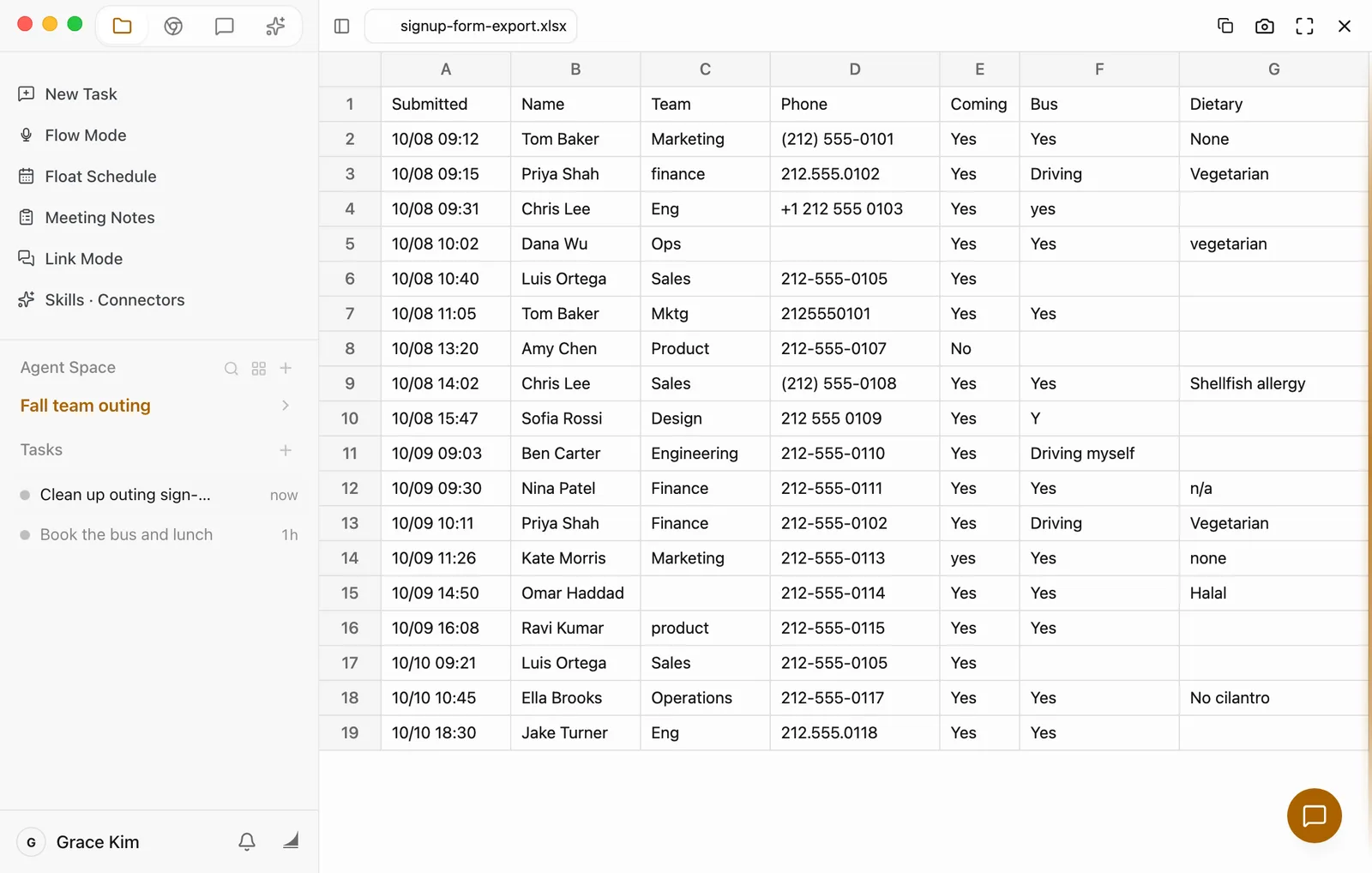
Grace is the office manager, and the fall team outing is next Friday. The sign-up form has been open for three days, and the export is a mess: some people signed up twice, phone numbers are written every which way, one person wrote "Mktg" and another wrote "Marketing," and a few answers are blank.
This page walks you through handing a sheet like that to Floatboat. You'll end up with three things: a clean list, a notice ready to post in the company chat, and short reminders for the people who left something out. Plan on about ten minutes, most of it spent checking the results.
Before you start
- The exported sheet. Export the responses from your form tool as Excel (.xlsx) or CSV. CSV is easiest, because Floatboat reads and writes it directly. With .xlsx it needs extra commands. This page uses .xlsx.
- A space for this job. An Agent Space (a space, for short) is where Floatboat keeps one piece of work together, with its files and tasks. You could create one called "Fall team outing." See Keep each project in its own Agent Space.
- The itinerary (optional). If the time, place, and meeting point are written down in a file, put it in the same space and Floatboat will use it for the notice. If not, include the details in your request when you get to that step.
Step by step
Put the export in your space
Open the space and drag the exported file from Finder or File Explorer into the Files panel. Floatboat copies it into the space's folder, and the original stays where it was, in your Downloads folder.
Double-click it to take a quick look in the preview, so you have a feel for how many people there are and which columns are the messiest.
Say how you want it cleaned up, and send
Click New Task in the sidebar, type your request in the chat box, and send it. You can start from this one:
Tidy up signup-form-export.xlsx: remove duplicates, make teams and phone numbers consistent, and write "Missing" where a required answer is blank. Save it as a new file and leave the original alone.
A few things are worth spelling out in your request:
- Which answers are required. A dietary question that people can skip isn't "missing" when it's blank. If you're worried Floatboat won't tell the difference, list them: "Name, team, phone, and bus are required."
- What "consistent" means to you. If you have a preferred phone format, or want full team names instead of short ones, say so.
- Save a new file. Floatboat usually saves changes as a new file instead of overwriting the one you gave it. Saying "Save it as a new file and leave the original alone" makes sure.
Approve two commands: one to read, one to build
An Excel file isn't plain text, so Floatboat runs a short command to read the export and another to build signup-clean.xlsx. Each one shows up in a Permission Required panel first.
- The first panel is the command that reads the export. Click Approve.
- The second panel is the command that builds the new sheet. Check that the step above it names the new file, signup-clean.xlsx, then click Approve. To see the full command, click Details and Command Preview.
With Ask Every Time or Auto-approve Edits, Floatboat asks before every command. Only Auto-approve All skips the panel. For what each button on the panel does, see Work on a task with Floatboat. To change how often Floatboat asks, see Decide what Floatboat can do on its own.
Check the clean list yourself
When it's done, Floatboat tells you what it changed: how many duplicates it removed, how many people are left, and what's still blank. Check those numbers against what you'd expect, then open the new sheet and make sure nobody was dropped by mistake and nobody with a shared name was merged with someone else.
Open the new sheet, check it, and fill in what you know
Double-click signup-clean.xlsx in the Files panel to open it in the preview. Every blank that needs an answer now says "Missing," so they're easy to spot.
Fill in anything you already know. Say Dana Wu's number is in the company directory: double-click the cell, delete "Missing," type the number, and press Return (Enter on Windows).
Spreadsheets don't save on their own. When you're done, point at the tabs at the top of the preview, and click Save on the right of the bar that appears. You can also press ⌘S (Ctrl+S on Windows). Until you save, that bar shows an orange Unsaved.
Get the notice and the reminders
In the same task, keep going:
Write a notice about the outing for the company chat, using the clean list. No phone numbers. Then draft a reminder for each person still marked "Missing". I'll send those privately.
Floatboat reads itinerary.md from your space, runs a command to read the clean list, writes the notice into a new file, outing-notice.md, and puts the reminders right in its reply. You'll approve the command that reads the list, the same as before. With the default Ask Every Time setting, Floatboat stops before writing a file and shows a Permission Required panel. Check the file name in the step above it, then click Approve.
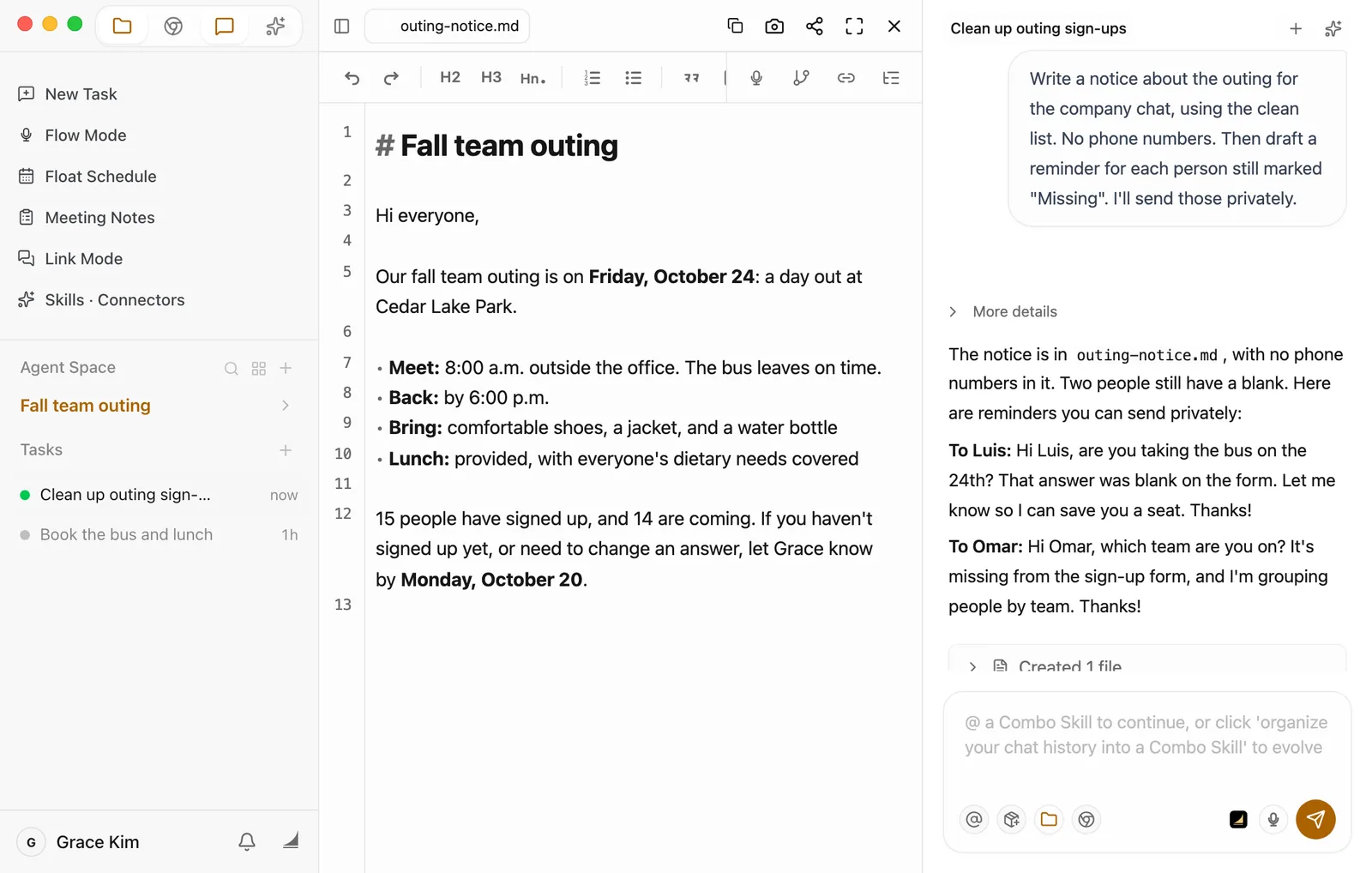
Floatboat only writes the draft. It doesn't send or post anything for you. Read it over, then send it yourself:
- The notice: Open outing-notice.md in the preview and change anything you like. It saves itself about half a second after you stop typing. Then select the text, copy it, and paste it into the company chat.
- The reminders: Select one in the reply, copy it, and send it to that person directly.
The list holds your coworkers' personal details
A sign-up sheet has phone numbers and dietary needs in it. Keep the group notice to the time, the place, and what people need to do, and don't paste the list or anyone's number into a group chat. Send reminders one-to-one. If your form also collected something you don't need this time, like home addresses, ask Floatboat to leave that column out of the clean copy.
Make it yours
The same approach works for other sheets. Change the file name, the required answers, and what you want written at the end:
- Clinic front desk, cleaning up appointment requests. Make "name, phone, and time slot" required, ask it to "keep one row for anyone who booked twice," then draft a reminder for each person coming in tomorrow.
- Wedding planner, sorting out RSVPs. Make "name, party size, and meal choice" required, ask for a seating chart by table, then draft a reminder for each guest who hasn't replied.
- Conference coordinator, collecting attendee forms. Make "name, organization, and hotel needed" required, have it use each organization's full name, then write the attendee guide and a reminder for anyone who skipped the hotel question.
Save time next time
- Save it as a Combo Skill. A Combo Skill is a saved way of doing a certain kind of job, so Floatboat can do it the same way every time. If this went well, say in this task, "Save how we did this as a Combo Skill called Sign-up sheet cleanup." Floatboat creates the skill and writes the steps in one go. You can also click Organize to Combo Skill below the chat box, then Create. A skill made that way starts out empty, so follow up with "Write the steps we just followed into this Combo Skill." Next time a sign-up sheet lands on your desk, type @ in the chat box, pick the skill, and only mention the new file name. For the details, see Save what works as a Combo Skill.
- Have this space remember your rules. In a task in this space, say: "Remember for sign-up sheets: phone numbers in the 212-555-0101 format, full team names, 'Missing' for any blank required answer, and always save a new file instead of changing the original." New tasks in this space will follow it. See Help Floatboat remember how you work.
Having trouble?
- It asks me to approve every time it reads or builds the sheet. Floatboat reads Markdown, plain text, and CSV files directly. An Excel (.xlsx) file isn't plain text, so it runs a short command to pull the contents out (or to build a new .xlsx). Unless you've chosen Auto-approve All, a Permission Required panel shows that command first. To skip the extra step, export CSV from your form tool, or save a CSV copy from Excel.
- I asked for missing answers to be highlighted in yellow, but I don't see any color. The spreadsheet preview in Floatboat shows what's in each cell, not cell colors. Open the file in Excel or Numbers to see the highlighting. To spot gaps right in the preview, ask Floatboat to write "Missing" in the cell, as above.
- Two people with the same name were merged into one. Same name doesn't always mean the same person. Tell Floatboat, "People with the same name but different phone numbers are different people," and have it clean up the sheet again.
- The notice shows # and ** when I paste it into the chat. outing-notice.md is a Markdown file, and those symbols are how it marks headings and bold text, so they come along when you copy from the preview. Ask Floatboat to "rewrite the notice as plain text right in your reply," then copy it from the reply.
- My change to a cell didn't stick. Spreadsheets don't save on their own. Click Save in the bar above the sheet, or press ⌘S (Ctrl+S on Windows). The bar only appears when you point at the tabs at the top of the preview.
- The original sheet got changed. What you dragged in from Finder or File Explorer was a copy, so the original is still in your Downloads folder. Drag it in again. Next time, include "Save it as a new file and leave the original alone" in your request.
What's next
View and edit your files
Open a spreadsheet in the preview, double-click a cell to change it, and click Save.
Work on a task with Floatboat
Send a request, follow each step, and decide what to do at the Permission Required panel.
Save what works as a Combo Skill
Keep this way of cleaning up sign-up sheets, and reuse it with a quick @.
Research what others post and plan a week of content
Have Floatboat look through a few public accounts and sum up what works, plan the week's posts in a table you can adjust, write each post, and put the publish times on your calendar.
Turn logged hours into an invoice and an email
Check your hours log, then have Floatboat price it with your rate card, write an invoice, and draft the email to your client. You check the numbers and send the email yourself.