
Prepare next week's lesson and quiz
Put the textbook section and last year's plan in a space, have Floatboat write two lessons and a quiz, check and fix the questions yourself, then add the classes to Float Schedule.
David Okafor teaches 7th grade science, and photosynthesis is up next week. David has the textbook section and last year's lesson plan, but still needs a fresh plan and a short quiz.
This page walks through it with David: put the materials in a space, have Floatboat write two lessons and a 10-question quiz (with the answers in their own file), fix a question in the preview, and add both classes to Float Schedule. Floatboat's first draft usually takes a few minutes. Save most of your time for reading it over and fixing questions.
Before you start
- The textbook section or reading. A Word document (.docx) or plain text is easiest. A PDF works too; see "Having trouble?" below.
- An old lesson plan. Last year's, or one from another class. If you don't have one, that's fine. Floatboat will start from scratch.
- A space for this work. An Agent Space (a space, for short) is where Floatboat keeps one piece of work together, with its files and tasks. If you don't have one yet, create one as shown in Keep each project in its own Agent Space, and call it something like "Grade 7 science."
Step by step
Put the reading and the old plan in the space
Open the space. The Files panel shows its folder. Drag the textbook section and the old lesson plan from Finder or File Explorer into the Files panel. Floatboat copies them into the folder and leaves the originals where they were.
Already keep these files in a folder on your computer? You can start the space from that folder instead. See "Already have the folder? Start the space from it" in Keep each project in its own Agent Space.
Write your request and send it
Click New Task at the top of the sidebar. In the chat box, say three things: which materials to use, how many lessons and how long, and how many quiz questions. For example:
Plan next week's two 45-minute lessons on photosynthesis from the textbook section and last year's plan. Add a 10-question quiz, answers in a separate file.
Press Enter or click the paper-plane button to send it.
Keeping the answers in their own file means you can print or share the quiz without giving the answers away.
Watch it read and write
Floatboat first says what it plans to do. Then it reads the textbook section and the old plan, and writes the lesson plan, the quiz, and the answer key, one after another. The three new files show up in the Files panel, and a Created 3 files card appears under its reply. Click the card to see them.
With the default Ask Every Time setting, Floatboat stops before writing a file and shows a Permission Required panel. Check the file name in the step above it, then click Approve. There's more about the panel in Work on a task with Floatboat.
Open the lesson plan and read it through
Double-click lesson-plan-photosynthesis.md in the Files panel to open it in the preview. You can open all three files and switch between them with the tabs at the top of the preview.
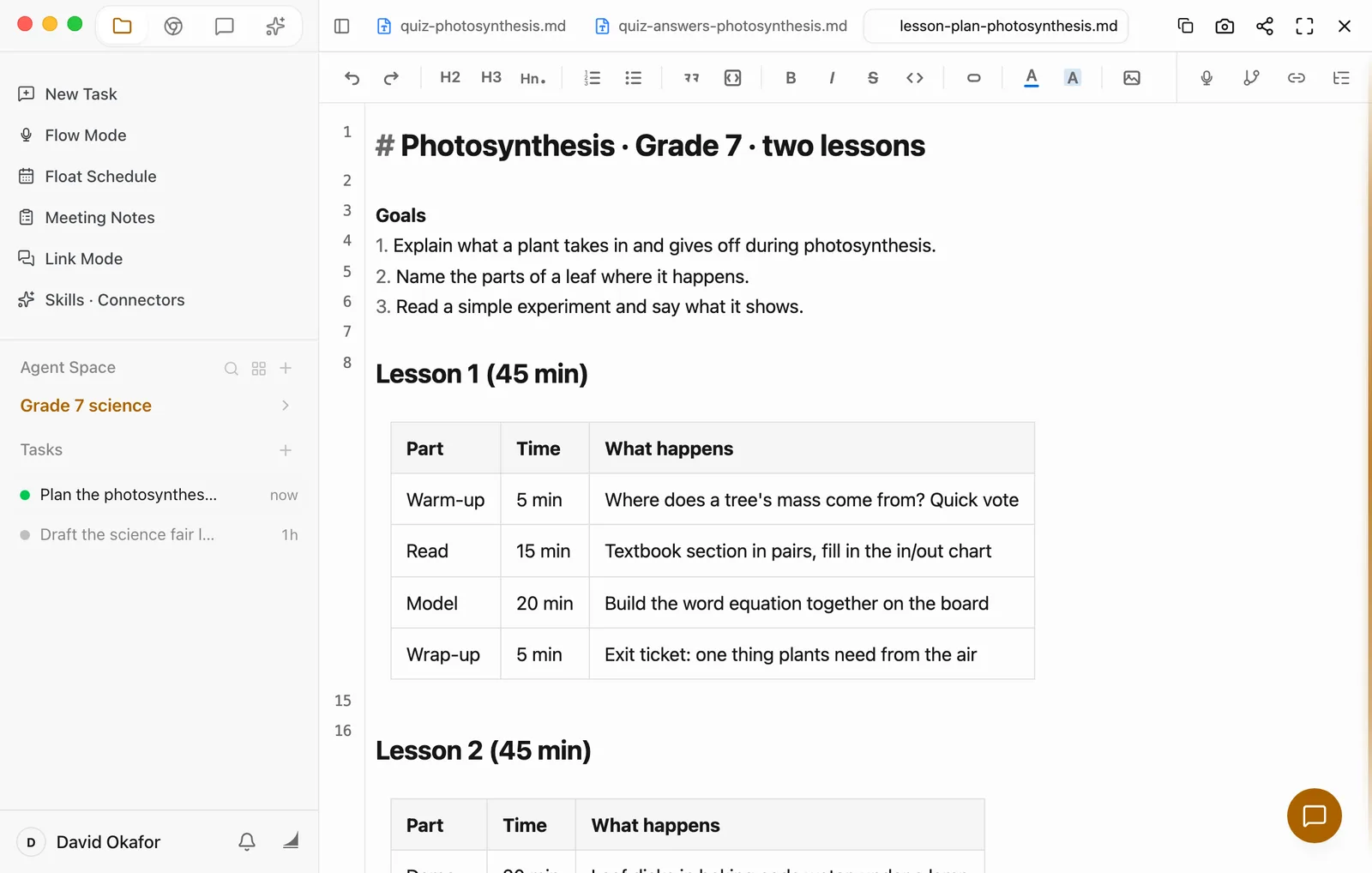
If something doesn't fit your class, say so in the same task. For example: "Swap the Lesson 1 warm-up for a short video" or "Add one more discussion question to Lesson 2." Floatboat updates the file.
Fix a question right in the preview
Small changes are quicker to make yourself. Open quiz-photosynthesis.md, click where you want to change something, and type. About half a second after you stop, the file saves itself.
Take the quiz yourself before your students do
Floatboat's questions and answers can be wrong. A fact can be slightly off, a multiple-choice question can have more than one answer that works, or an answer can belong to a different question. Work through the quiz as a student would, check every answer against quiz-answers-photosynthesis.md, and only hand it out once it's right.
Add both classes to Float Schedule
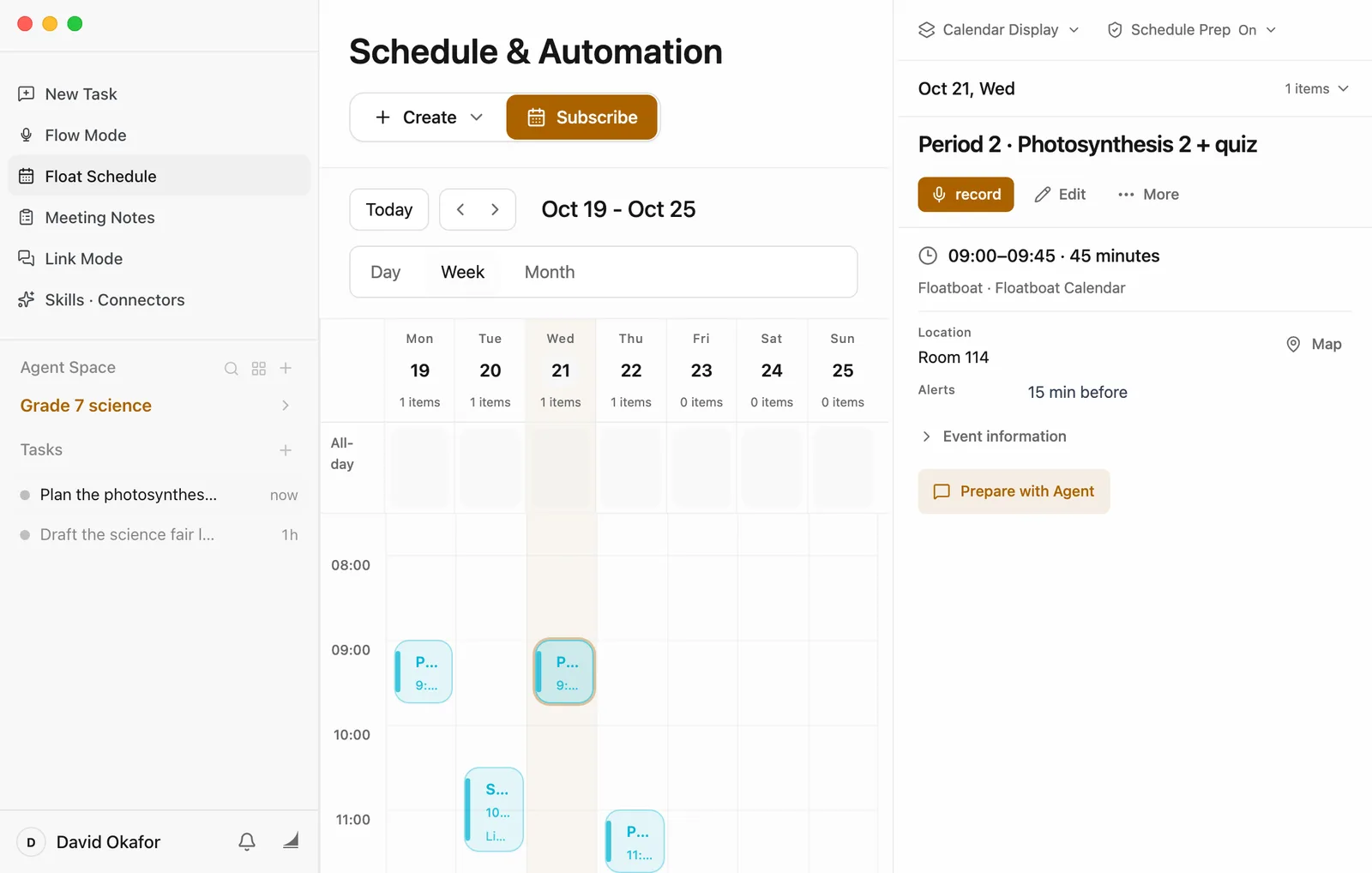
Click Float Schedule in the sidebar, then Create › Set up manually, and enter each class. Floatboat reminds you before it starts.
Want Floatboat to go over things once more before class? Click Prepare with Agent at the bottom left of the New Schedule window, and write something like this in Instruction For The Agent:
The day before class, check the quiz and the answer key against the textbook section and list any questions you're not sure about.
Set Agent Space to Grade 7 science and How Far Should Agent Go to Materials only. That's all this needs. Start Timing starts at 1 hour before the start, so set it to 1 day before to have the check done the day before. For an event that's already on your calendar, click it, and you'll find Prepare with Agent in its details.
When the time comes:
- Floatboat needs to be open (the background is fine). If it wasn't open at the start time, it runs the missed one as soon as you open it.
- It won't stop to wait for Approve. It stays within what How Far Should Agent Go allows.
- What it writes goes into the space's Auto Prep folder. The reply in the task the Task complete notification opens says exactly where.
For what each setting means, see Plan your days with Float Schedule.
Make it yours
Usually you'll change three things: the materials you put in the space, the number and length of lessons in your request, and how many questions the quiz has and what kind.
- A museum educator hosting a school group: put in the exhibit labels and your last tour script, and ask for "a 30-minute tour script for third graders, plus 5 scavenger-hunt questions they can answer in the gallery, answers in a separate file."
- A corporate trainer onboarding new hires: put in the product manual (as a Word file) and the notes from the last session, and ask for "a 90-minute training script and a 10-question check at the end, answers in a separate file."
- A driving instructor teaching a classroom session: put in the right-of-way chapter of the driver's manual and your old handout, and ask for "a 40-minute talk outline and 15 true-or-false questions, answers in a separate file."
Save time next time
- Save this task as your own Combo Skill. A Combo Skill is a saved way of doing a certain kind of job, so Floatboat can do it the same way every time. If the plan came out the way you like, say in the same task: "Save how we did this as a Combo Skill called Lesson prep." Next time, click @ below the chat box, pick it, and swap in a new topic. You can also click Organize to Combo Skill below the chat box, but the skill it creates is named after the task and starts empty. Follow up with "Write the steps we just followed into this Combo Skill." See Save what works as a Combo Skill.
- Use a ready-made one from the store. Click Skills · Connectors in the sidebar, search the store for "lesson," pick one that fits, click Install, then Install again to confirm. Once it's installed, pick it with @ the same way and say which topic you're teaching.
- Have Floatboat remember how you plan. In a task in this space, say: "Remember: lessons are 45 minutes, quizzes have multiple choice, fill-in-the-blank, and short answer, and the answers go in a separate file." New tasks in this space will follow it. See Help Floatboat remember how you work.
Having trouble?
- The reading is a PDF. Floatboat reads Word (.docx), Markdown, plain text, and CSV files directly. A PDF or Excel (.xlsx) file isn't plain text, so it runs a short command to pull the text out (or to build a new .xlsx). Unless you've chosen Auto-approve All, a Permission Required panel shows that command first. A scanned PDF may not come through at all. To skip the extra step, save a .docx or CSV copy, or paste the text into a .md file.
- It didn't use last year's plan. Name the file in your request, like "use last-year-lesson-plan.docx." Or select the file in the Files panel first and say "use the file I selected."
- The questions are too hard or too easy. Say so in the same task, like "Questions 6 to 8 are too hard. Make them ones students can answer straight from the reading." Ask it to update the answer key too, then check both again.
What's next
View and edit your files
Find files in the Files panel, open them in the preview, and edit them there.
Save what works as a Combo Skill
Install a ready-made lesson planning skill, or save this one as your own.
Plan your days with Float Schedule
Put your classes on the calendar and have Floatboat get ready before them.
Turn a stack of papers into a literature review
Put your paper PDFs in one folder, have Floatboat read them all into a comparison table, track down the one you're missing, and write a first draft of the review.
Tailor your résumé to a job posting
Hand a job posting to Floatboat, have it compare the posting with your résumé, then save a version of your résumé for that job and a cover letter, and finish them yourself in the preview.