
Research what others post and plan a week of content
Have Floatboat look through a few public accounts and sum up what works, plan the week's posts in a table you can adjust, write each post, and put the publish times on your calendar.
Priya runs social media for Juniper Tea Co., a small tea brand, and plans the week's posts every Monday morning. Before planning, Priya likes to see what other tea brands have been posting lately and what's getting a response.
This page follows that Monday from start to finish. Floatboat reads a few public accounts in its built-in browser and sums up what works. Then it plans the week in a table you can adjust, writes each post, and puts the publish times on your calendar. Set aside about half an hour the first time. Most of it goes into reading and adjusting.
Before you start
- A space for your social work. An Agent Space (a space, for short) is where Floatboat keeps one piece of work together, with its files and tasks. In this example, it's called Social content. Don't have one yet? See Keep each project in its own Agent Space.
- The accounts you want to look at. A short file in the space works well, like peers.md in this example, with each account's name and link. You can reuse it every week. Or paste the links straight into your request.
- Sign-ins, if a site needs one. Some sites only show posts to people who are signed in. Sign in once in the built-in browser, and Floatboat can see those pages too.
- Optional: a Combo Skill for writing posts. Step 5 uses one from the Combo Skills Store. You can install it when you get there.
Stick to public posts
Floatboat sees the same pages you can open in the built-in browser, nothing more. Only have it read what's public, and follow each site's rules. Some sites don't allow automated reading or copying of their content. Floatboat doesn't need to like, follow, or comment on anything for this research, so don't ask it to.
Step by step
Open one of the accounts in the built-in browser
Click the second icon in the row at the top of the sidebar (Show Browser). The browser opens next to the chat. Click the address bar, type the account's address, like social.example.com/@hearthandleaf, and press Enter.
If the site asks you to sign in before it shows any posts, sign in right here. Then click New Task at the top of the sidebar, so you have an empty chat box on the right. For more about the browser, see Browse and get things done in the built-in browser.
Ask Floatboat what's working
Keep the browser open, type your request in the chat box, and send it:
Check the accounts in peers.md (this page is one). What did they post this month, and what got the most likes and comments?
While the browser is open, every message you send tells Floatboat which page you're looking at, so "this page" is enough.
Floatboat reads your list first, then this page, and opens the other accounts in new tabs. Pages it's using are easy to spot: the tab gets a small robot icon, and an orange bar appears above the page. You don't need to do anything there. Wait for its reply in the chat.
What comes back depends on what those accounts show publicly. Treat the numbers as a rough picture, and open any post that matters to check it yourself. Want more detail? Ask a follow-up, like "Which three posts got the most comments? Give me the links."
Have Floatboat plan the week in a table
In the same task, send:
Plan this week's posts from that, Tuesday to Saturday, one a day. Make a table with day, time, topic, format, and why.
Floatboat writes the plan into a file in your space. Here it's content-plan-oct-12.md. Below its reply you'll see a Created 1 file card. Click the file name to open it in the preview.
With the default Ask Every Time setting, Floatboat stops before writing a file and shows a Permission Required panel. Check the file name in the step above it, then click Approve. To learn more about the panel, see Work on a task with Floatboat.
Adjust the plan in the preview
You know your audience best, so read the plan and change what doesn't fit. Click a cell in the table and type. In the video below, Thursday's format changes from Photo + story to Short video, since how-to videos got the most comments.
There's no need to save. Markdown files save themselves about half a second after you stop typing. Until then, a * shows up after the file name on the tab. For bigger changes, ask Floatboat instead, like "Swap Wednesday and Friday" or "Add a Sunday post." More about the preview is in View and edit your files.
Write each post with a Combo Skill
A Combo Skill is a saved way of doing a certain kind of job, so Floatboat can do it the same way every time. One made for social posts keeps the tone and length steady from post to post.
If you don't have one yet, click Skills · Connectors in the sidebar and search the Combo Skills Store for "social." Install one whose description fits: click Install, then Install again to confirm. Save what works as a Combo Skill shows how. The example below uses one called Social post writer.
Then, in the same task, click @ below the chat box and pick the skill. A line like Use [Social post writer Combo Skill] for task: appears in the chat box, with your skill's name in it. Finish it and send:
Use [Social post writer Combo Skill] for task: Write the five posts in content-plan-oct-12.md. Save each one in the drafts folder.
![The Social content space. The Files panel lists the drafts and photos folders, then brand-voice.md, content-plan-oct-12.md, last-week-stats.xlsx, and peers.md. In the Chat panel on the right, under the request to plan the week, Floatboat has replied: Done. The plan is in content-plan-oct-12.md: five evening posts, with a how-to video on Wednesday and a poll on Friday. Want me to write the posts next? A Created 1 file card sits below the reply. At the bottom, a Social post writer tag sits in the chat box, which reads: Use [Social post writer Combo Skill] for task: Write the five posts in content-plan-oct-12.md. Save each one in the drafts folder.](/docs/_media/scenarios/social-posts/write-posts.en.webp)
Floatboat writes each post as its own file in the drafts folder. Open them from the Files panel and edit them like any document. Floatboat only writes the draft. It doesn't send or post anything for you. Read it over, then post it yourself.
If your space has notes on your brand's voice, like brand-voice.md here, add "Follow brand-voice.md" to the request.
Put the publish times on your calendar
Last, in the same task, send:
Put each post's publish time in Float Schedule, with a reminder 15 minutes before.
Floatboat adds an event for each post to Float Schedule. To see them, click Float Schedule in the sidebar and switch to Week.
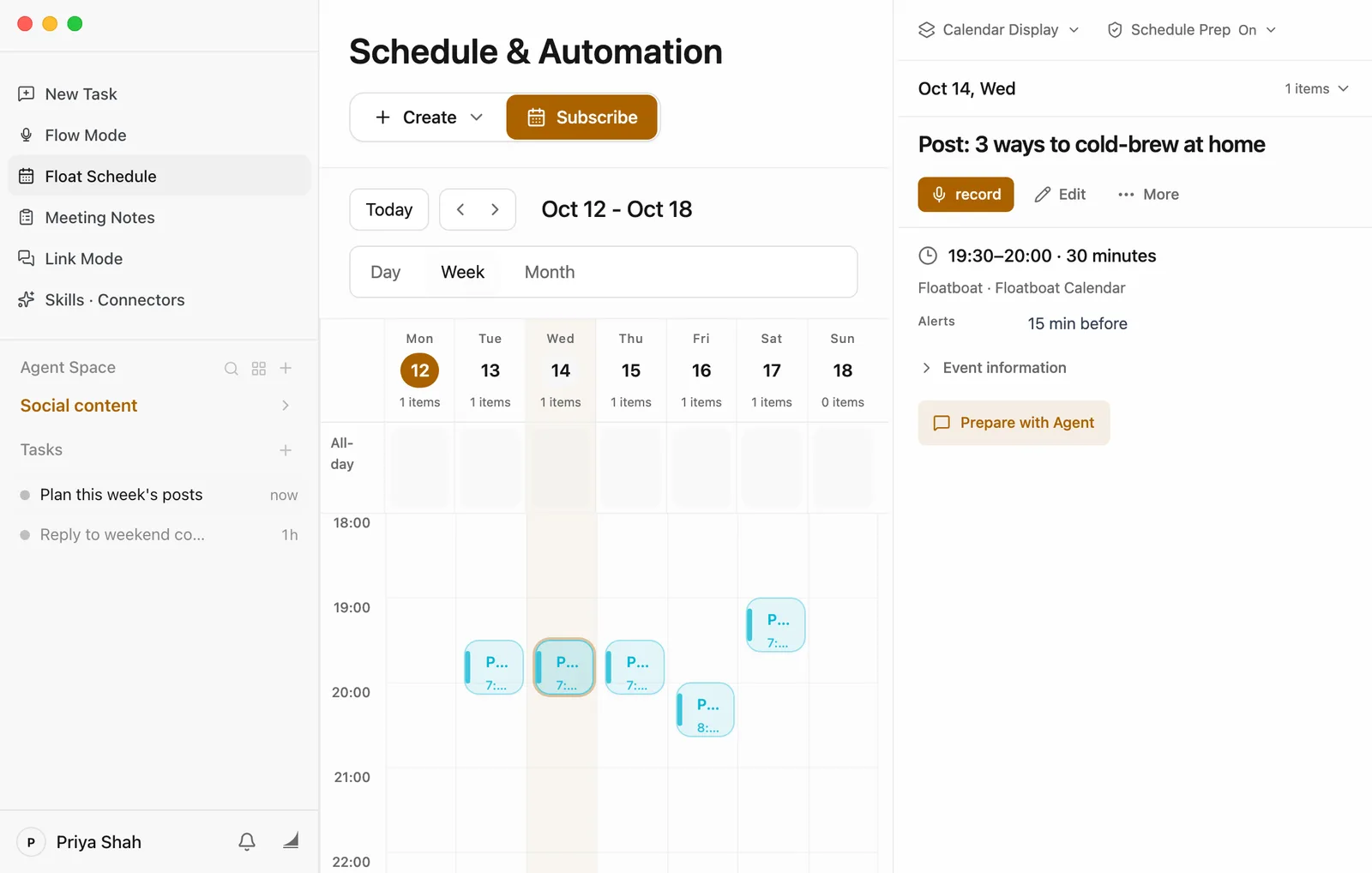
When a publish time comes up, Floatboat reminds you with a notification and a small tag in the sidebar. Floatboat needs to be open for this, but it can sit in the background. The reminder is your cue to post that day's draft yourself. More about reminders is in Plan your days with Float Schedule.
Make it yours
The same steps work for anyone who keeps an eye on what others do before planning their own posts. Change the accounts, the time span, the table, and the skill that writes the posts.
- A café owner before a new seasonal menu. List three cafés nearby and ask, "What did they post in the two weeks before their last new menu, and which posts got the most comments?" Then plan a table with date, post, and dish.
- A nonprofit's volunteer coordinator before a fundraiser. Look at the public pages of similar groups and ask Floatboat to plan two weeks of posts leading up to your event. Swap "this week" for the dates you need.
- A personal trainer. Pick a few coaches whose posts you like and plan one post a week for the next month. Change "one a day" to "one a week."
Save time next time
-
Save the whole routine as a Combo Skill. In the task that went well, say: "Save how we did this as a Combo Skill called Weekly content plan." Floatboat creates the skill and writes the steps into it. Next Monday, pick it with @ and add "this week." You can also click the Organize to Combo Skill button below the chat box, but the skill it creates starts out empty. Then tell Floatboat in the same task: "Write the steps we just followed into this Combo Skill." See Save what works as a Combo Skill.
-
Have Floatboat remember your brand's voice. In this space, say: "Remember: posts are warm and plain, no more than two emoji, and end with a question." Floatboat saves this to AGENTS.md in the folder, and new tasks in this space follow it. See Help Floatboat remember how you work.
-
Have a first draft waiting on Monday. In Float Schedule, add an event like "Plan this week's posts" on Monday at 9:00, and set Repeat Rule to every week. Click Prepare with Agent, write "Reread last week's content plan and brand-voice.md, and draft this week's table in the same format," and set How Far Should Agent Go to Materials only. By default, it starts an hour before the event. It only works from files already in the space and can't look at web pages, so check the other accounts in a normal task, as in step 2. A few more things to know:
- Floatboat needs to be open (the background is fine). If it wasn't open at the start time, it runs the missed one as soon as you open it.
- It won't stop to wait for Approve. It stays within what How Far Should Agent Go allows.
- What it writes goes into the space's Auto Prep folder. The reply in the task the Task complete notification opens says exactly where.
Having trouble?
- The site asks you to sign in, or Floatboat says it can't see the posts. Sign in to that site in the built-in browser yourself, then ask again. Floatboat can't see private accounts or anything you can't open yourself.
- A verification check pops up while Floatboat is reading. Click Take over on the orange bar, complete the check, then click Return to AI. See Browse and get things done in the built-in browser.
- It only looked at a few posts. Many sites load more posts as you scroll. Tell it how far back to go, like "the last 20 posts from each account."
- The numbers don't match what you see. Likes and comments keep changing, and some sites round them, like 2.1k. Use the summary as a rough picture, and check the posts that matter yourself.
- The skill you installed isn't in the @ list. It may still be downloading. Check its page in the Combo Skills Store, and if it says Downloading, give it a moment.
- The posts didn't show up in Float Schedule. Check the date range at the top of the page. Then scroll to the bottom of the task. Floatboat may be waiting for your OK in a Permission Required panel.
What's next
Browse and get things done in the built-in browser
Sign in to websites, hand a page to Floatboat, and take over whenever you like.
Save what works as a Combo Skill
Install skills from the store, and save a routine that works as your own.
Plan your days with Float Schedule
Add events, get reminders, and have Floatboat prepare ahead of time.
Get the week in order every Monday
Hand Floatboat the to-dos you saved during the week and your calendar. On Monday morning it lays out the three things that matter most, blocks of time for your own work, and a weekly plan for your team. Make it a weekly event, and from then on the draft is waiting for you.
Clean up a sign-up sheet and send the notice
Hand Floatboat a messy form export. It removes duplicates, makes the answers consistent, flags what's missing, saves a clean copy, and drafts the notice and reminders.