
Tailor your résumé to a job posting
Hand a job posting to Floatboat, have it compare the posting with your résumé, then save a version of your résumé for that job and a cover letter, and finish them yourself in the preview.
Taylor spent seven years running a restaurant and is now moving into customer success. Every posting asks for something a little different, and one all-purpose résumé doesn't show what each job is looking for. Rewriting it by hand for every application gets old fast.
This page walks you through the same job with Floatboat. First it compares a posting with your résumé and tells you what matches and what's missing. Then it saves a version of your résumé for that job and drafts a cover letter, and you read both and make them right in the preview. Plan on about half an hour per job, most of it spent checking the details yourself.
Only real experience goes on your résumé
Anything on your résumé can come up in an interview. Floatboat shouldn't invent experience or numbers for you. Say "Only use what's really in my résumé" in your request, and when it's done, read every line. If you see something you didn't do, or a number that's off, delete it or tell Floatboat.
Before you start
- Your résumé as a Word (.docx) or Markdown (.md) file. A PDF works too, with one extra step, covered under "Having trouble?" below.
- The link to the job posting you're applying for. If the job site needs you to sign in, have your login handy.
- An Agent Space for your job search. An Agent Space (a space, for short) is where Floatboat keeps one piece of work together, with its files and tasks. For example, a "Job search" space with your résumé in its folder. To set one up, see Keep each project in its own Agent Space.
Step by step
Start a task in your job search space
Switch to your "Job search" space and check that your résumé is in the Files panel, for example Taylor-Brooks-resume.docx. If it isn't, copy it into that folder in Finder or File Explorer.
Then click New Task at the top of the sidebar. One task per job works well: later, you can find what you changed for each job right in the Tasks list.
Open the posting in the built-in browser and hand it to Floatboat
Click the browser icon at the top of the sidebar (second from the left) to open the built-in browser, and type the posting's address in the address bar. If the job site needs you to sign in, sign in right there. You'll stay signed in for next time.
Once the page loads, a green bar above it reads Let AI continue from this page. Click Hand off to AI on the right, and the page goes to the task you have open. The bar turns orange. For more about the browser, see Browse and get things done in the built-in browser.
Ask what matches and what's missing
Type your request in the chat box, and name your résumé file:
Compare this posting with my résumé, Taylor-Brooks-resume.docx. What matches, and what's missing?
Floatboat reads your résumé, then the posting, and replies with two lists: What matches and What's missing.
Don't ask it to rewrite anything yet. Look at what's missing first:
- Things you've done but left off your résumé: tell Floatboat what you did and how it went. For example, "I kept notes on regulars' preferences in our booking system."
- Things you really haven't done: leave them out. Floatboat won't add them for you.
Have it save a version for this job and write a cover letter
Next, Floatboat writes files. You won't need the browser for this, so click the browser icon at the top of the sidebar to put it away, and click the folder icon to open the Files panel. That's where the new files will show up. In the same task, send:
Save a version of my résumé for this job as an .md file, and write a cover letter too. Only use what's really in my résumé.
Each part of that request does a job:
- "Save a version": your original résumé stays as it is.
- "As an .md file": Markdown (.md) files can be edited right in Floatboat's preview, which you'll do next.
- "Only use what's really in my résumé": Floatboat sticks to your actual experience and tells you what it left out.
- Want it to check with you first? Add "If you're unsure about anything, ask me first." Floatboat then asks you instead of guessing.
With the default Ask Every Time setting, Floatboat stops before writing a file and shows a Permission Required panel. Check the file name in the step above it, then click Approve. To learn more about that panel, see Work on a task with Floatboat.
When it's done, the reply tells you what it changed and what it left out because it isn't on your résumé. The Created 2 files card under the reply holds the new résumé and the cover letter.
Open the new résumé and make it yours
Open the Created 2 files card and click the new résumé's name (or double-click it in the Files panel). It opens in the preview. Markdown files are ready to edit as soon as they open, and they save themselves about half a second after you stop typing.
Read it top to bottom, line by line:
- Anything you didn't do, or a number that's off? Delete it, or tell Floatboat something like "Take out the second bullet under Experience. I didn't do that."
- Remembered a real detail? Add it. The line added in the video, "noting guest preferences in our booking system," is a real detail, and it's close to the CRM work the posting asks about.
The cover letter is in the same card. Open it and edit it the same way.
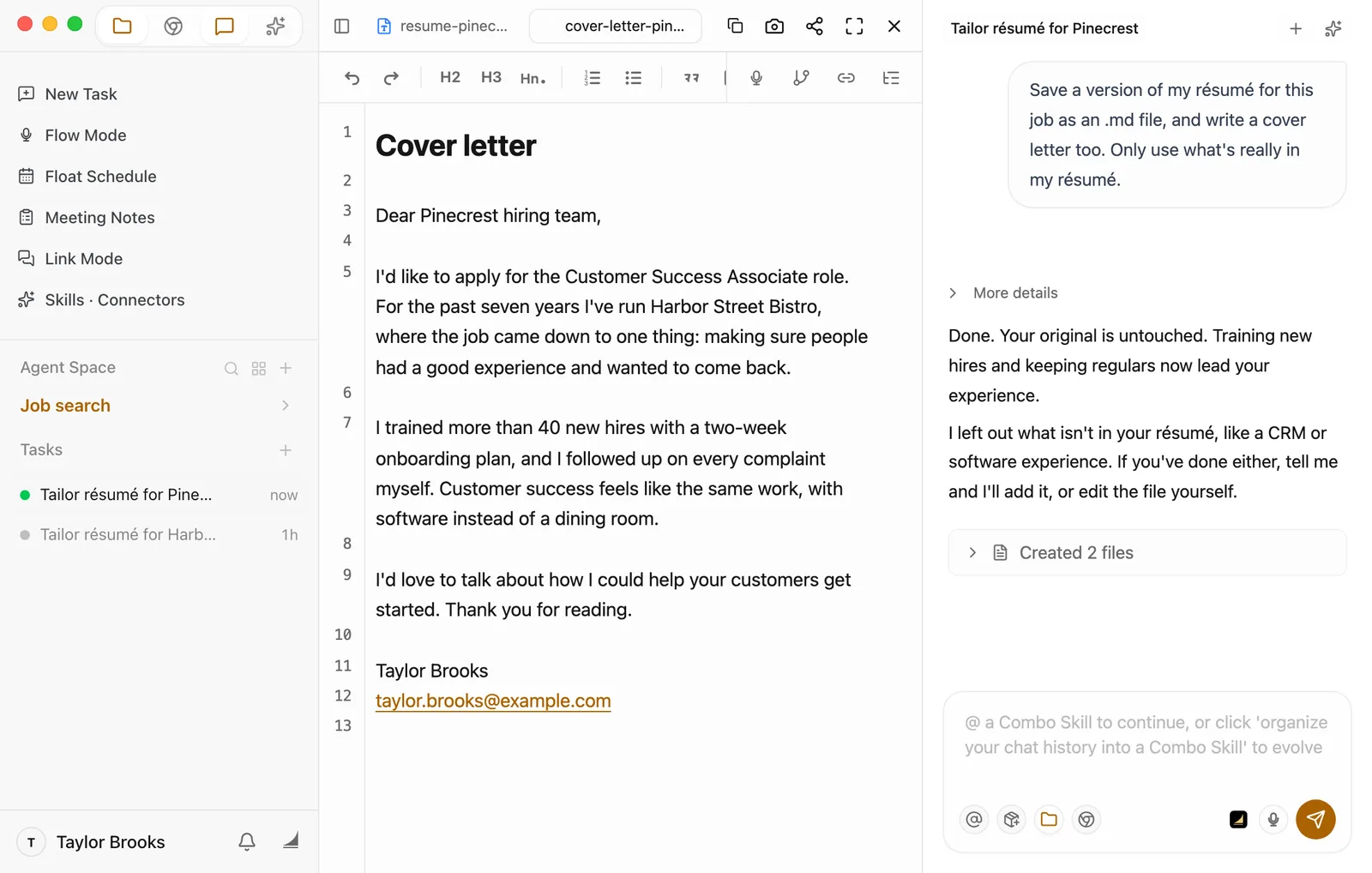
For more about the preview, see View and edit your files.
Before you apply, put it back in your usual format
Most job sites want a Word file or a PDF. The safest way is to copy the edited sections back into your original Word résumé, so your layout stays the way you like it. Floatboat only writes the draft. It doesn't send or post anything for you. Read it over, then send it yourself.
Make it yours
The same steps work for other applications. Swap the page and the file:
- An architect entering a design competition: hand Floatboat the competition brief instead of a job posting, use your portfolio notes instead of a résumé, have it check them against the judging criteria, and then draft the entry statement.
- A nonprofit applying for a grant: hand it the foundation's application guidelines, use your organization's overview and last year's program report, and have it draft the proposal.
- Moving to a new role inside your company: hand it the internal job description (sign in to the intranet in the built-in browser first), and use your latest performance review notes.
You only change three things: the page you hand to Floatboat, the file name in your request, and what you ask it to write at the end.
Save time next time
- Save it as a Combo Skill. A Combo Skill is a saved way of doing a certain kind of job, so Floatboat can do it the same way every time. If this went well, say in the same task: "Save how we did this as a Combo Skill called Tailor my résumé." Floatboat creates the skill and writes the steps in one go. You can also click Organize to Combo Skill below the chat box, then Create, but that skill starts out empty, so follow up with "Write the steps we just followed into this Combo Skill." For the next job, start a task, hand off the posting, and @ the skill. See Save what works as a Combo Skill.
- Put your rules in space memory. In a task in your "Job search" space, say "Remember: only put things I've really done on my résumé, and keep cover letters to one page." Floatboat writes that into AGENTS.md in the folder, and new tasks in this space follow it. See Help Floatboat remember how you work.
- Give a company its own space. If you're applying for several roles at one company, or getting ready for a few rounds of interviews, a space of its own for that company keeps its postings, résumé versions, and interview notes together.
Having trouble?
- There's no green "Let AI continue from this page" bar. A task needs to be open in the chat. Click New Task at the top of the sidebar, then look at the page again.
- The job site wants you to sign in, or the page won't load. Sign in and open the posting yourself in the built-in browser, then click Hand off to AI. If the page fails to load, see Browse and get things done in the built-in browser.
- Your résumé is a PDF. Floatboat reads Word (.docx), Markdown, plain text, and CSV files directly. A PDF or Excel (.xlsx) file isn't plain text, so it runs a short command to pull the text out (or to build a new .xlsx). Unless you've chosen Auto-approve All, a Permission Required panel shows that command first. A scanned PDF may not come through at all. To skip the extra step, save a .docx or CSV copy, or paste the text into a .md file.
- The new résumé has something you didn't do. Delete it in the preview, or tell Floatboat, "Take that line out. I didn't do it." Next time, include "Only use what's really in my résumé" in your request.
- Your original résumé got changed. Right-click the original file in the Files panel, choose View File History, then click Restore Before Version. Asking it to "save a version" keeps this from happening.
What's next
Browse and get things done in the built-in browser
Sign in to job sites in the built-in browser and hand pages to Floatboat.
View and edit your files
Open the new résumé and cover letter in the preview and edit them as you go.
Save what works as a Combo Skill
Save how you tailored this résumé, and use it for your next application.
Prepare next week's lesson and quiz
Put the textbook section and last year's plan in a space, have Floatboat write two lessons and a quiz, check and fix the questions yourself, then add the classes to Float Schedule.
Turn a voice ramble into a finished post
Talk through your idea out loud, then hand the transcript and the notes you saved with Memo to Floatboat. It shapes them into a post with a title and sections that still sounds like you.