
Turn a stack of papers into a literature review
Put your paper PDFs in one folder, have Floatboat read them all into a comparison table, track down the one you're missing, and write a first draft of the review.
Maya is a graduate student in education, with a thesis proposal due next month. Before that, the advisor wants a literature review of the 8 flipped-classroom papers Maya has gathered this term. That used to take a weekend or two: read each paper, copy the key points into a table, then finally start writing.
This page walks through the same job with Floatboat: read the papers, build a comparison table, fill in the paper you don't have, and write a first draft. Setup takes about ten minutes. Most of the remaining time goes into checking the results against the papers yourself.
Check citations and findings yourself
Floatboat can get things wrong when it reads papers. It might copy a number incorrectly, credit one paper's finding to another, or fill in something the paper never says. Treat the table and the draft as a starting point, and check every citation against the original before you hand anything in.
Before you start
- A folder with your paper PDFs, such as "Flipped classroom papers." Floatboat reads Word (.docx), Markdown, plain text, and CSV files directly. A PDF or Excel (.xlsx) file isn't plain text, so it runs a short command to pull the text out (or to build a new .xlsx). Unless you've chosen Auto-approve All, a Permission Required panel shows that command first. A scanned PDF may not come through at all. To skip the extra step, save a .docx or CSV copy, or paste the text into a .md file.
- The citation style your program or advisor wants, such as APA 7th edition.
- Your library sign-in, if you'll be looking things up on your university library's website.
Step by step
Tell Floatboat your citation style first
If every paper you write uses this style, put it in About Me, and every new task follows it without you having to say it again.
Click your name in the bottom-left corner of the sidebar, choose Settings, click Agent Space Memory in the list on the left, and then click Edit About Me. Write a few lines in the note that opens, for example:
I'm a master's student in education. For citations, use APA 7th edition: (Author, Year) in the text and a reference list at the end.
There's no need to save. It saves itself half a second after you stop typing. The change applies from the next new task, which is why this step comes first.
Rules that only apply to this review, like which columns the table needs, fit better in the space's memory. There's an example under "Save time next time" below. To learn more about both, see Help Floatboat remember how you work.
Start a space from your papers folder
An Agent Space (a space, for short) is where Floatboat keeps one piece of work together, with its files and tasks. Here, that's your papers, the table, and the draft.
Press ⌘K (Ctrl+K on Windows), type the folder's name, "Flipped classroom papers," and press Shift+Enter. Floatboat starts a space with the same name, with your PDFs in the Files panel. For the details, and other ways to start a space, see Keep each project in its own Agent Space.
Have Floatboat read every paper and build a comparison table
Type your request in the chat box on the right. Name the columns you want:
Read each paper in this folder and make a comparison table: author, year, method, sample, main findings.
Once you send it, Floatboat says how it plans to go about it, then reads the PDFs one at a time. When it's done, it writes the table into a new file, and comparison-table.md shows up in the Files panel. More papers, or longer ones, take longer, so feel free to do something else in the meantime.
PDFs aren't plain text, so Floatboat runs a short command to pull the text out of each one. With the default settings, a Permission Required panel shows each command first. Click Approve. With the default Ask Every Time setting, Floatboat also stops before writing a file and shows a Permission Required panel. Check the file name in the step above it, then click Approve. The clip skips the approval steps for reading the PDFs and writing the file to keep it short. To learn how to read the panel, see Work on a task with Floatboat.
Read the final reply carefully. Floatboat points out what it isn't sure about. Here, one paper gives no sample size, and several papers cite a meta-analysis that isn't in the folder.
Open the table and check it against the papers
Double-click comparison-table.md in the Files panel to open it in the preview.
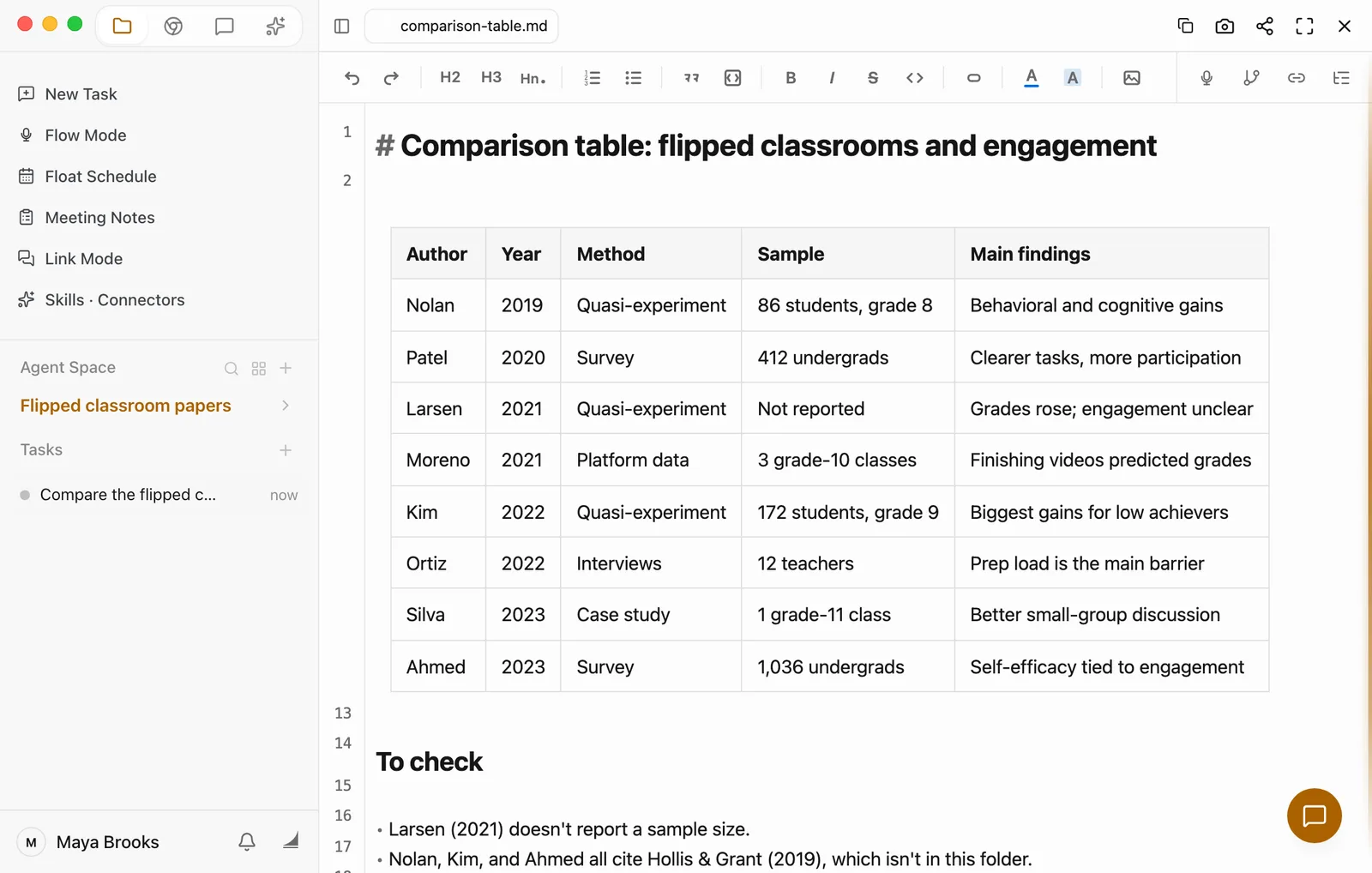
Spot-check a few rows against the papers. Authors, years, and sample sizes are where mistakes creep in most. If something's off, edit it right in the preview, and it saves itself half a second after you stop typing. Or tell Floatboat, for example, "The sample for Larsen is three grade-8 classes. Please fix that row." For more on the preview, see View and edit your files.
Find the missing paper in the built-in browser
For a paper you don't have, Floatboat can look it up on your library's website. In the same task, include the site's address so it knows where to look:
Look up the Hollis & Grant (2019) meta-analysis on library.example.edu. Add its journal and abstract to the table, marked "abstract only."
Use your own library's address in place of library.example.edu. Floatboat opens the page in its built-in browser, reads what's there, and adds the paper to the table. To watch what it's doing, click the browser icon at the top of the sidebar.
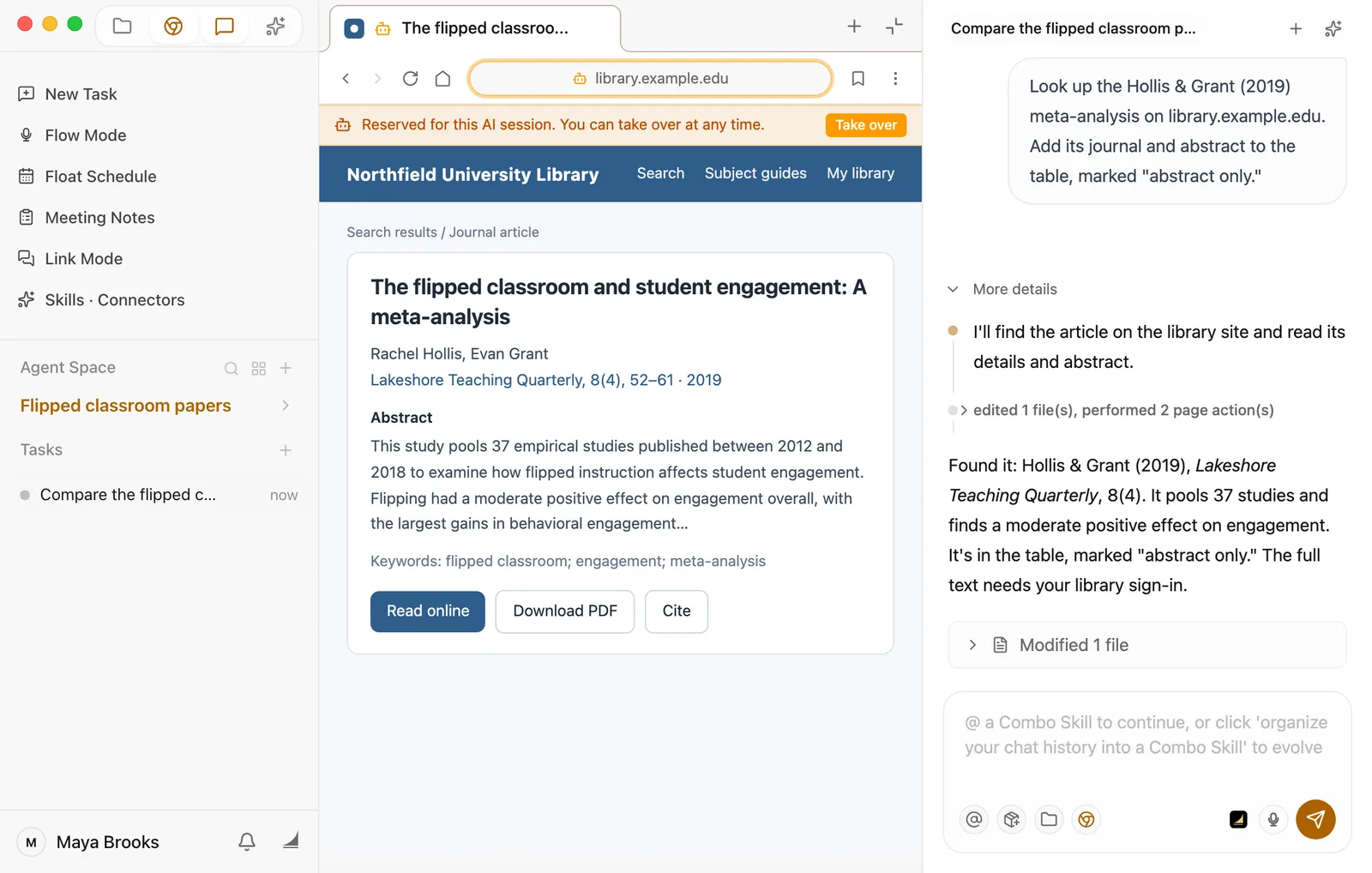
If the library site asks you to sign in, sign in yourself once in the built-in browser. Floatboat can then use the site too, and you never hand over your password. See Browse and get things done in the built-in browser.
Be careful citing a paper you've only seen the abstract of. If you can download the full text, put it in this folder and have Floatboat read that paper again.
Write the first draft
Once you've checked the table, have Floatboat start writing. In the same task, say:
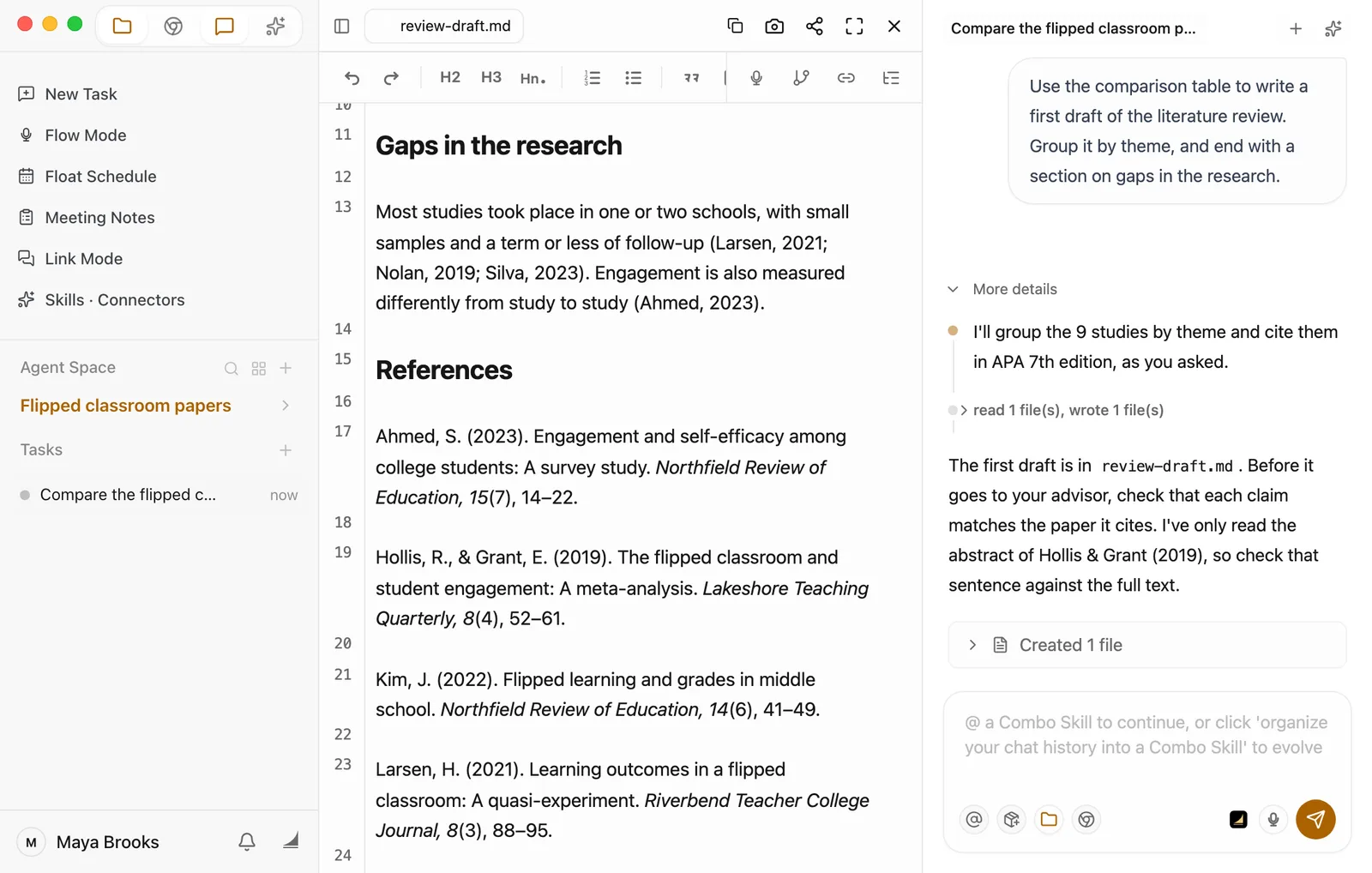
Use the comparison table to write a first draft of the literature review. Group it by theme, and end with a section on gaps in the research.
Floatboat groups the papers by theme, writes review-draft.md, and cites them in APA 7th edition, as you asked in About Me. Its reply tells you what needs checking.
Before it goes to your advisor
Go through the citations one by one. Make sure each paper really says what the draft claims. For the paper you've only seen the abstract of, read the full text before deciding how to cite it.
Not happy with the draft? Keep going in the chat, for example, "The second section is too thin. Say more about Moreno and Kim," or "Open each section with a one-sentence summary." You can also edit it right in the preview.
Make it yours
The same approach works for other jobs. Swap the folder and the column headings:
- An undergrad writing a term paper: the instructor assigned 5 required readings. Use columns like "main argument, where I agree or disagree, quotes worth citing (with page numbers)," and ask for an outline of a response paper at the end.
- A market researcher: fill the folder with industry reports. Use columns like "publisher, date, market size, data source," and finish with a one-page summary for your manager. Ask Floatboat to note which report every number comes from.
- A paralegal reviewing court decisions: use columns like "case number, issue, court's reasoning, outcome," and finish with a memo comparing similar cases.
There are only three things to change: which files go in the folder, which columns the table has, and what you want written at the end.
Save time next time
- Save your review rules to the space's memory. In this space, say: "Remember: for literature reviews, the comparison table always has author, year, method, sample, and main findings. Mark anything a paper doesn't give as 'not reported,' and anything I've only seen the abstract of as 'abstract only.'" Floatboat writes this into AGENTS.md in the folder, and new tasks in this space follow it. See Help Floatboat remember how you work.
- Save it as a Combo Skill for the next batch. A Combo Skill is a saved way of doing a certain kind of job, so Floatboat can do it the same way every time. In this task, say "Save how we did this as a Combo Skill called Literature review." Floatboat creates the skill and writes the steps in. You can also click Organize to Combo Skill below the chat box, then Create. A skill made that way starts empty, so follow up with "Write the steps we just followed into this Combo Skill." Next time you have a new batch of papers, @ the skill in a new task and say where this batch's folder is. See Save what works as a Combo Skill.
- Keep adding new papers. Drop newly downloaded PDFs into the same folder, go back to this task, and say "I added 3 papers to the folder. Read them and add them to the table."
Having trouble?
- One paper's row is nearly empty or clearly wrong. A scanned PDF may not come through at all. Save a .docx or CSV copy, or paste the text into a .md file, put it in the folder, and then say "Read the Larsen paper again and fix its row in the table."
- You have dozens of papers. Work in batches. Start with "Read the first 10 papers and put them in the table," and when that's done, "Read the next batch and add them to the same table."
- The draft uses the wrong citation style. About Me only applies to tasks started after you change it. Tell Floatboat in this task, "Use APA 7th edition for the citations," or start a new task and try again.
- The library site wants you to sign in or enter a code. That part is up to you. Sign in in the built-in browser first, then ask Floatboat to look things up. If Floatboat is already on that page, click Take over on the orange bar, sort it out, and then click Return to AI.
- Floatboat says it can't find the papers. Check that the Files panel has your papers folder open. You can also name the folder in your request.
What's next
Work on a task with Floatboat
Start a task, follow along as Floatboat works, and step in when it asks for your OK.
Browse and get things done in the built-in browser
Sign in to sites in the built-in browser and let Floatboat look things up for you.
Help Floatboat remember how you work
Use About Me and space memory so you only explain rules like your citation style once.
Turn logged hours into an invoice and an email
Check your hours log, then have Floatboat price it with your rate card, write an invoice, and draft the email to your client. You check the numbers and send the email yourself.
Prepare next week's lesson and quiz
Put the textbook section and last year's plan in a space, have Floatboat write two lessons and a quiz, check and fix the questions yourself, then add the classes to Float Schedule.