
Turn logged hours into an invoice and an email
Check your hours log, then have Floatboat price it with your rate card, write an invoice, and draft the email to your client. You check the numbers and send the email yourself.
Leo is a freelance designer who just finished a menu and packaging job for Juniper Coffee. Every day's hours went into an hours log. Now it's time to price them with the rate card, put together an invoice, and write to Dana, the client contact.
This page follows Leo through it. You'll look over the hours log in Floatboat and fix a number that was logged wrong, ask Floatboat to total it up and write the invoice and an email draft, then check the numbers yourself and send the email. Plan on about ten minutes.
Before you start
-
Your hours log: what you worked on each day and for how long. A CSV exported from your time tracker is easiest, such as "hours-log.csv," one row per entry: date, project, task, hours, note.
-
Your rate card: how you charge for each kind of work, in any document, such as "rate-card.md": concepts at $75 an hour, design at $95 an hour, the first two rounds of revisions free and $75 an hour after that.
-
Both files in the same folder on your computer, such as "Juniper Coffee."
-
Optional, but handy: your currency and payment terms. If they're the same on every invoice, put them in About Me. Floatboat reads it in every new task, so you don't have to repeat yourself. Click your name at the bottom left of the sidebar, choose Settings, go to Agent Space Memory, click Edit About Me, and add something like:
I'm a freelance designer. I bill in US dollars. Payment is due within 14 days, and I send final files once it clears.
If you skip this, add your payment terms to the request below instead. There's more on About Me in Help Floatboat remember how you work.
Step by step
Give this project a space
An Agent Space (a space, for short) is where Floatboat keeps one piece of work together, with its files and tasks.
If the folder is already on your computer, the quickest way is to start the space right from it. See Keep each project in its own Agent Space.
Look over the hours log first
Floatboat prices whatever is in the log. If one number is off, the invoice is off too, so give it a quick read yourself.
Double-click "hours-log.csv" in the Files panel to open it in the preview. Say you spot a problem right away: on October 8, you put in two more hours of packaging design that evening and never logged them. The log still says 4.
To fix a number, double-click the cell, type the new value, and press Return (Enter on Windows).
Spreadsheets don't save on their own. Press ⌘S (Ctrl+S on Windows), or point at the tabs at the top of the preview and click Save on the right of the bar that appears. Until you do, that bar shows an orange Unsaved, and Floatboat will still read the old number. For more on editing spreadsheets, see View and edit your files.
Start a task and say what you need
Click New Task at the top of the sidebar, type your request in the chat box, and press Enter:
Use rate-card.md to price hours-log.csv. Make an invoice and draft an email to Dana.
A few tips:
- Use the exact file names. Write them the way they appear in the folder, and Floatboat will find them in this space.
- Say who the email is for. Put in the person's name, and the draft will greet them properly.
- If you skipped About Me, add your payment terms to the request, such as "Payment is due within 14 days."
Floatboat tells you how it plans to go about it, then reads both files.
Approve when it's ready to write
With the default Ask Every Time setting, Floatboat stops before writing a file and shows a Permission Required panel. Check the file name in the step above it, then click Approve. This job writes two files, so it asks twice: once for the invoice and once for the email draft.
To see the full path, click Details and Command Preview.
Leave Remember unchecked here. If you check it, Floatboat stops asking before writing files in every task. For what each button in the panel does, see Work on a task with Floatboat. To change how often Floatboat asks, see Decide what Floatboat can do on its own.
Open the invoice and check the math yourself
Click Created 2 files, then Open next to "invoice.md." The invoice opens in the preview, with the chat still on the right.
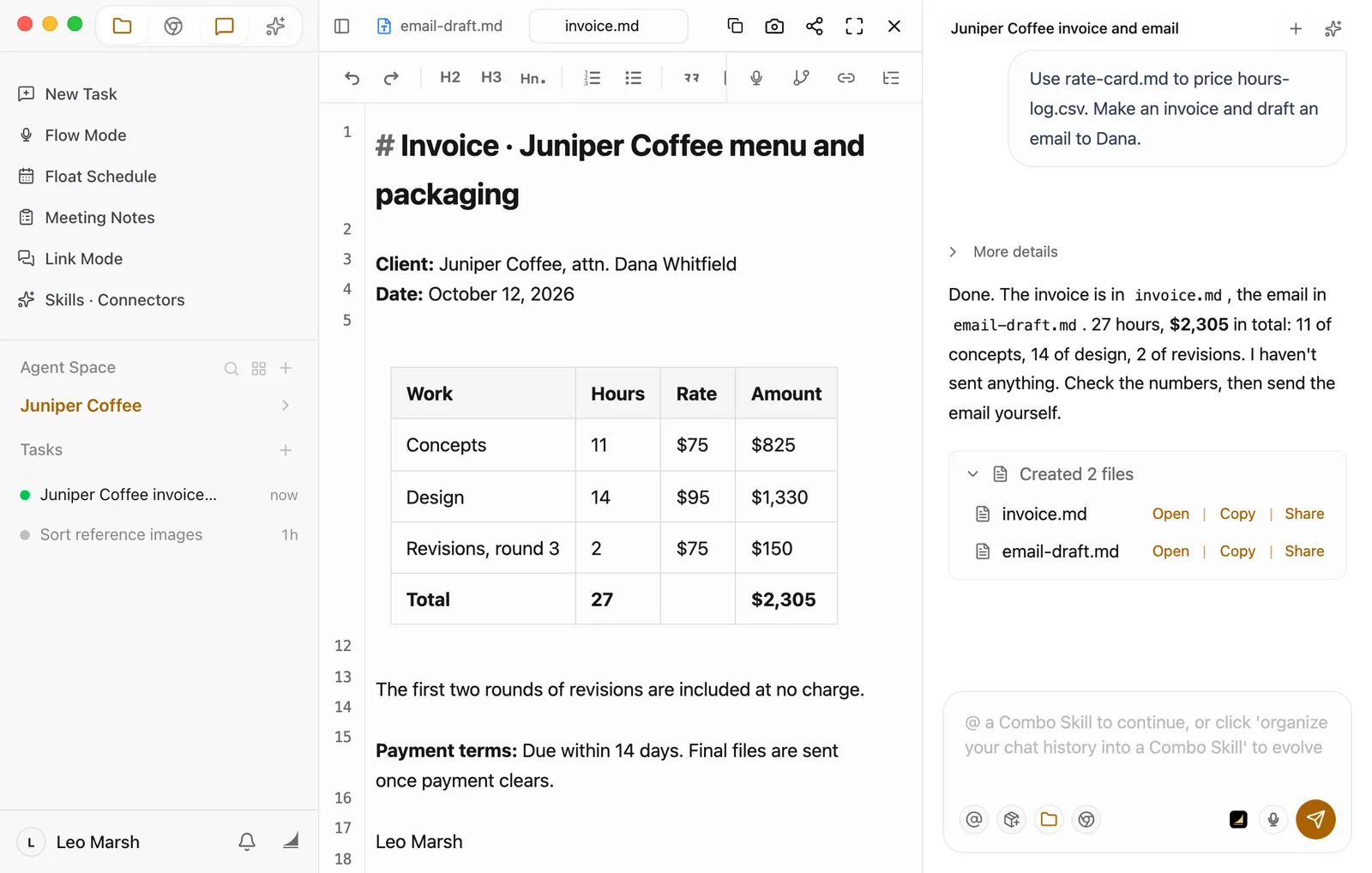
Do the math yourself before it goes out
With the hours log and rate card next to you, check three things:
- The hours add up. Concepts are 6 hours for the menu plus 5 for the packaging, so 11. Design is 8 plus 6, so 14.
- The right rates are used. Watch the free parts especially. The first two rounds of revisions shouldn't be on the bill.
- The math and the total. 11 × 75, 14 × 95, and 2 × 75 should come to $2,305.
If something's off, tell Floatboat in the same task. For example:
Only bill the 2 hours for the third round of revisions. The first two rounds are free. Update the invoice and the email.
For small fixes, click into the invoice and edit it yourself. It saves itself about half a second after you stop typing.
Read the email draft and send it yourself
Click the "email-draft.md" tab at the top of the preview. The draft already has a subject line, the breakdown, the total, and your payment terms, and it's signed with your name.
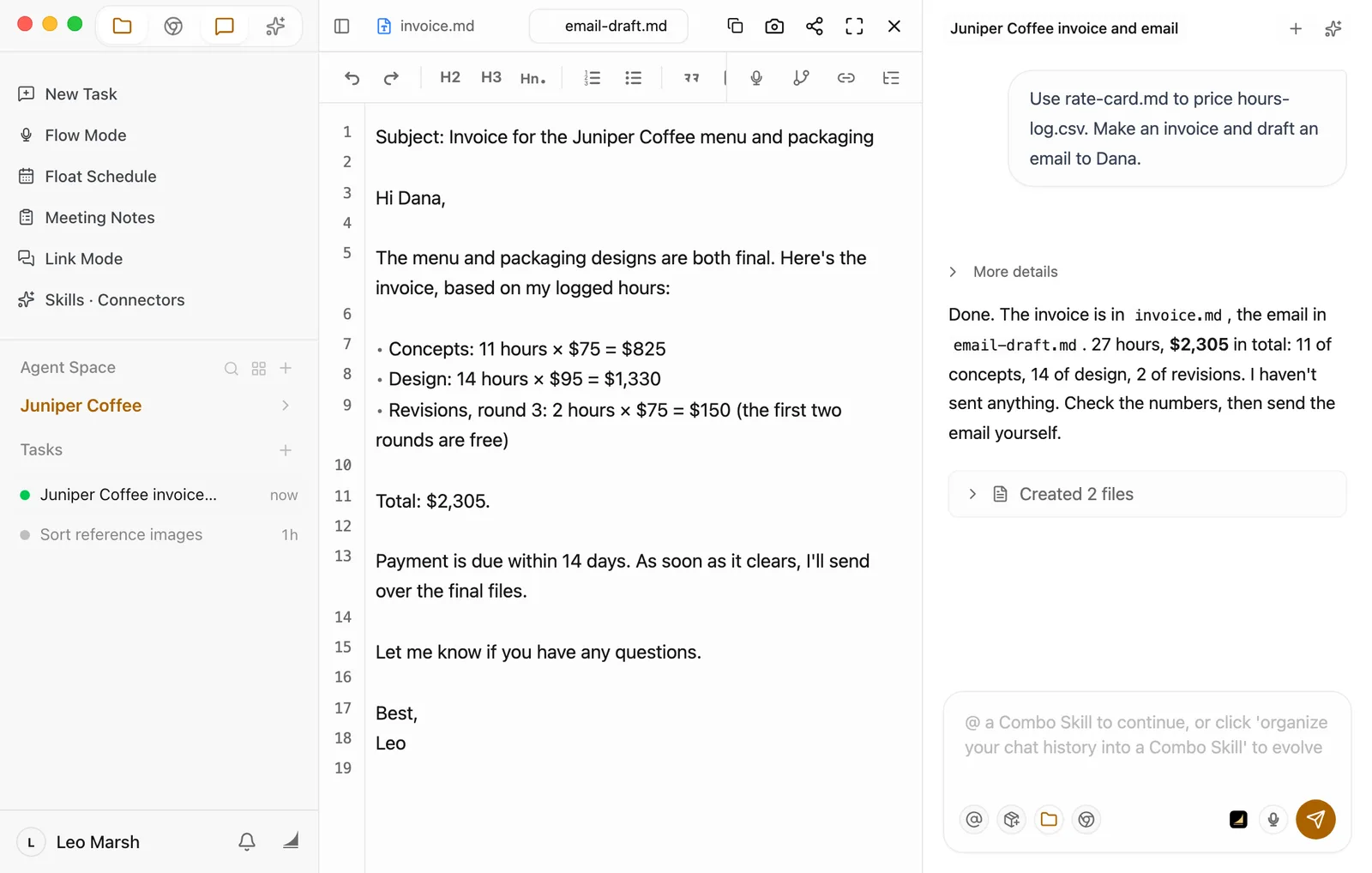
Want to change the tone or the greeting? Click in and edit. When you're happy with it, click into the text, press ⌘A to select it all and ⌘C to copy (Ctrl+A and Ctrl+C on Windows), and paste it into your usual email app. Add the recipient.
Floatboat only writes the draft. It doesn't send or post anything for you. Read it over, then send it yourself.
Keep the invoice file for your records. If the client needs a formal invoice document, copy its contents into the invoice template you normally use.
Make it yours
The same steps work for any job you bill by the hour, the session, or the piece. Swap in a few things:
- A freelance translator billing by the word: put the word counts for each document and your per-word rate in the space. Ask: "Price these three documents using my per-word rate, make an invoice, and draft an email to the editor."
- A voice-over artist billing by the finished minute: put the running time of each recording and your per-minute rate in the space. Ask: "Use my per-minute rate to total this month's recordings, make an invoice, and draft an email to the producer."
- A pet sitter billing by the visit: put the dates of your visits and your price per visit in the space. Ask: "Total my visits over the holiday weekend, make an invoice, and draft a message to the cat's owner."
There are three things to change: the log and rates in the space, the unit you bill by (hours, words, minutes, visits), and who it's going to.
Save time next time
-
Save it as a Combo Skill. A Combo Skill is a saved way of doing a certain kind of job, so Floatboat can do it the same way every time. When this one turns out right, say in the same task: "Save how we did this as a Combo Skill called 'Invoice from hours log'." Floatboat creates the skill and writes the steps into it. You can also click Organize to Combo Skill below the chat box, but the skill it creates starts out empty, so follow up with "Write the steps we just followed into this Combo Skill." Next time, type @ in the chat box, pick it, and add something like "This one's the bookshop poster. The email goes to Sam." See Save what works as a Combo Skill.
-
Keep this client's rules in the space. For rules that only apply to this client, such as the company's full name at the top of every invoice, say in a task in this space: "Remember: Juniper Coffee invoices are addressed to Juniper Coffee Roasters LLC." Floatboat writes it into AGENTS.md in this folder, and new tasks in this space follow it. Things that are the same for every client, like your currency and payment terms, belong in About Me. See Help Floatboat remember how you work.
-
Have the drafts waiting for you each month. In Float Schedule, create an event such as "Send invoices" on the 1st of each month, and set Repeat Rule to Monthly on day 1. Click Prepare with Agent, put the request from above into Instruction For The Agent, and set How Far Should Agent Go to Materials only. When the time comes, Floatboat has the drafts ready, and you check them before sending as usual. Three things to know:
- Floatboat needs to be open (the background is fine). If it wasn't open at the start time, it runs the missed one as soon as you open it.
- It won't stop to wait for Approve. It stays within what How Far Should Agent Go allows.
- What it writes goes into the space's Auto Prep folder. The reply in the task the Task complete notification opens says exactly where.
Having trouble?
- The hours on the invoice don't match the log. You probably didn't click Save after editing the log, so Floatboat read the old numbers. Save it, then say in the same task: "I updated the hours log. Redo the invoice and email with the new numbers."
- My hours log is an Excel file (.xlsx). Floatboat reads Word (.docx), Markdown, plain text, and CSV files directly. A PDF or Excel (.xlsx) file isn't plain text, so it runs a short command to pull the text out (or to build a new .xlsx). Unless you've chosen Auto-approve All, a Permission Required panel shows that command first. To skip the extra step, save a CSV copy of the log from your spreadsheet app. When Prepare with Agent makes the drafts for you, it can't run commands at all, so the log has to be a CSV.
- My log has durations like "1:30." Spell it out in your request, such as "1:30 in the hours log means an hour and a half," so nothing gets miscounted.
- It wrote the files without showing Permission Required. Your Permissions setting may not be Ask Every Time, or you may have checked Remember for writing files at some point. To have it check with you every time, see Decide what Floatboat can do on its own.
- The currency or payment terms are wrong. Check that About Me is up to date. After you change it, start a new task to pick up the change.
What's next
View and edit your files
Open spreadsheets and documents in the preview, save your edits, or hand them to Floatboat.
Decide what Floatboat can do on its own
Choose whether Floatboat checks with you before writing files or running commands.
Help Floatboat remember how you work
Put things that never change, like your currency and payment terms, in About Me.
Clean up a sign-up sheet and send the notice
Hand Floatboat a messy form export. It removes duplicates, makes the answers consistent, flags what's missing, saves a clean copy, and drafts the notice and reminders.
Turn a stack of papers into a literature review
Put your paper PDFs in one folder, have Floatboat read them all into a comparison table, track down the one you're missing, and write a first draft of the review.