
Get the week in order every Monday
Hand Floatboat the to-dos you saved during the week and your calendar. On Monday morning it lays out the three things that matter most, blocks of time for your own work, and a weekly plan for your team. Make it a weekly event, and from then on the draft is waiting for you.
Jordan Lee leads a marketing team of five. Every Monday morning, Jordan has to get the week straight: what matters most, when there's time for heads-down work, and what to tell the team. That used to mean an hour of scrolling back through chat, staring at the calendar, and writing it all up.
This page follows Jordan through it. During the week, you save stray to-dos into one folder with Memo. On Monday, Floatboat drafts the week, and once you've looked it over, it puts your work blocks on the calendar. Then you turn the whole thing into a weekly event. The first time takes about twenty minutes. After that, Monday is a few minutes of reading and tweaking.
Before you start
- A space for weekly planning: An Agent Space (a space, for short) is where Floatboat keeps one piece of work together, with its files and tasks. Create one called "Weekly planning", and add a folder called "Inbox" inside its folder. See Keep each project in its own Agent Space.
- Your work calendar in Float Schedule: Lark or Feishu, the Mac Calendar app, or a subscription link all work. Floatboat plans around those meetings. See Plan your days with Float Schedule.
- Optional, a "who does what" file: put a short file in the space's folder, one line per person, saying what each person owns. Floatboat uses it to send the right job to the right person.
Step by step
During the week: drop to-dos into Inbox
To-dos and ideas turn up all week. Your manager mentions something in a channel, a teammate names a deadline, you spot a competitor's ad, an idea hits you on Sunday night. When it happens, copy it (or take a screenshot), click the Floatboat icon in your Mac's menu bar, and save it to Inbox.
The first time, Inbox isn't in the row of folders yet. Click Select Other at the end and find it. After that, it shows up in the row, so it's one click. There's more in Keep snippets at hand with Memo.
Say these four things were saved last week:
- From Dana in a channel: add a slide on repeat customers to Friday's review, compared with last year.
- From Sam: the landing page copy needs to be final by Wednesday so design can start Thursday.
- A screenshot of a competitor's holiday pre-sale ad.
- A Sunday-night idea: cut the weekly meeting to 30 minutes and post updates in the channel instead.
Memo is Mac only for now. On Windows, keep a plain text file in Inbox and jot things down there. It works just as well.
Monday morning: ask Floatboat to plan the week
Switch to the Weekly planning space, click New Task at the top of the sidebar, and say what you want in the chat box. For example:
Look through what I saved in Inbox last week and my calendar for this week. List the three things that matter most, block out time between meetings for my own work, and write a short weekly plan I can send the team.
Floatboat reads your notes in Inbox (screenshots too) and the team file, then checks your calendar for the week. That step shows up as calendar_use. It writes the plan to a file, like week-42-plan.md. With the default Ask Every Time setting, Floatboat stops before writing a file and shows a Permission Required panel. Check the file name in the step above it, then click Approve. The clip skips the approval step to keep it short. There's more on the panel in Work on a task with Floatboat.
You'll get a plan that fits better if your request covers three things: what to look at (Inbox, your calendar), what you want back (three priorities, time blocks, a note for the team), and any rules you care about ("no block longer than two hours," "keep Friday afternoon free").
Read it over, then have Floatboat add the time blocks
Click week-42-plan.md in the Files panel to open it. If something's off, tell Floatboat: "Move the monthly review to the top," or "I'm seeing a client Tuesday morning, so leave that free." In this plan, the 30-minute meeting idea sits under "Your call" instead of going straight into the team note. If you want that kind of thing flagged for you, say so in your request: "Ask me about anything you're unsure of."
When it looks right, say:
Yes, add those three blocks to my calendar.
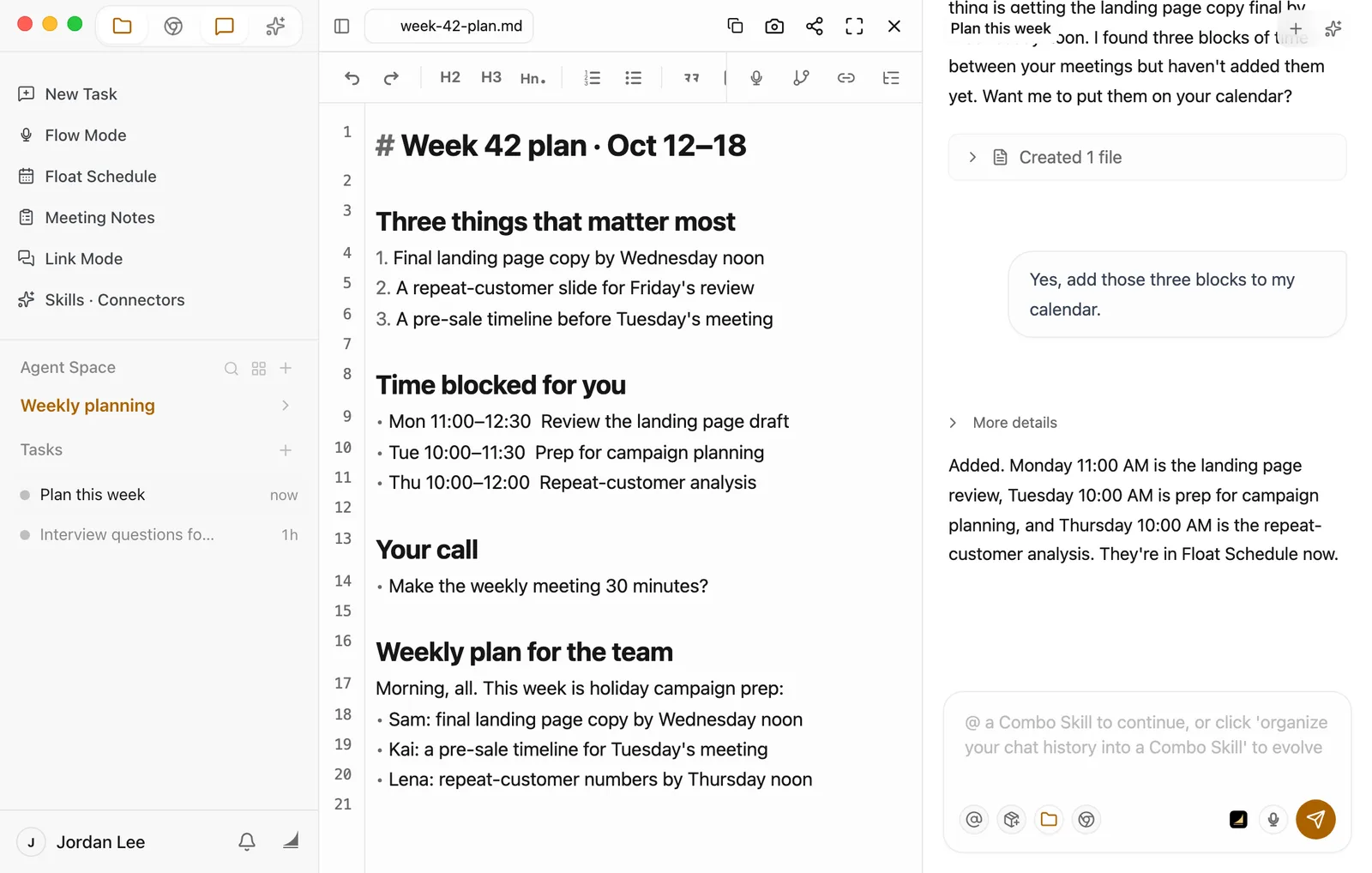
Checking first means nothing lands on your calendar that you didn't agree to. Floatboat adds the three blocks to Float Schedule one by one. Open Float Schedule in Week view and you'll see them sitting between your meetings.
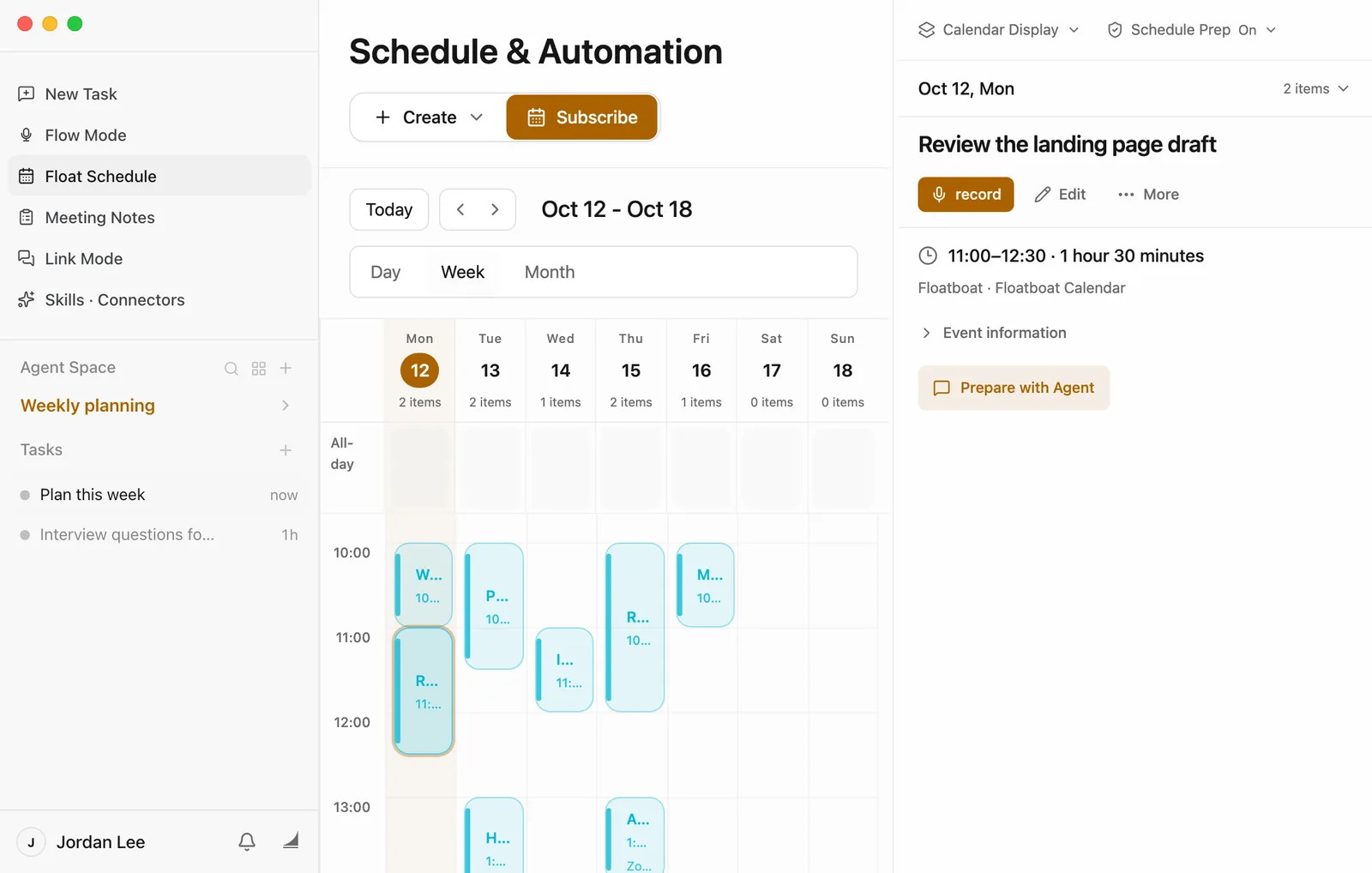
The events Floatboat adds go into Float Schedule's own calendar (the details say Floatboat Calendar). Meetings that come from Lark, Feishu, or a subscription link are read-only for it.
Send the team note
Floatboat only writes the draft. It doesn't send or post anything for you. Read it over, then send it yourself: in the open file, select the lines under "Weekly plan for the team", copy them, and paste them into your team channel. Want a different tone? Ask first, for example "Make the team note a bit more casual," then copy the new version.
Make it a Monday event
You only do this once. After that, the week's draft is ready before you sit down on Monday.
-
Go back to Float Schedule and choose Create › Set up manually.
-
Name it "Plan the week" and set the time to Monday morning, whenever you'd like to read the plan.
-
Click the button next to Repeat Rule (it says Does not repeat) and choose Weekly on Mon.
-
Click Prepare with Agent at the bottom left, and write this in Instruction For The Agent:
Go through what's new in Inbox and this week's calendar. Draft the weekly plan like last week's. Don't add events yet.
-
Set Agent Space to Weekly planning. Set How Far Should Agent Go to Draft actions too. Floatboat drafts the plan and the time blocks, and with "Don't add events yet" in the instruction, nothing goes on your calendar until you've read it.
-
Leave Start Timing at 1 hour before the start, then click Create Schedule.
For what the other options mean, see the section on getting Floatboat ready before an event in Plan your days with Float Schedule.
Make it yours
The same routine works for other kinds of work. Change three things: what goes into Inbox, what you ask for, and when the weekly event happens.
- A restaurant manager planning shifts: save staff time-off messages and supplier delivery notices. Ask for "this week's shifts day by day, the days we're short-handed, and a shift note for the staff group chat."
- An editor lining up the week's stories: save writers' filing dates and story ideas that come up. Ask for "what runs this week and when each piece is due, time blocked for my own editing, and a reminder for the writers."
- A personal trainer filling the week: save clients' booking and rescheduling messages. Ask for "this week's sessions fitted into open slots, the times still open, and a schedule to send clients." Put the weekly event on Sunday evening.
Save time next time
-
Monday morning, the draft is already there. When the start time comes, Floatboat gets to work on its own and sends a Task complete notification when it's done. Click the notification to see the plan, read it over, and reply in the same task: "Looks good, add the time blocks." Then copy out the team note. A few minutes, start to finish. Three things to know about getting things ready ahead of time:
- Floatboat needs to be open (the background is fine). If it wasn't open at the start time, it runs the missed one as soon as you open it.
- It won't stop to wait for Approve. It stays within what How Far Should Agent Go allows.
- What it writes goes into the space's Auto Prep folder. The reply in the task the Task complete notification opens says exactly where.
There's more in Plan your days with Float Schedule.
-
Have Floatboat remember the format. In the Weekly planning space, tell Floatboat:
Remember: save each weekly plan as week-number-plan.md. Put the three priorities first, then the time blocks, and give each person one line in the team note.
It writes this into the space's AGENTS.md, and new tasks in this space follow it. See Help Floatboat remember how you work.
-
Save it as a Combo Skill. A Combo Skill is a saved way of doing a certain kind of job, so Floatboat can do it the same way every time. If you'd like to plan another team's week the same way, go to the task where the plan came out right and say "Save how we did this as a Combo Skill called Plan the week." You can also click Organize to Combo Skill under the chat box, then Create, but the skill it makes starts empty, so follow up with "Write the steps we just followed into this Combo Skill." Once it's saved, you can pick it under Combo Skills in the Prepare with Agent window too. See Save what works as a Combo Skill.
Having trouble?
- A time block landed on top of a meeting. Check that the meeting is in Float Schedule. Click Calendar Display at the top right and make sure its calendar is ticked. If you added the meeting somewhere else just now, click Refresh, wait for it to show up, and ask Floatboat to plan again.
- Floatboat says Inbox is empty. Open Inbox in the Files panel and check that this week's files are there. If not, Memo may have saved them to its default memo folder (
floatboat/memoin your home folder). Move them into Inbox. - The time blocks don't show up in Lark or my other calendar. Floatboat adds them to Float Schedule only. They aren't written back to Lark, Feishu, or calendars you subscribed to.
- No Task complete notification on Monday. Floatboat needs to be open (the background is fine). If it wasn't open at the start time, it runs the missed one as soon as you open it. If it was open and nothing happened, click the Plan the week event, click Edit Task, and check that Current Status is Enabled. To run it right away, click Run Now. For other reminder and prep questions, see Plan your days with Float Schedule.
What's next
Plan your days with Float Schedule
Bring in your calendars, add events, and have Floatboat get ready before them.
Keep snippets at hand with Memo
Copy some text or grab a screenshot, and save it to the folder you choose.
Help Floatboat remember how you work
Write your weekly plan format into the space's memory so you don't repeat it.
Get ready for tomorrow's client meeting
Have Floatboat read the client's latest news, your notes from the last visit, and the quote, then write a one-page meeting outline with the questions you're likely to get. Before you head out in the morning, it can go over the outline with you once more.
Research what others post and plan a week of content
Have Floatboat look through a few public accounts and sum up what works, plan the week's posts in a table you can adjust, write each post, and put the publish times on your calendar.